How To Generate KYC Report In Compliance Planet Anti Money Laundering/Core Banking Finance Software

The compliance planet allows you to manually schedule your ADRAPS KYC report ahead of time and download them when they are completely processed. Here is how to do this.

NOTE; Only person(s) assigned right to ‘Process KYC report’  can carry out this operation

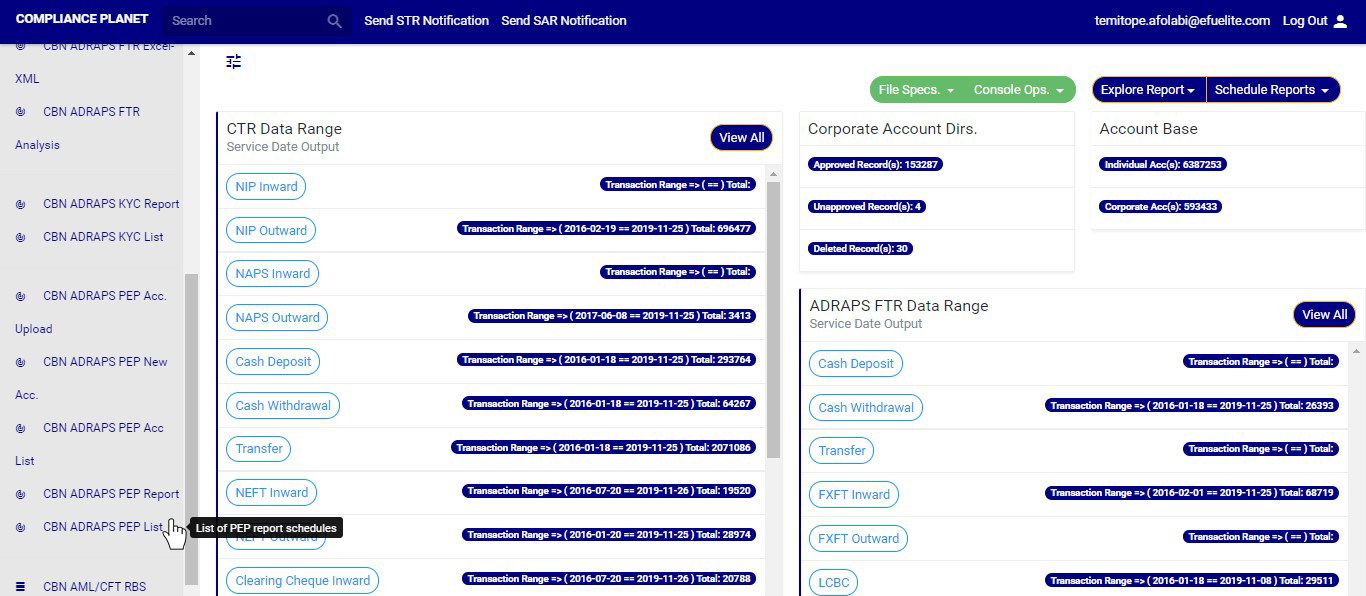
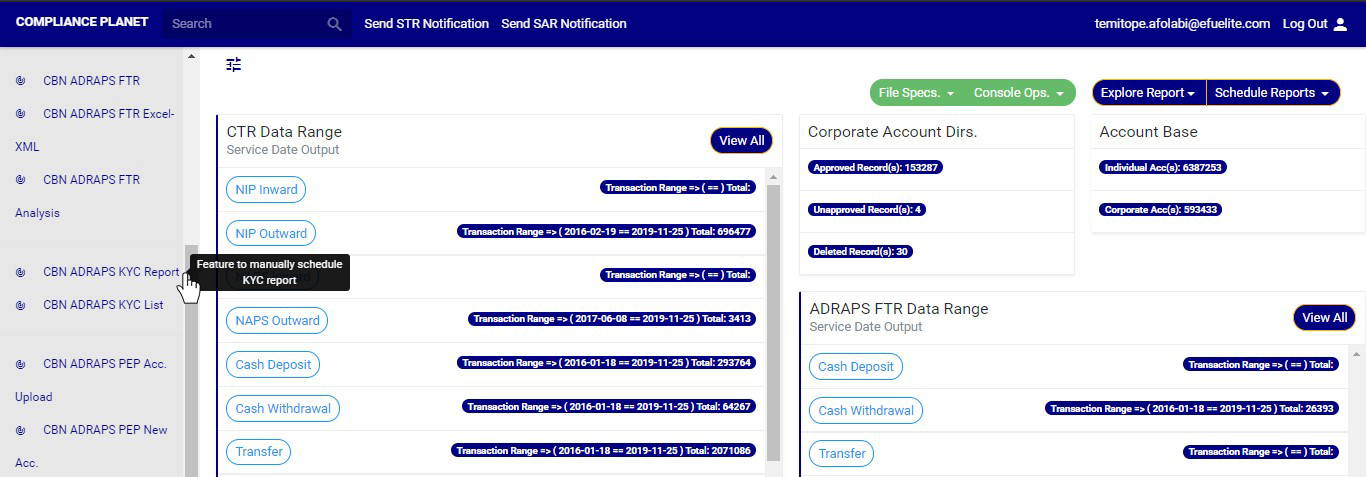
STEP 1: From the left hand side menu, click on CBN ADRAPS KYC Report. As in fig. 5.3a below.

(fig. 5.3a)

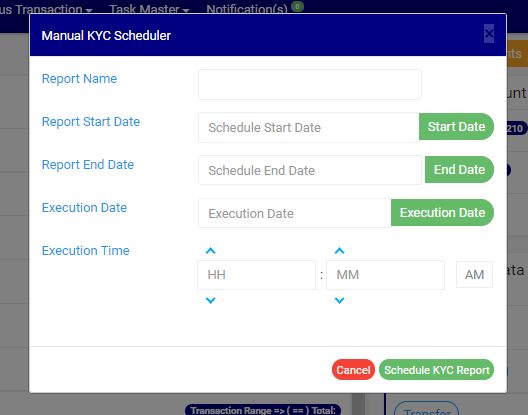
➔ By clicking on ‘CBN ADRAPS KYC REPORT’, a Manual KYC Scheduler console as in fig. 5.3b below will be displayed.

(fig. 5.3b)

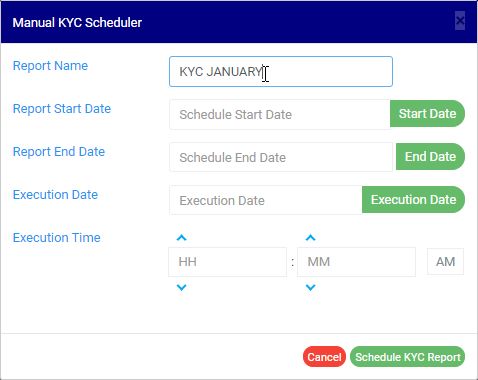
STEP 2: Fill in the name of your report in the REPORT NAME box. The report name should be any title of your choice for easy identification. See fig. 5.3c for an example.

(fig. 5.3c)

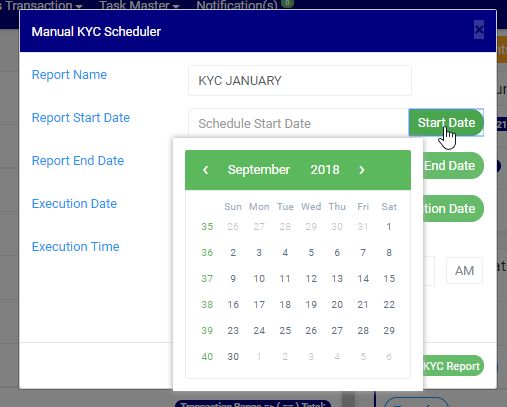
STEP 3: Click on the REPORT START DATE button to select the date that begins the period for which you want to generate an ADRAPS KYC report from a calendar as shown in fig. 5.3d.

(fig. 5.3d)

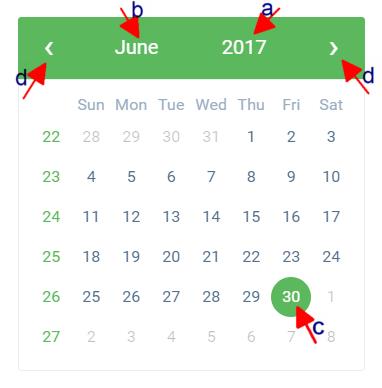
➔ Take a look at the arrows labelled a to d in fig. 5.3e to study the calendar.

a. Click on the given year to change it to your year of choice.

b. Click on the given month to change it to your month of choice.

c. Then, click on the date of the month.

d. You can also click on the angle brackets on the calendar [ ‘’ ] to go backward or forward.

(fig. 5.3e)

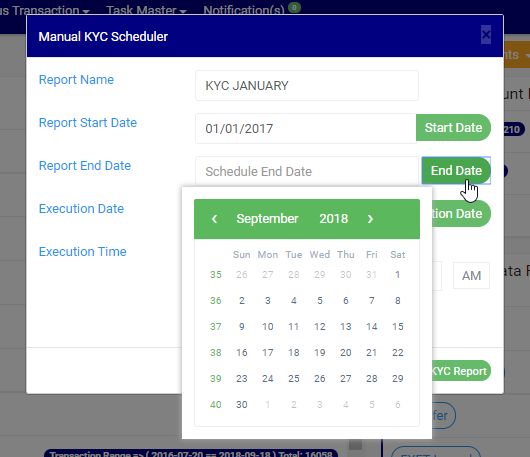
STEP 4: Click on the REPORT END DATE button to select the date ending the period for which you want to generate an ADRAPS KYC report from a calendar as shown in fig. 5.3f. The calendar works like the one in fig. 5.3e above.

(fig. 5.3f)

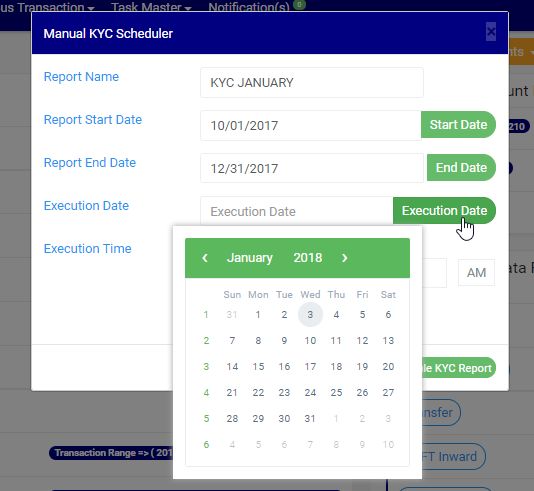
STEP 5: Click on the EXECUTION DATE button to select the date you want your ADRAPS KYC report to be processed, from a calendar as shown in fig. 5.3g. The calendar also works like the one in fig. 5.3e above.

(fig. 5.3g)

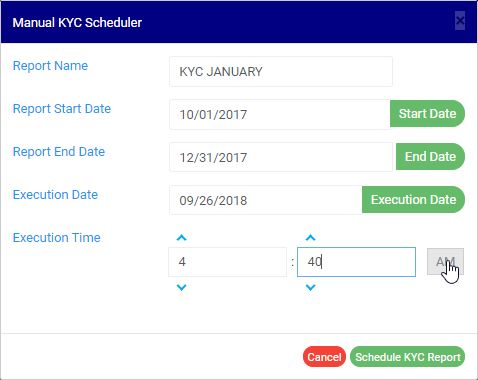
STEP 5: Set your report’s EXECUTION TIME by filling in the ‘hour’ and the ‘minute’ you want the report to be processed. There’s a button next to the hour and minute boxes used for switching between AM and PM. See an example in fig. 5.3h.

(fig. 5.3h)

STEP 6: Click on ‘SCHEDULE KYC REPORT’ to create your report or CANCEL to close the console. These buttons are at the bottom-right corner of the console. See them in fig. 5.3h above.

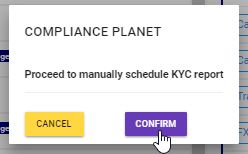
  • Clicking the ‘SCHEDULE KYC REPORT’ displays a confirmation console as in fig 5.3i below click on ‘CONFIRM’ to proceed with your operation to schedule the report or ‘CANCEL’ to go back to the scheduler.

(fig. 5.3i)

For further enquiries : 
Tel +234(0) 816 555 9818
Email solutions@efuelite.com 

PEP Repository Listing In Compliance Planet Anti Money Laundering/Core Banking Finance Software

The compliance planet keeps a record list of all PEP reports that have been manually scheduled. In this section, you will learn how to find your scheduled PEP report and some other features to give you the best experience.

NOTE: Only person(s) assigned right to ‘View PEP report’ can carry out this operation

STEP 1: From the left hand side menu, click on ‘CBN ADRAPS PEP LIST’ Check out fig. 4.7a below
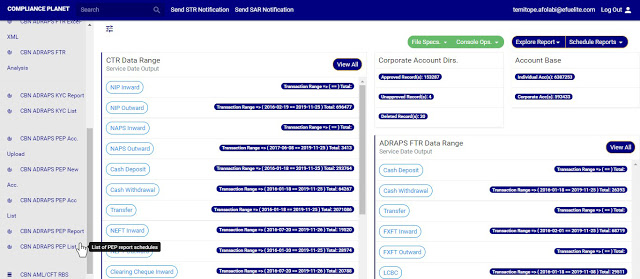
(fig. 4.7a)

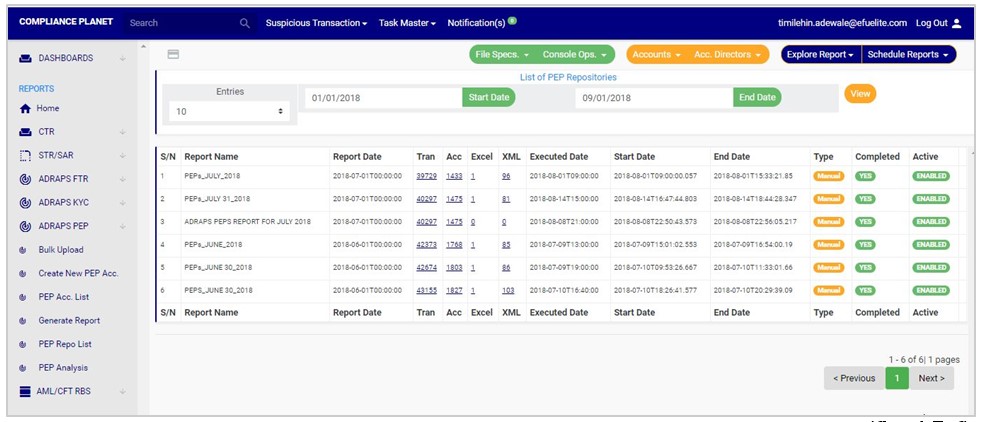
➔ This  displays a page as in fig. 4.7b below.

(fig. 4.7b)

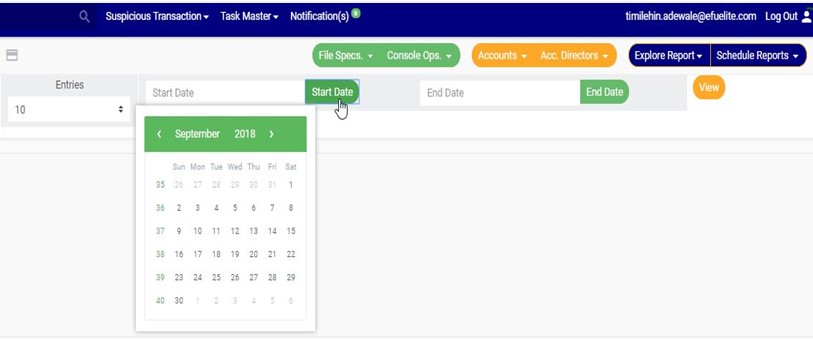
STEP 2: Click on the START DATE button/box and the END DATE button/box to set the beginning and the end of the period in which the reports you want to see have been scheduled for. See how to do this in fig. 4.7c below.

Fig. 4.7d shows a labelled calendar to guide you on how to make use of the  calendar.

(fig. 4.7c)

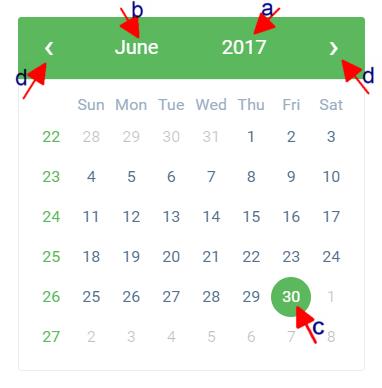
➔ Take a look at the arrows labelled a to d in fig. 4.7d to study the calendar.

a. Click on the given year to change it to your year of choice.

b. Click on the given month to change it to your month of choice.

c. Then, click on the date of the month.

d. You can also click on the angle brackets on the calendar [ ‘’ ] to go backward or forward.

(fig. 4.7d)

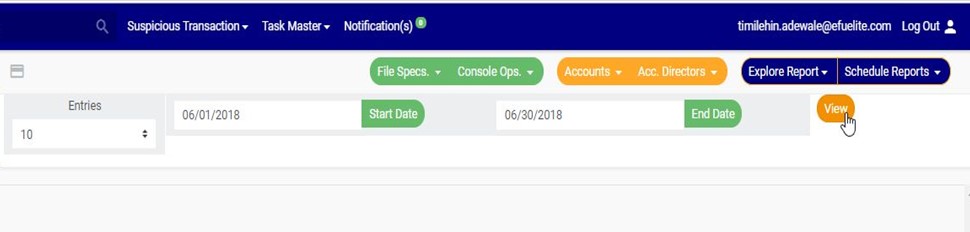
➔ For instance to see reports for June, 2018, the start and end date would be 06/01/2018 and 06/30/2018 respectively. See an example in fig. 4.7e below.

(fig. 4.7e)

➔ You can increase the number of reports you want to see per page by clicking on the ENTRIES box. Pick any number of entries per page of your choice. See fig. 4.7f below for an example.

(fig. 4.7f)

STEP 3: Click on the VIEW button to see the reports. It is an orange color button at the upper area of the page, next to the END DATE box. By doing this, the software will make a search and reports that were scheduled for that period you have entered in the date boxes will be displayed. See fig. 4.7g to see the pointer clicking on the view button and see the results of the example in fig. 4.7h.

(fig. 4.7g)

(fig. 4.7h)

➔ You can make changes to your date but to effect the changes you have made on the page, click on VIEW. For instance; when you change the date entries, click on view to see the reports for the new date range you have just set.

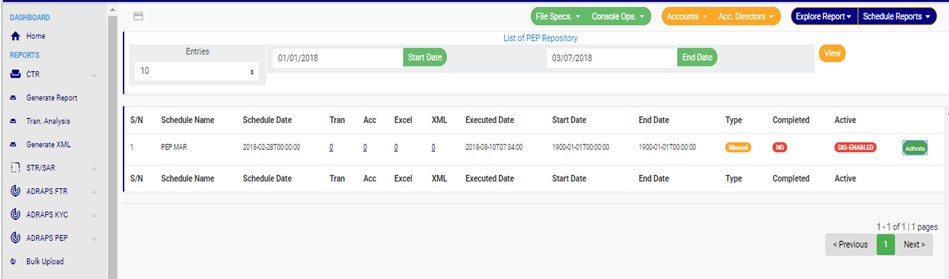
➔ The results of the report(s) that fall within that date range will be displayed row by row. On every row, for each report, the software will give information about the number of transactions contained in each report, the number of accounts involved, the number of Excel files and XML files the software has exported report information into, the execution date and time, the start date and end date, the type of report, and a comment on whether the processing of the report has been completed or not. See fig. 4.7h above.

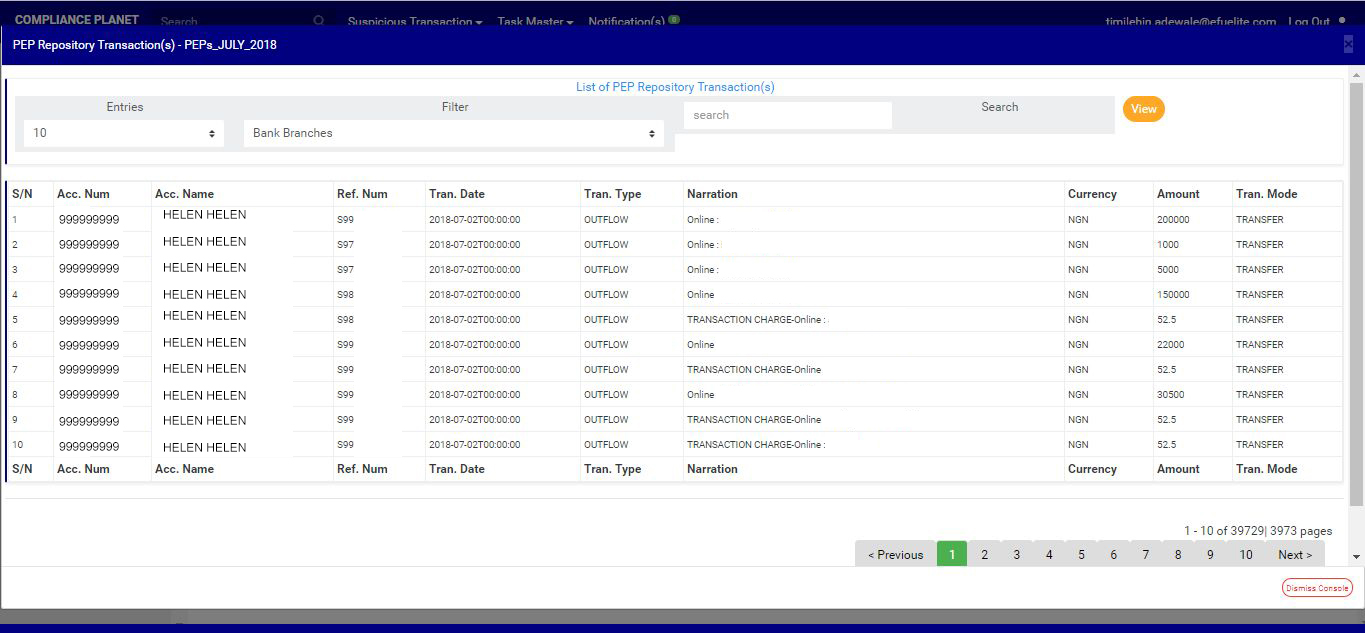
➔ The numbers under the ‘Tran’ column (in fig. 4.7h) represent the number of transactions carried out by the PEPs that are being reported in the respective reports. By clicking on the number of transactions, the software will display a page that gives a list of the transactions carried out by the PEPs in the particular report. See fig. 4.7i below for an example of a PEP repository transaction(s) page.

(fig. 4.7i)

➔ See the following steps (a – f) on how to make use of the features on the PEP Repository Transaction page.

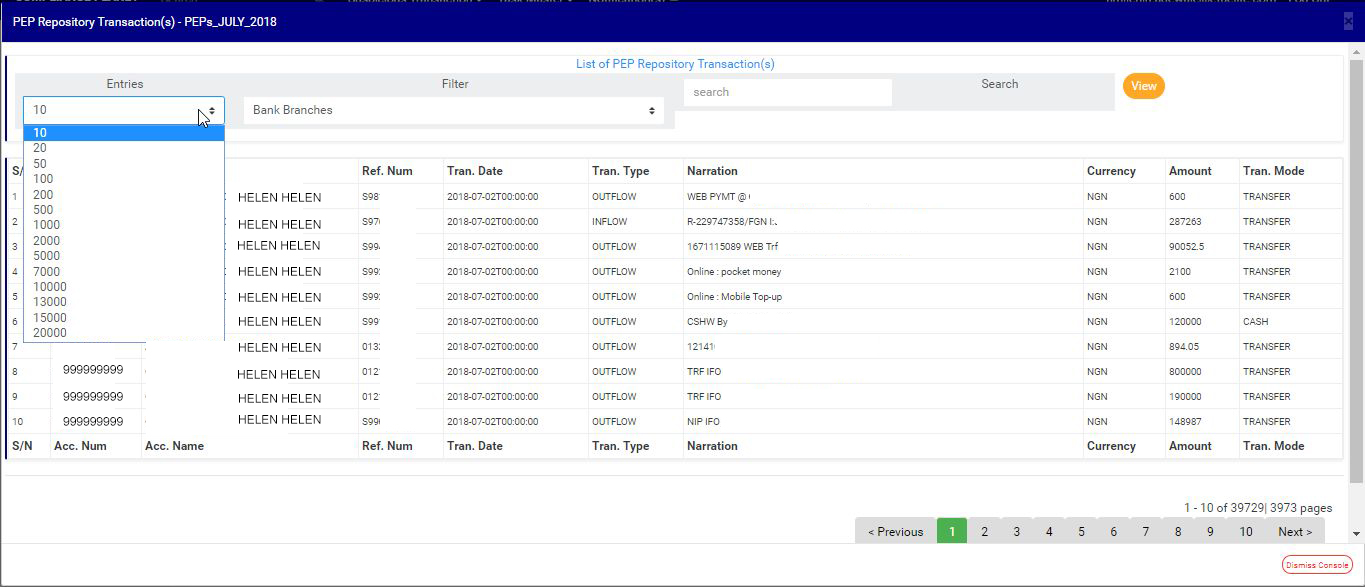
a) Click on the entries box to adjust the number of transactions you want to see per page. See fig. 4.7j below for an example on how to do this. The software  will automatically effect your changes.

(fig. 4.7j)

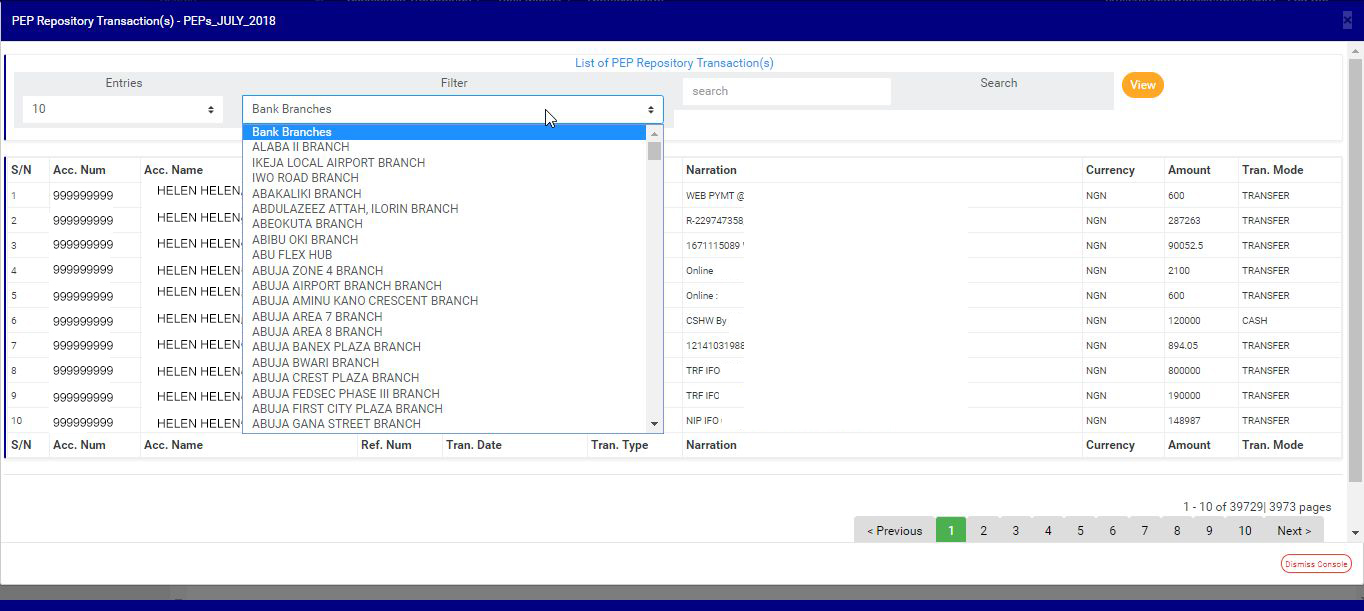
b) Click on the filter box to select a bank branch for which you want to see PEP transactions. See fig. 4.7k below for an example on how to do this.

(fig. 4.7k)

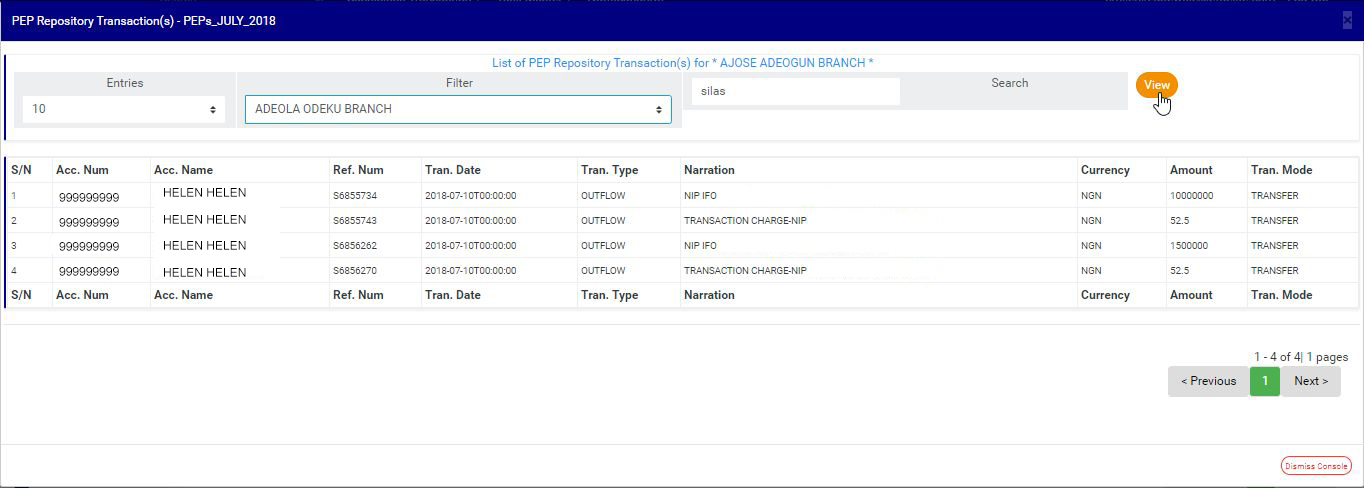
c) After selecting the bank branch of your choice as in fig. 4.7k above, click on VIEW to see the transactions attached to the selected bank branch. See fig. 4.7l for an example on how to do this.

(fig. 4.7l)

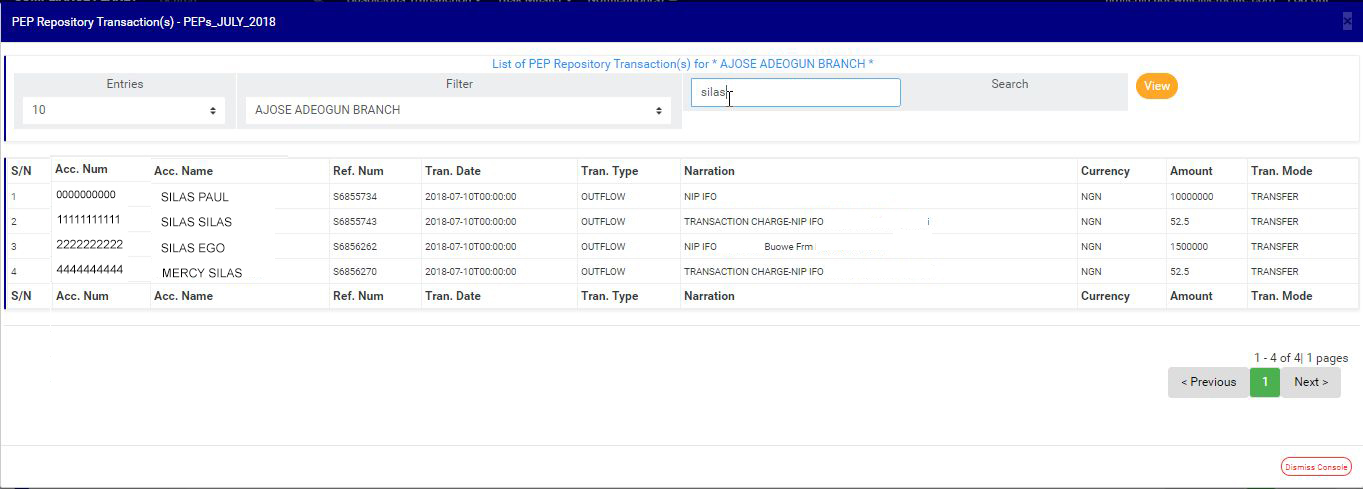
d) You can search for a particular transaction using an account number, account name, reference number, transaction type, narration, amount or transaction mode. To do this, type in the search term in the search box as in the example in fig. 4.7m below. The software will automatically search out your search term as soon as you type in a character in the search box. You do not have to click on the VIEW button for the software to carry out a search.

(fig. 4.7m)

e) At the end of the page, the bottom-right corner, the software gives information about the number of pages of your result, with the page numbers written out. All the page numbers represent buttons for each page. By clicking on any page number, the software takes you to that particular page. There is the NEXT button to take you to the next page when you click on it and there is a PREVIOUS button to take you to the page before the one you are viewing at that moment. See these features in fig. 4.7i, fig. 4.7j, fig. 4.7k, fig. 4.7l and fig. 4.7m

f) To close this page, click on the DISMISS button at the bottom-right corner of the page. Check out fig. 4.7i, fig. 4.7j, fig. 4.7k, fig. 4.7l and fig. 4.7m above to see this button.

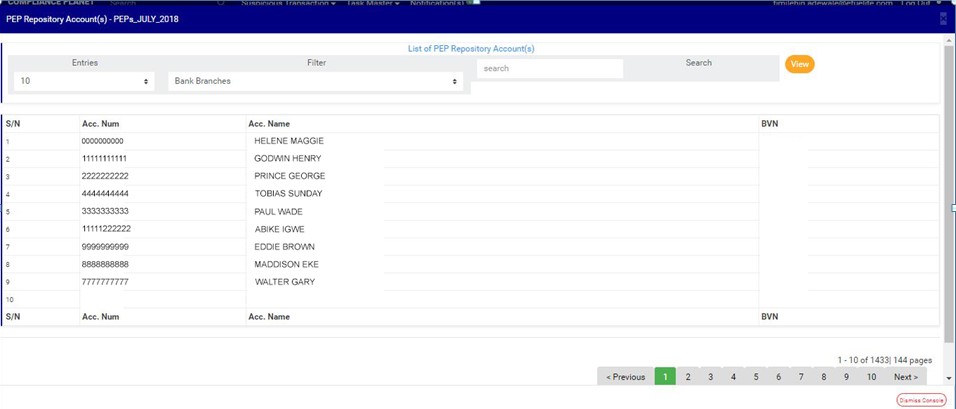
➔ The numbers under the ‘Acc’ column (in fig. 4.7h) represent the number of PEP accounts being reported in each report. By clicking on the number of accounts, the displays a page showing list of the PEP accounts and their respective details. See fig. 4.7n below to see an example of the PEP repository account(s) page.

(fig. 4.7n)

➔ See the following steps (a – f) on how to make use of the features on the PEP Repository Account(s) page.

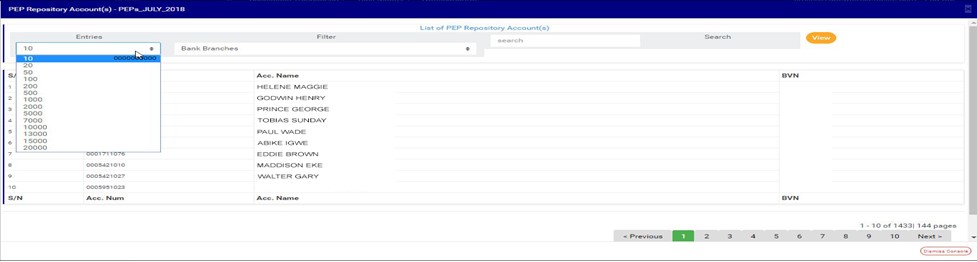
a) Click on the entries box to adjust the number of accounts you want to see per page. See fig. 4.7o below for an example on how to do this. The software will automatically effect your changes whenever you do this.

(fig. 4.7o)

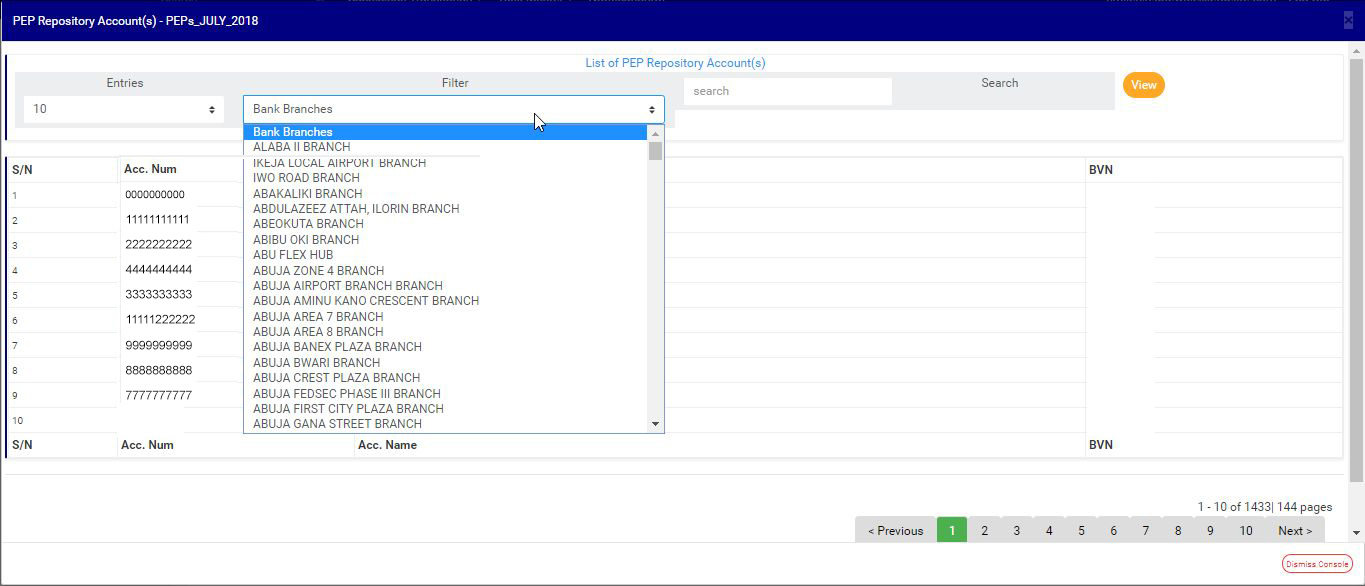
b) Click on the filter box to select a bank branch for which you want to see PEP accounts. See fig. 4.7p below for an example on how to do this.

(fig. 4.7p)

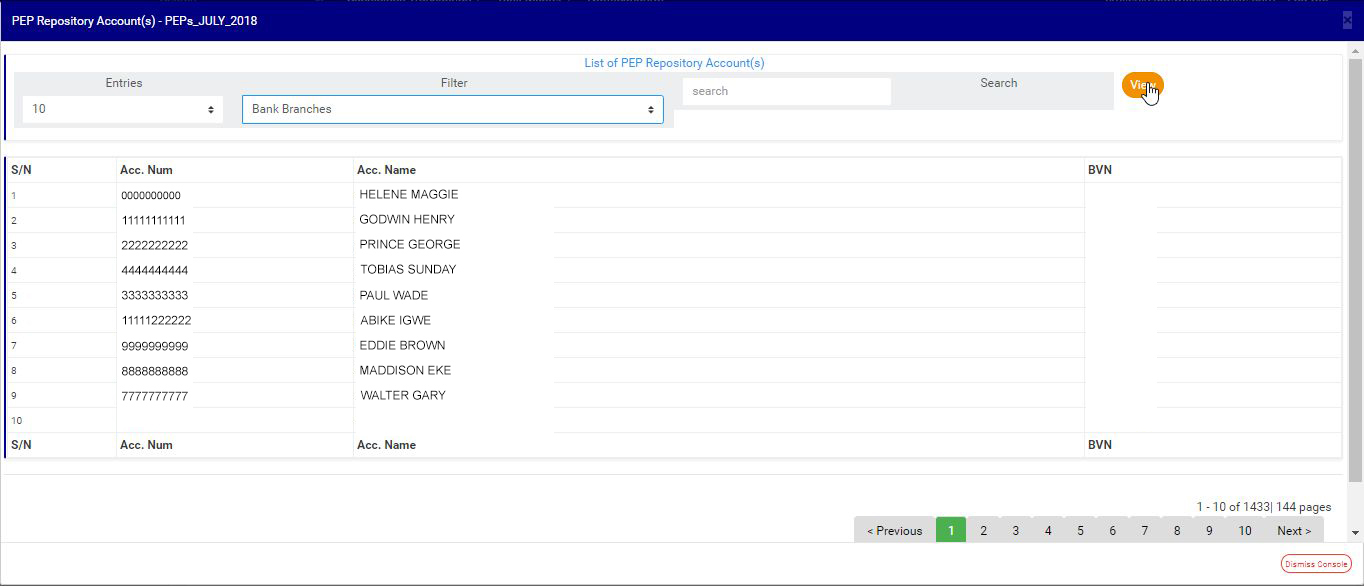
c) After selecting the bank branch of your choice as in fig. 4.7p above, click on VIEW to see the accounts attached to the selected bank branch. See fig. 4.7q for an example on how to do this.

(fig. 4.7q)

d) You can search for a particular account using the account number, account name or BVN. To do this, type in the search term in the search box as in the example in fig. 4.7r below. The software will automatically search out your search term as soon as you type in a character in the search box. You do not have to click on the VIEW button for the software to carry out a search.

(fig. 4.7r)

e) At the end of the page, the bottom-right corner, the software gives information about the number of pages of your result, with the page numbers written out. All the page numbers represent buttons for each page. By clicking on any page number, the software takes you to that particular page. There is the NEXT button to take you to the next page when you click on it and there is a PREVIOUS button to take you to the page before the one you are viewing at that moment. See these features in fig. 4.7n, fig. 4.7o, fig. 4.7p, fig. 4.7q and fig. 4.7r

f) To close this page, click on the DISMISS button at the bottom-right corner of the page. Check out fig. 4.7n, fig. 4.7o, fig. 4.7p, fig. 4.7q and fig. 4.7r above to see this button.

➔ The numbers under the ‘Excel’ column (in fig. 4.7h) also represent the number of Excel files that the software has written the report into. By clicking on the number of Excel files, a page will be displayed on the screen. See fig. 4.7s below for an example of the page..

(fig. 4.7s)

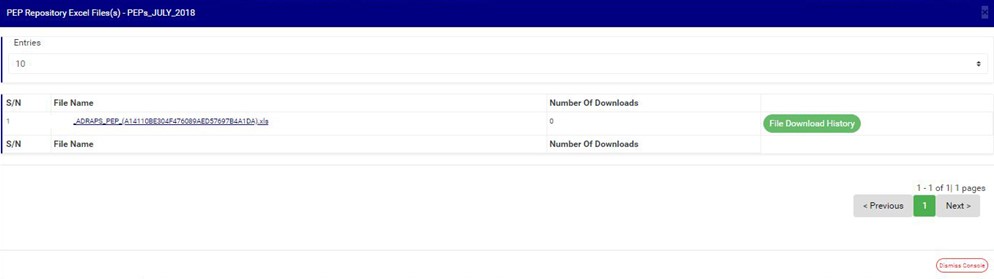
➔ The PEP Repository Excel file(s) page gives information about the Excel file name(s), the number of times users have downloaded the file and the download history. See the following steps (a -d) on how to make use of its features.

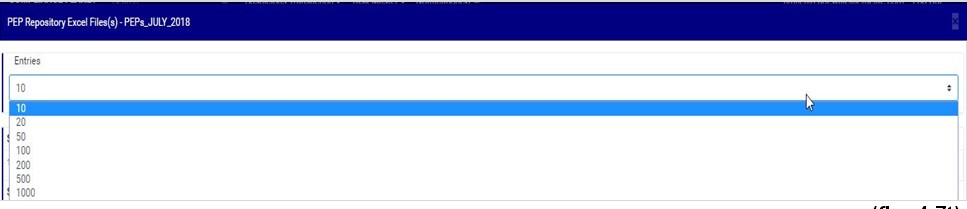
a) Click on the entries box to adjust the number of Excel files you want to see per page. See fig. 4.7t below for an example on how to do this. The software will automatically effect your changes whenever you do this.

(fig. 4.7t)

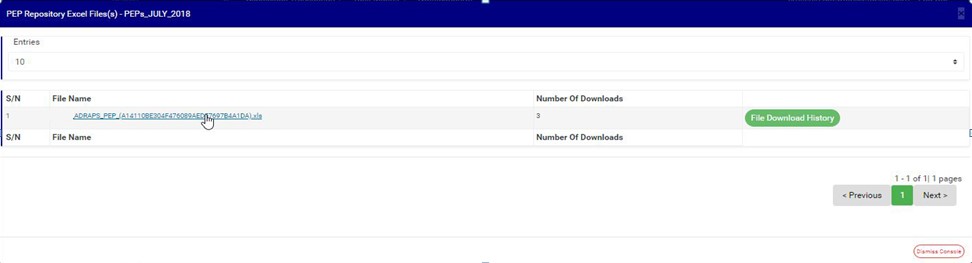
b) Click on the file name to download the Excel file to your computer. The file name is underlined and the download happens immediately! The number of download changes as soon as you click on the file name. Compliance software is fast and easy! See fig. 4.7u below for an example on how to download PEP excel file.

NOTE; Only person(s) assigned right to ‘View PEP report’ and ‘Download PEP report’ can carry out this operation

(fig. 4.7u)

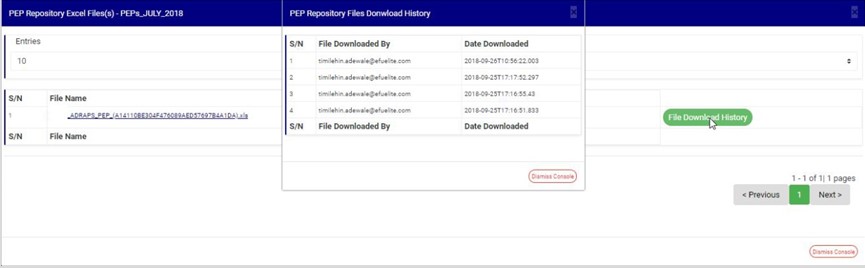
c) To see who downloaded the file and the time of download, click on the ‘File Download History’ button. A small console will be displayed on the page as in fig. 4.7v below for an example. Close the console using the DISMISS button at the bottom-right corner of the console.

(fig. 4.7v)

d) Also, at the the bottom-right corner of the PEP Repository Excel file(s) page, the software gives information about the number of pages of the PEP Repository Excel file(s) list,, with the page numbers written out. All the page numbers represent buttons for each page. By clicking on any page number, the software takes you to that particular page. The NEXT button will take you to the page after the one you are viewing at the moment, while the PREVIOUS button will take you to the page before the one you are viewing at that moment. To close this page, click on the DISMISS button. It is also at the bottom-right corner of the page.

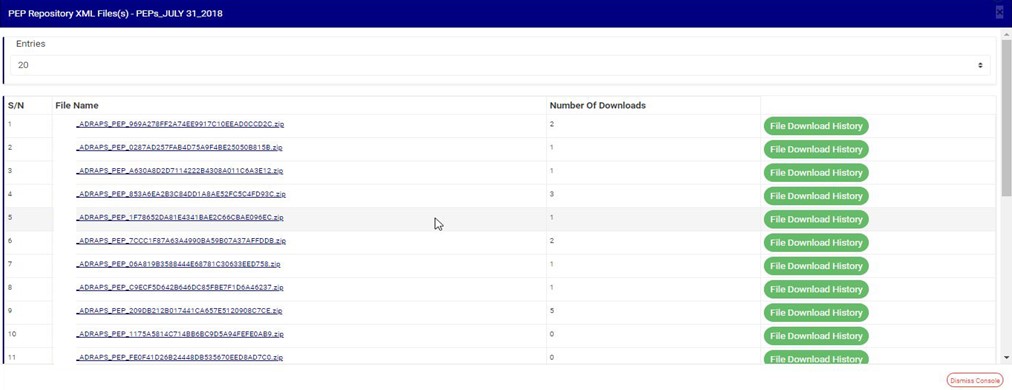
➔ The numbers under the ‘XML’ column (in fig. 4.7h) also represent the number of XML files that the software has written the respective report into. By clicking on the number of XML files, a page will be displayed on the screen. See fig. 4.7w below for an example of the page.

(fig. 4.7w)

➔ The PEP Repository XML file(s) page also gives information about the XML file name(s), the number of times users have downloaded the file(s) and the download history. There are 500 PEP transactions per XML file. See the following steps (a – d) on how to make use of its features. The features on the PEP Repository XML file(s) page work like those of the PEP Repository Excel file(s) page.

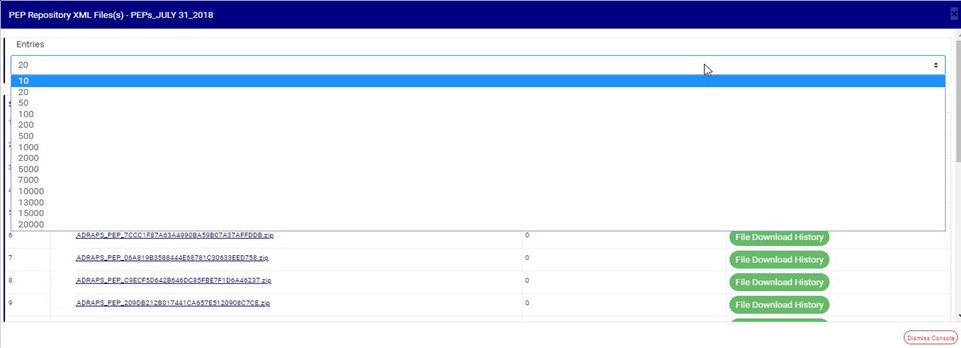
a) Click on the entries box to adjust the number of XML files you want to see per page. See fig. 4.7x below for an example on how to do this. The software will automatically effect your changes whenever you do this.

(fig. 4.7x)

b) Click on the file name to download the XML file to your computer. The number of download changes as soon as you click on the file name. The file name is underlined and the download is immediately also! See fig. 4.7u below for an example on how to download PEP XML file.

NOTE; Only person(s) assigned right to ‘View PEP report’ and ‘Download PEP report’ can carry out this operation

(fig. 4.7y)

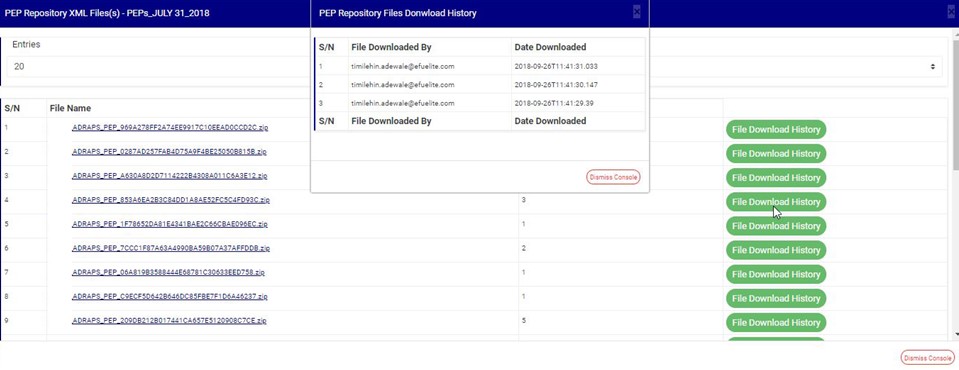
c) To see who downloaded the file and the time of download, click on the ‘File Download History’ button. A small console will be displayed on the page as in fig. 4.7v below for an example. Close the console using the DISMISS button at the bottom-right corner of the console.

(fig. 4.7z)

d) Here also, at the the bottom-right corner of the PEP Repository XML file(s) page, the software gives information about the number of pages of the PEP Repository XML file(s) list,, with the page numbers written out. All the page numbers represent buttons for each page. By clicking on any page number, the software takes you to that particular page. The NEXT button will take you to the page after the one you are viewing at the moment, while the PREVIOUS button will take you to the page before the one you are viewing at that moment. To close this page, click on the DISMISS button at the bottom-right corner of the page.

➔ Back to fig. 4.7h – Pep Repository list page, at the end of each report row, the software shows if the processing of the report is enabled or dis-enabled under the ‘ACTIVE’ column.

➔ For reports that have been completed, their status will read, ENABLED. See fig. 4.7h for an instance.

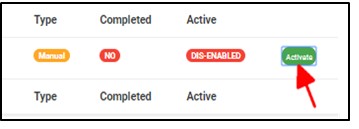
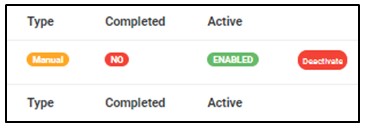
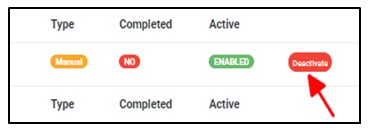
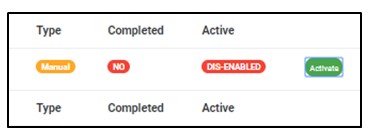
➔ For reports that have not been completed, there will be an extra button next to their ACTIVE status. This button is used to ACTIVATE or DEACTIVATE the processing of the report. See fig. 4.7aa below for an example. The button turns red when the report is enabled and it can be used to DEACTIVATE the report. It is green when the report is dis-enabled and it can be used to ACTIVATE the report for processing.

NOTE; Only person(s) assigned right to ‘View PEP report’ and ‘Edit PEP report’ can carry out this operation

(fig. 4.7aa)

➔ As in fig. 4.7aa above, the report has not been completed. Click on Activate to enable processing of report or Deactivate to disable the report.

➔ Clicking on ACTIVATE turns the status bar of the report to green with an ‘ENABLED’ inscription, while clicking on DEACTIVATE will turn the status bar back to red with an ‘DIS-ENABLED’ inscription. See fig. 4.7ab and fig. 4.7ac to see the result of activating the report for an example and see fig. 4.7ad and fig. 4.7ae to see the result of deactivating the report for another example.

●Activating a report

(fig. 4.7ab)

(fig. 4.7ac)

●Deactivating a report
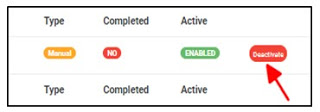
(fig. 4.7ad)

(fig. 4.7ae)

➔ At the end of the page, the software gives information about the number of pages of your result, with the page numbers written out. All the page numbers represent buttons for each page. By clicking on any page number, the software takes you to that particular page. There is the NEXT button to take you to the next page when you click on it and there is a PREVIOUS button to take you to the page before the one you are viewing at that moment. See these features in fig. 4.7af below.

(fig. 4.7af)

For further enquiries :
Tel +234(0) 816 555 9818
Email solutions@efuelite.com
Web http://solutions.efuelite.com

How to generate PEP Report In Compliance Planet Anti Money Laundering/Core Banking Finance Software

The compliance planet allows you to schedule your ADRAPS PEP report ahead of time. You can manually schedule and download ADRAPS PEP reports. Here is how to do this.

NOTE; Only person(s) assigned right to ‘Process PEP Report’ can carry out these operations

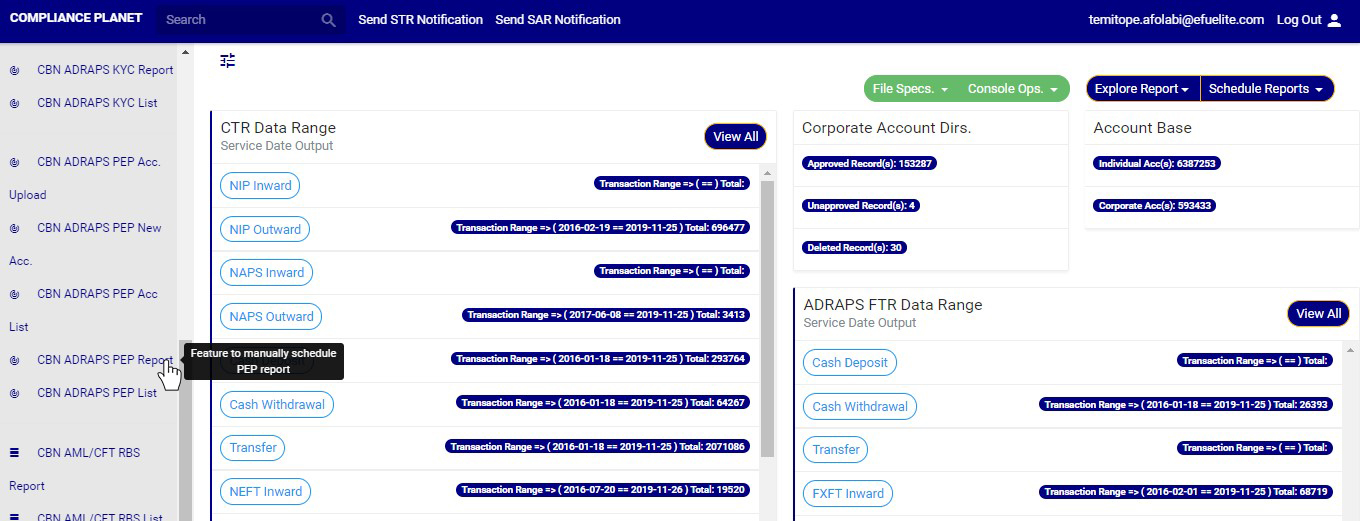
STEP 1: From the left hand side menu, click on ‘CBN ADRAPS PEP REPORT’ Check out fig. 4.6a below

(fig. 4.6a)

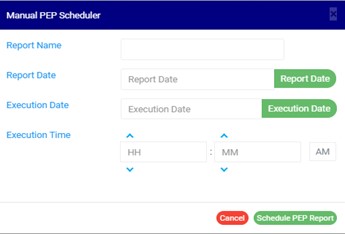
➔ By clicking on ‘CBN ADRAPS PEP REPORT’, an ADRAPS PEP Scheduler as in fig. 4.6b below will be displayed.

(fig. 4.6b)

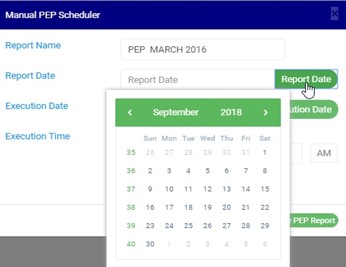
STEP 2: Fill in the name of your report in the REPORT NAME box. The report name should be any title of your choice for easy identification. (See fig. 4.6c for an example.)

STEP 3: Click on the REPORT DATE button to select the date for which you want to generate an ADRAPS PEP report from a calendar as shown in fig. 4.6c below.

(fig. 4.6c)

➔ Take a look at the arrows labelled a to d in fig.4.6d to study the calendar.

a. Click on the given year to change it to your year of choice.

b. Click on the given month to change it to your month of choice.

c. Then, click on the date of the month.

d. You can also click on the angle brackets on the calendar [ ‘’ ] to go backward or forward.

(fig. 4.6d)

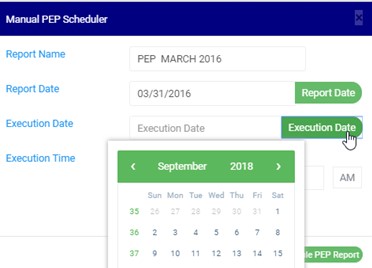
STEP 4: Click on the EXECUTION DATE button to select the date you want your ADRAPS PEP report to be processed from as shown in fig. 4.6e below. The calendar works like the one in fig. 4.6d above.

(fig. 4.6e)

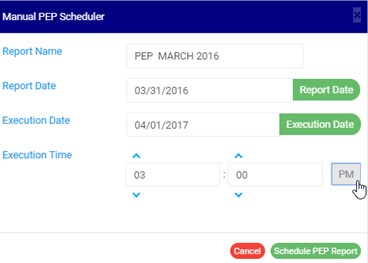
STEP 5: Set your report’s EXECUTION TIME by filling in the ‘hour’ and the ‘minute’ you want the report to be processed. There’s a button next to the hour and minute boxes used for switching between AM and PM. See an example in fig. 4.6f below.

(fig. 4.6f)

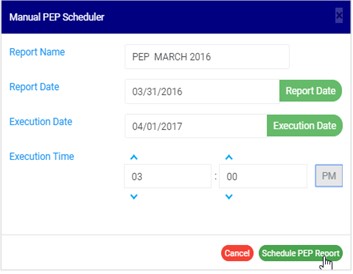
STEP 6: Click on ‘SCHEDULE PEP REPORT’ to create your report or CANCEL to close the console. These buttons are at the bottom-right corner of the console. See them in fig. 4.6f above.

(fig. 4.6g)

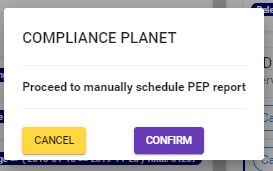
➔ This displays a confirmation console.

Click  CONFIRM to confirm your request to schedule the report or CANCEL to go back to the scheduler. See fig. 4.6h below for an example of the confirmation console

(fig. 4.6h)

For further enquiries :
Tel +234(0) 816 555 9818
Email solutions@efuelite.com

How to generate PEP Account List Report In Compliance Planet Anti Money Laundering/Core Banking Finance Software

Using the PEP Acc. List feature, you can see a list of all the PEP accounts on the Compliance planet. Here is how to do this.

NOTE; Only person(s) assigned right to ‘View PEP report’ can carry out this operation

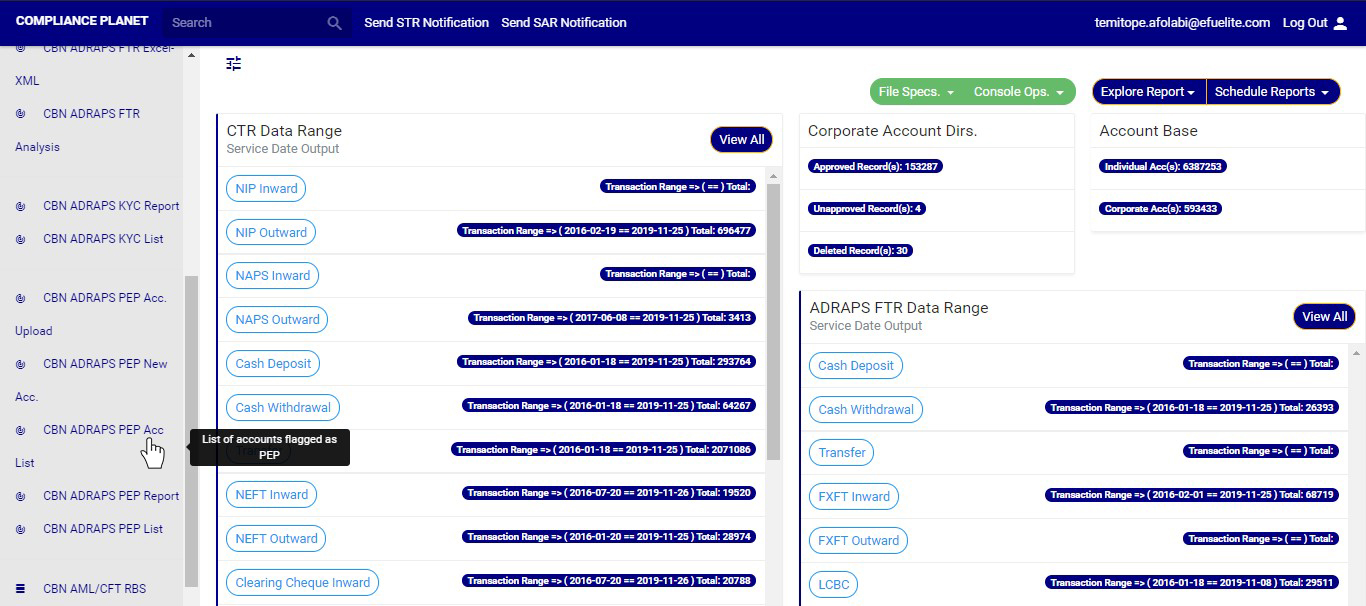
STEP 1: From the left hand side menu, click on CBN ADRAPS PEP Acc List. Check out fig. 4.5a below

(fig. 4.5a)

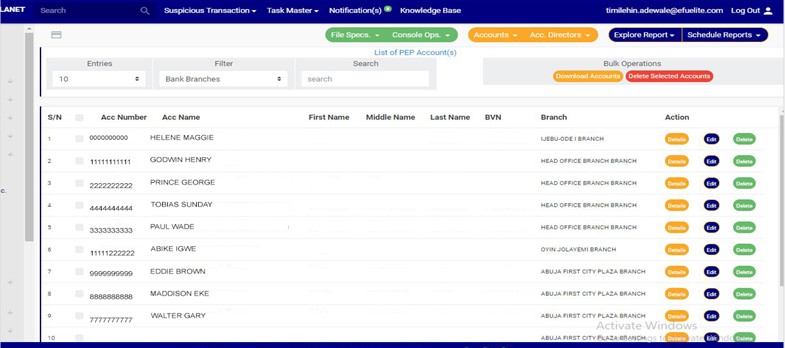
➔ By clicking on ‘CBN ADRAPS PEP Acc List’, a page as in fig. 4.5b below will be displayed. This page will automatically give you a list of all the PEP accounts saved on the Compliance planet.

(fig. 4.5b)

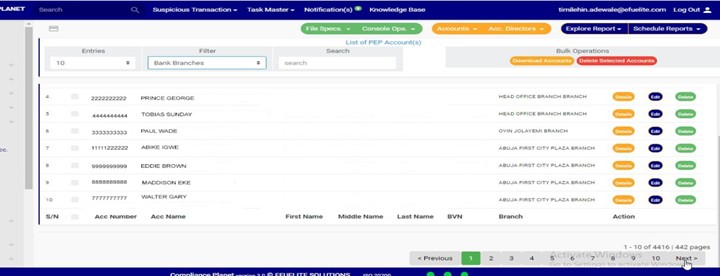
➔ When you scroll down the page ; at the bottom-right corner of the page, there is an information about the number of pages of the list and the page number of the page you are viewing at that moment as in fig. 4.5c below. The NEXT button takes you to the next page of the list if the list spreads to more than one page and the PREVIOUS button takes you to the previous page of the list that you viewed. The numbers are buttons that represent the different page numbers of the list. Click on any number to go to the page. For instance, if you click on ‘4’, the software will bring up page 4 of the list.

(fig. 4.5c)

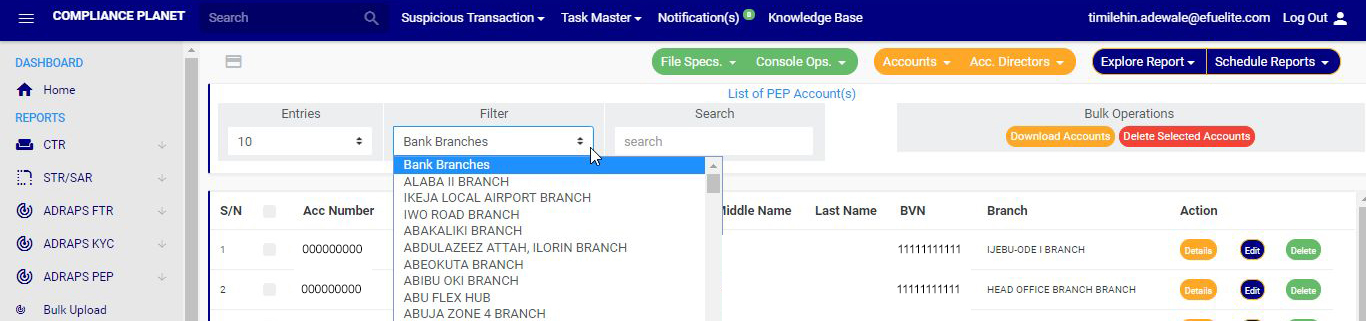
STEP 2: Click on the FILTER box to limit your account list to any bank branch. The default list is for all the branches of the institution (See fig. 4.5b and 4.5c above). So, you can select any branch to see its PEP accounts as in fig. 4.5d below.

(fig. 4.5d)

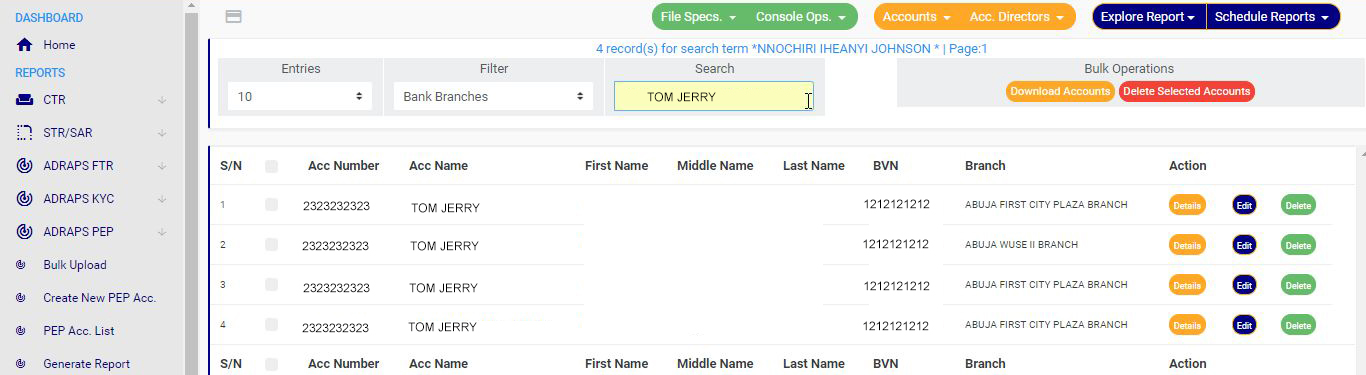
STEP 3: Type in the SEARCH box next to the FILTER box to narrow your list to a particular account number, account name, first name, middle name, last name or bank verification number. When Searching for a bank branch through the search box will not work. The filter box does that already. See fig. 4.5e below to see example of a search.

(fig. 4.5e)

➔ For every search result given on the ‘PEP Acc. List’ page, there are three (3) action buttons right at the end of the row. These buttons deal with the account on their rows only. They are; the Details button, Edit button and the Delete button.

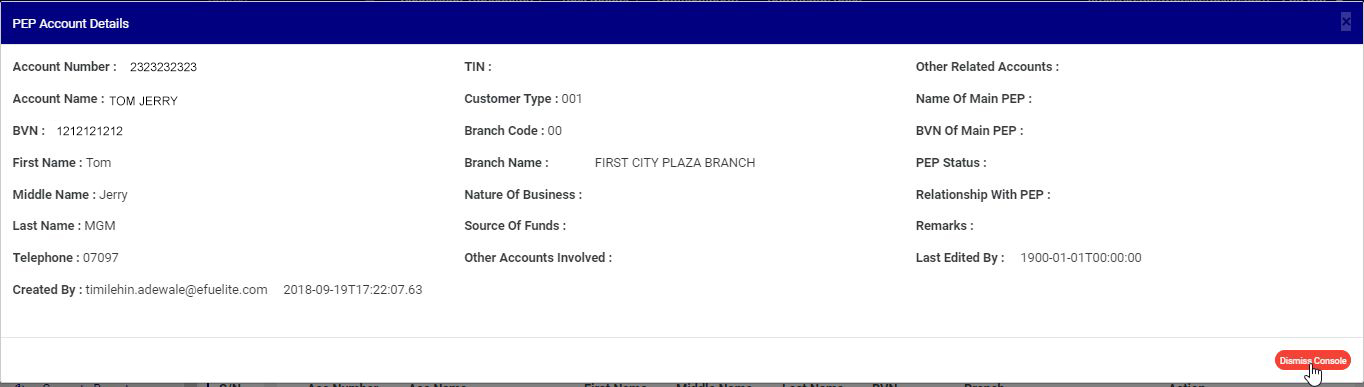
➔ By clicking on the Details button, a console as in fig. 4.5f below will be displayed on your screen showing you the details of the PEP account on the row you clicked the button. Click on DISMISS CONSOLE to close the console.

(fig. 4.5f)

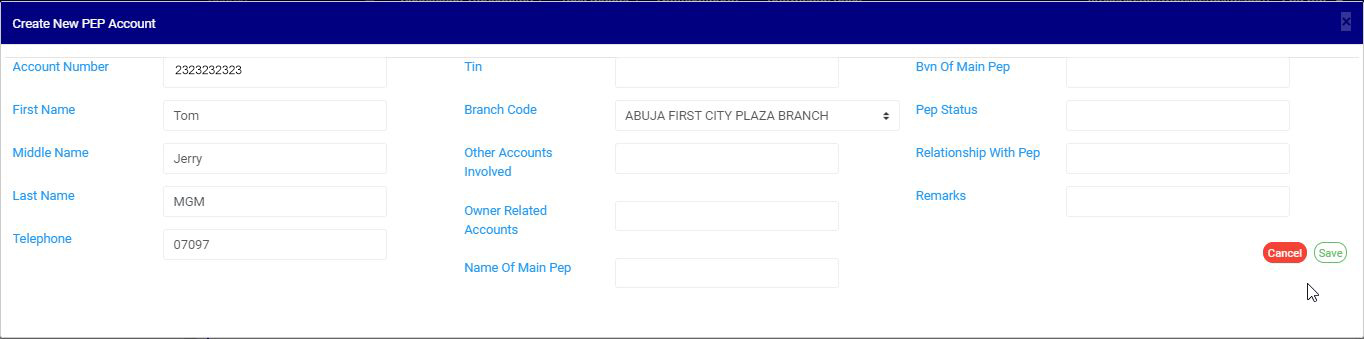
➔ If you want to update or change some information in the details you saw in the PEP account console, click on the Edit. This button is next to the DETAILS button. By clicking on EDIT, a console as in fig. 4.5g below, titled CREATE NEW PEP ACCOUNT will be displayed on your screen. This console is the same as the one generated when creating a new PEP account  but it comes with fields that are already filled. After filling in the details, effect the changes by clicking on the SAVE button. If you do not want to edit the information on the console, click on CANCEL.

NOTE; Only person(s) assigned right to ‘View PEP report’ and ‘Edit PEP report’ can carry out this operation

(fig. 4.5g)

➔ To remove a PEP account , click on the DELETE button.

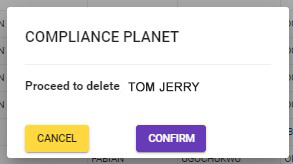
➔ This displays a confirmation console as in fig. 4.5h below will be displayed. Click on CANCEL if you do not want to delete the account or click on PROCEED to confirm your request to delete the account. When you do this, the account will be removed straight away from the list.

NOTE; Only person(s) assigned right to ‘View PEP report’ and ‘Edit PEP report’ can carry out this operation

(fig. 4.5h)

➔ Also, the PEP ACC. LIST page gives options for bulk operations. The bulk operations include; downloading PEP accounts and Deleting PEP accounts. Red arrows in the fig. 4.5i below indicate the buttons.

(fig. 4.5i)

➔ To carry out bulk download of PEP accounts or bulk delete of accounts, select the accounts you want to download or delete as in fig. 4.5i above and click on either the DOWNLOAD ACCOUNTS button or DELETE SELECTED ACCOUNTS button.

NOTE; You need to be assigned right to ‘Edit PEP report’ to carry out delete operation while you need to be assigned ‘right to download’ to carry out download Operation.

For further enquiries :
Tel +234(0) 816 555 9818
Email solutions@efuelite.com
Web http://solutions.efuelite.com
How to profile PEP Account In Compliance Planet Anti Money Laundering/Core Banking Finance Software

This feature is used for creation of single PEP account.  Here are the steps to creating a new PEP account.

NOTE: Only person(s) assigned right to ‘process PEP Report’ can carry out these operation(s)

STEP 1: From the left hand side menu, click on CBN ADRAPS PEP New Acc. as in fig. 4.4a .

(fig. 4.4a)

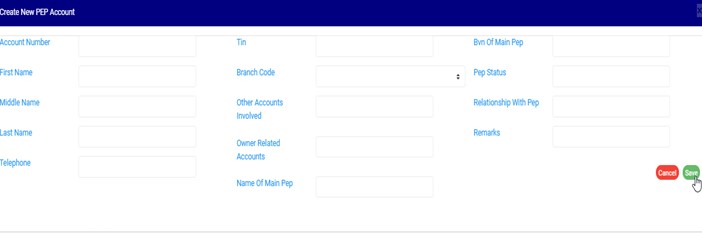
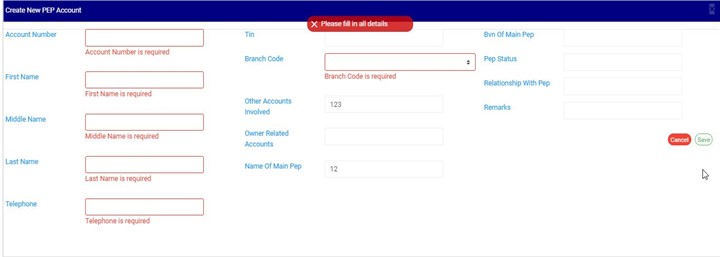
  • This displays a ‘CREATE NEW PEP ACCOUNT’ console as in fig 4.4b below.

(fig. 4.4b)

STEP 2: Enter details of the new PEP account you want to create. Some fields are mandatory to successfully create a PEP account. They are;

● Account Number – ensure the account number exists on the Compliance planet’s account base.

● First Name

● Middle Name

● Last Name

● Telephone

● Branch Code

See fig 4.4c below for an example.

(fig. 4.4c)

STEP 3: Fill in the required details and Click on SAVE to create the PEP account

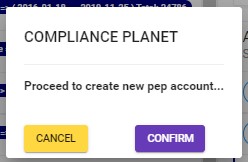
➔  Clicking on SAVE, displays a confirmation console as in fig. 4.4d below

During the upload and single entry of PEP accounts, the software automatically scans other accounts related to the record entered using the CUST ID as identifier and also auto migrate these records into software.

(fig. 4.4d)

➔ Click on cancel to go back to the console.

➔ Click on proceed to confirm your request to create new PEP account. A notification will be displayed as in fig. 4.4e below.

4.6h

(fig. 4.4d)

For further enquiries :
Tel +234(0) 816 555 9818
Email solutions@efuelite.com
Web http://solutions.efuelite.com
How to make bulk upload Of CBN ADRAPS PEP Accounts In Compliance Planet Anti Money Laundering/Core Banking Finance Software

This operation involves creating multiple PEP accounts by uploading an excel file containing the details of the PEP accounts. There is another feature that handles the creation of a single PEP account. For instance; to upload fifty (50) new PEP accounts on the compliance planet, the Bulk Upload is the feature you should use instead of entering them one by one.

Compliance Planet also auto – scan the institution system for registered PEPs and notify the Compliance Team.

Here is how to upload bulk PEP information.

NOTE; Only person(s) assigned right to process PEP report can carry out this operation

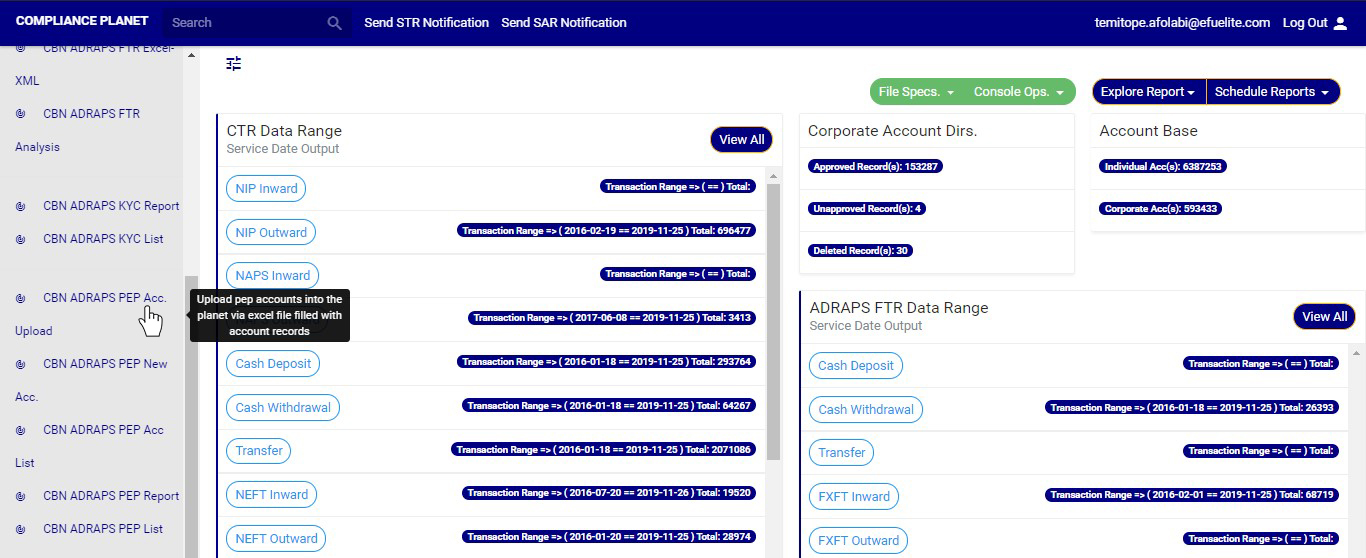
STEP 1: From the left hand side menu, click on CBN ADRAPS PEP Acc Upload. as in fig. 4.3a

(fig. 4.3a)

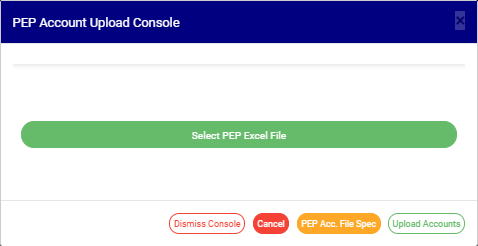
➔ This displays a ‘PEP Acc Upload’ console as in fig. 4.3b below.

(fig. 4.3b)

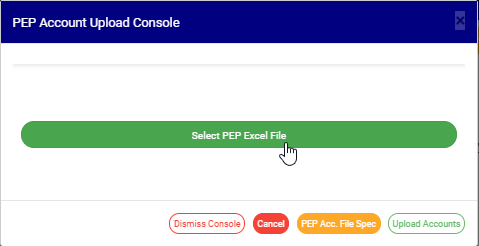
STEP 2: Click on Select PEP Excel to upload the Excel file containing the details of the PEP Accounts you want to save on the software. Look at fig. 4.3c below to see how to upload a file from your computer.

(fig. 4.3c)
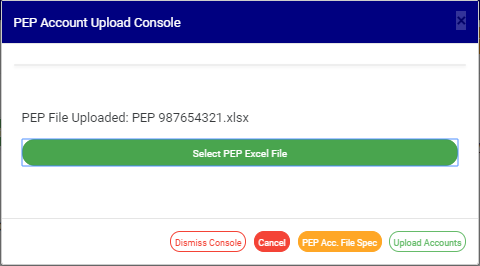
➔ The details in the excel file to be uploaded must be according to the Compliance Planet’s PEP Account File specification. If you do not have the file specification, click on the PEP Acc. File Spec button to download an empty excel file. The file has titled columns according to ADRAPS PEP Specification. Fill in details of the accounts you want to upload, save the changes to the file, and click on Select PEP Excel File to upload the file. See fig. 4.3d for an example of what the PEP Account Upload Console looks like after selecting a file for upload.

(fig. 4.3d)

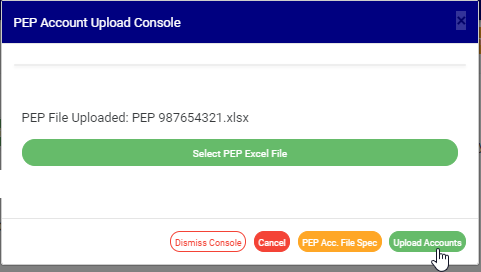
STEP 3: Click on UPLOAD ACCOUNTS to upload details from the selected file on the Compliance planet. This button is at the bottom-right corner of the console. See fig. 4.3e below for an example.

(fig. 4.3e)

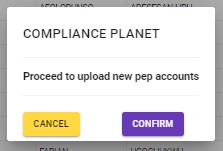
➔This displays a confirmation console as in fig. 4.3f below.

(fig. 4.3f)

  • Click on cancel to go back to the console.
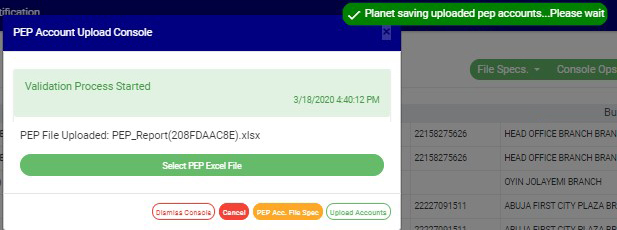
  • Click on proceed to confirm that you want to upload the PEP Accounts. By clicking on proceed, a notification will be displayed at the top of the console as in fig. 4.3g below.

(fig. 4.3g)

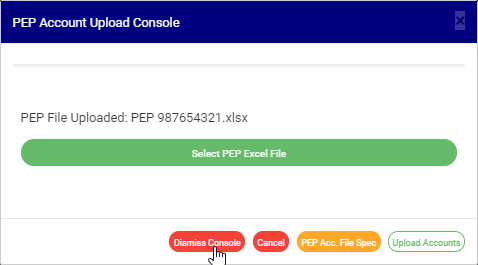
  • Click on the DISMISS CONSOLE button to close the console. By clicking on this button, the page will be closed but you can come back to it to when you click on Bulk Upload. See the button in fig. 4.3h below.

(fig. 4.3h)

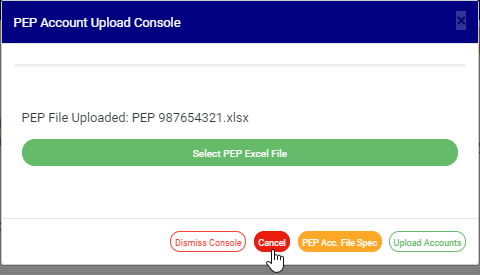
➔ Click on CANCEL as in fig. 4.3i to cancel the operation. This is the red button next to the DISMISS CONSOLE button. It is effective when operation to upload PEP Accounts has started.

(fig. 4.3i)

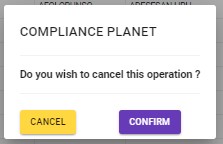
  • This displays a confirmation console as in fig. 4.3j.

(fig. 4.3j)

➔ Click on Proceed to confirm you want to cancel the ongoing processes.

➔ Click on Cancel to go back to the PEP Account Upload Console.

For further enquiries :
Tel +234(0) 816 555 9818
Email solutions@efuelite.com
Web http://solutions.efuelite.com
ADRAPS Politically Exposed Persons Report (ADRAPS PEP) In Compliance Planet Anti Money Laundering/Core Banking Finance Software

WHAT IS PEP REPORT ?

A politically exposed person (PEP) is an individual who is or has been entrusted with a prominent public function. PEPs are higher-risk customers for financial institutions because they have more opportunities than ordinary citizens to acquire assets through unlawful means like embezzlement and bribe-taking and thus are more likely to launder money. Therefore, all financial institutions are thereby required to file PEP Report to the CBN and NFIU monthly and also apply AML/CFT measures to their business relationship with any customer that has been identified and assessed to be a PEP.

ADRAPS PEP REPORT OPERATIONS

Under this section, the Compliance planet has six (5) operations, which are;

● Bulk Upload of new PEP accounts

Creation of a new PEP account

● PEP Account List

● Generating a PEP Report

● PEP Repository

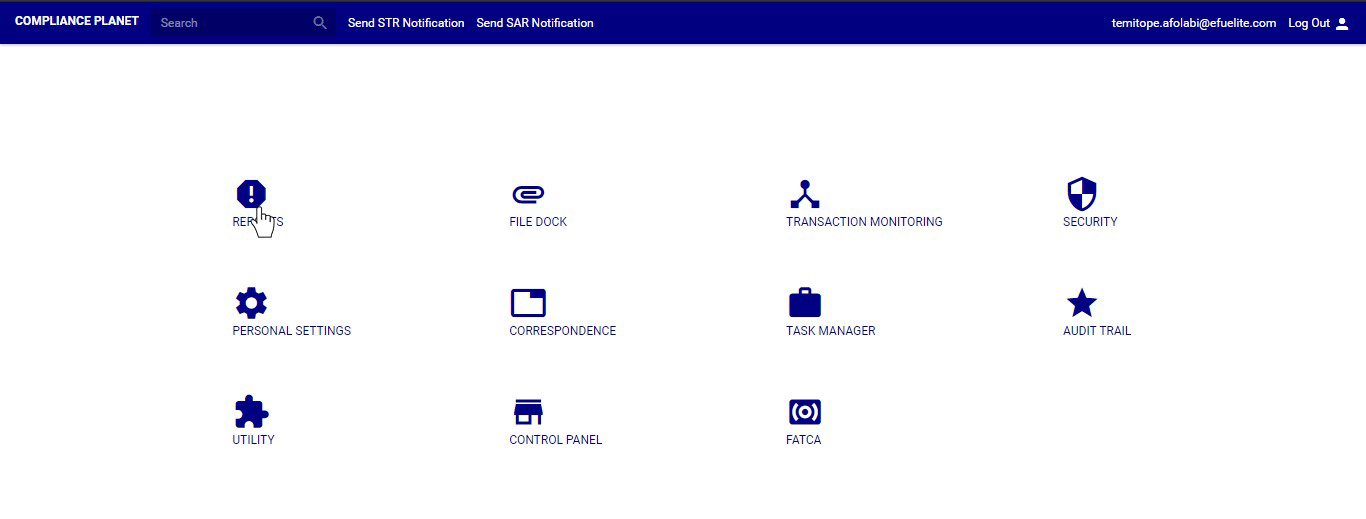
➔ To perform any of the ADRAPS PEP operations, click on reports on the compliance planet dashboard as in fig.4.2b below.

(fig. 4.2b)

➔ This will display the reports dashboard. See fig. 4.2c to view ADRAPS PEP operations on the report dashboard. The different operations are explained in the following sections.

(fig. 4.2c)

For further enquiries :
Tel +234(0) 816 555 9818
Email solutions@efuelite.com
Web http://solutions.efuelite.com
How to carry out data analysis and business intelligence on CBN ADRAPS foreign transaction report (ADRAPS FTR) In Compliance Planet Anti Money Laundering/Core Banking Finance Software

Here, the Software can generate graphs with the value and/or volume of transactions plotted against the time or period in which they occur. To get the software to give you an analysis of any ADRAPS FTR type over a period of time, here is how to go about it.

NOTE: Only person(s) profiled and assigned right to ‘View FTR Reports’ will be able to carry out this operation.

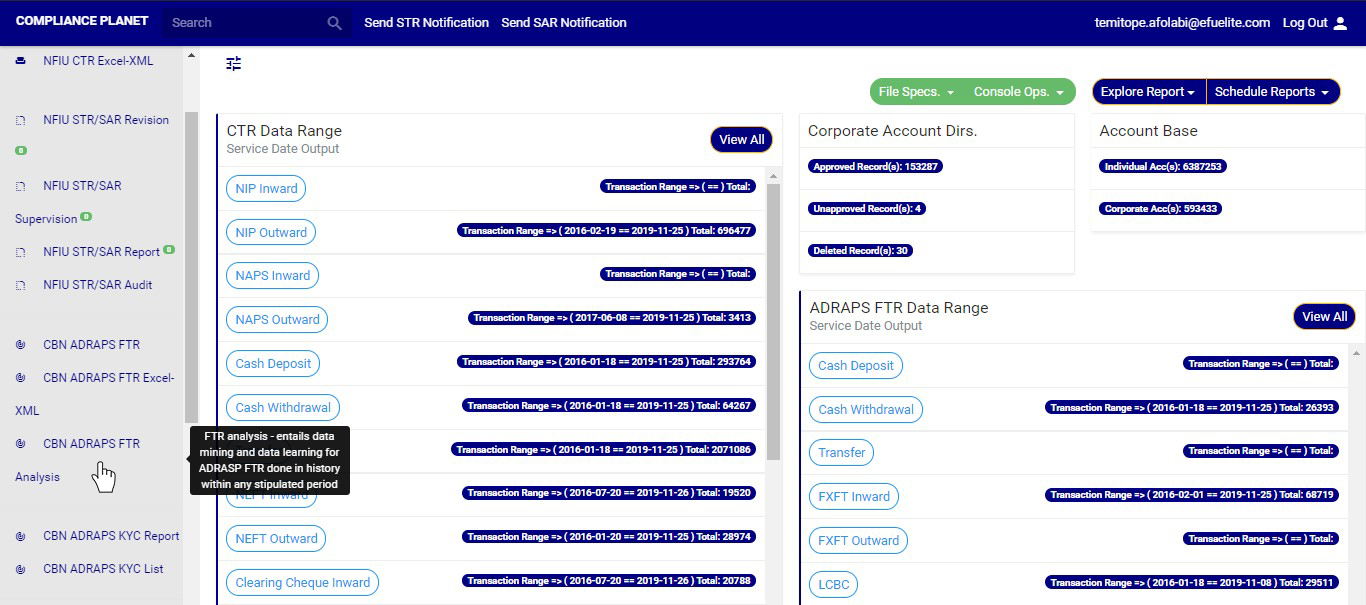
STEP 1: From the left hand side menu, click on CBN ADRAPS FTR Analysis as in fig. 3.6a below.

(fig. 3.6a)

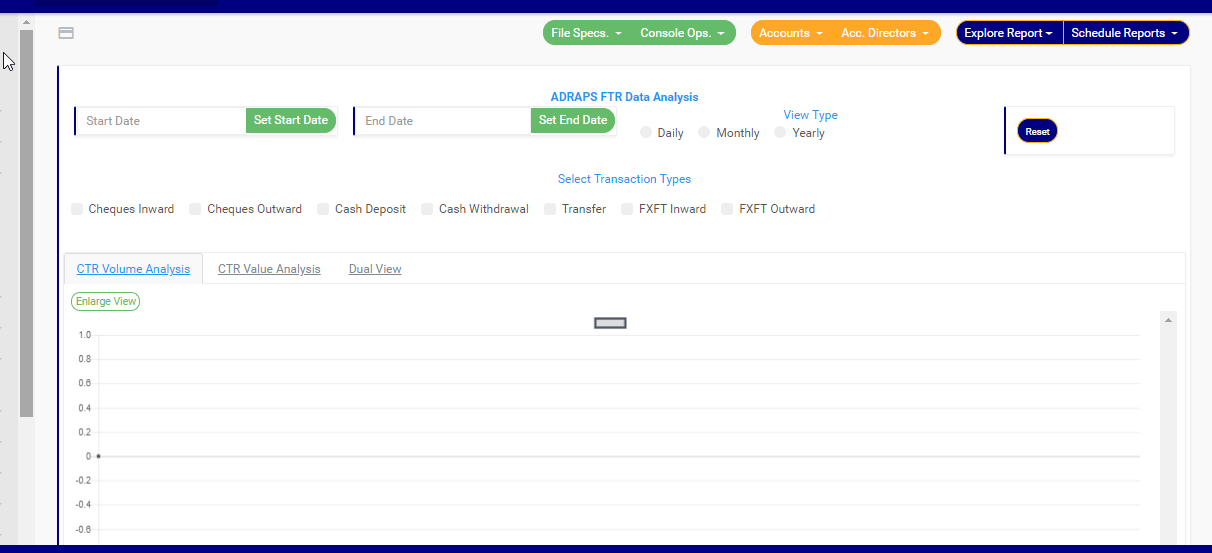
This displays a page as in fig. 3.6b below.

(fig. 3.6b)

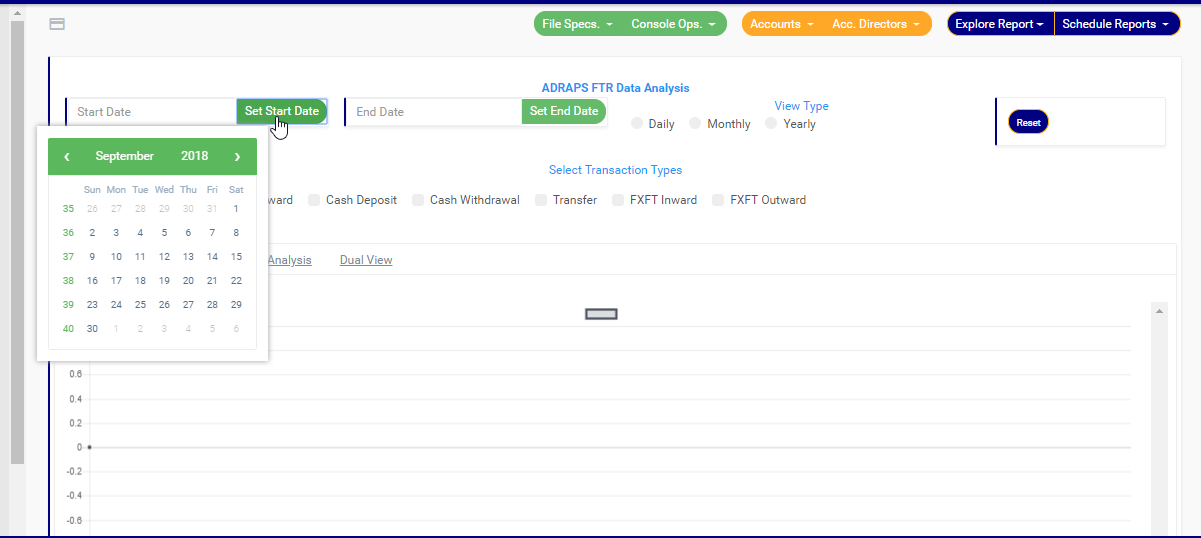
STEP 2: Click on SET START DATE and SET END DATE to specify the beginning and the end of the period (respectively) for which you want to see. You must set your date parameters before selecting any transaction type for analysis. Take a look at fig. 3.6c to see how to set the date. Fig. 3.6d shows a labelled calendar next.

(fig. 3.6c)

Take a look at the arrows labelled a to d in fig. 3.6d to study the calendar.

a. Click on the given year to change it to your year of choice.

b. Click on the given month to change it to your month of choice.

c. Then, click on the date of the month.

d. You can also click on the angle brackets on the calendar [ ‘’ ] to go backward or forward.

 (fig. 3.6d)

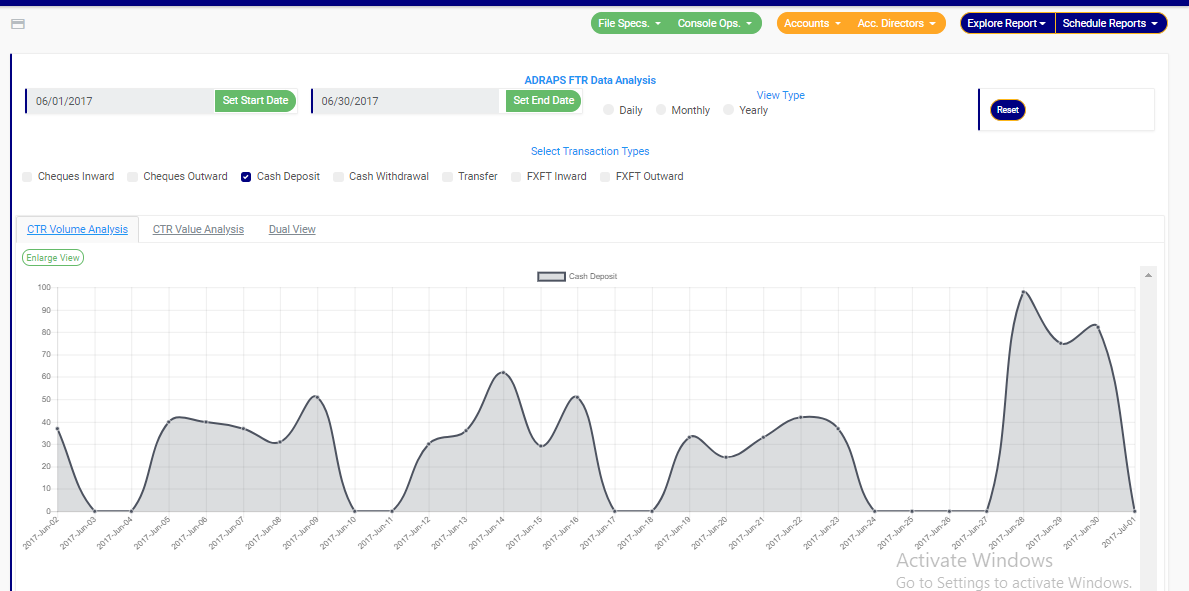
STEP 3: Tick the checkbox ◻ of the FTR type(s) you want to view. As soon as you select a transaction type, the software processes it and displays a graph instantly. Fig. 3.6e below is an example for Cash Deposit ADRAPS FTR for 1st of June 2017 to 30th of June 2016.

(fig. 3.6e)

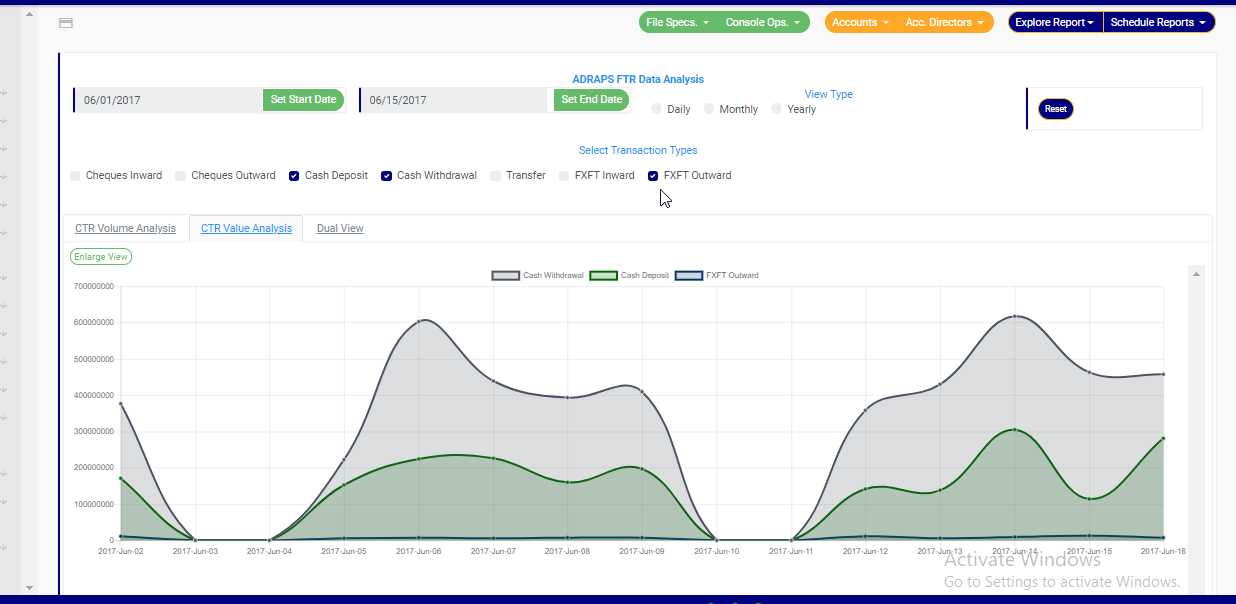
➔ Multiple transaction type can be selected. You can select all if you wish. See fig. 3.6f below for an example of a graph having analysis for more than one transaction.

(fig. 3.6f)

➔ ADRAPS FTRs can be analysed by the volume of the selected transactions or the value of the selected transactions. The Volume analysis is the default analysis . However, you can view both analysis side by side.

➔ By clicking on the CTR Volume Analysis, the graph analysis will be according to the number of the transactions that occurred in the period you specified in your date settings. Look at fig. 3.6e above for an example.

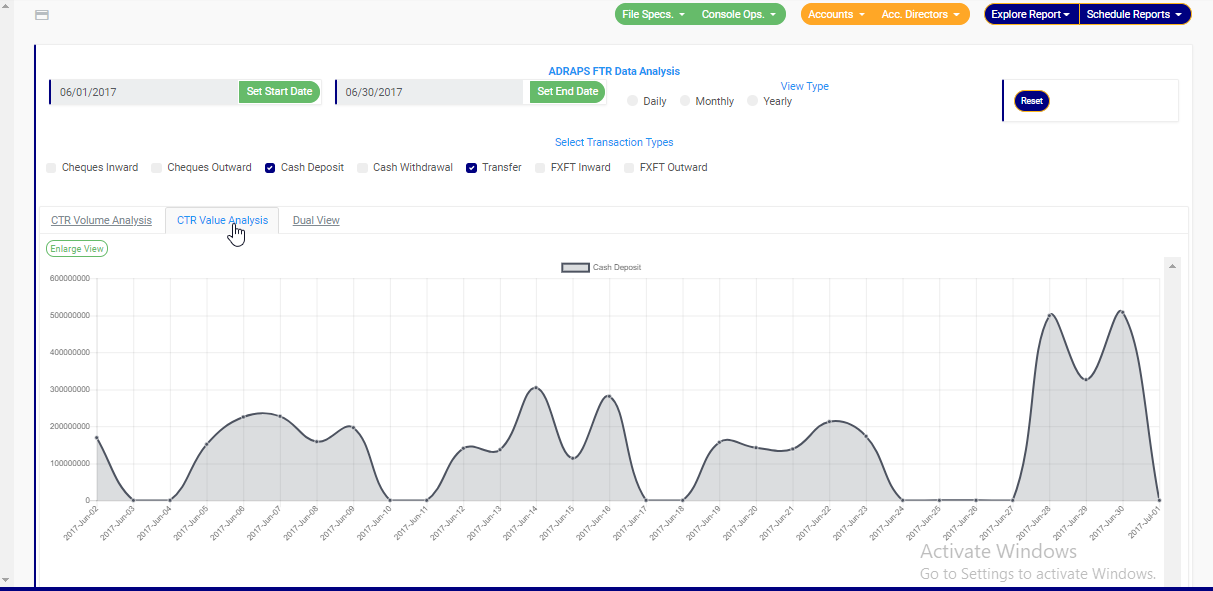
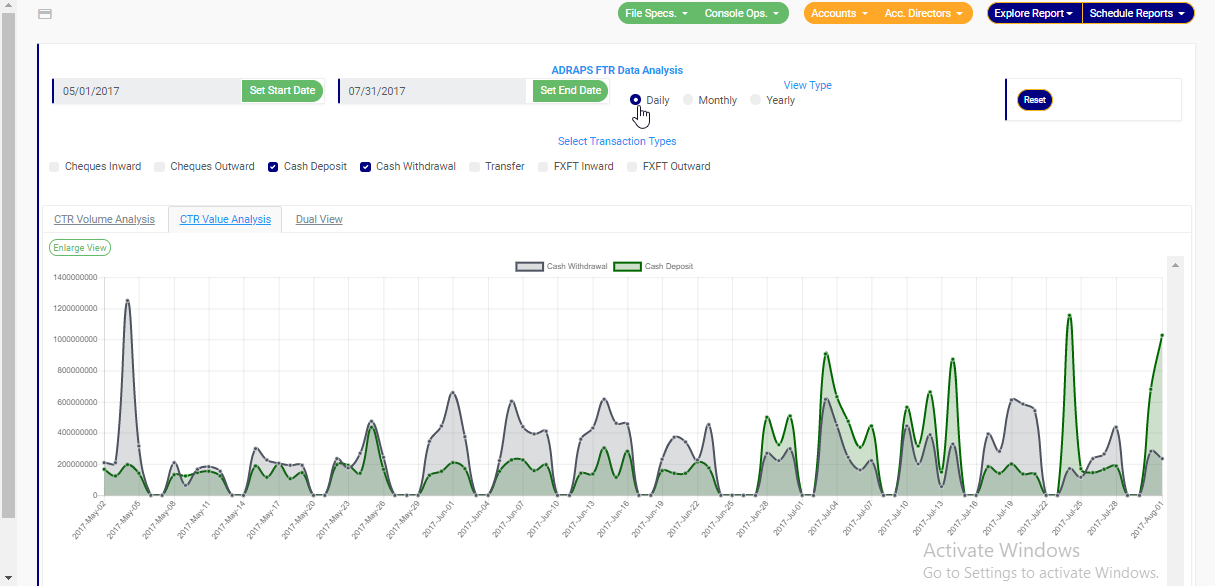
➔ By clicking on the CTR Value Analysis, the graph analysis will be according to the amounts (in naira) of the transactions that occurred in the period you specified in your date settings. Look at fig. 3.6g below for an example on value analysis.

(fig. 3.6g)

➔ By clicking on the Dual View, the software places both analysis, that is, volume and value, side by side. See an example of a dual view in fig. 3.6h.

(fig. 3.6h)

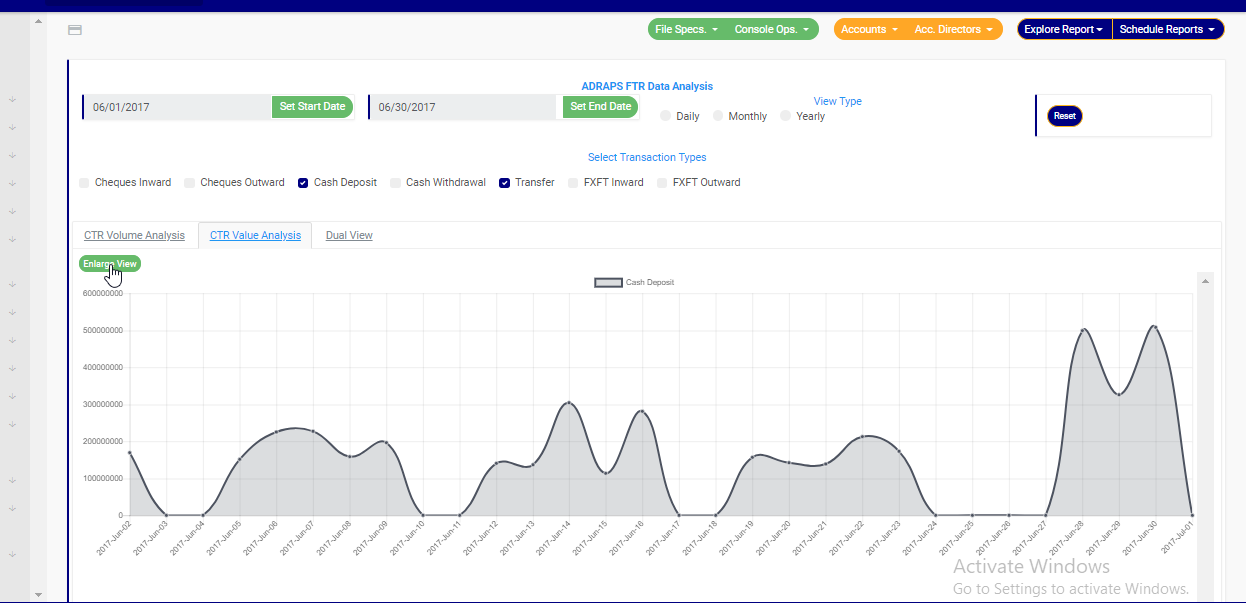
➔ To see a bigger view of your graph, click on the ENLARGE button. Check out fig. 3.6i to see the button. It is a green button right under the CTR Volume Analysis, CTR Value Analysis and Dual View switches.

(fig. 3.6i)

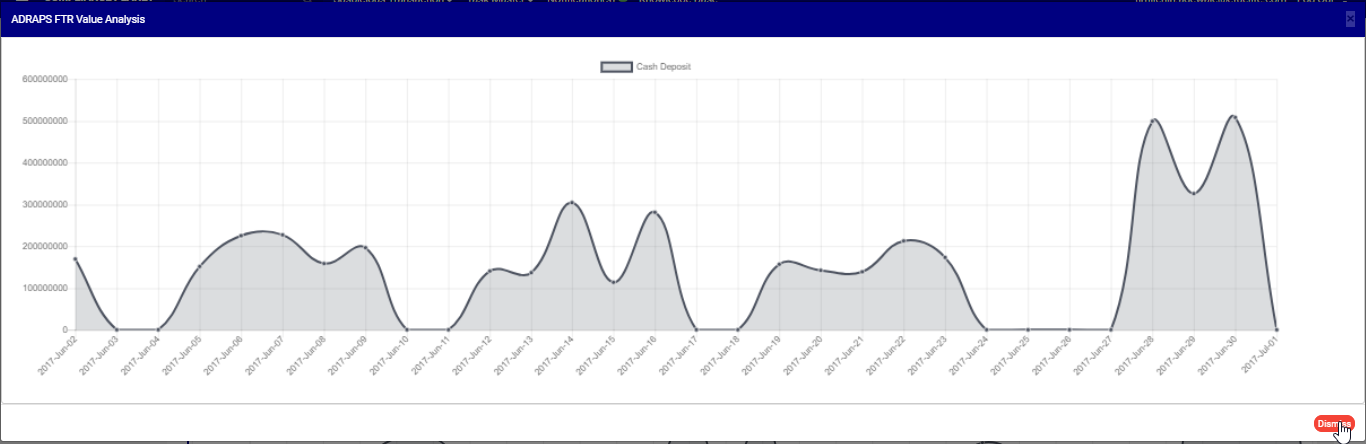
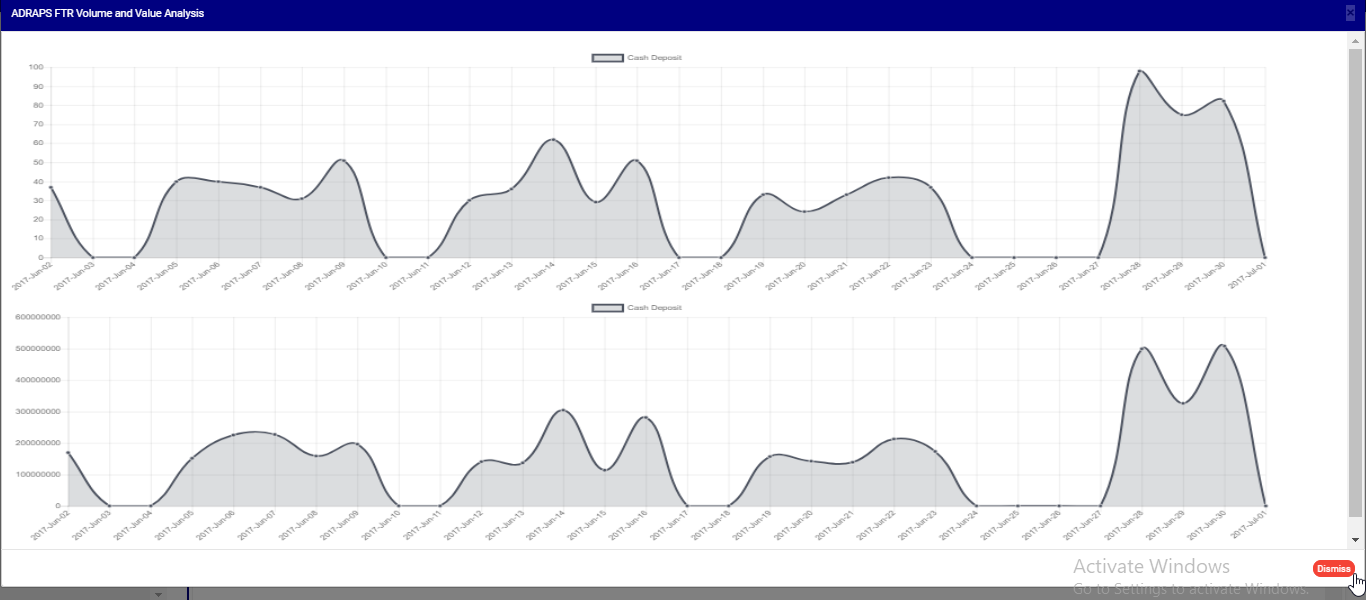
➔ See fig. 3.6j and fig. 3.6k for an enlarged view of a graph (one analysis) and an enlarged view of two graphs together (dual view of the value and volume analysis) respectively.

(fig. 3.6j)

(fig. 3.6k)

➔ There is a red ‘DISMISS” button at the bottom-right corner of the graph console. It is for closing the console. Click on it as in fig. 3.6k above and the enlarged view will be closed.

STEP 4: Click on DAILY or MONTHLY or YEARLY to change the time or period parameter. You can switch these view options to see analysis differently. These buttons are next to the End Date button on the page. See fig. 3.6l below to view them.

(fig. 3.6k)

➔ By clicking Daily, the value or volume of the transaction type is plotted against each day within the period specified in the date settings. This is the default view setting on the software for every analysis.

➔ By clicking Monthly, the value or volume of the transaction type is plotted against each month within the period specified in the date settings. This will have effect on analysis with date settings that spread to two or more months.

➔ By clicking yearly, the value or volume of the transaction type is plotted against each year within the period specified in the date settings. This feature will have effect if the period specified in your date settings spreads to two or more years.

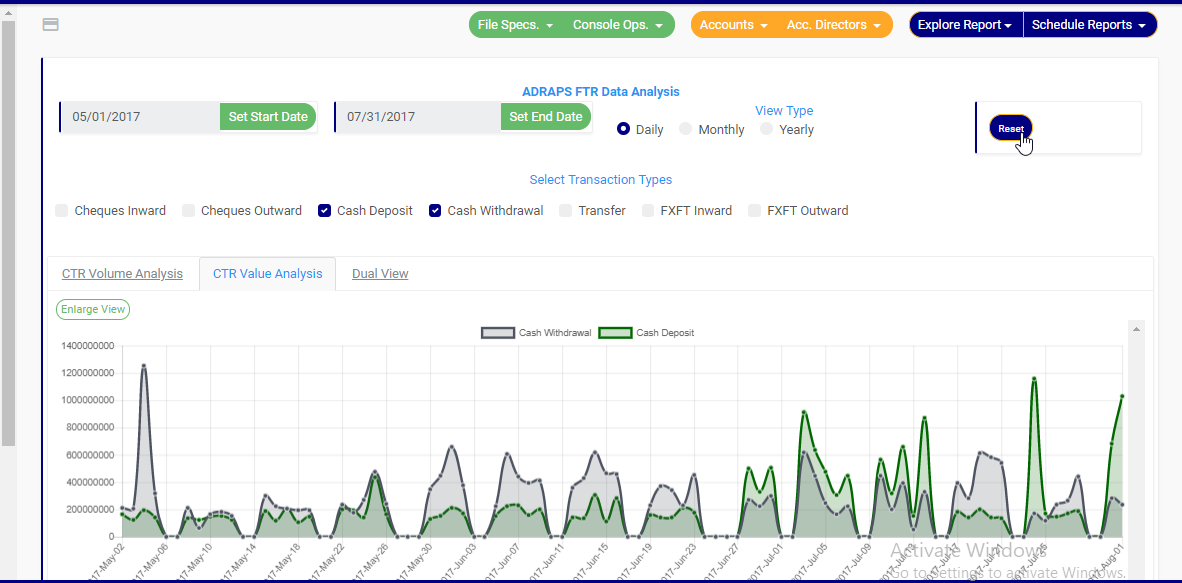
➔ Once you select any start date, end date and you mark any transaction for analysis, the software processes the details of the transaction selected right away, so, you cannot undo any setting you have made. You can only switch between volume and value analysis and change your view type. To make new settings for a fresh analysis, click on the RESET button. The software will clear previous selections. See fig. 3.6l below to view the Reset button. It is next to the View Type buttons

(fig. 3.6)

For further enquiries :
Tel +234(0) 816 555 9818
Email solutions@efuelite.com
Web http://solutions.efuelite.com
How to generate CBN ADRAPS Foreign Transaction report (ADRAPS FTR) XML In Compliance Planet Anti Money Laundering/Core Banking Finance Software

What is XML?

XML stands for Extensible Mark-up Language. It is a mark-up language that defines a set of rules for encoding documents in a format that is both human-readable and machine-readable. It is a metalanguage which allows users to define their own customized mark-up language, especially in a way to display documents on the internet. It was designed to store and transport data and describe data. It is a flexible way to create information formats and electronically share structured data via both public and corporate networks.
The Compliance planet software can help you generate XML from Excel files. Here is how to go about it.

NOTE: Only person(s) assigned right(s) to process ADRAPS FTR Notifications will be able to carry out this Operation.

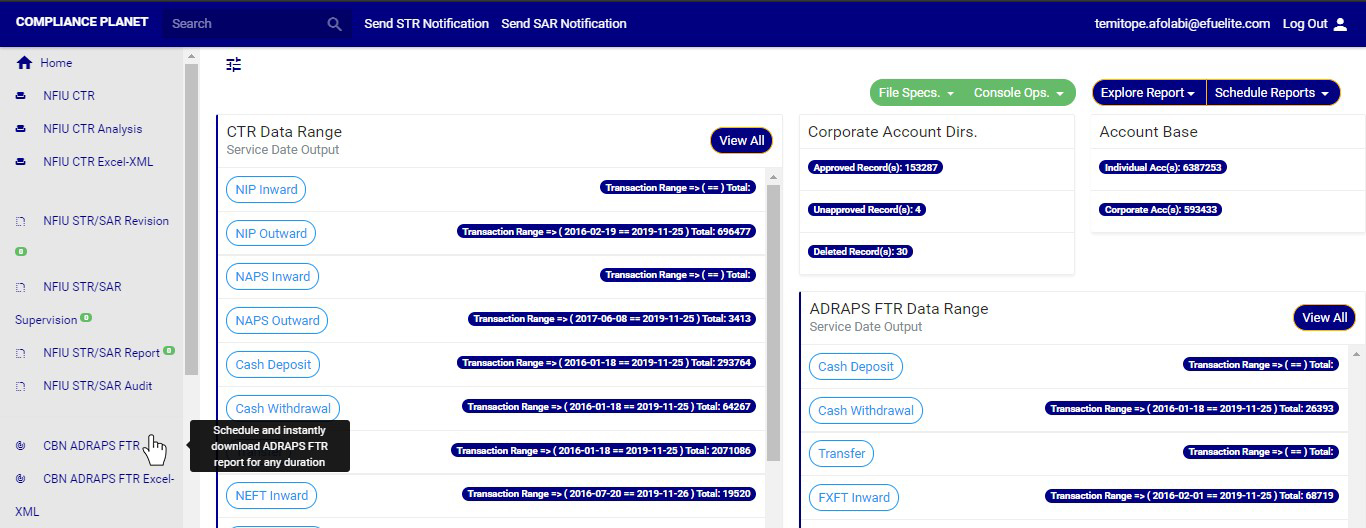
STEP 1: From the left hand side menu, click on CBN ADRAPS FTR Excel XML. Look at fig. 3.5a below.

(fig. 3.5a)

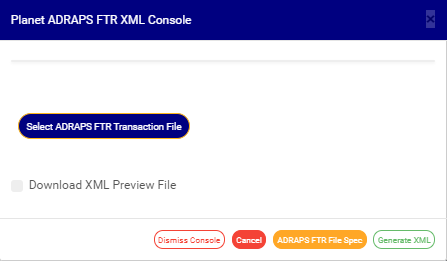
This displays a ‘Planet ADRAPS FTR XML Console’ as in fig. 3.5b below

(fig. 3.5b)

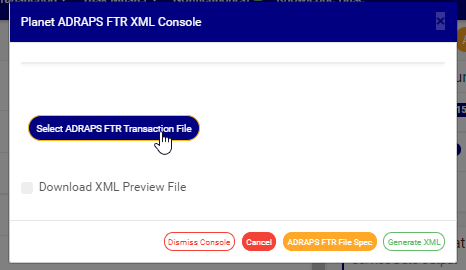
STEP 2: Click on ‘Select ADRAPS FTR Transaction File’ to upload an ADRAPS FTR file from your computer. It is the information in the uploaded file that the software will convert into an XML file. See how to upload a file from your computer.

(fig. 3.5c)

➔ If you do not have the file to upload, the software can generate an empty excel file with columns according to ADRAPS FTR Specification to fill in details of the transactions you want to see in XML format. Click on the ADRAPS FTR File Spec. button to download the file specification.

(fig. 3.5d)

➔ Open the downloaded file and fill in the details of the transactions for which you want to generate XML for. Ensure you save the changes to the file. Then, back on the Compliance Planet, click on ‘Select ADRAPS FTR Transaction File’ to upload the file.

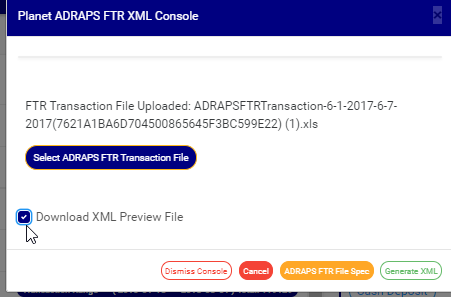
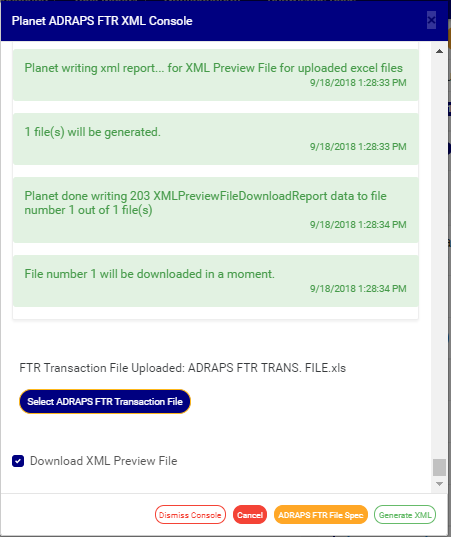
➔ After successful upload of file, the console will show the title of the file, that is, the file name. See fig. 3.5e to see an example of how the console looks like when you successfully upload a file from your computer.

STEP 3: Tick ‘Download XML Preview File’ to download a XML preview file. This preview file gives a numerical download report on the XML file that was generated, like the total number of transactions XML generated, the total number of transactions not generated, number of transactions extracted from the ADRAPS file uploaded. It also gives details of transactions with missing information. It is in Excel format. See fig. 3.5e to see the checkbox.

(fig. 3.5e)

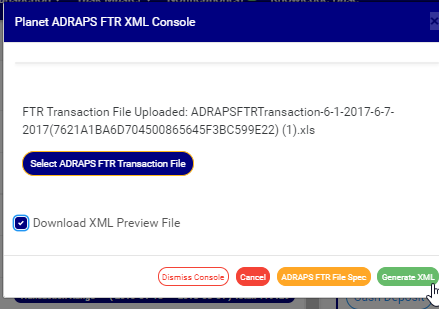
STEP 4: Click on GENERATE XML. Look at fig. 3.5f below to see the green button at the bottom-right corner of the console.

(fig. 3.5f)

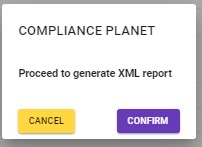
➔ This displays a confirmation console as in fig. 3.5g below.

(fig. 3.5g)

➔ To make changes to your report settings on the ADRAPS FTR Console, click on cancel. The software takes you back to the ADRAPS FTR XML Console.

➔ Click on CONFIRM to Proceed. The signal console shows on going processes. See an example of a signal console is fig 3.5h below

 (fig. 3.5h)

➔ Click on the DISMISS CONSOLE to close console.

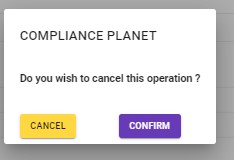
➔You can terminate unfinished processes by  clicking CANCEL, this will display a  confirmation console as in fig. 3.5i .

Click on proceed to confirm that you want to cancel the operation or cancel to go back to the XML Console.

(fig. 3.5i)
For further enquiries :
Tel +234(0) 816 555 9818
Email solutions@efuelite.com

How to report ADRAPS foreign transaction report(ADRAPS FTR) to the Central Bank Of Nigeria In Compliance Planet Anti Money Laundering/Core Banking Finance Software

This operation involves the download of foreign transaction reports. The processes and operations under this report are similar to those of CTR FTR Report.

NOTE: Only person(s) profiled and assigned right to ‘Process FTR Reports’ will be able to carry out this operation.

Here is how to schedule and download ADRAPS FTR.

STEP 1: From the main dashboard, click on reports. (See fig. 3.4a)

(fig. 3.4a)

STEP 2: From the left hand side menu, click on CBN ADRAPS FTR to schedule your report

(fig. 3.4 b)

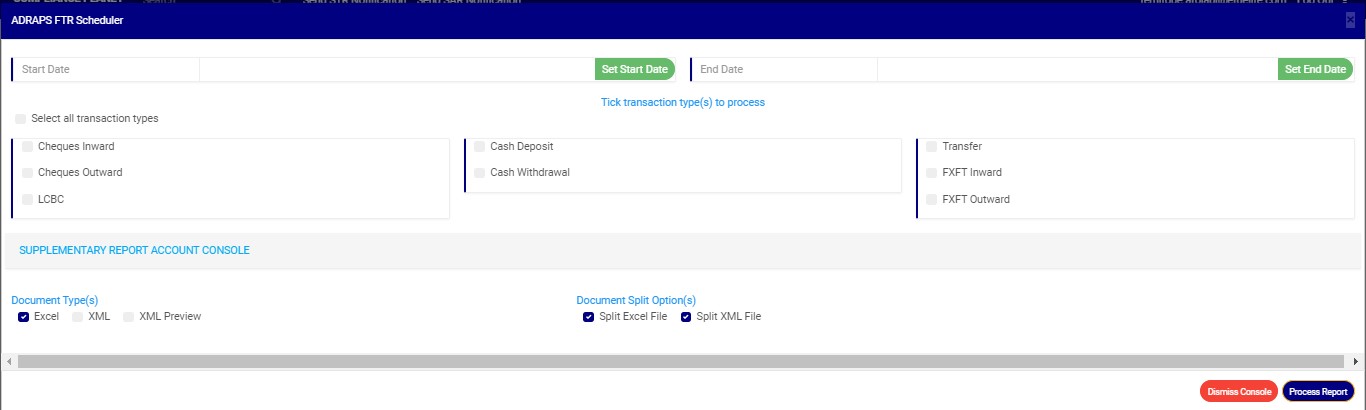
A console will be displayed on the screen just as in fig 3.4c below, for you to fill in the details and parameters for your report.

(fig. 3.4c)

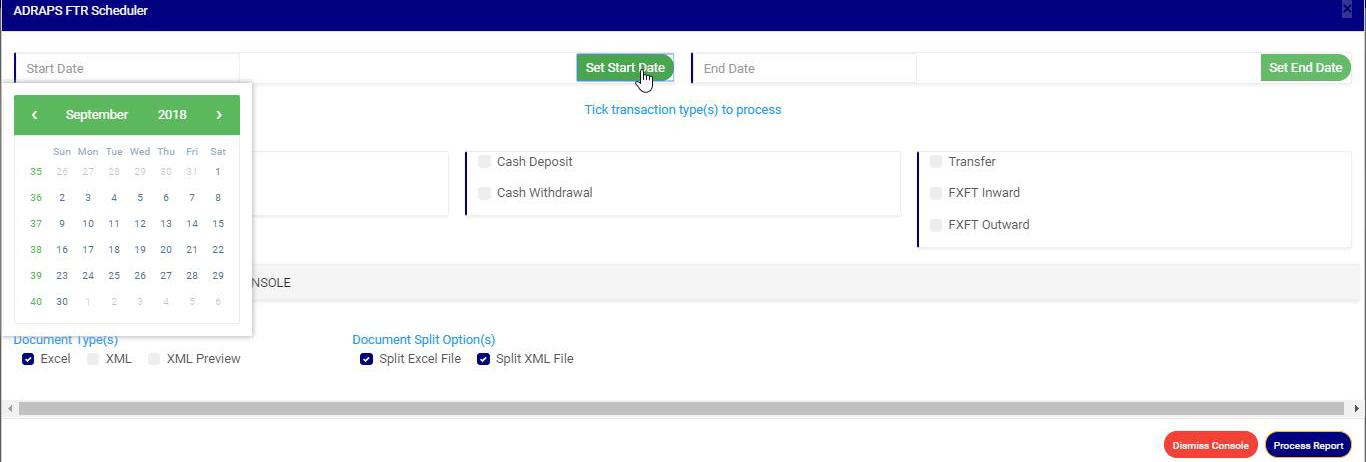
STEP 3:Click on SET START DATE and SET END DATE to specify the beginning and the end of the period (respectively) for which you want to generate report. A calendar drops below the date box as in fig. 3.4d.

(fig. 3.4d)

Take a look at the arrows labelled a to d in fig. 3.4e to study the calendar.

a. Click on the given year to change it to your year of choice.

b. Click on the given month to change it to your month of choice.

c. Then, click on the date of the month.

d. You can also click on the angle brackets on the calendar [ ‘’ ] to go backward or forward.

(fig. 3.4e)

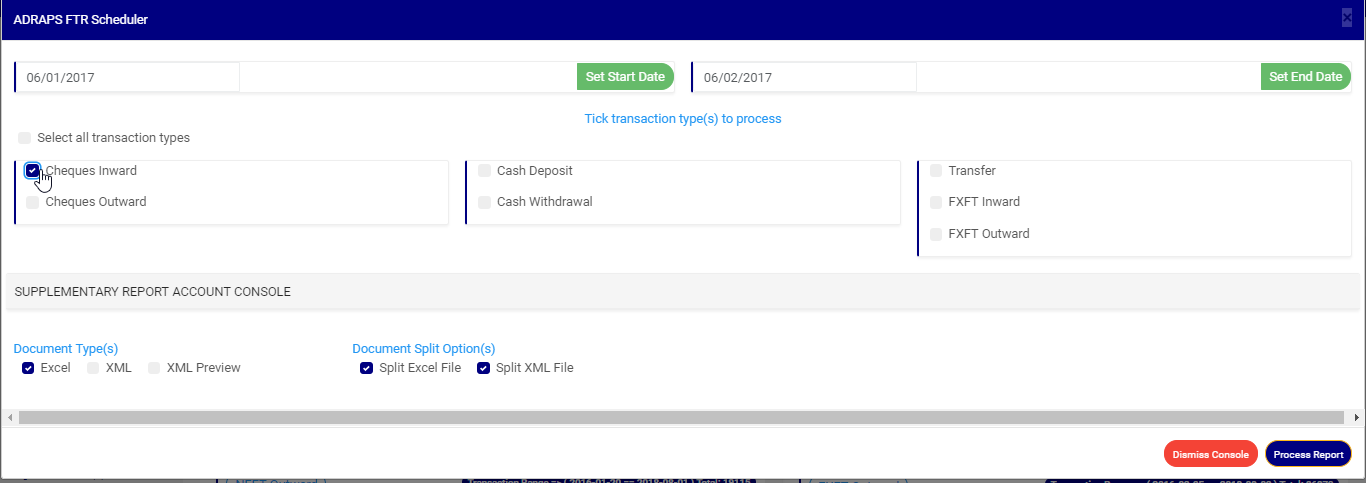
STEP 4: Click on the check boxes to select the transaction(s). You can select one or more as in fig. 3.4f.

(fig. 3.4f)

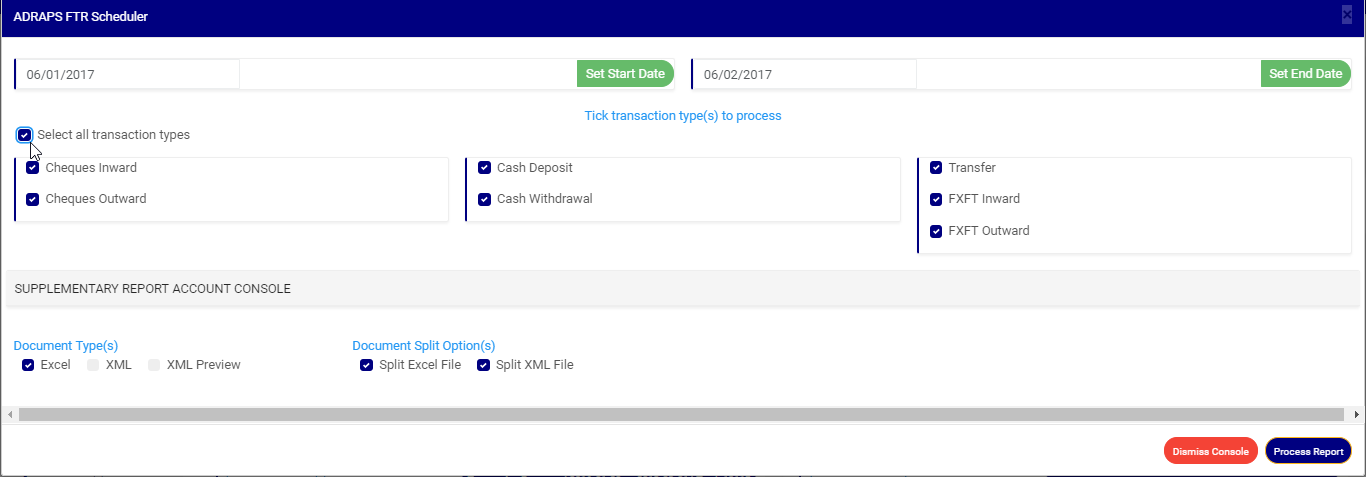
Click on ‘select all transactions’ to  select all transactions with just a single click and the software will mark all the FTRs for you. Click on ‘Select all transaction types’ as in fig. 3.4g to mark all transactions for processing at once, instead of marking them one by one.

(fig. 3.4g)

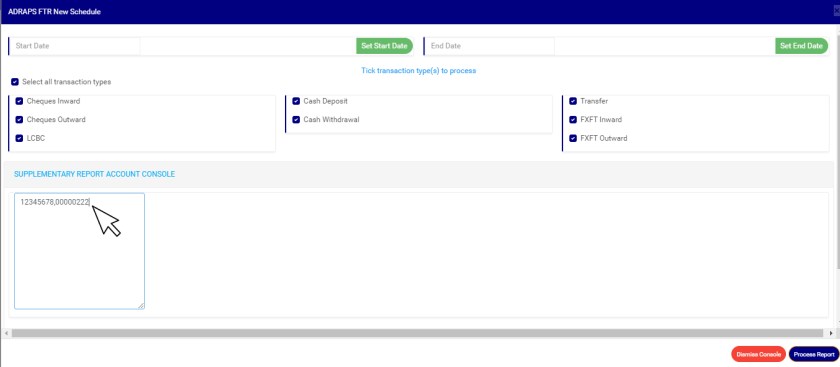
STEP 4: Click on ‘SUPPLEMENTARY REPORT ACCOUNT CONSOLE’ as shown below to download report pertaining to Specific account numbers only within the period selected.

  • This displays a textbox where the account number(s) are to be inserted. Note that each account number is to be separated by a comma. See an example below

 1

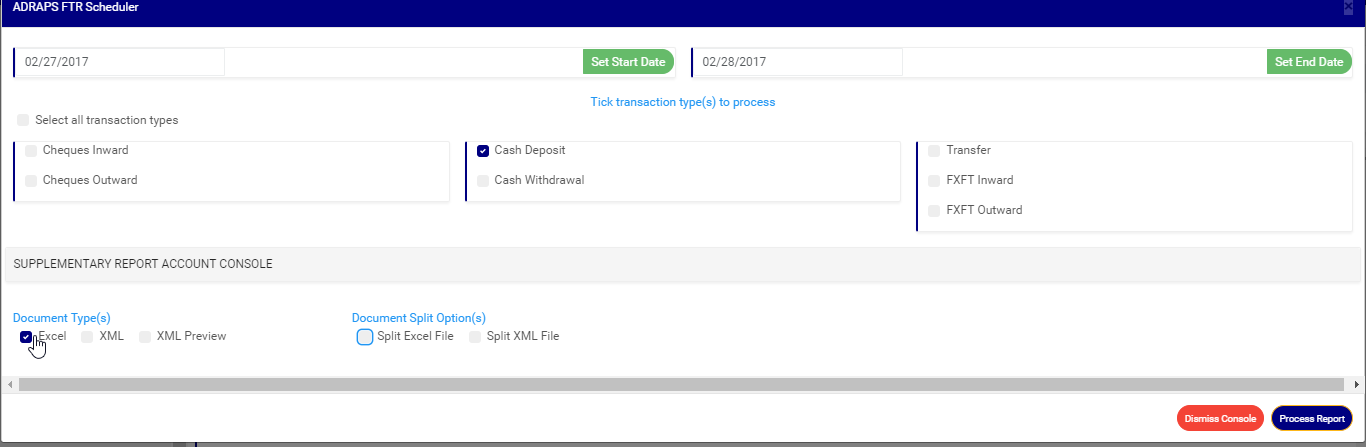
STEP 5: Select the document type you want your report to be in. The software has two options; Excel or XML. So, tick either of the two or select  both options. See fig. 3.4h for an example.

(fig. 3.4h)

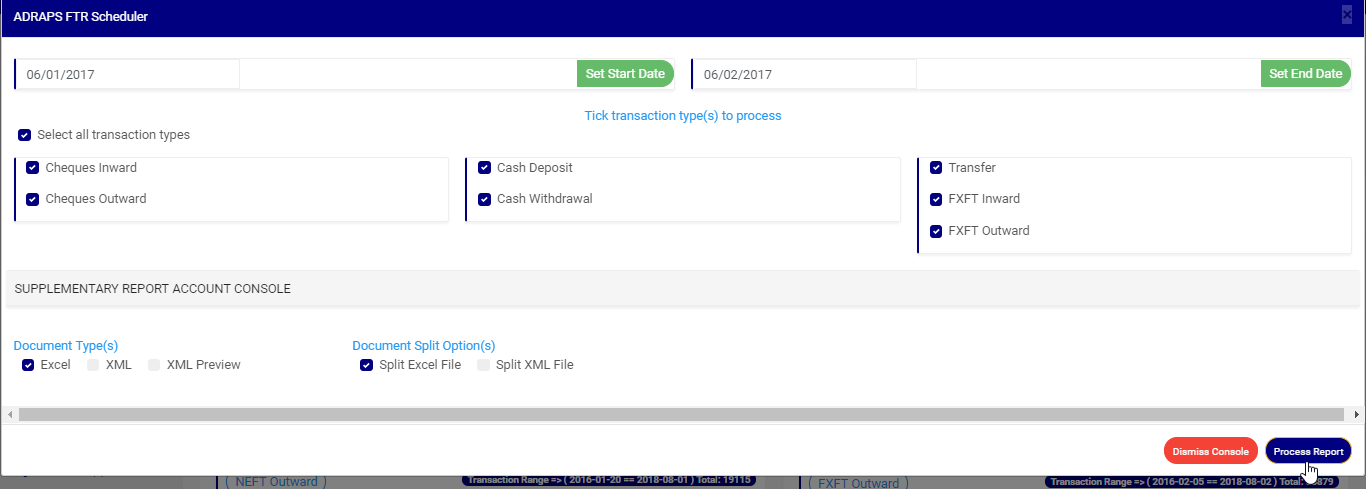
STEP 6: Tick the document split option(s). This step is optional. It all depends on if you want to combine all the selected FTRs that you want to process into one file or produce the reports of each FTR into separate files. By clicking on the document split options for either Excel file or XML, the software will generate report for the different transaction types separately. For instance, in the fig. 3.4i, ticking the split option will result in the software generating separate file for each ADRAPS FTR transaction type. Reports can be exported in Excel format or XML format.

(fig. 3.4i)

STEP 7: Click on Process Report to generate files. The ‘Process Report’ button is the blue button at the bottom-right corner of the ADRAPS FTR Console. Check out fig. 3.4j below to see this button.

➔ Next to it is the Dismiss Console button for closing the console. When you dismiss the console, you can also go back to it by clicking on ‘Generate Report’ and you can continue with your scheduling.

(fig. 3.4j)

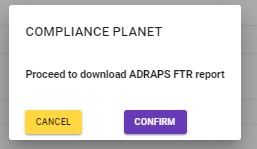
➔ When you click on ‘Process Report’, a confirmation console will be displayed as in fig. 3.4k. The confirmation console presents two buttons; Confirm and Cancel.

➔ To make changes to your report settings on the ADRAPS FTR Console, click on cancel. The software takes you back.

➔ Click on Confirm to confirm your answer.

(fig. 3.4k)

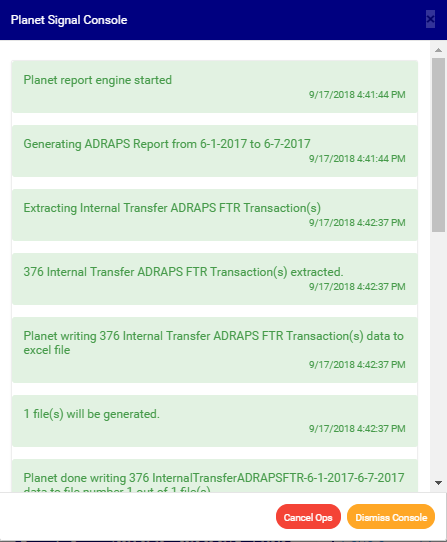
➔ The signal console shows on going processes. This console will notify you of successful and unsuccessful processes. An example of a signal console is fig. 3.4l below.

(fig. 3.4l)

➔You can terminate unfinished processes by  clicking CANCEL OPS.

➔ To minimize signal console, click on DISMISS CONSOLE. This button is next to the CANCEL OPS. button.

➔ If you want to view processes going on after closing the signal, click on the ‘Console Ops.’ drop-down button. This button is one of the green buttons at the top of the page, irrespective of whatever page you are working on. A list will be displayed below the button with DISPLAY CONSOLE and CLEAR CONSOLE as in fig. 3.4m. So, click on display console to view the ongoing processes on a signal console like fig. 3.4m or click on clear console to delete the notifications in the signal console.

(fig. 3.4m)

For further enquiries :
Tel +234(0) 816 555 9818
Email solutions@efuelite.com
Web http://solutions.efuelite.com