ADRAPS Foreign Currency Transaction Report (ADRAPS FTR) In Compliance Planet Anti Money Laundering/Core Banking Finance Software

WHAT IS ADRAPS FTR REPORT?

ADRAPS stands for ANTI-MONEY LAUNDERING/COMBATING THE FINANCING OF TERRORISM (AML/CFT) DATA RENDITION AND PROCESSING. ADRAPS Reports comprise of three (3) reports;

ADRAPS Foreign Currency Transaction Report (ADRAPS FTR)

ADRAPS Politically Exposed Persons Report (ADRAPS PEP)

ADRAPS Three Tiered Know Your Customer Report (ADRAPS KYC)

Foreign Currency Transactions are transactions denominated in a currency other than the local (domestic) currency of the country in which the banking office is located. In compliance with section 2(1) of the MLPA, 2011, financial institutions are required to render reports on transfers to or from a foreign country of funds or securities by a person or body corporate including a Money Service Business of a sum exceeding US$10,000 or its equivalent to the Central Bank of Nigeria (CBN),

WHAT ARE THE FTR TYPES?

The Foreign transaction types are; Cash Deposit, Cash Withdrawal, Cheque operations, Transfers and FXFT. Here in ADRAPS FTR, only transaction files are generated.

Cash Deposit
This refers to the deposit of foreign currencies into domiciliary accounts.

Cash Withdrawal
This is a transaction in which a customer receives money (in foreign currency).

Cheques
Transactions here refer to foreign transactions involving the use of a cheque. Cheque operations can be inward or outward.

Internal Transfer
This refers to internal transfer of money in foreign denomination between customers of the same reporting bank.

FXFT (Foreign Exchange Foreign Transaction)
FXFT refers to the sale or purchase of foreign currencies. This transaction involves the currencies of two countries . Simply put, the foreign exchange transaction is an agreement of exchange of currencies of one country for another at an agreed exchange rate on a definite date. FXFT transactions can either be Inward or Outward.

ADRAPS FTR REPORT OPERATIONS

The operations pertaining to ADRAPS FTR on the Compliance Planet are three (3);

  1. Generating Transaction Reports
  2. Generating XML
  3. Analysing transactions

For further enquiries :
Tel +234(0) 816 555 9818
Email solutions@efuelite.com
Web http://solutions.efuelite.com

How to generate Currency Transaction report (CTR) XML In Compliance Planet Anti Money Laundering/Core Banking Finance Software

What is XML?

XML stands for Extensible Markup Language. It is a markup language that defines a set of rules for encoding documents in a format that is both human-readable and machine-readable. It is a metalanguage that allows users to define their own customized markup language, particularly for displaying documents on the internet. It was designed to store, transport, and describe data. It is a flexible way to create information formats and electronically share structured data via both public and corporate networks.
The Compliance Planet software can help you generate XML from CTR FTR exported Transaction and Account Excel files. Here’s how to proceed.

NOTE: Only person(s) Assigned right(s) to ‘process CTR reports’ will be able to carry out this Operation.

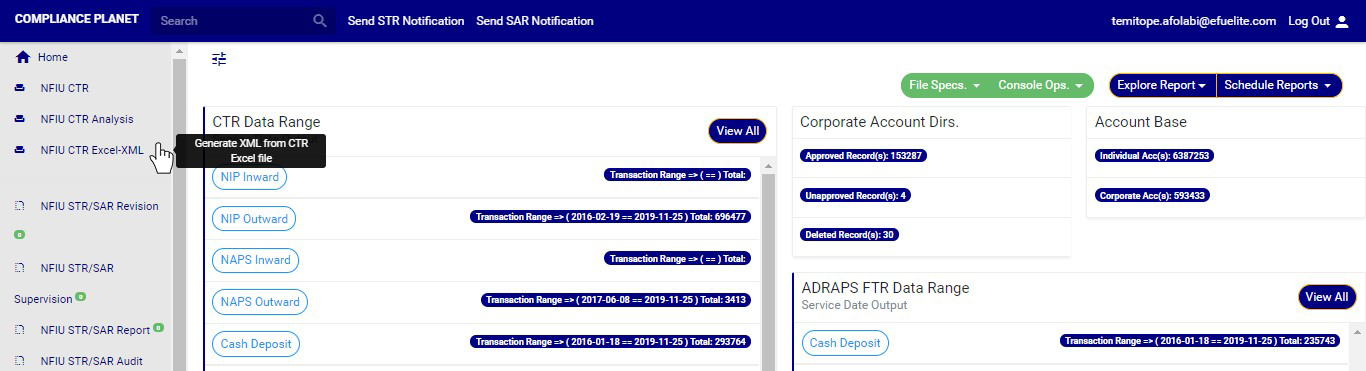
STEP 1: From the left-hand side menu, click on NFIU CTR Excel XML as in Figure 2.6a below.

(Fig. 2.6a)

➔ This displays a console as in Fig.2 2.6b below.

   
(fig. 2.6b)

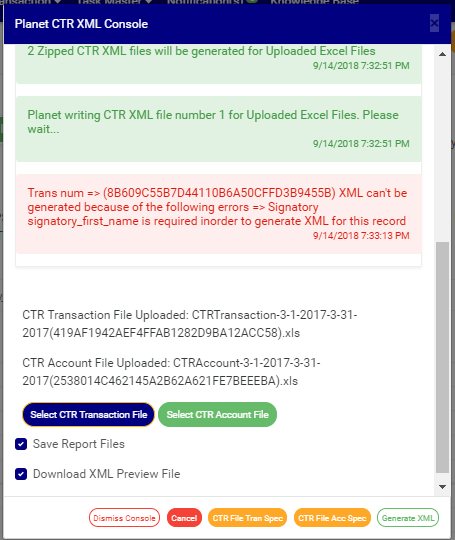
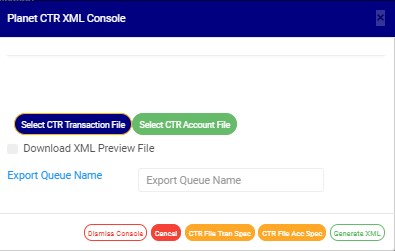
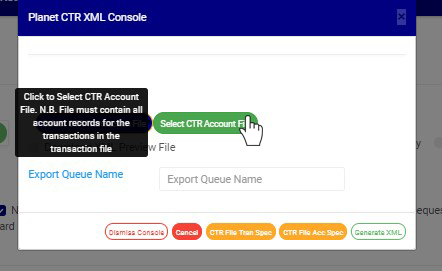
STEP 2: Click on SELECT CTR TRANSACTION FILE and SELECT CTR ACCOUNT FILE.

To generate the CTR FTR XML file, two Excel file types are required: CTR TRANSACTION FILE and FTR ACCOUNT FILE. Both files must be uploaded. None is optional. Fig. 2.5c and Fig. 2.5d shows the buttons for selecting each file from your computer.

(fig. 2.6c)

(fig. 2.6d)

➔ If you do not have any of the files on your computer, in step 3 above, click on CTR FILE TRAN. SPEC. or CTR FILE ACC. SPEC. to download the file format(s) you do not have. Open the downloaded Excel file and fill in the required details. Ensure you save the changes to the file(s). Then, upload as in step 3 above. See fig. 2.6c and fig. 2.6d to see buttons for uploading the Transaction file and Account file, respectively.

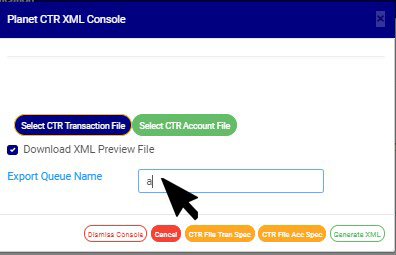
➔      Click the’Export Queue Name’ textbox to set the name of the document. See this in fig. 2.6e.

(fig. 2.6e)

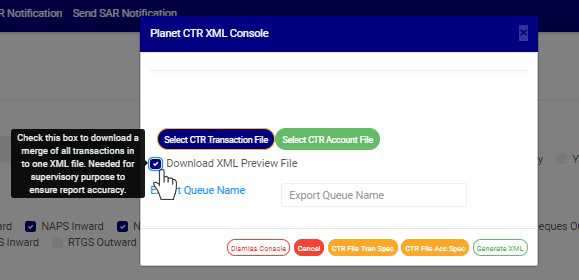
➔ Tick ‘Download XML Preview File’ for the software to generate an XML Preview file. See the button in fig. 2.6f below.

  
(fig. 2.6f)

STEP 3: Click on ‘GENERATE XML’. This button is the green button at the bottom-right corner of the XML console, as in fig.2.6g below.

(fig. 2.6g)

➔ The signal console shows ongoing processes. See an example of a signal console in fig. 2.6h below

(fig. 2.6h)

➔You can terminate unfinished processes by clicking CANCEL.

➔ An Upload report file will be downloaded on your computer at the end of the upload. This file will provide information about the number of transactions extracted, generated and not generated the number of files generated and the file name.

➔ When the operation is complete, you can open the XML files. See an example of a generated CTR XML below

For further enquiries :
Tel +234(0) 816 555 9818
Email solutions@efuelite.com
Web http://solutions.efuelite.com

How to carry out data analysis and business intelligence on currency/foreign transaction report(ctr/ftr) In Compliance Planet Anti Money Laundering/Core Banking Finance Software

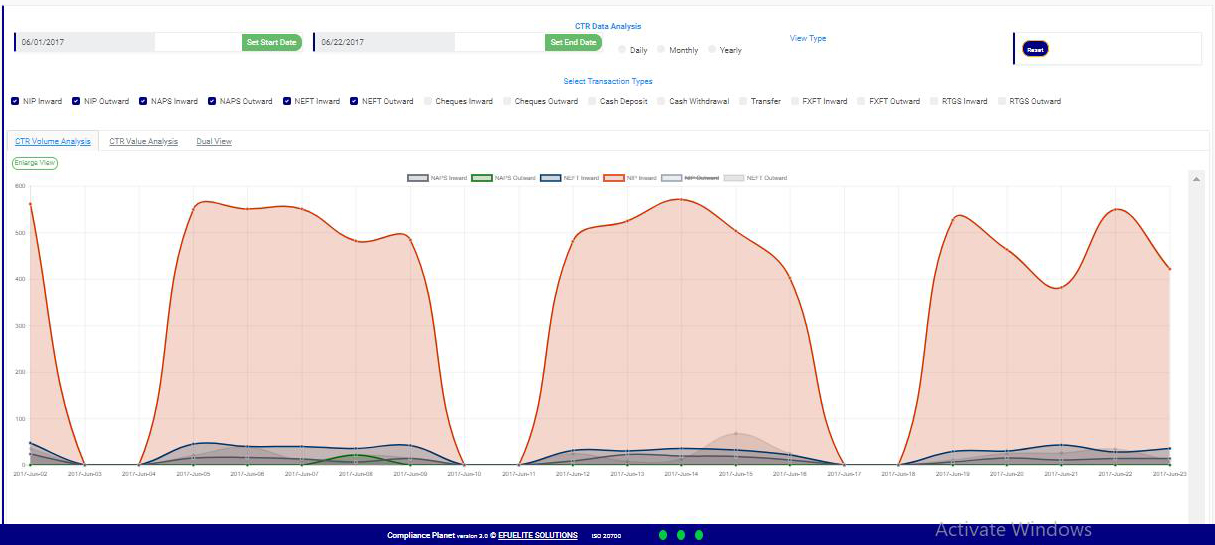
The Compliance Planet software can help you with graphs with the volume and/or value of transactions plotted against the time or period in which they occur. Thus, making financial reporting easier. The software gives an analysis of a selected transaction type over a period of time, here is how to go about it.

NOTE: Only person(s) Assigned right(s) to ‘process CTR reports’ will be able to carry out this Operation.

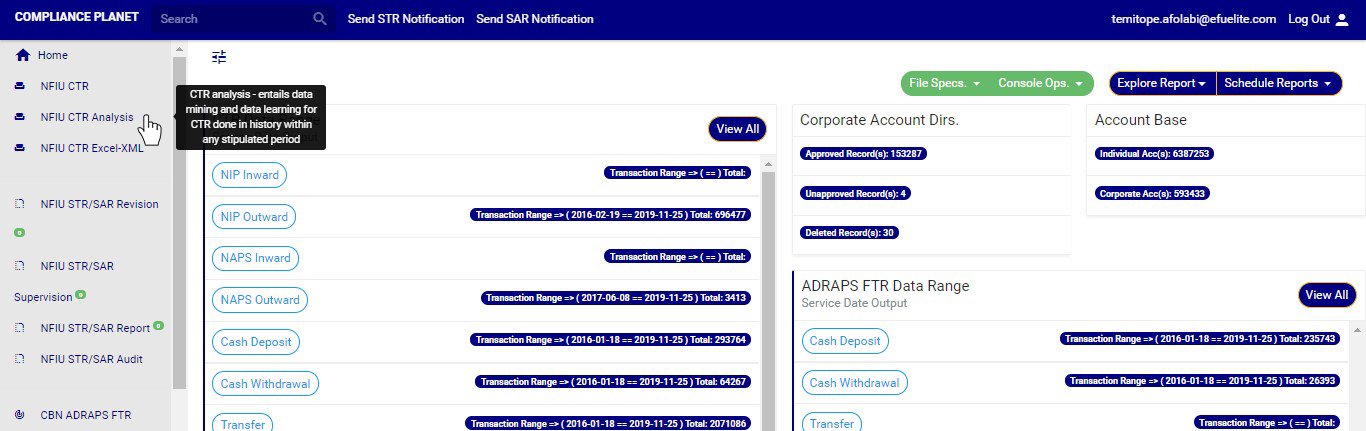
STEP 1: From the left-hand side menu, click on “NFIU CTR ANALYSIS”. See fig. 2.5a
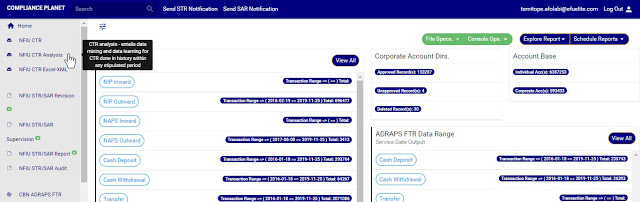
(fig. 2.5a)

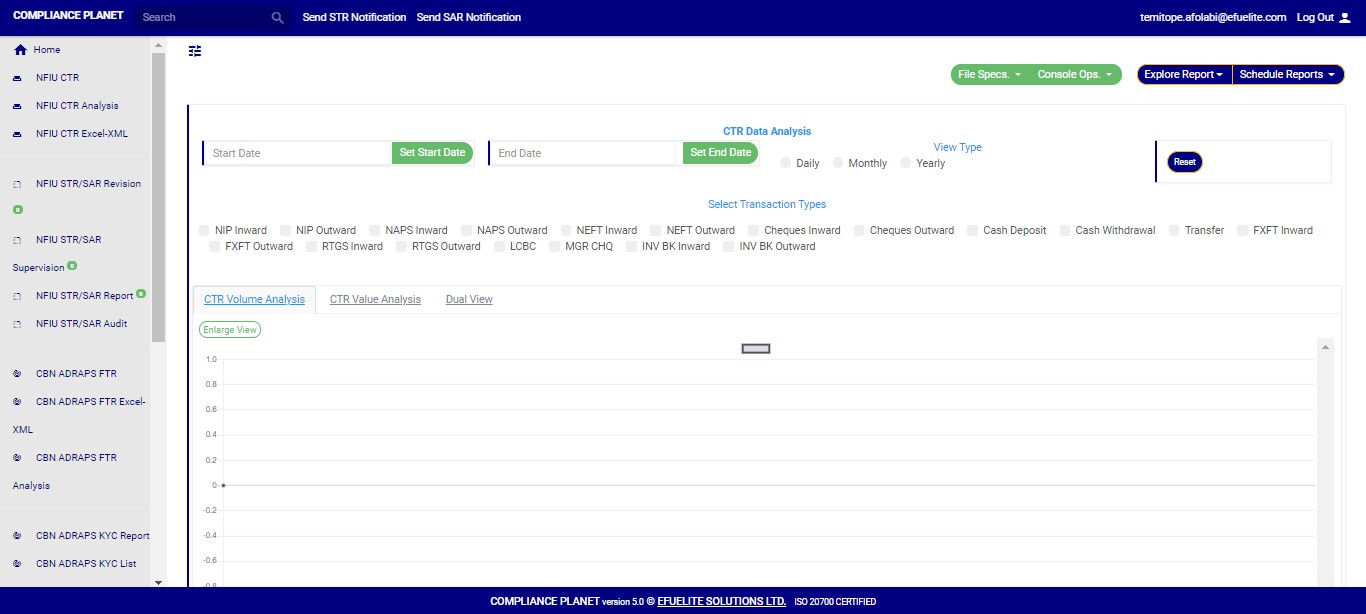
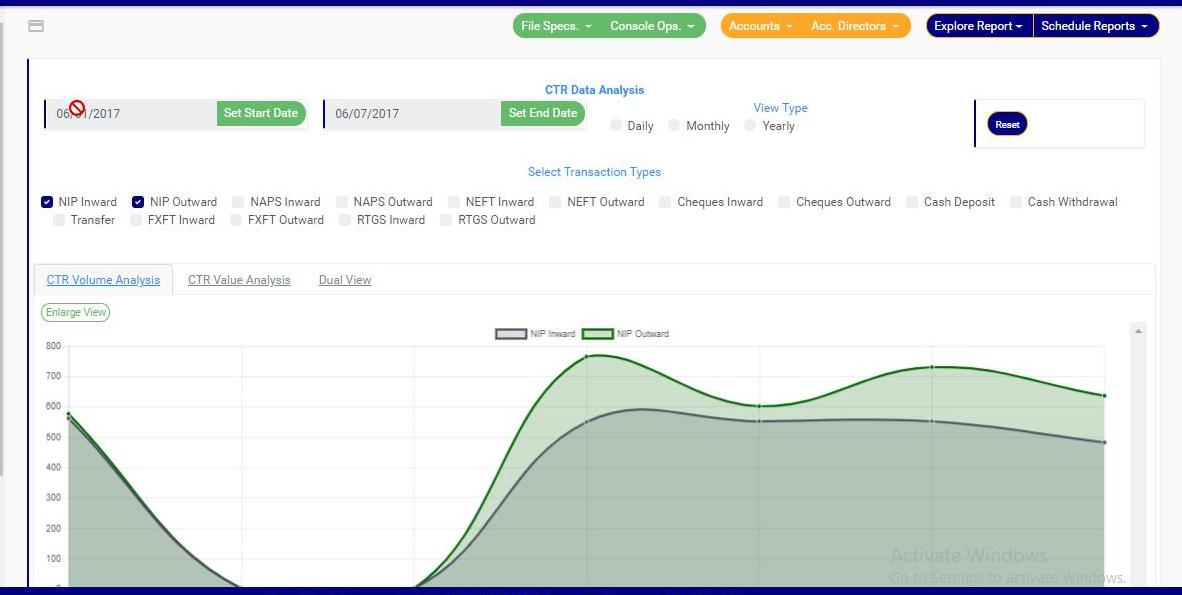
STEP 2: Clicking on NFIU CTR ANALYSIS will display a page as in fig. 2.5b below. On this page, you will find features to set date, select transactions, set different periodic views, enlarge graph view and set parameters of graph.
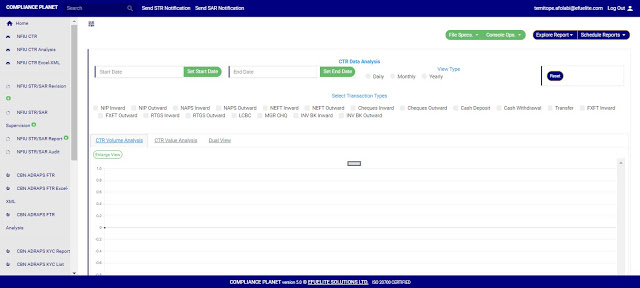
(fig. 2.5b)

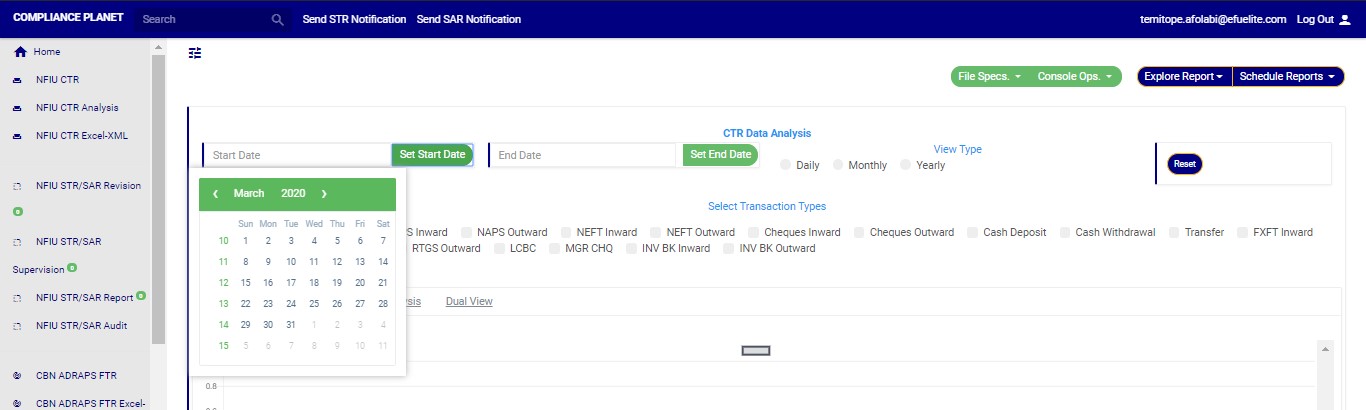
STEP 3: Click on SET START DATE and SET END DATE to specify the beginning and the end of the period (respectively) for which you want to see. You must set your date parameters before selecting any transaction type for analysis.
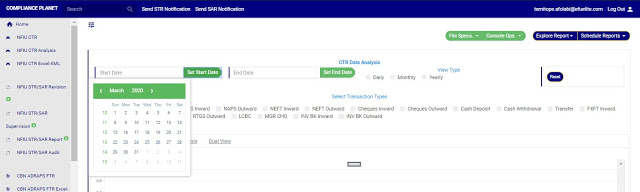
(fig. 2.5c)
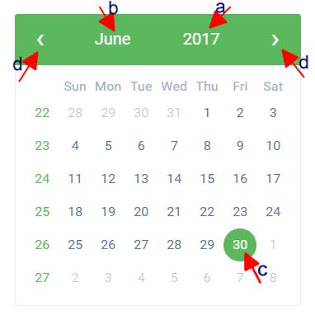
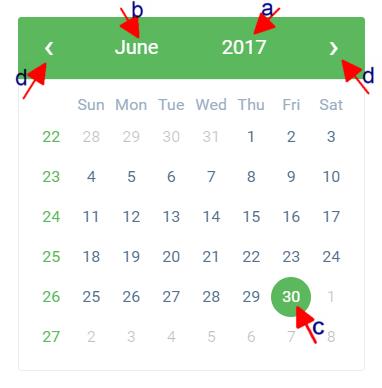
● Take a look at the arrows labelled a to d in fig. 2.5d to study the calendar.

a. Click on the given year to change it to your year of choice.

b. Click on the given month to change it to your month of choice.

c. Then, click on the date of the month.

d. You can also click on the angle brackets on the calendar [ ‘’ ] to go backward or forward.

(fig. 2.5d)
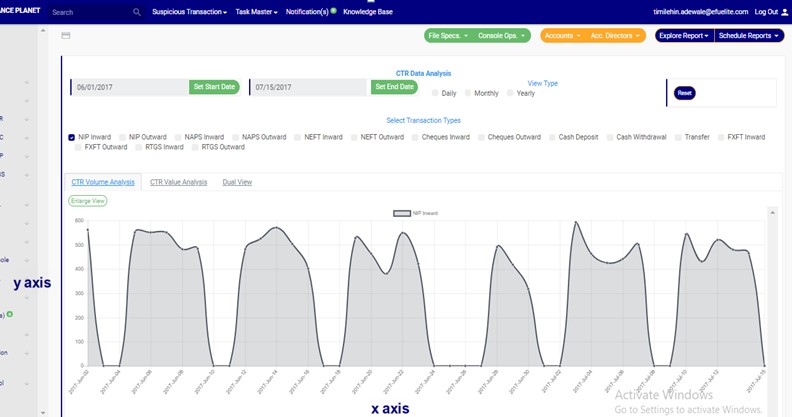
STEP 4: Tick the check boxes to select the transaction type(s). As soon as you select a transaction type, the software processes it and shows you a graph instantly. Fig. 2.5e below is an example for NIP Inward transaction for 1st of June, 2017 to 15th of June, 2016..

(fig. 2.5e – one transaction type graph)

➔ Looking at fig. 2.5e above, the time or periods are always labelled on the x axis (horizontal axis) and the volume or values of the transactions are always on the y axis (vertical axis). So, from the example in the fig. 2.5e, the software shows that about 500 to 600 ‘NIP Inward’ reporting threshold transactions occurred on the 2nd of June, 2017.

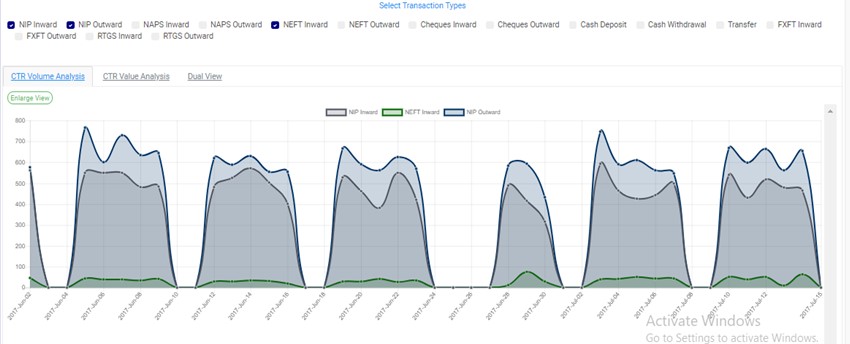
➔ You can see analysis for more than one transaction type. See fig 2.5f and 2.5g to see the analysis for two (2) and three (3) transactions types at the same time on the same graph respectively.

● Two-Transaction Type Graph:

(fig. 2.5f – two-transaction type graph)

● Three-Transaction Type Graph:
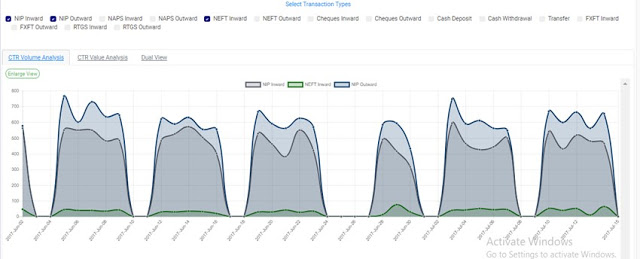
(fig. 2.5g – three-transaction type graph)

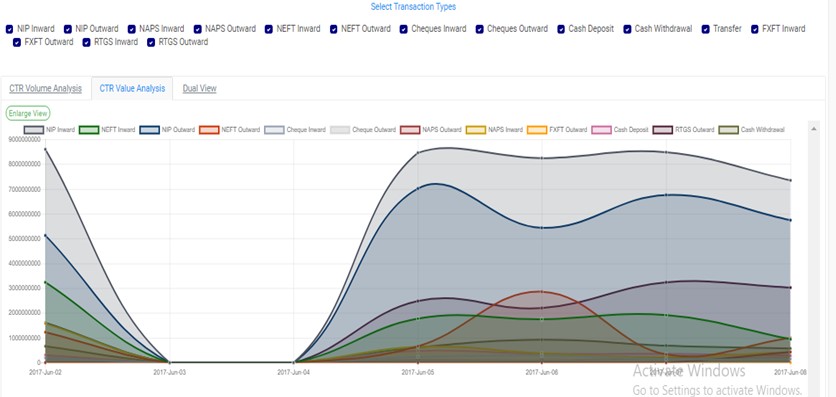
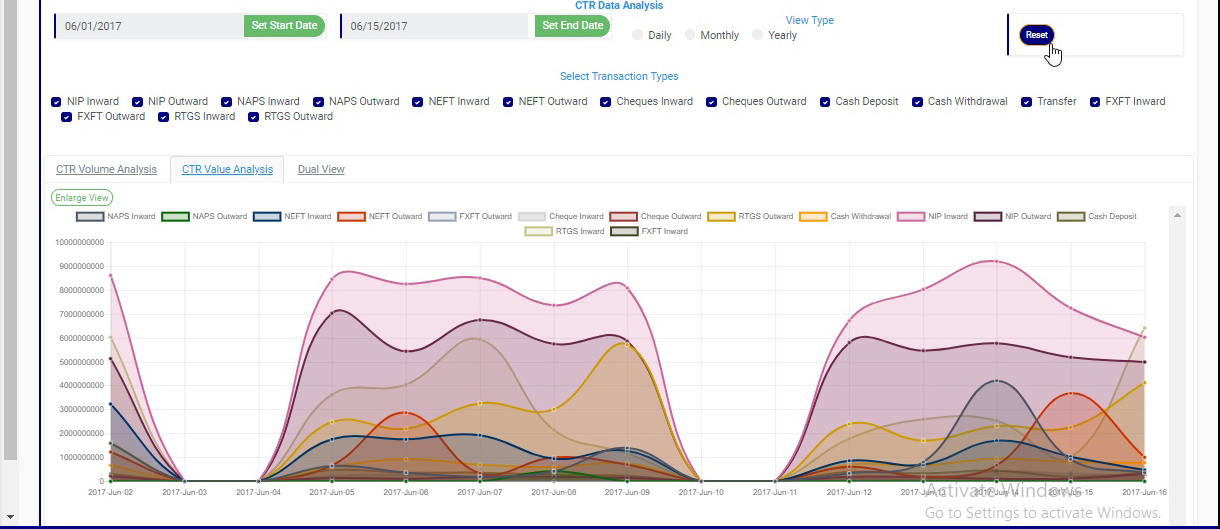
➔ You can check all the boxes if you want to see analysis for all. See fig. 2.5h below to see an example.

(fig. 2.5h – All transactions analysed on the same graph)

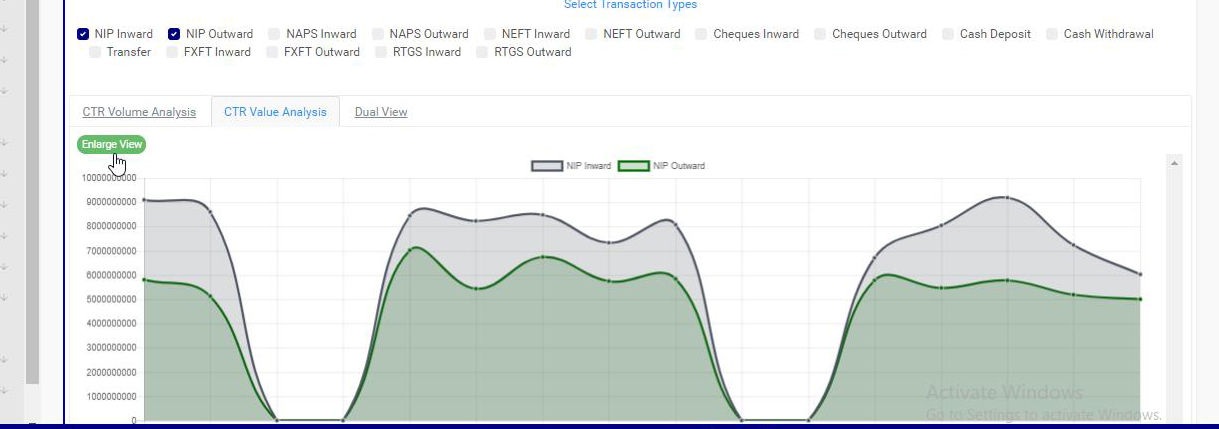
➔ You can see a bigger view of your graph by clicking on the Enlarge button. This button is at the top-left side of the graph, above the selected transaction types. Check fig 2.5i and fig. 2.5j to see the Enlarge button and the Enlarged view of the graph respectively.

(fig. 2.5i)

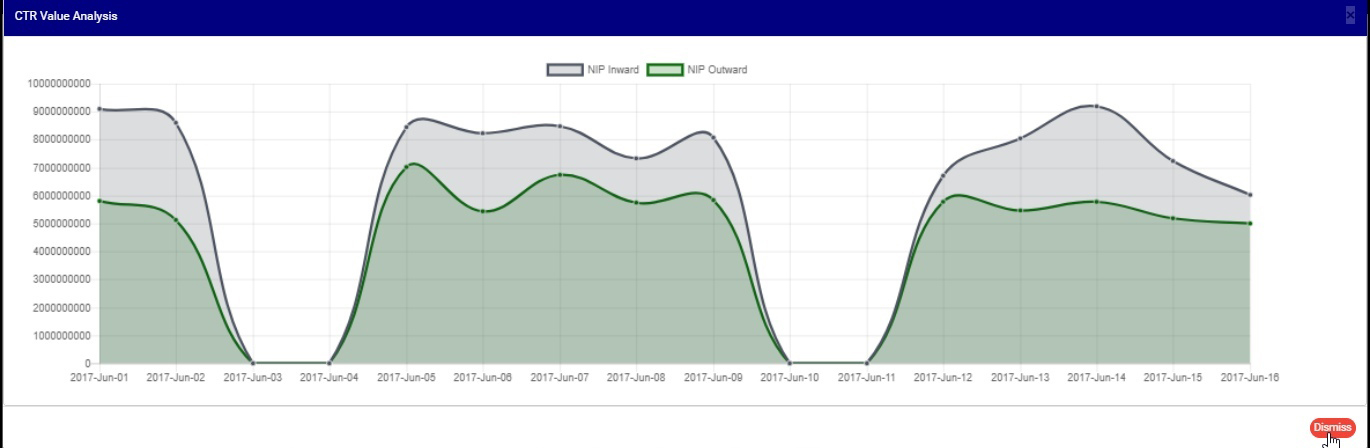
● An enlarged view of the graph:
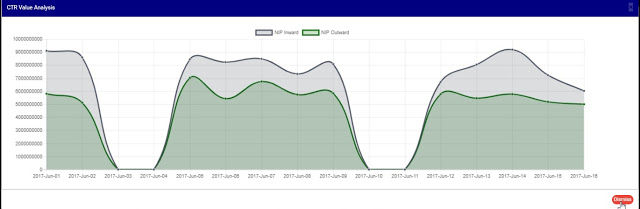
(fig. 2.5j)

➔ From the fig. 2.5j above, you can see a red button at the bottom-right of the console. It is the DISMISS button to close the enlarged view of the graph.  clicking it takes you back to the transaction analysis page as  in fig. 2.5i.

➔ Once you set your start and end dates and select transaction type, you cannot change the date settings by going straight back to the calendar or deselect any transaction type by unchecking its box. You have to click on the Reset button. Check out fig. 2.5k to see the reset button. It is a deep-blue button at the top right area of the transaction analysis page.

(fig. 2.5k)

➔ If you noticed, in fig. 2.5e, fig. 2.5f, fig. 2.5g, fig. 2.5h, fig. 2.5i, fig. 2.5j and fig. 2.5k, names of the selected transaction types appear with coloured rectangular buttons before them each. Those colours differ from one transaction type to another. The colour of the button before each transaction type represents the colour of the transaction type line on the graph. These coloured buttons appear right above the graph whether you enlarge the graph or not. See for yourself.

➔ To hide transactions line on the graph, click on the box just before the name of the transaction type(s) you want to hide and click the box again to re-select. See fig 2.5l and 2.5m to see a graph before hiding one of the transactions and after hiding the transaction type

(fig. 2.5l)

(fig. 2.5m)

STEP 5: Click on DAILY or MONTHLY or YEARLY to change parameter of the time or period. You can switch these view options to see analyses differently. These buttons reset the parameters on the x axis.

➔ By clicking Daily, the value or volume of the transaction type is plotted against each day within the period you specify in your date settings. The default view type is ‘DAILY’.

➔ By clicking Monthly, the value or volume of the transaction type is plotted against each month within the period you specified in your date settings. This will have effect on analyses with date settings that spread to two or more months.

➔ By clicking Yearly, the value or volume of the transaction type is plotted against each year within the period you specified in your date settings . This feature will have effect if the period specified in your date settings spreads to two or more years.

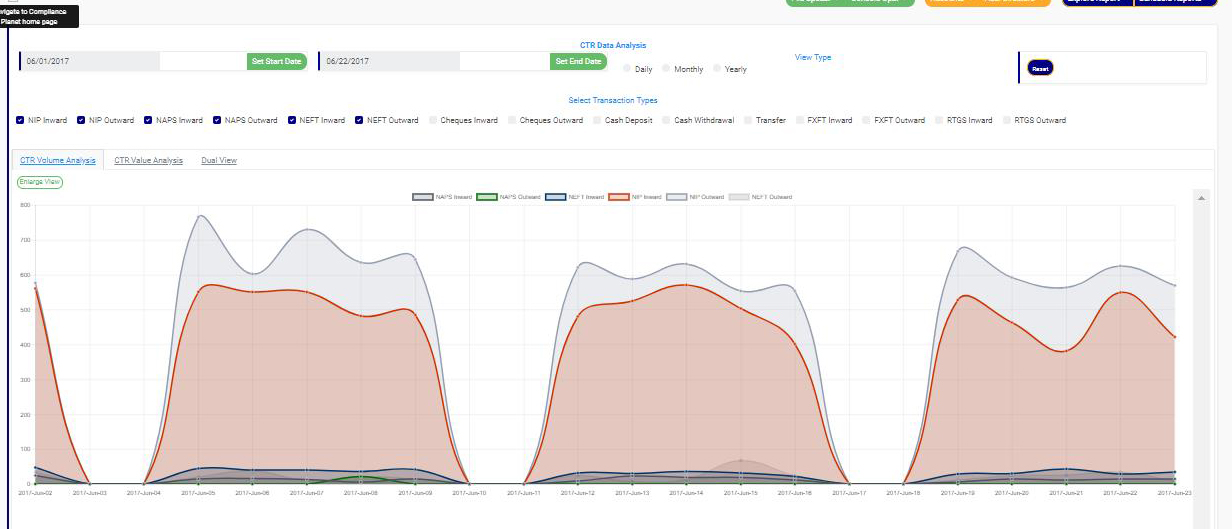
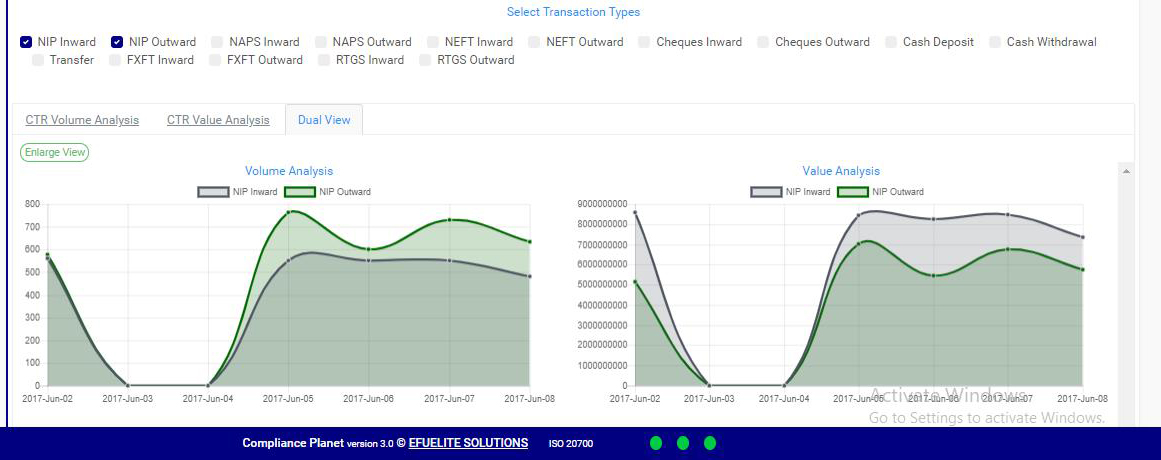
STEP 6: Click on CTR Volume Analysis or CTR Value Analysis or Dual View to see analysis based on volume of transactions or value of transactions or value and volume together, respectively. The volume analysis button and the value analysis button only change parameters on the y axis to number or amounts.

➔ By clicking on the CTR Volume Analysis, the graph analysis will be according to the number of the transactions that occurred in the period you specified in your date settings. Look at fig. 2.5n below for an example on NIP Inward volume analysis.

(fig. 2.n)

➔ By clicking on the CTR Value Analysis, the graph analysis will be according to the amounts (in naira) of the transactions that occurred in the period you specified in your date settings. Look at fig. 2.5o below for an example on NIP Inward value analysis.

(fig. 2.5o)

➔ By clicking on the Dual View, the software places both analysis, that is both volume and value, side by side.

(fig. 2.5p)

For further enquiries :
Tel +234(0) 816 555 9818
Email solutions@efuelite.com

How to report currency/ foreign transaction report(ctr/ftr) to the Nigeria Financial Intelligence Unit (NFIU) In Compliance Planet Anti Money Laundering/Core Banking Finance Software

You can schedule and instantly download reports pertaining to any form of banking transaction for any period of time. Reports can be exported in Excel format and XML format directly. Here is how to schedule and download CTR FTR transactions.
NOTE: Only person(s) Assigned right(s) to ‘Process CTR’ reports will be able to carry out this Operation.
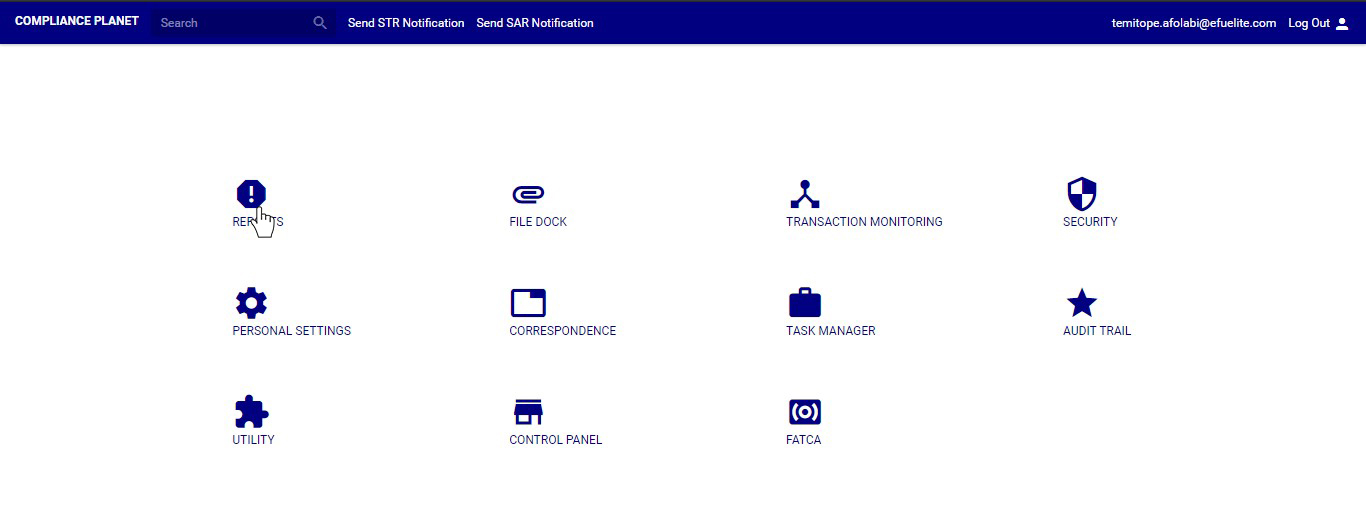
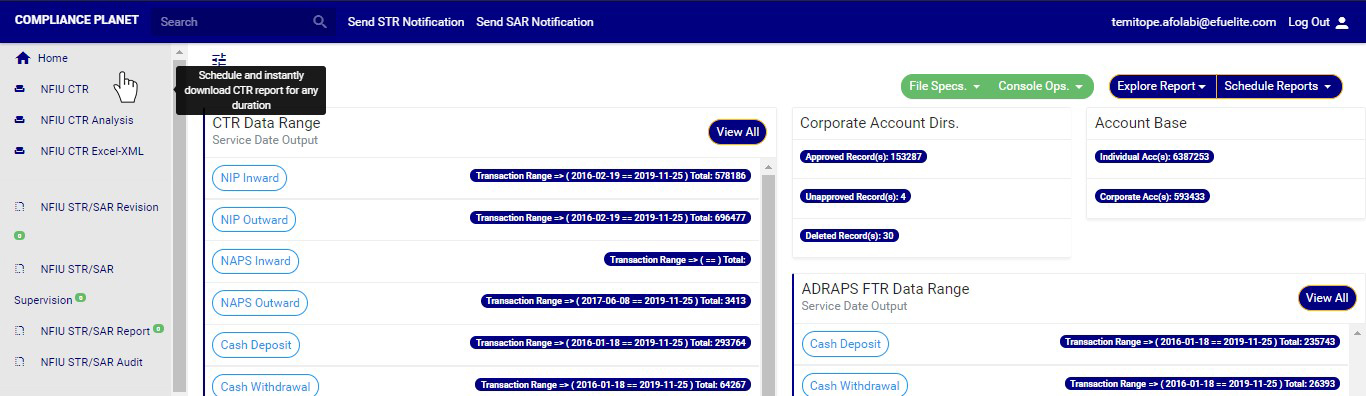
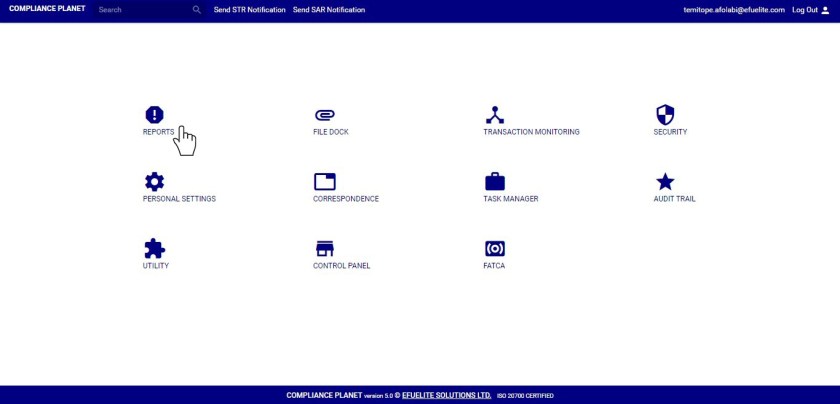
STEP 1: Click on Reports on the Compliance planet Dashboard as in fig 2.4a
                                                                            (Fig 2.4a)
STEP 2: From the left hand side menu, click on NFIU CTR as in fig 2.4b
(Fig 2.4b)
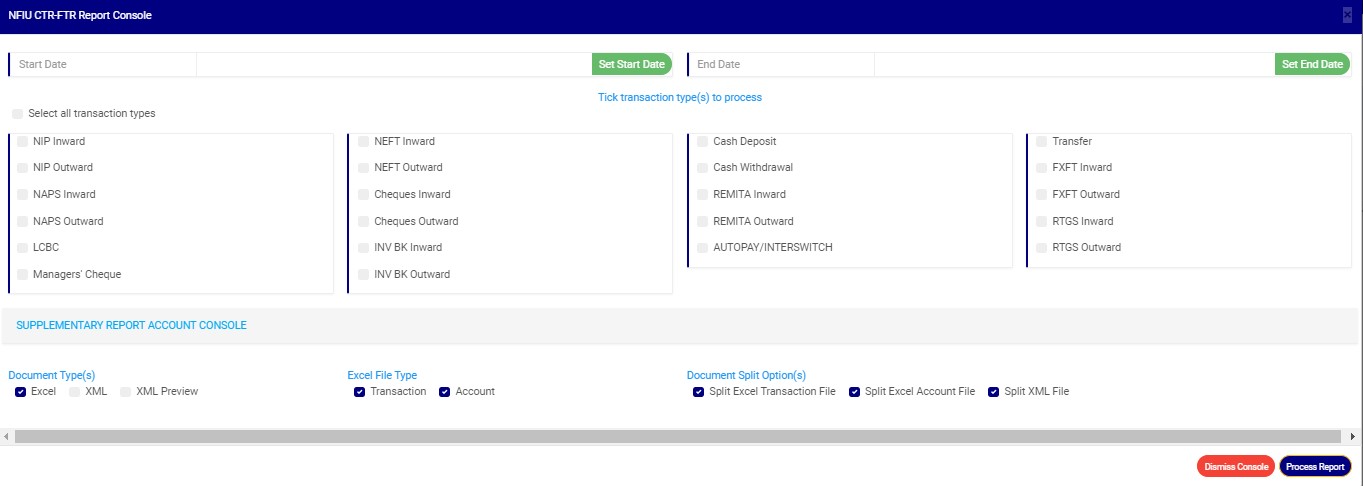
This displays a console titled NFIU CTR-FTR Report Console. This console presents the different types of transactions to choose from, calendar options, document types etc.
(Fig. 2.4c)
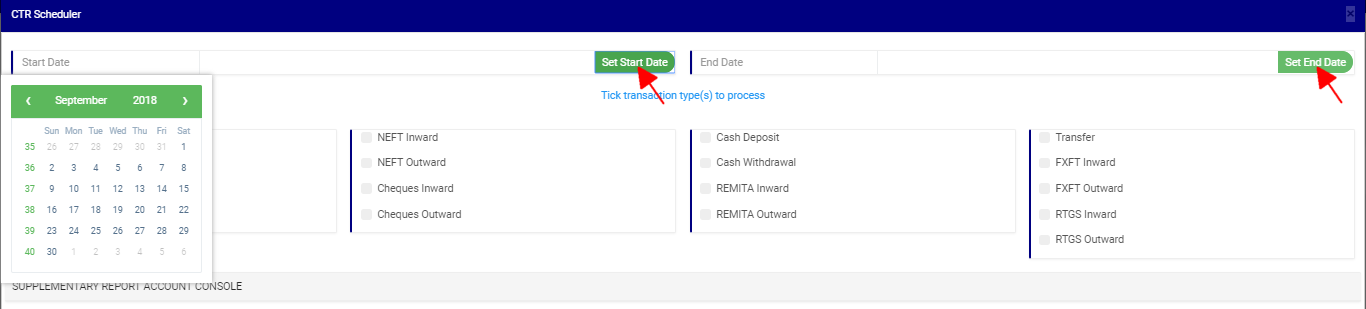
STEP 3: Click on SET START DATE and SET END DATE to specify the beginning and the end of the period (respectively) for which you want to generate report. A calendar drops below the date box.
(Fig 2.4d)
● Take a look at the arrows labelled a to d in fig. 2.2f to study the calendar.
a. Click on the given year to change it to your year of choice.
b. Click on the given month to change it to your month of choice.
c. Then, click on the day of the month.
d. You can also click on the angle brackets on the calendar [ ‘’ ] to go backward or forward.
                                                                                                                                                                                             (Fig 2.4e)
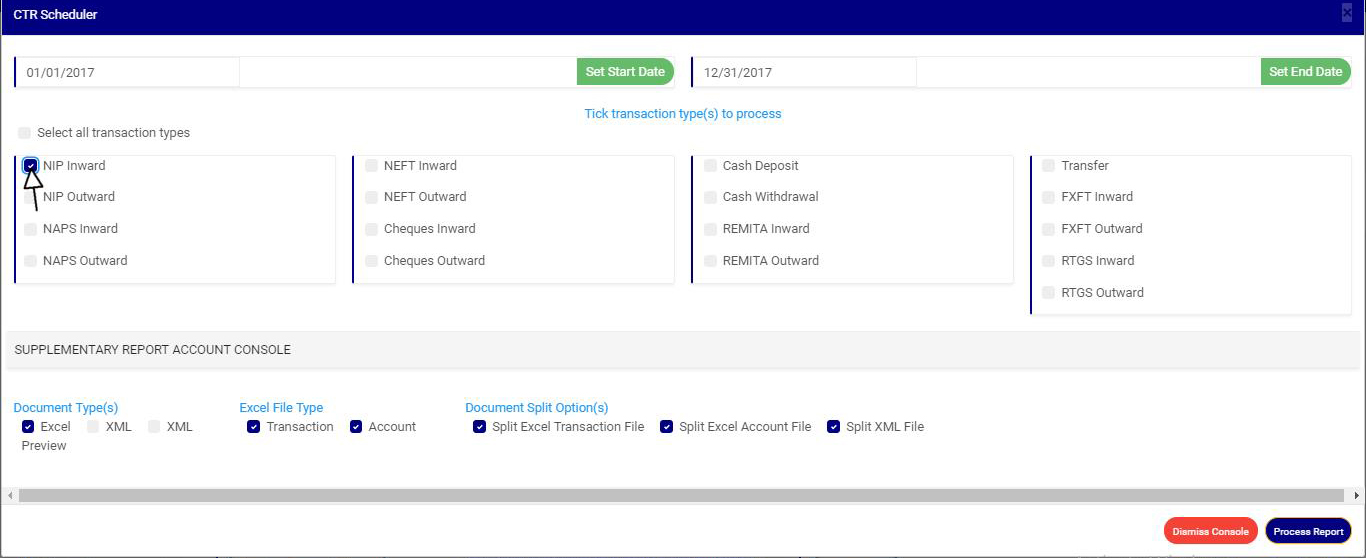
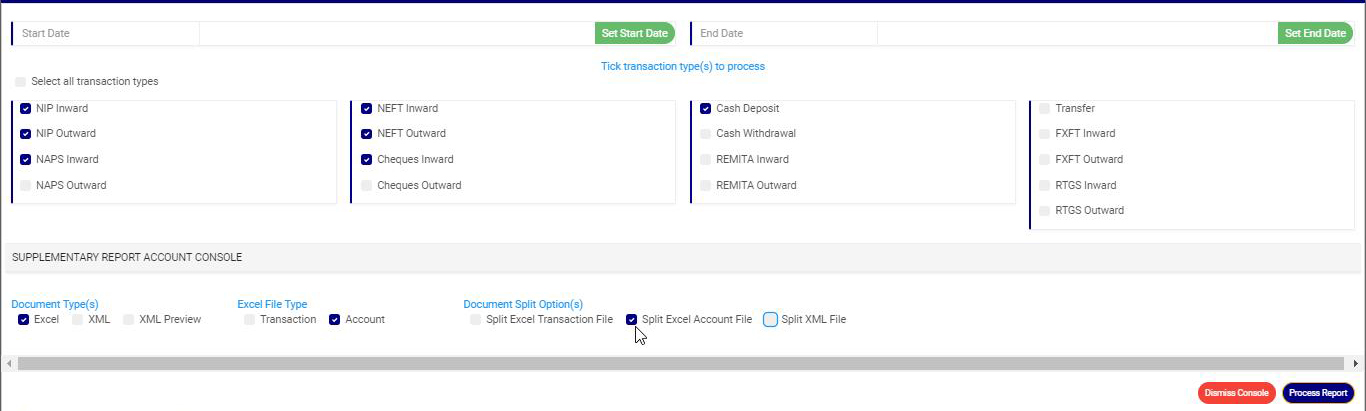
STEP 4: Click on the check boxes to select the transaction type(s). You can tick as many transaction types as you want. To deselect any  of the transaction types, just untick the check boxes one by one.
(Fig 2.4f)
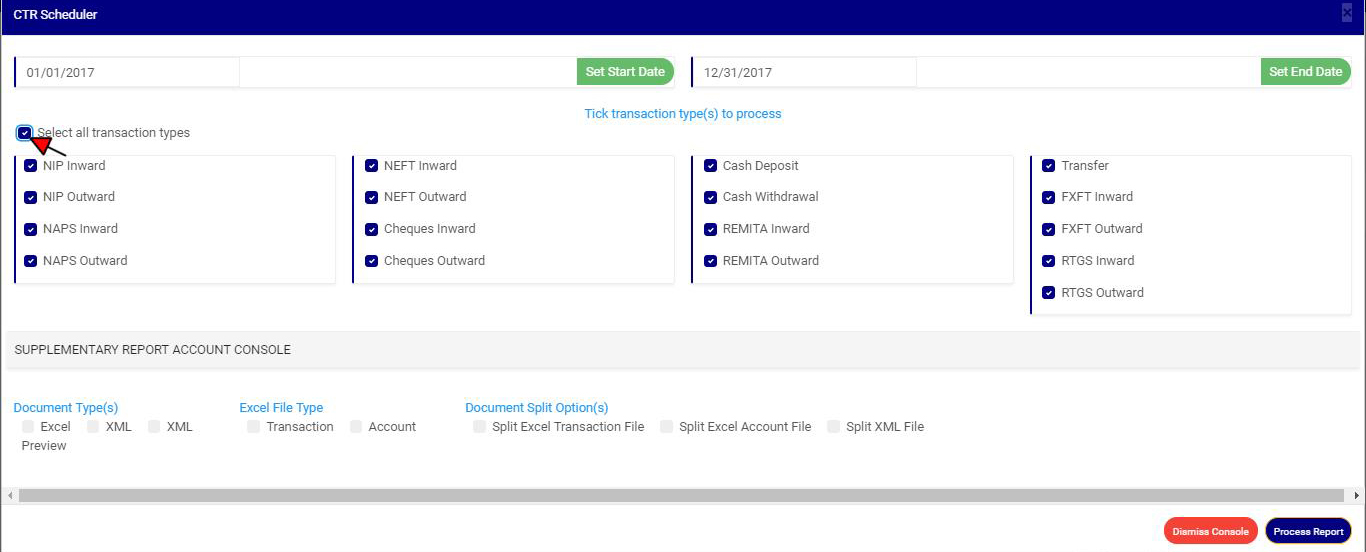
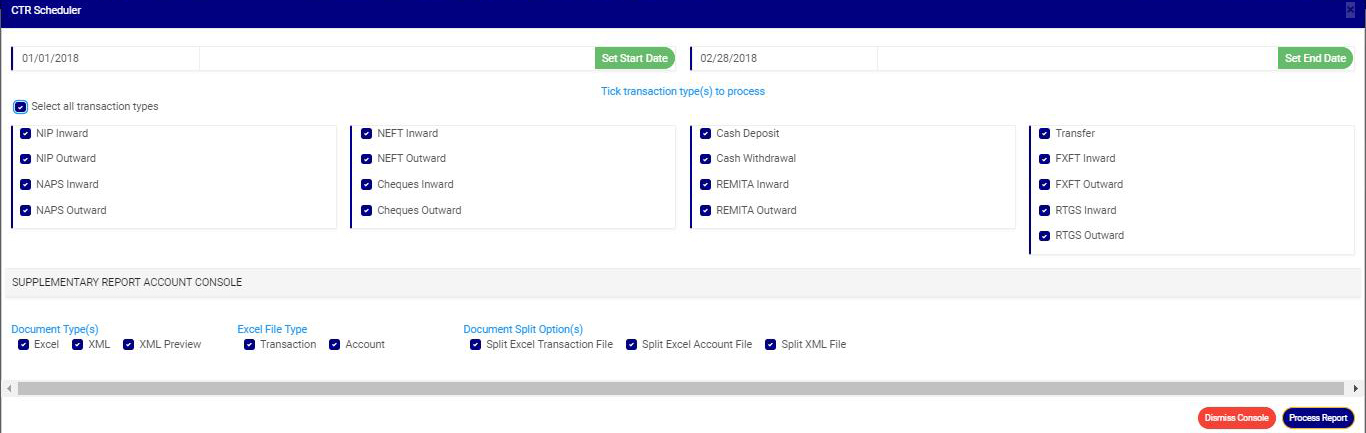
● You can select all transaction types by ticking the ‘Select all transaction types’ See fig. 2.4g for an example. You can also untick them individually. To deselect all at once, untick ‘Select all transaction types’.
(Fig. 2.4g)

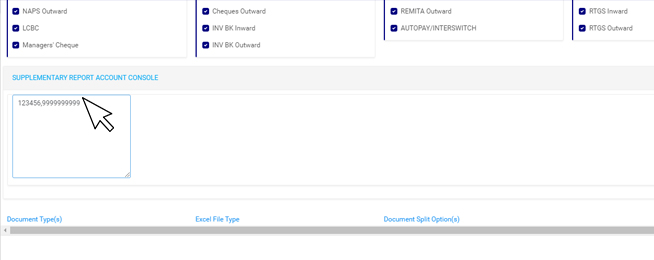
STEP 4: Click on ‘SUPPLEMENTARY REPORT ACCOUNT CONSOLE’ as shown below to download report pertaining to Specific account numbers only within the period selected.

1

  • This displays a textbox where the account number(s) are to be inserted. Note that each account number is to be separated by a comma. See an example below

1

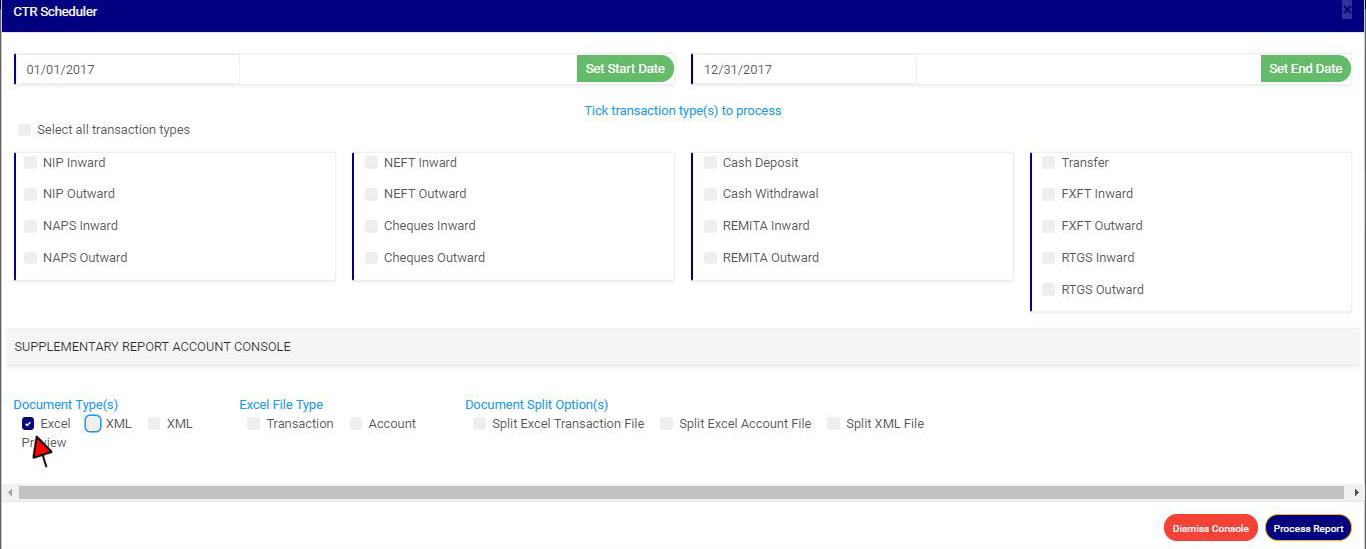
STEP 5: Tick the checkbox of the DOCUMENT TYPE(S) of your choice. Choose Excel to export your report to Excel file format. tick XML and XML Preview to export reports to XML.
(Fig. 2.4h)
STEP 6: Click on the EXCEL FILE TYPE to specify the file type the Software should process. There are two excel file types; one for Transaction details and the other for the details of the Account involved in the transaction(s). You can select one or both.
(Fig 2.4i)
STEP 7: Tick the DOCUMENT SPLIT OPTION(S). This step is optional.
By clicking on the document split option(s) for either Excel file or XML, the software will generate transaction or account files of the different transaction types separately.
For instance, the result of not ticking document split in fig.2.5i above will result in the software combining all the transaction details of each transaction type and exporting them into one excel sheet. The name of such file in this instance will start with ‘CTR Account’ and in the case of Transaction Excel file type the file name with ‘CTR Transaction’. If you select ‘split excel transaction file’ as in fig. 2.4j below, the software will write the transaction details of each transaction type in separate excel files. The same goes for XML also. The different files will bear the name of each transaction type.
(Fig. 2.4j)
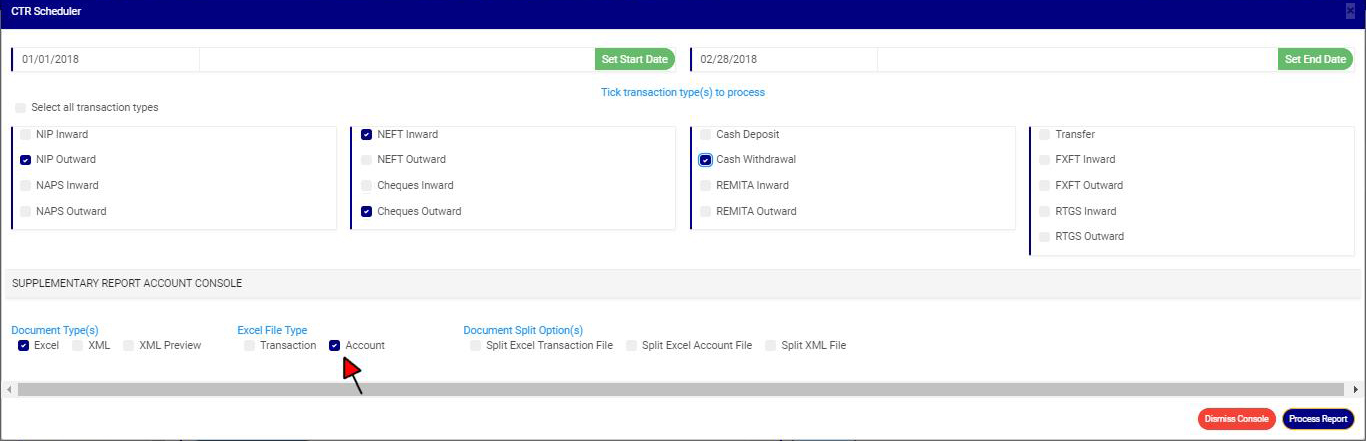
➔ All options in the CTR Scheduler can be selected for the same report you want to process. (See the example in fig 2.4l below.)
(Fig. 2.4l)
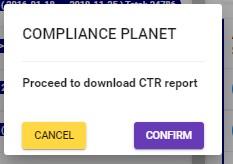
STEP 8: Click on the PROCESS REPORT button to generate report. If you want to cancel schedule, click on the DISMISS CONSOLE button. These buttons are at the bottom-right corner of the console. (see fig 2.4l above) A confirmation console as in fig. 2.4m below will be displayed if you choose to process report.
➔ Click on Confirm to continue.
➔ If you want to make changes to the settings of your report, like changing the date or selecting/deselecting a transaction type, etc., click on Cancel.

(Fig. 2.4m)

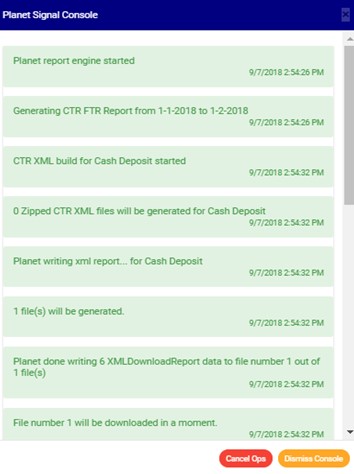
➔ The signal console shows on going processes. An example of a signal console is fig 2.4n
➔ You can terminate unfinished processes by clicking CANCEL OPS.
➔ To minimize signal console, click on DISMISS CONSOLE.
(fig 2.4n)
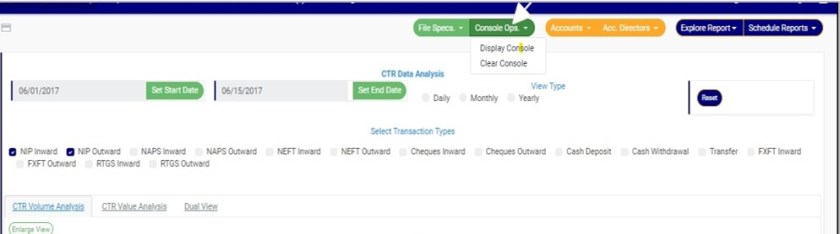
➔ If you want to view processes going on after closing the signal, click on Console Ops. drop-down button. This button is one of the green buttons at the top of the  page, irrespective of whatever page you are working on. A list will be displayed below the button with DISPLAY CONSOLE and CLEAR CONSOLE (see fig. 2.4o). So, click on display console to view the ongoing processes on the signal console as in fig. 2.4n or click on clear console to delete the notifications in the signal console.
Annotation 2020-09-14 145249
                                                     (Fig 2.4o)
For further enquiries :
Tel +234(0) 816 555 9818
Email solutions@efuelite.com
Web http://solutions.efuelite.com

Currency / Foreign Transaction Report (CTR FTR) Explorer In Compliance Planet Anti Money Laundering/Core Banking Finance Software

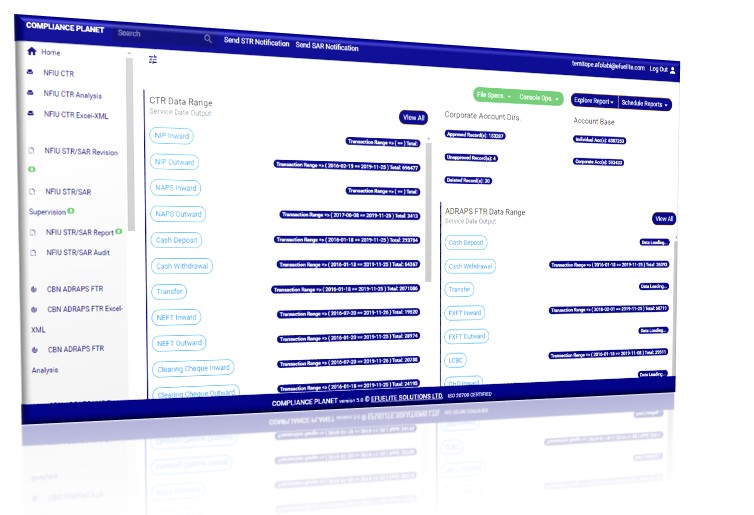
The report home page of the compliance planet presents all the transaction types and their date range and the number of transactions under each transaction type, which have been processed on the Compliance Planet.  Date range on the software refers to the earliest and the latest date of the transactions processed in Compliance planet. From a glance at the home page, you will see all transactions and their respective details. This is just a click away, irrespective of wherever you are on the software.

Note:  Only persons assigned right(s) to ‘view CTR reports’ and ‘process CTR reports’ will be able carry out this operation.

 STEP 1: From the main dashboard click on “Reports” as in fig 2.2a below.

2.2av6

(fig. 2.2a)

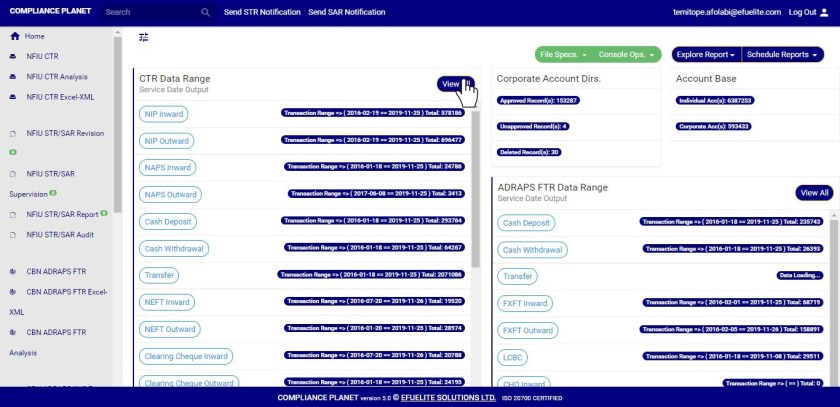
  • This will display a page as in fig 2.2b below

STEP 2: Click on “View All” as in fig 2.2b below to go to the CTR FTR Explorer. It is at the top-right of the list of the transaction types ranges.

2.2b v5

(fig. 2.2b)

  • clicking any of the transaction type buttons will also display the CTR FTR Explorer.

See the explorer page in fig. 2.2c below.

(fig. 2.2c)

  • On the explorer page, you can select any date range and view list of transactions for that period. Here is how to explore CTR FTR transactions.

STEP 3: Click the “Tran Type” box to select the transaction type you want to view its records. See an example in fig 2.2d below

2.2d v5

(fig. 2.2d)

STEP 3: Click on the “filter” box to select a bank branch you want to see transactions for. (See an example in fig. 2.2e). If you want to see the transactions for all branches, select bank branches. It is the first option on the filter list.

2.2e v5

(Fig. 2.2e)

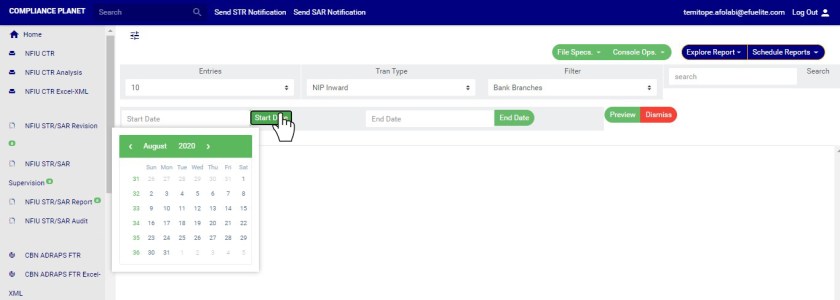
STEP 4: Click on the Start date” button and End date” button to specify the transaction date range. A calendar drops below the date box when you click any of the date buttons. (See fig. 2.2f)

2.2f v5

(fig. 2.2f)

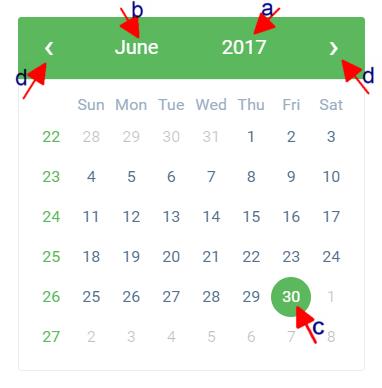
  • Take a look at the arrows labelled a to d in fig. 2.2g to study the calendar.
  1. Click on the given year to change it to your year of choice.
  2. Click on the given month to change it to your month of choice.
  3. Then, click on the date of the month.
  4. You can also click on the angle brackets on the calendar [ ‘<’ or ‘>’ ] to go backward or forward.

(fig. 2.2g)

STEP 5: Click on the entries box to change the number of transactions you want to see per page. (See the drop-box in fig. 2.2h. below)

2.2h v5

(Fig. 2.2h)

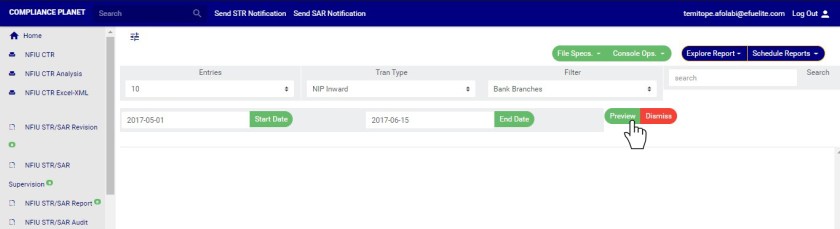
STEP 6: To see the transactions, click on PREVIEW as in fig 2.2i. You can change your start date, end date, or bank branch or number of entries per page as you wish but you must click on the preview button for the changes to be effected. To close the CTR FTR Explorer page, click on the red “Dismiss” button.  See fig 2.2h.

2.2i v5

(fig. 2.2i)

  • This will display CTR records row by row and three (3) action buttons; ‘Tran Details’, ‘Acc Details’ and ‘Delete’. See an example in fig 2.2j below. White arrows indicate the action buttons.

2.2j v5

(fig 2.2j)

  • clicking Tran Details button (arrow 1 in fig 2.2j) displays a page with the details of the transaction on that row you clicked on like the example in fig 2.2kj. The detail covers information about debit and credit part of the transaction according to the CTR FTR schema.

(fig 2.2k)

  • Clicking Acc Details button (arrow 2 in fig 2.2j) displays a page with the details of the account involved in the transaction on that row you clicked on. See fig 2.2l to see an example of a CTR FTR Account details page.

(fig 2.2l)

  • To delete the transaction, click on the Delete button (This is labelled as arrow 3 in fig 2.2j).
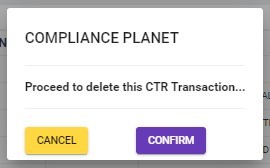
  • This will display a confirmation console as in fig. 2.2m. Click on proceed to delete the transaction or cancel to close the console.

2.2m v5

(Fig. 2.2m)

Note:  Only persons assigned right(s) to ‘view CTR reports’ and ‘process CTR reports’ will be able carry out this operation.

For further enquiries :
Tel +234(0) 816 555 9818
Email solutions@efuelite.com
Web http://solutions.efuelite.com

Currency / Foreign Transaction Report (CTR FTR) In Compliance Planet Anti Money Laundering/Core Banking Finance Software

WHAT IS A CTR FTR REPORT?

CTR stands for ‘Currency Transaction Report’, while FTR stands for ‘Foreign Transaction Report’. A CTR FTR Report is the report filed with Nigeria Financial Intelligence Unit (NFIU) to report cash transactions of over N5,000,000 for individuals and N10,000,000 for corporate bodies in compliance with section 10(1) of Money Laundering (Prohibition) Act (MLPA), 2011. This report comprises of local currencies and foreign currencies hence it’s dual name, CTR FTR.

WHAT ARE THE CTR FTR TYPES?
Currency Transaction/ Foreign Transaction types include NIP, NAPS, NEFT, Cheques, Cash deposits, Cash withdrawal, Transfer, FXFT, RTGS and REMITA, Investment Booking Transactions, Managers Cheque etc.
For reporting purposes, the transaction types could be INWARD / INFLOWS or OUTWARD / OUTFLOWS. It all depends on if the reporting institution is the receiving / destination bank or the bank giving out / source of the fund in transaction. For instance; if John who operates an ABC Bank account sends an X amount to Mag who is an XYZ Bank user, then, the transaction type is inward for XYZ Bank (Mag’s bank) but Outward for ABC Bank (John’s bank).

Another example; when an NIP Transaction is carried out. When it comes to reporting, the NIP transaction will be regarded as NIPInward if the reporting bank is receiving the value or NIPOutward if the bank is giving out the value.

The transaction types represent the different payment service platforms and they are explained briefly below.

NIP (NIBSS INSTANT PAYMENT)

NIP is an e-payment solution designed by NIBSS to service the banking industry. It is the only point to point funds transfer service that guarantees instant value to the beneficiary. NIP is majorly offered via a bank’s internet banking, mobile and bank branch platforms for individuals and body corporates. To a bank, NIBSS Instant Payment can either be inward or outward.

NAPS (NIBSS Automated Payment Services)
NAPS is an integrated multi-bank e-Payment, e-Collection and Payroll & Bulk payment Platform. It is designed for the instant processing of payroll, pension, personnel records and execution of funds, transfer, direct debit, collections, schedule delivery and payment instructions.

NIBSS
NIBSS stands for Nigeria Inter-Bank Settlement System. It was set up by the Bankers Committee in 1992, incorporated in 1993 as a Shared-Service infrastructure for facilitating payments finalities, streamlining Inter-bank payments and settlement mechanisms, to drive and promote Electronic Payments across the Nigerian Financial Industry. It is owned by the Central Bank of Nigeria (CBN) and all licensed Deposit Money Banks (DMBs) in Nigeria.

NEFT (National Electronic Funds Transfer)
NEFT is a payment system facilitating one-to-one funds transfer. Under this Scheme, individuals can electronically transfer funds from any bank branch to any individual having an account with any other bank branch in the country participating in the Scheme. A NEFT transaction could either be inward or outward too.

CHEQUES
A Cheque is a document that orders a bank to pay a specific amount of money from a person’s account to the person (the payee) in whose name the cheque has been issued. The drawer writes the various details including the monetary amount, date, and a payee on the cheque, and signs it, ordering his/her bank, known as the drawee, to pay that person or company the amount of money stated. The transactions that involve the use of a cheque fall under “cheques” in the Compliance planet and they could be inward or outward clearing.

RTGS (Real Time Gross Settlement)
RTGS is a specialist funds transfer systems where the transfer of money or securities takes place from one bank to another on a “real time” and on a “gross” basis. Settlement in “real time” means a payment transaction is not subjected to any waiting period, with transactions being settled as soon as they are processed. “Gross settlement” means the transaction is settled on one-to-one basis without bundling or netting with any other transaction. “Settlement” means that once processed, payments are final and irrevocable.

RTGS systems are typically used for high-value transactions that require and receive immediate clearing. That is, payments that need to be settled urgently. RTGS transactions could be either inward or outward.

REMITA
Remita is an electronic payment platform that helps people and organizations to simply receive and effect payments across all banks, from anyplace and at any time. This system was Introduced by the Nigerian Federal Government, implemented by the CBN and is recognized by all of the Nigerian commercial banks and more than 400 small banks. This system electronically generates a 12-digit code that is called “Remita Retrieval Reference” Number (RRR) for making financial payments. It is a popular online payment solution for Nigerians

FXFT (FOREIGN EXCHANGE FOREIGN TRANSACTION)
FXFT refers to the sale or purchase of foreign currencies. This transaction involves the currencies of two countries. Simply put, the foreign exchange transaction is an agreement of exchange of currencies of one country for another at an agreed exchange rate on a definite date.

INTERNAL TRANSFER
On the compliance planet, Transfer simply refers to internal transfer of money between customers of the same reporting financial institution.

CASH DEPOSITS
This refers to injecting of funds into an account.

CASH WITHDRAWAL
A withdrawal simply means removing funds from a bank account, savings plan, pension or trust. A cash withdrawal is a transaction in which a customer receives back money that had been previously deposited in his/her account.

INVESTMENT BOOKING
Investment booking can also be referred to as FIXED DEPOSIT. A fixed deposit is simply a lump sum deposited with a bank for a fixed period/amount of time, in exchange for interest. It is an investment instrument offered by banks and other financial institutions, which provides investors with a higher rate of interest than a regular savings account, until the given maturity date. Investment booking can also be inward or outward.

MANAGER’S CHEQUE
A manager’s cheque is a secure cheque issued by a bank, payable to a payee as indicated by the person who purchased it. It is often used in situations when the beneficiary does not accept cash or personal cheques. The person who purchases the check pays the bank the amount of money for which the cheque is issued either in cash or from his bank account. He is then guaranteed acceptance of his cheque by the party receiving it. A manager’s cheque is also called treasurer’s cheque, official cheque and certified cheque. Another common name for a manager’s cheque is a cashier’s cheque.

 LETTERS OF CREDIT
A Letter of Credit (LC) is a payment mechanism used in international trade to provide an economic guarantee from a creditworthy bank to an exporter of goods. It is a written undertaking given by a Bank (issuing Bank) at the request of its customer (applicant), in which the Bank obligates itself to pay the exporter (seller/beneficiary) up to a stated amount within a prescribed time frame upon presentation of stipulated documents that conform to the terms and conditions of the documentary credit. It is also known as a documentary credit or bankers commercial credit.

BILLS FOR COLLECTION
A Bill for Collection is the handling of documents (financial and/or commercial) by banks in accordance with instructions received from the exporter in order to; obtain payment or acceptance, deliver documents against payment and/or acceptance or deliver documents on other terms and conditions. Simply put, it is a trade transaction in which the exporter hands over the task of collecting payment for goods supplied to his or her bank, which sends the shipping documents to the importer’s bank together with payment instructions.

INTERSWITCH / AUTOPAY
AutoPAY is a web-based payment platform that allows individuals, corporate and government organisations to make payments from their bank account to beneficiaries in any of the 18 banks in Nigeria.

For further enquiries :
Tel +234(0) 816 555 9818
Email solutions@efuelite.com
Web http://solutions.efuelite.com

Overview of Compliance Planet Anti Money Laundering/Core Banking Finance Software

In the year 2012, the Central Bank of Nigeria (CBN) issued a circular to all banks and other financial institutions under its purview to render various Anti-money laundering and combating financing of terrorism (AML/CFT) returns in prescribed formats and at appropriate periods in line with extant AML/CFT laws and regulations. 
The Money Laundering (Prohibition) Act (MLPA), 2011 (as amended) and CBN AML/CFT Regulations, 2013 require Banks and other financial institutions to render the various returns to the CBN and NIGERIA FINANCIAL INTELLIGENCE UNIT (NFIU). 
The deadline for submission of the returns varies from one report to another. Failure to render these statutory returns and to comply with regulatory directives attracts sanctions, including revocation of operating licence. The compliance planet processes these various returns. Thus, reducing reputational and operational risk and increasing business efficiency. Some of these reports are; 
  1. Currency/Foreign Transaction Reports (CTR FTR) 
  2. Suspicious Transaction Reports (STR/SAR) 
  3. Foreign Currency Transaction Reports (ADRAPS FTR) 
  4. Three Tiered KYC (Know Your Customer) (ADRAPS KYC)
  5. Politically Exposed Persons (ADRAPS PEP) 
  6. Risk Based Assessment Report (AML/CFT RBS) 
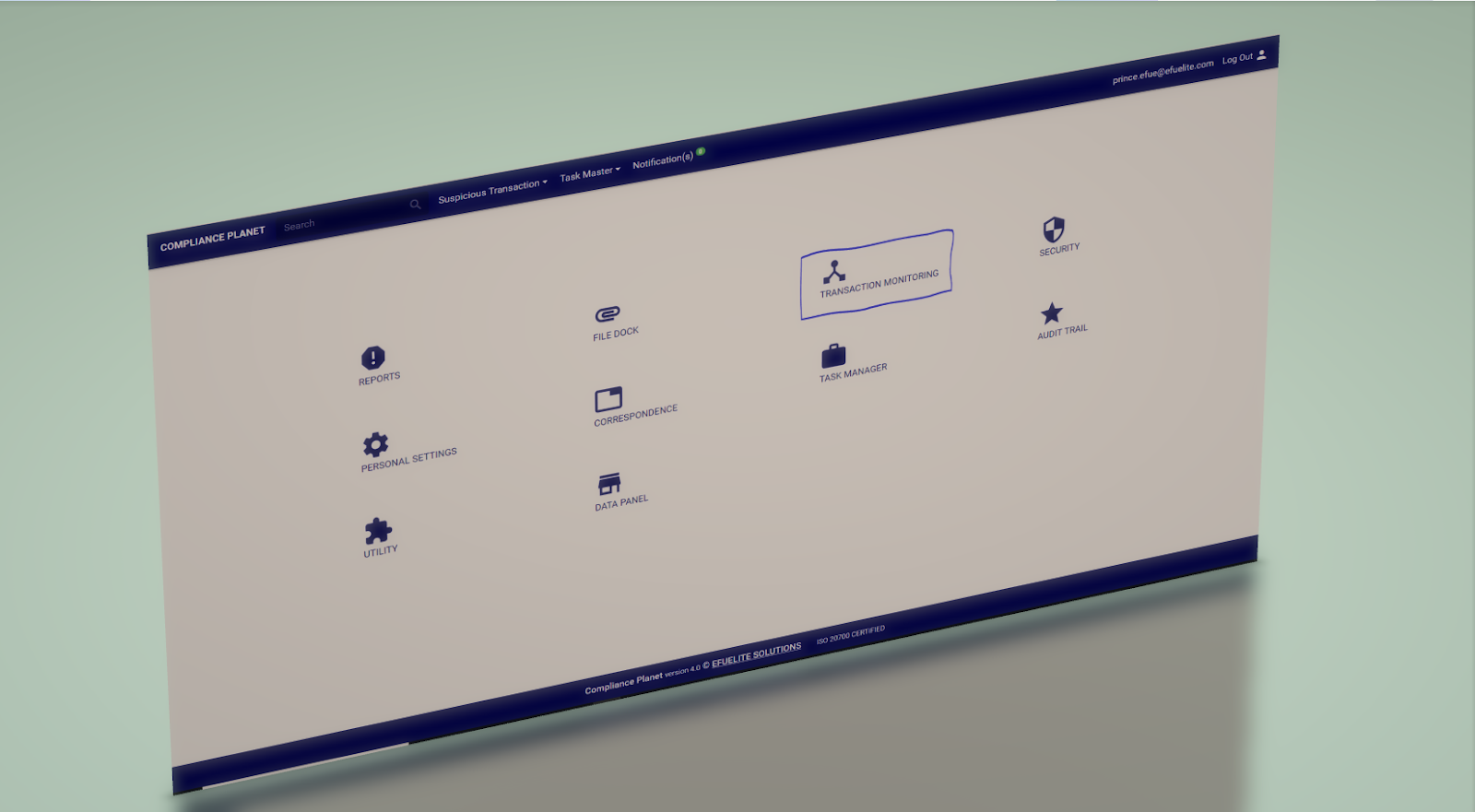
Compliance Planet also does Data Governance, Transaction Monitoring, thus, placing the institution in a safe haven fully in compliance with the regulatory standards. 

For further enquiries : 
Tel +234(0) 816 555 9818
Email solutions@efuelite.com 
Efuelite Solution a Giant in Technology

Efuelite Solutions LTD. is a company based in Nigeria and founded on standard enterprise industrial principles, customer service, quality and trust. Efuelite Solutions President, Prince Efue, started the company in 2006, registered it with the corporate affair commission in 2016 and charted the growth of the product lines and services while maintaining those solid core principles.
Our can-do team of engineers and technical staff consistently incorporate new and innovative ideas into our products. In short, we push the envelope, raising the bar in innovation and quality. Our competitors have praised us by adopting many of our ideas as their own. Over time, Efuelite Solutions has become the industry standard in the bespoke software development market.
Efuelite Solutions continuously develops new, cutting-edge products, creating solutions for our customers around the world in industries across the board. Our growing network of distributors has expanded our presence to markets far beyond our home headquarters in Lagos; our products are now sold in Africa and European countries around the world. 
Our employees are committed to quality and customer satisfaction. Behind the full range of Efuelite Solutions products and services is the cumulative expertise of experienced engineers, manufacturing and gadget professionals and technicians. Our knowledgeable sales team can offer technical advice to assist in selecting the right product for each application, as well as providing after-sales support.
Efuelite Solutions is dedicated to providing customers with reliable and affordable products, hassle-free ordering and excellent services, saving customers time and money. It is our goal to earn your trust in meeting your needs and providing innovative solutions. The products and services that bear the Efuelite Solutions name come with quality assurance and the best support in the industry today.
For further enquiries : 
Tel +234(0) 816 555 9818
Email solutions@efuelite.com 
.

Compliance Planet Anti Money Laundering/Core Banking Finance Software

Compliance Planet software manufactured by Efuelite Solutions is widely used in the financial industry for reports with regulatory bodies such as Central Bank of Nigeria (CBN), Nigerian Financial Intelligence Unit(NFIU)  and many more .

AML
Compliance planet is uniquely known for its solution features which include but are not limited to
      Data governance
      Anti-Money Laundering and Countering Financing of Terrorism Act reporting
      Currency Transaction Reporting (CTR FTR)
      Suspicious Activity/Transaction Reporting (STR SAR)
      AML/CFT Risk Based Supervision Reporting (RBS)
      Politically Exposed Persons Reporting(ADRAPS PEP)
      Three Tiered Kyc (Know Your Customer) (ADRAPS KYC)
      Transaction Monitoring
      Transaction Screening
      Report Monitoring / Workflow / Analysis
      Data mining, Deep learning and many more.
In 2018, compliance planet received a patent award from the Federal Republic of Nigeria and commander-in-chief of the armed forces Muhammadu Buhari, GCFR.

Thank you for choosing Efuelite SolutionsProducts for all of your data reporting needs.


For further enquiries : 
Tel +234(0) 816 555 9818
Email solutions@efuelite.com 
Web http://solutions.efuelite.com