How to Carry out TM Rule Explorer Operations on Digital Financial Crimes Surveillance In Compliance Planet Anti Money Laundering/Core Banking Finance Software

This section provides a guide on how to carry out TM Rule Explorer on the Compliance Planet Anti Money Laundering/Core Banking Finance Software, with step-by-step instructions and pictures.

STEP 1: From the app dashboard, click “DIGITAL FINANCIAL CRIMES SURVEILLANCE” as in Fig a below.
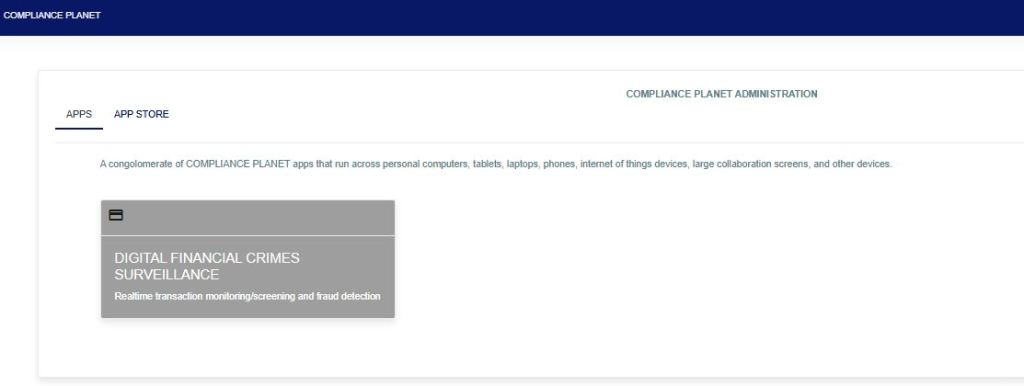
FIG a

STEP 2: From the left-hand side menu, click “TM Rule Explorer” as in Fig. b below.
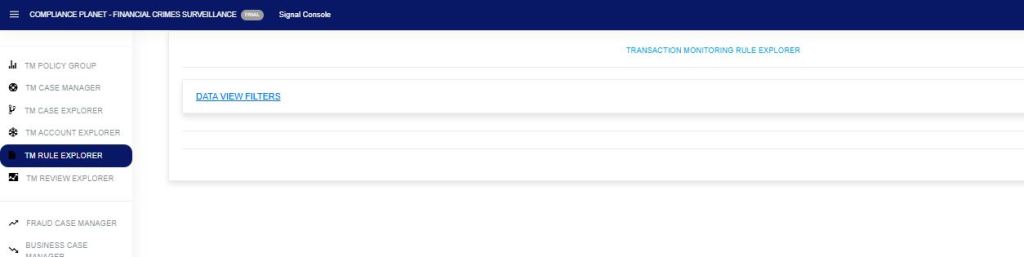
FIG b

STEP 3: Click on the “Data View Filter” as in Fig. c below to open the sub-menu: Entries, Search, View (Export to Excel), Start Date, and End Date.

FIG c

STEP 4: In the search bar, enter either the Rule ID, Rule Name, or Rule Description. Start Date and End Date, then click view as in Fig. d below. This will display in details of the rule.
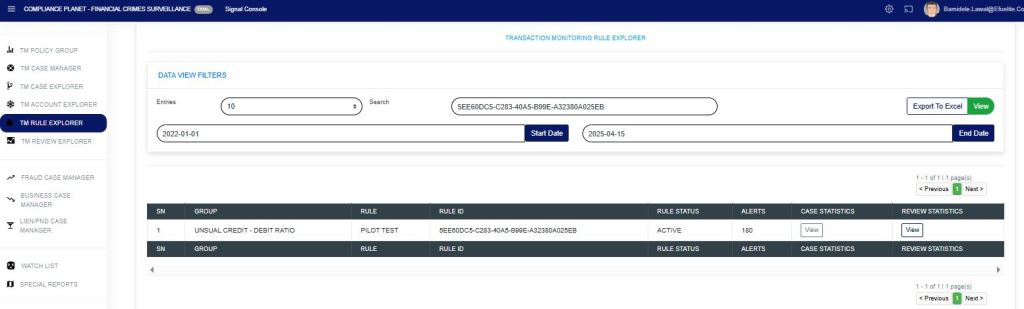
FIG d

The “Alert” column shows the number of alerts picked within the specified date range for that rule.

Click the “view” option under the case statistics column to show a visualization of the “case statistics“. All the cases pending TM review (shows the number of cases that are pending), closed cases (shows the number of cases that have been closed), fraud cases under review (shows the number of cases for fraud review), business cases under review (shows the number of cases for business review), and ML/TF/PF cases under review (shows the number of cases for STR review) within the date range specified as in Fig e below.
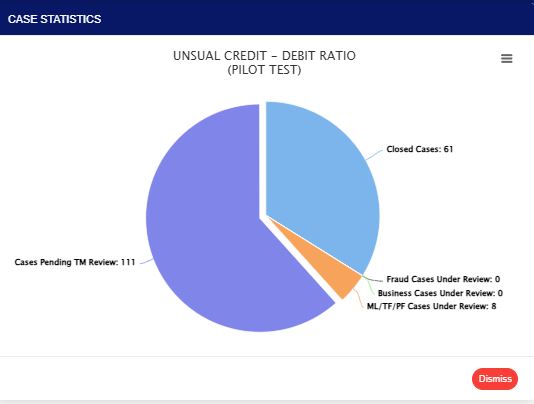
FIG e

Click the “view” option under the review statistics column to show a visualization of the “review statistics“. This will display the policy rule name and personnel who have reviewed cases from the rule, as shown in Fig. f below.
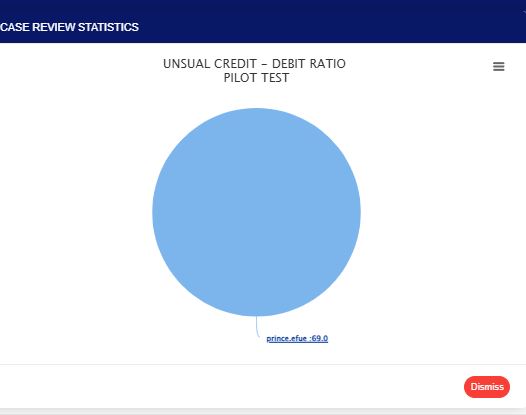
FIG f

Clicking on the visualization chart will display detailed information on the rule within the specified period that has been reviewed, along with the person(s) who reviewed the case(s). This also gives a deeper insight into how the reviewing personnel handled the review case. The ones manually closed by the reviewer, those auto-processed by the system and pushed to Fraud and STR, those whitelisted, and those under different review desks, as shown in Fig. g below.
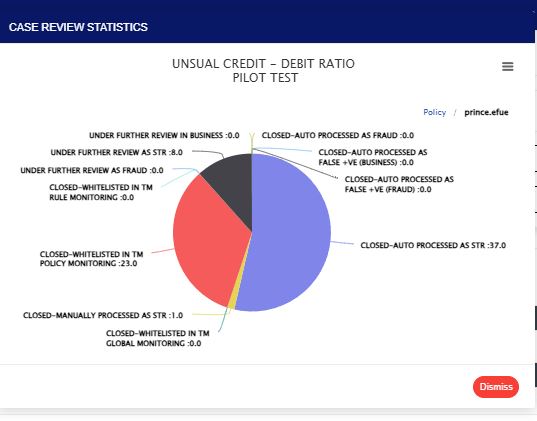
FIG g


For further inquiries: 
Tel: +234(0) 816 555 9818
Email: solutions@efuelite.com 
Web: http://solutions.efuelite.com
How to Carry out TM Review Explorer Operations on Digital Financial Crimes Surveillance in Compliance Planet Anti Money Laundering/Core Banking Finance Software

This section provides a guide on how to carry out Transaction Monitoring Review Explorer on the Compliance Planet Anti Money Laundering/Core Banking Finance Software, with step-by-step instructions and pictures.

STEP 1: From the app dashboard, click “DIGITAL FINANCIAL CRIMES SURVEILLANCE” as in Fig. a below.

This image has an empty alt attribute; its file name is app-store-1.jpg

Fig a

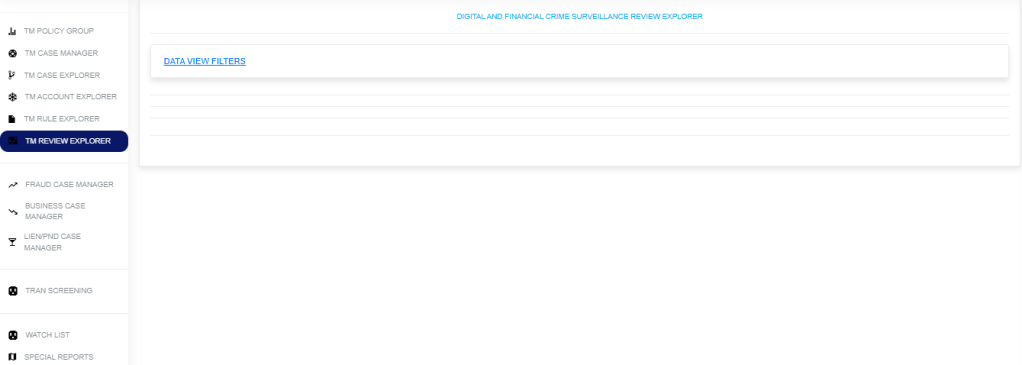
STEP 2: From the left-hand side menu, select “TM Review Explorer”, then click on “Data View Filter” as in Fig. b below.

Fig. b

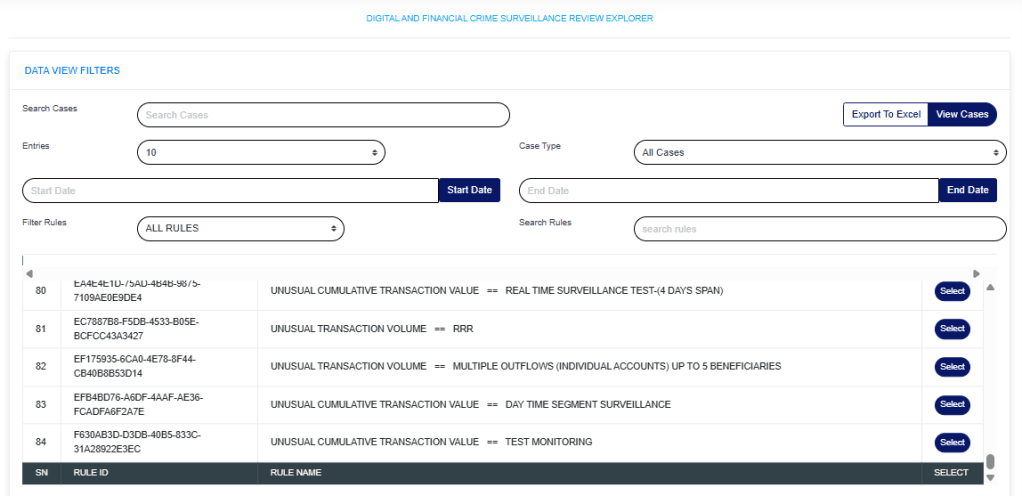
STEP 3: Then click “Data View Filters” to show a menu window that displays all the menus: Search Cases, Export to Excel, View Cases, Entries, Case Type, Start Date & End Date, Filter Rules, and Search Rules as in Fig. C below.

Fig. C

  • Search Cases: Click on the “Search Cases” box and enter keywords to quickly find specific cases related to a rule.
  • Export to Excel: Click on “Export to Excel” to carry out further analysis on a downloaded rule.
  • View Cases: Click on “View Cases” to view cases under a particular rule. Further visualization is below.
  • Entries: Click on the “Entries” drop-down to choose how many case entries you want displayed per page.
  • Case Type: Click on the “Case Type” drop-down to filter and view cases.
  • Start Date & End Date: Use the “Start Date” and “End Date” fields to filter cases or rules based on a selected time range.
  • Filter Rules: Click on the “Filter Rule” menu drop-down and select either All rules, Rules Deployed by me, or Rules Assigned to me.
  • Search Rules: Click the “Search rule” box and enter a phrase to quickly locate a specific rule. This feature helps you find rules containing the entered phrase.

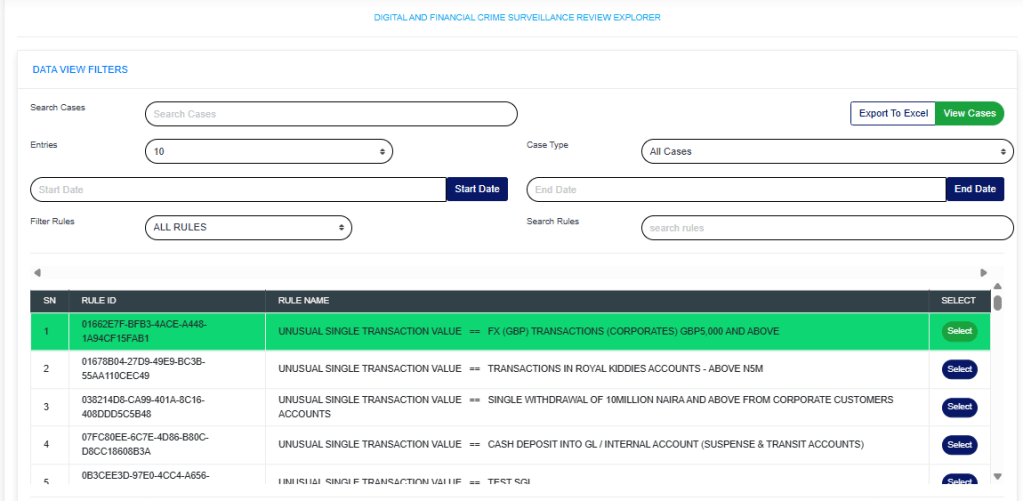
To view rule cases, select the policy rule by clicking on the “select button” to highlight, input the start date and end date, then click on “View Cases” as in Fig. d below.

Fig d

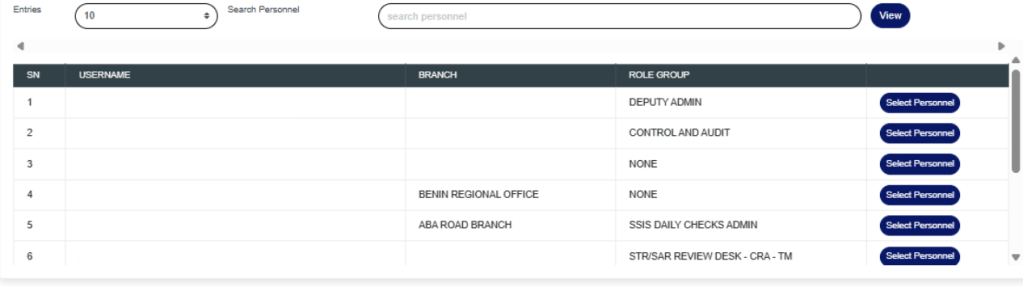
Below, you can select personnel to view the cases they have reviewed.

Then the lower part of the page now displays the policy rule name and all the information regarding the account, as seen in the figure below.
Each rule can be viewed in the Explorer case, Explorer account, or Explorer rule.


For further inquiries: 
Tel: +234(0) 816 555 9818
Email: solutions@efuelite.com 
Web: http://solutions.efuelite.com
How to Carry out Fraud Case Manager Operations on Digital Financial Crimes Surveillance in Compliance Planet Anti Money Laundering/Core Banking Finance Software

This section provides a guide on how to perform fraud case manager operations on the Compliance Planet Anti-Money Laundering/Core Banking Finance Software, complete with step-by-step instructions and illustrations.

STEP 1: From the app dashboard, click “DIGITAL FINANCIAL CRIMES SURVEILLANCE” as shown below.

This image has an empty alt attribute; its file name is app-store-1.jpg

STEP 2: From the left-hand side menu, click on “Fraud Case Manager as shown below.

The above action will show the drop-down below.

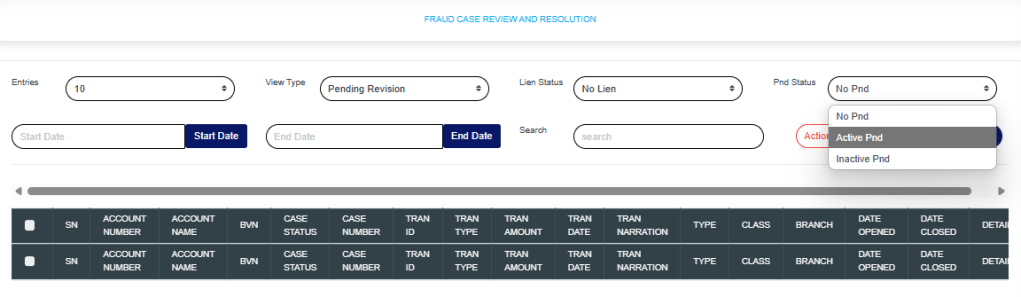
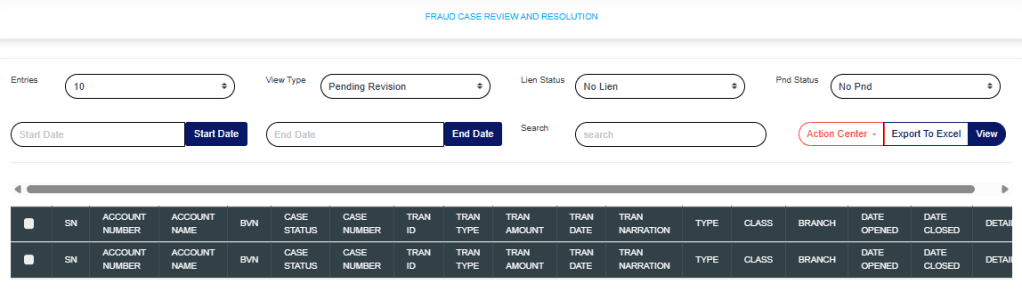
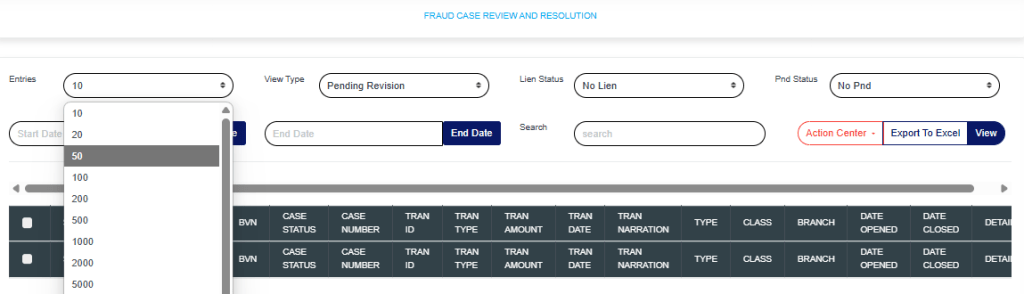
Entries: Click on the “Entries” drop-down to choose how many case entries you want displayed per page.

View Type: Click on the “View Type” drop-down to filter and select either Pending Revision, Revised, Pending Supervision, or Supervised.

Lien Status: Click on the “Lien” drop-down to filter and select either active or inactive lien.

PND Status: Click on the “PND” drop-down to filter and select either active or inactive PND.

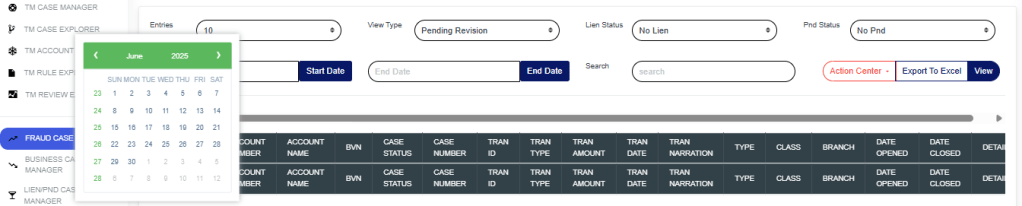
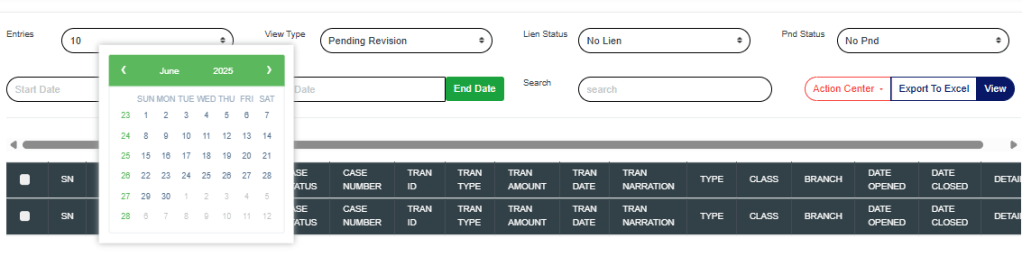
Start Date & End Date: Use the “Start Date” and “End Date” fields to filter cases based on a selected time range.
Search: Click on the “Search” box and enter keywords to quickly find specific cases.

Export to Excel: Click on “Export to Excel” to download cases in Excel format.
View: Click on “View” to view cases.

Action Center: Click on the “Action Center” drop-down to perform quick actions on Lien Selected transactions, Place Selected Accounts on PND, or Review Selected Accounts.

Lien Selected transactions: Click on “Lien Selected Transactions” to place a hold on the selected transactions.
Place Selected Accounts on PND: Click on “Place Selected Accounts on PND” to restrict all debit transactions from the selected accounts.
Review Selected Accounts
: Click on “Review Selected Accounts” to flag the selected accounts for further review.

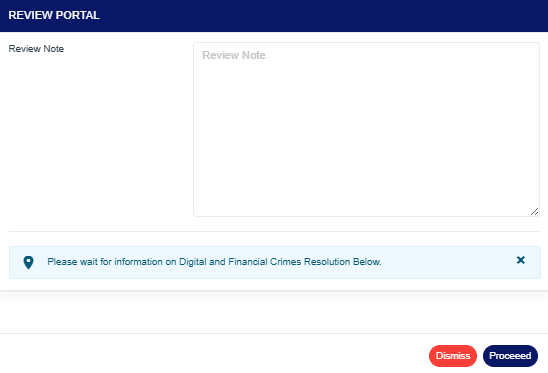
These actions will redirect you to the review portal, where you’ll be required to enter a review note explaining the reason for the selected action.

Click on “Proceed” to continue the process.
Click on “Dismiss” to stop the process.

Clicking on Proceed will take you to the confirmation console.

Click on “Confirm” to save the process.

For further enquiries: 
Tel: +234(0) 816 555 9818
Email: solutions@efuelite.com 
Web: http://solutions.efuelite.com
How to Carry out Business Case Manager Operations on Digital Financial Crimes Surveillance in Compliance Planet Anti Money Laundering/Core Banking Finance Software

This section provides a guide on how to use the Business Case Manager feature on the Compliance Planet Anti-Money Laundering/Core Banking Finance Software, complete with step-by-step instructions and illustrations.

STEP 1: From the app dashboard, click “DIGITAL FINANCIAL CRIMES SURVEILLANCE” as shown below.

This image has an empty alt attribute; its file name is app-store-1.jpg

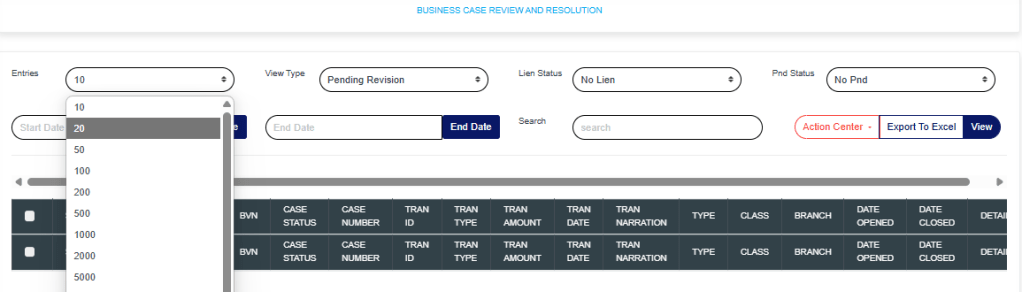
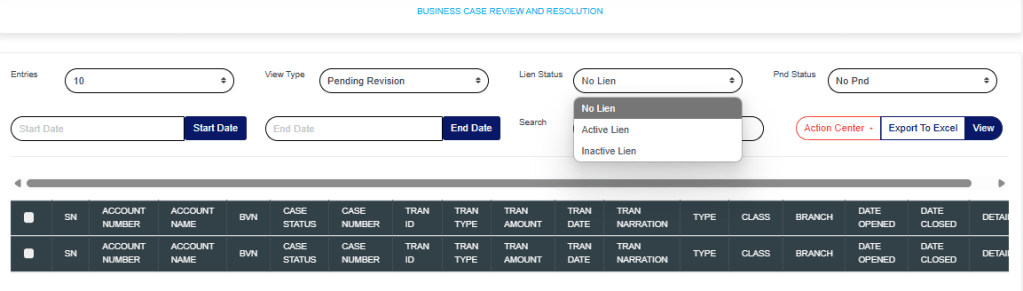
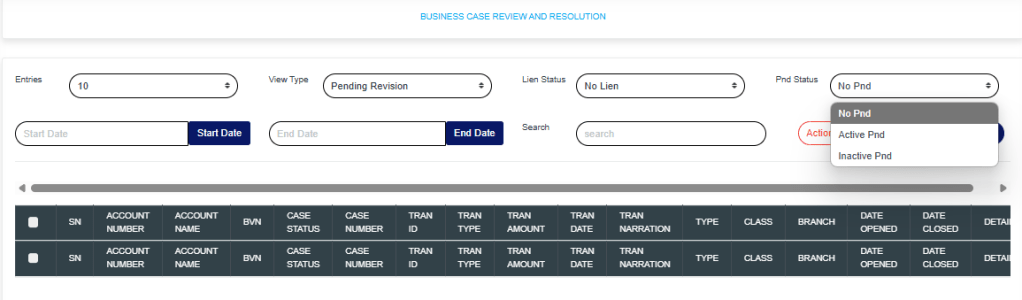
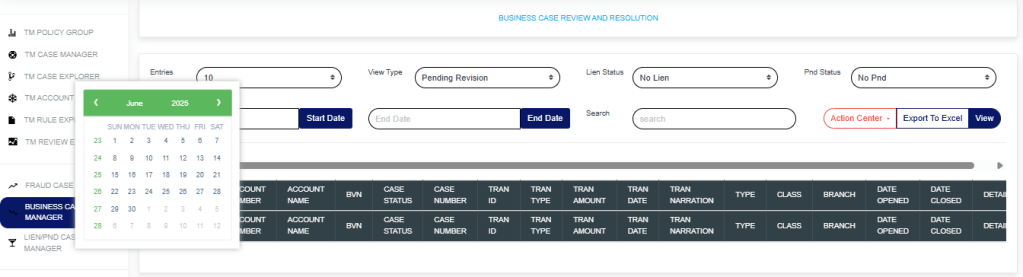
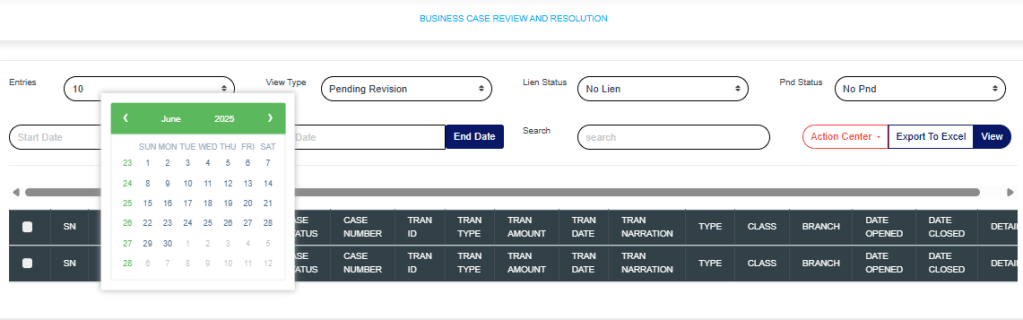
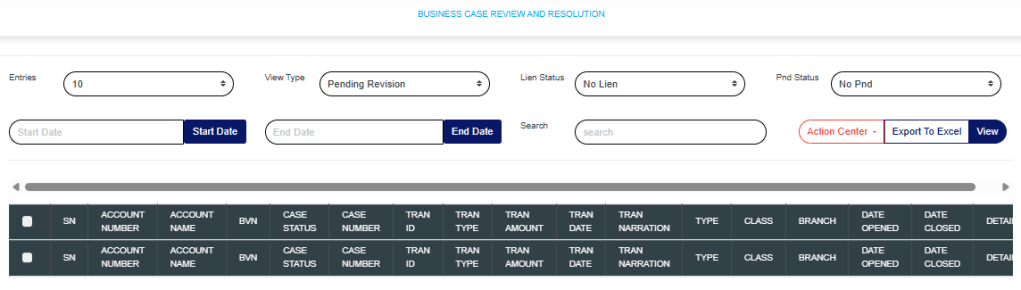
STEP 2: From the left-hand side menu, click on “Business Case Manager” and the drop-down will be seen as shown below.

Entries: Click on the “Entries” drop-down to choose how many case entries you want displayed per page.

View Type: Click on the “View Type” drop-down to filter and select either Pending Revision, Revised, Pending Supervision, or Supervised.

Lien Status: Click on the “Lien” drop-down to filter and select either active or inactive lien.

PND Status: Click on the “PND” drop-down to filter and select either active or inactive PND.

Start Date & End Date: Use the “Start Date” and “End Date” fields to filter cases based on a selected time range.
Search: Click on the “Search” box and enter keywords to quickly find specific cases.

Export to Excel: Click on “Export to Excel” to download cases in Excel format.
View: Click on “View” to view cases.

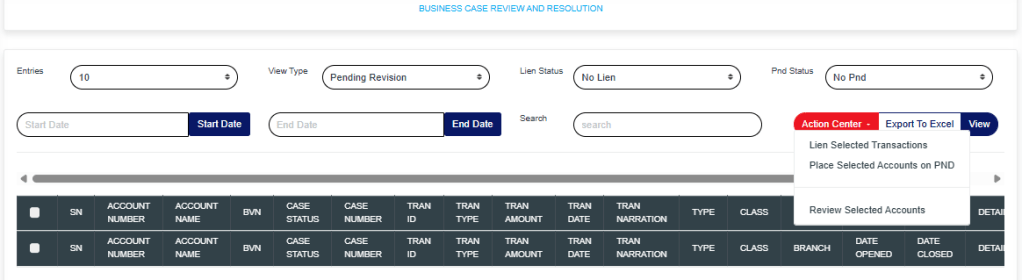
Action Center: Click on the “Action Center” drop-down to perform quick actions on Lien Selected transactions, Place Selected Accounts on PND, or Review Selected Accounts.

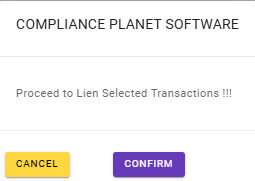
Lien Selected transactions: Click on “Lien Selected Transactions” to place a hold on the selected transactions.
Place Selected Accounts on PND: Click on “Place Selected Accounts on PND” to restrict all debit transactions from the selected accounts.
Review Selected Accounts
: Click on “Review Selected Accounts” to flag the selected accounts for further review.

These actions will redirect you to the review portal, where you’ll be required to enter a review note explaining the reason for the selected action.

Click on “Proceed” to continue the process.
Click on “Cancel” to stop the process.

Clicking on Proceed will take you to the confirmation console.

Click on “Confirm” to save the process.

For further enquiries: 
Tel: +234(0) 816 555 9818
Email: solutions@efuelite.com 
Web: http://solutions.efuelite.com
How to Create Watch List on Digital Financial Crimes Surveillance In Compliance Planet Anti Money Laundering/Core Banking Finance Software

This section provides a guide on how to create Watch-List operations on the Compliance Planet Anti Money Laundering/Core Banking Finance Software, with step-by-step instructions and pictures.

STEP 1: From the app dashboard, click “DIGITAL FINANCIAL CRIMES SURVEILLANCE” as in Fig 1a below.

FIG 1a

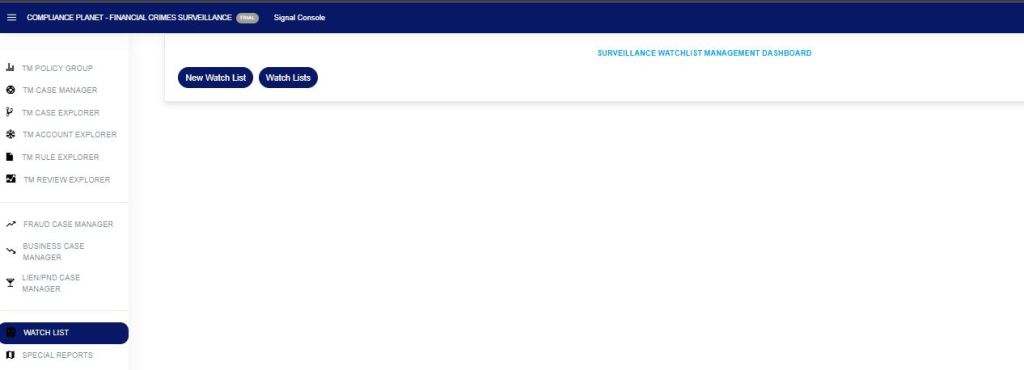
STEP 2: From the left-hand side menu, click “Watch List” as in Fig 1b below to display “New Watch List” and ” Watch Lists”.

FIG 1b

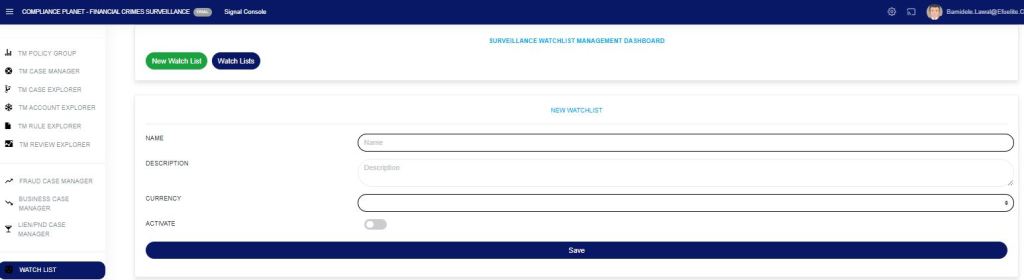
STEP 3: Click on the “New Watch List” as in Fig 1c below to create a watch list.

FIG 1c

Watch-list is to monitor account(s) specifically that have bridged a particular TM rule.

  1. Name: this is to give a specific name to the watchlist created.
  2. Description: a unique description for the created watchlist.
  3. Currency: the created watchlist is currency specific whether “NGN, USD, GBP“.
  4. Activate: toggle on the activation button to activate the watchlist. The watchlist is not active if this button is not toggled on.
  5. Save: to save the created watchlist.

NB: The currency must be specified differently from each. If the watchlist is for NGN or USD, the account(s) to be monitored must be only NGN or USD, not putting them together to avoid errors.

For further enquiries: 
Tel: +234(0) 816 555 9818
Email: solutions@efuelite.com 
Web: http://solutions.efuelite.com

How to Carry out Lien/PND Case Manager Operations on Digital Financial Crimes Surveillance in Compliance Planet Anti Money Laundering/Core Banking Finance Software

This section provides a guide on how to use the Lien and PND Case Manager feature on the Compliance Planet Anti-Money Laundering/Core Banking Finance Software, complete with step-by-step instructions and illustrations.

STEP 1: From the app dashboard, click “DIGITAL FINANCIAL CRIMES SURVEILLANCE” as shown below.

This image has an empty alt attribute; its file name is app-store-1.jpg

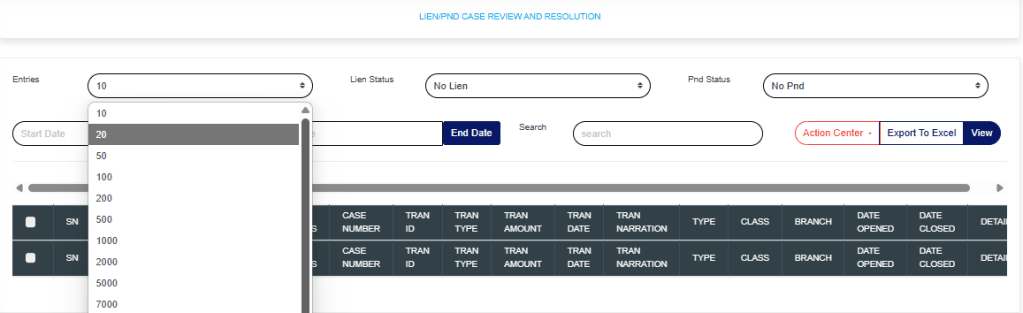
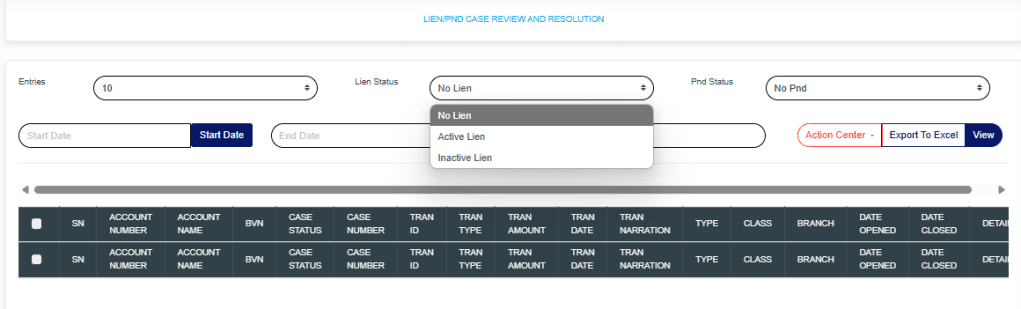
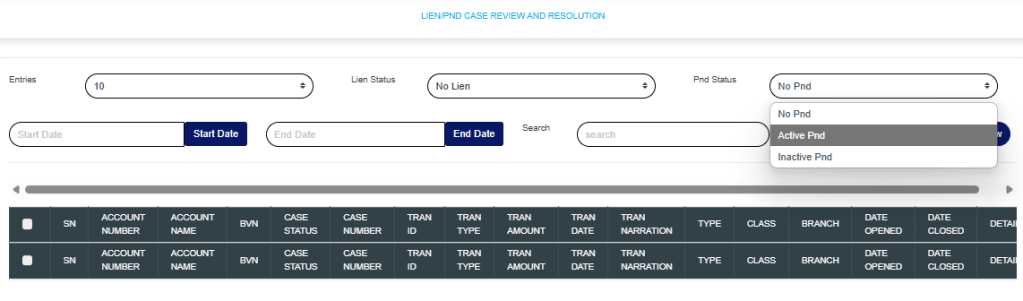
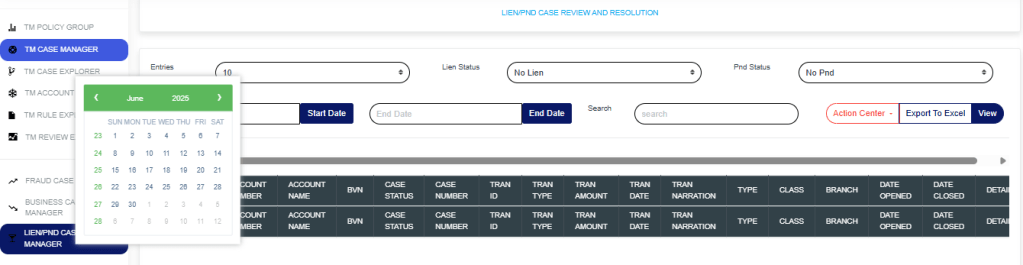
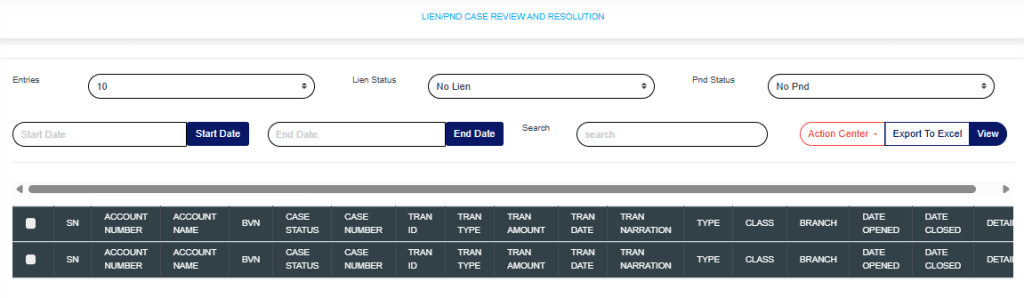
STEP 2: From the left-hand side menu, click on “Lien/PND Case Manager” and the drop-down will be seen as shown below.

Entries: Click on the “Entries” drop-down to choose how many case entries you want displayed per page.

Lien Status: Click on the “Lien” drop-down to filter and select either active or inactive lien.

PND Status: Click on the “PND” drop-down to filter and select either active or inactive PND.

Start Date & End Date: Use the “Start Date” and “End Date” fields to filter cases based on a selected time range.
Search: Click on the “Search” box and enter keywords to quickly find specific cases.

Export to Excel: Click on “Export to Excel” to download cases in Excel format.
View: Click on “View” to view cases.

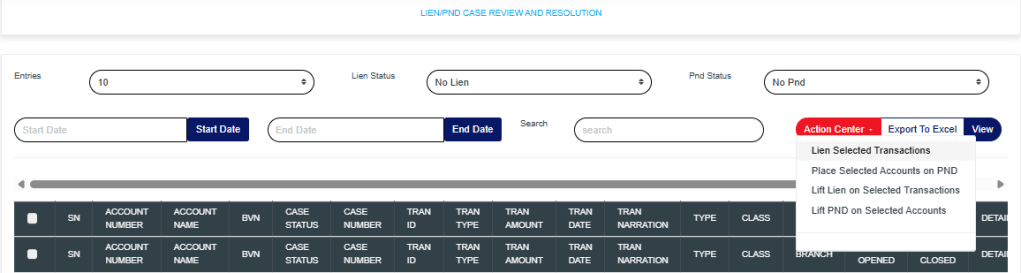
Action Center: Click on the “Action Center” drop-down to perform quick actions on Lien Selected transactions, Place Selected Accounts on PND, Lift Lien on Selected Transactions, or Lift PND on Selected Accounts.

Lien Selected transactions: Click on “Lien Selected Transactions” to place a hold on the selected transactions.
Place Selected Accounts on PND: Click on “Place Selected Accounts on PND” to restrict all debit transactions from the selected accounts.
Lift Lien on Selected Transactions:
Click on “Lift Lien on Selected Transactions” to remove the lien placed on the selected transactions.
Lift PND on Selected Accounts: Click on “Lift PND on Selected Accounts” to remove the PND (Post No Debit) restriction from the selected accounts.

These actions will redirect you to the review portal, where you’ll be required to enter a review note explaining the reason for the selected action.

Click on “Proceed” to continue the process.
Click on “Dismiss” to stop the process.

Clicking on Proceed will take you to the confirmation console.

Click on “Confirm” to save all processes.

For further enquiries: 
Tel: +234(0) 816 555 9818
Email: solutions@efuelite.com 
Web: http://solutions.efuelite.com
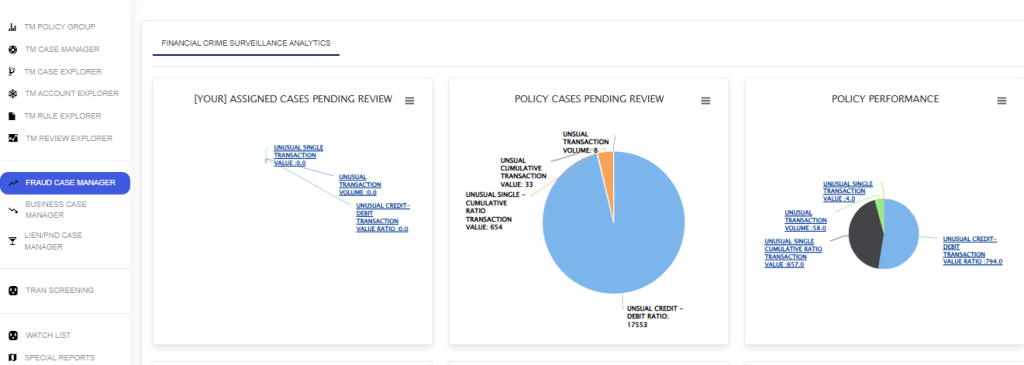
How to Carry out Watch Lists Operations on Digital Financial Crimes Surveillance In Compliance Planet Anti Money Laundering/Core Banking Finance Software

This section provides a guide on how to carry out Watch-Lists operations on the Compliance Planet Anti Money Laundering/Core Banking Finance Software, with step-by-step instructions and pictures.

STEP 1: From the app dashboard, click “DIGITAL FINANCIAL CRIMES SURVEILLANCE” as in Fig 2a below.

FIG 2a

STEP 2: From the left-hand side menu, click “Watch List” as in Fig 2b below to display “New Watch List” and ” Watch Lists”.

FIG 2b

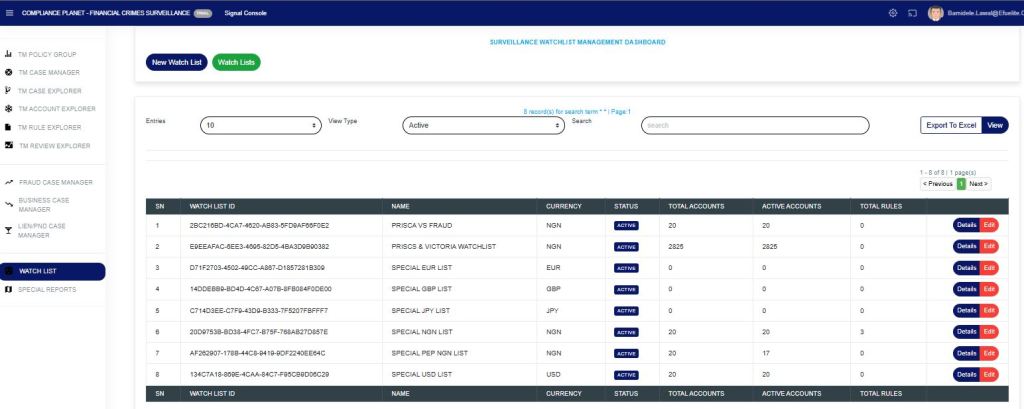
STEP 3: Click on the “Watch Lists” as in Fig 2c below, this displays entries (number of data per page), view type (active or inactive watchlist), search (to search for specific watchlist), view (the display the searched watchlist), export to excel to view the watchlist in an Excel sheet.

FIG 2c

On the page, there is;

  1. Watch List ID: this column displays each created watchlist with their unique IDs.
  2. Name: the name of the watchlist created.
  3. Currency: this column displays the currency type for the created watchlist.
  4. Status: this shows the status of the watchlist whether active or inactive.
  5. Total Accounts: this shows the total number of account(s) in each watchlist.
  6. Active Accounts: this shows the total number of account(s) that are active in the watchlist created.
  7. Total Rules: this shows the total number of TM policy rule(s) that the watchlist is existing.

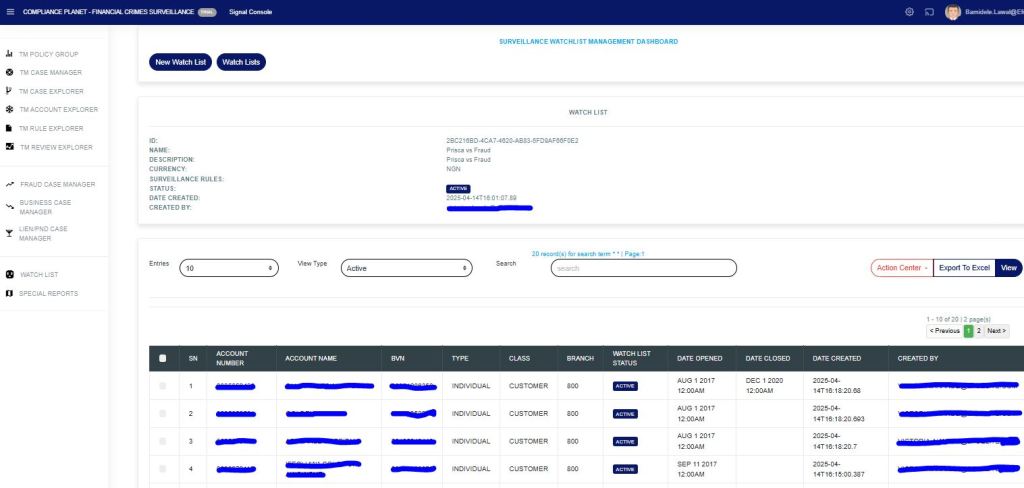
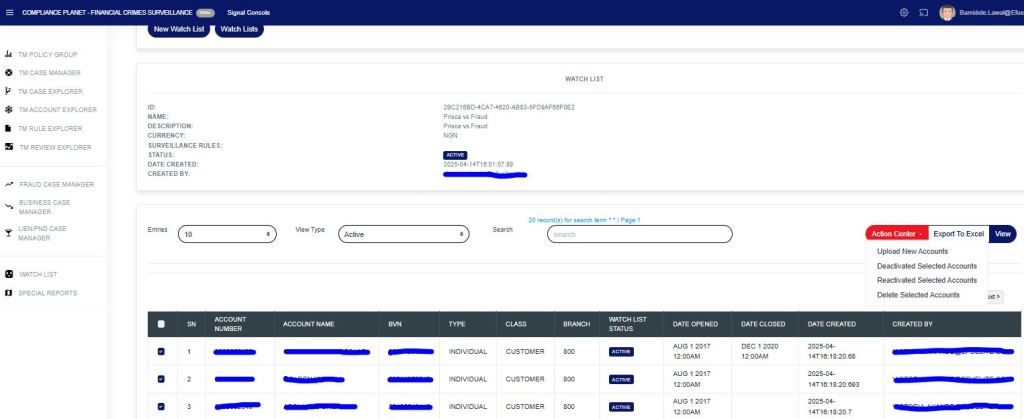
STEP 4: Click on “Details” as in Fig 2d below, this displays detailed information of the selected watchlist. The ID, watchlist Name, Description, Currency, Surveillance rule(s) where is watchlist has been categorized, Status of the watchlist, Date the watchlist was created, and personnel that created it.

FIG 2c

The table in the watchlist displays the customer’s account number, name, BVN, type, branch, watchlist status, account opened date, account closed date (if the account is closed), and the email of the personnel that created the watchlist.

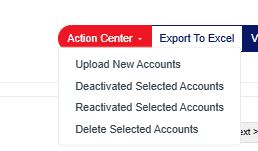
To do a bulk upload of new accounts, deactivate account(s), reactivate account(s), and delete account(s). This can be done using the “Action Center” option as in Fig 2d below.

FIG 2d

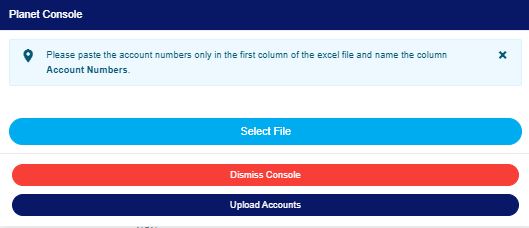
For bulk uploading of new account(s) operations, click “Upload New Accounts”, as shown in Fig. 2e below. This displays a drop-down to select a file (an already prepared Excel file with the first column of the Excel file containing the account number(s) of customers and a heading for the column “Account Numbers”). Then, click “Upload Accounts” to upload the selected Excel file. This will automatically bulk upload the accounts searching through the solution, bringing all the data related to the account number.

Additionally, an Excel file will be downloaded along with the bulk upload, allowing you to view the status of each account that has been uploaded.

FIG 2e

Account(s) can be deactivated, reactivated, or deleted from a watchlist by selecting them and clicking the option that needs to be carried out in the Action Center, as in Fig. 2f below.

FIG 2f

To make changes to a watchlist’s information, the “Edit” button can be selected as in Fig. 2g below.

For further enquiries: 
Tel: +234(0) 816 555 9818
Email: solutions@efuelite.com 
Web: http://solutions.efuelite.com
How to carry out Whitelisting Operations on Digital Financial Crimes Surveillance in Compliance Planet Anti Money Laundering/Core Banking Finance Software

This section provides a guide on how to carry out whitelisting operations from a rule, policy, or global monitoring on the Compliance Planet Anti Money Laundering/Core Banking Finance Software, with step-by-step instructions and pictures.

STEP 1: From the app dashboard, click “DIGITAL FINANCIAL CRIMES SURVEILLANCE” as in Fig. a below.

Fig a

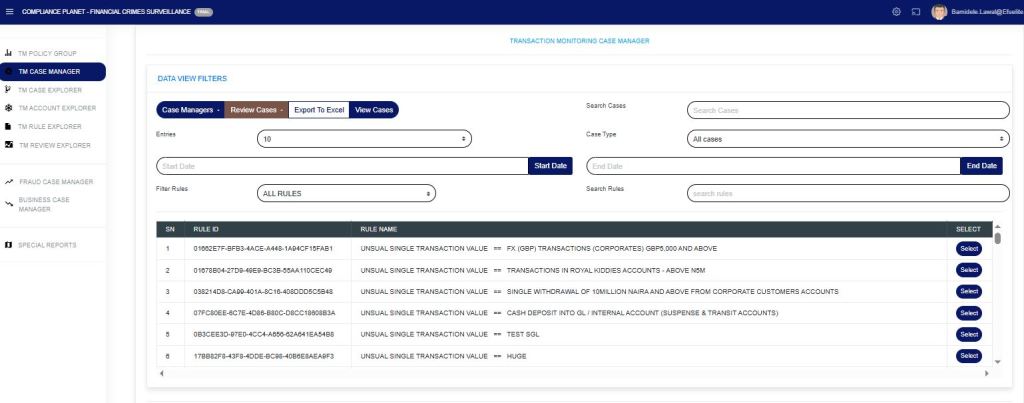
STEP 2: From the left-hand side menu, click “TM Case Manager” as in Fig b below to display the “Data View Filters”.

FIG b

STEP 3: Then click “Data View Filters” to show a menu window that displays all the menus: Case Managers, Review Cases, Export to Excel, View Cases, Search Cases, Entries, Case Type, Start Date & End Date, Filter Rules, and Search Rules as in Fig. C below.

FIG c

Input the Start Date and End Date, select “case type” and from the drop-down, select pending cases as in Fig. D below.

Fig d

The “Search case” can be used to search for a specific account or multiple accounts, separated by a pipe, as shown in Fig. e below.

Fig e

Then click “filter rules” to display a drop-down of “All Rules, Rules Deployed by Me, or Rules Assigned to Me“. The search rule bar can be used to search for a rule name by entering a phrase in the rule.

Click the “select button” to highlight as in Fig. f below.

Fig f

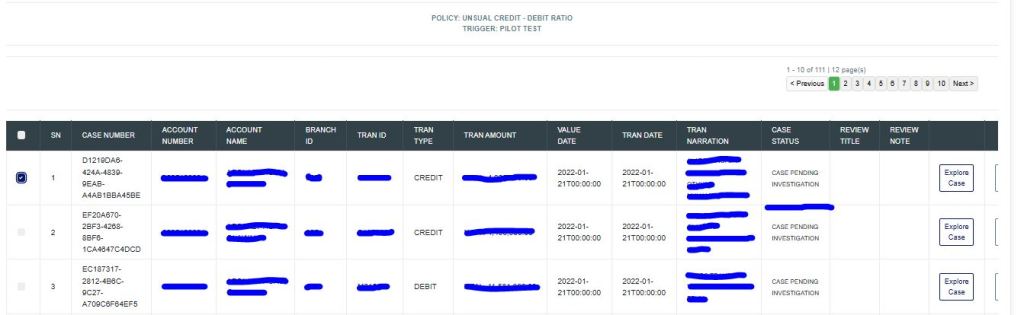
Click on the “View Cases” to display all the records. This will display the policy name and account(s) that have bridged the rule.

Select the account(s) to be whitelisted from the list of accounts if there is more than one, as in Fig. g below.

Fig g

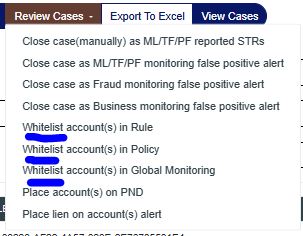
Then, click “Review Cases” to open a drop-down menu and choose the type of whitelist to categorize the account(s), either by rule, policy, or global monitoring, as shown in Fig. h below.

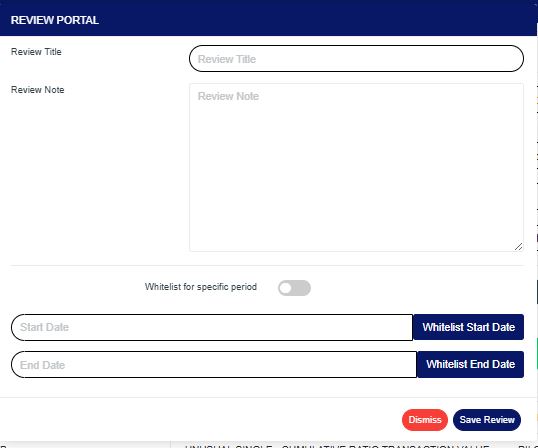
Click on the whitelist option, and it displays the image below. Providing the review title, review note, whitelist for a specific period (if it is for a period), and whitelist start and end dates. Then save the review for future reference.

Input the Review title, review note, toggle on the “whitelist for a specific period”, input Start Date and End Date, select “save review”

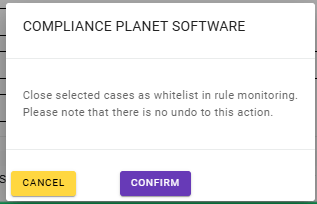
Then click “Confirm” to save all process.


For further enquiries: 
Tel: +234(0) 816 555 9818
Email: solutions@efuelite.com 
Web: http://solutions.efuelite.co

How to Carry out CBN ADRAPS KYC Review Statistics in Compliance Planet Anti Money Laundering/Core Banking Finance Software

This section provides a brief visualization summary of all product tiers present in the institution, whether classified or not, in the Compliance Planet Anti-Money Laundering/Core Banking Finance Software, along with step-by-step instructions and pictures.

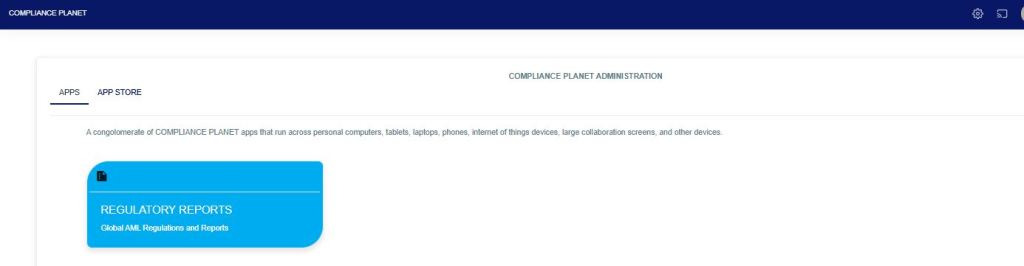
From the app dashboard, click on “REGULATORY REPORTS” as in Fig below.

Fig

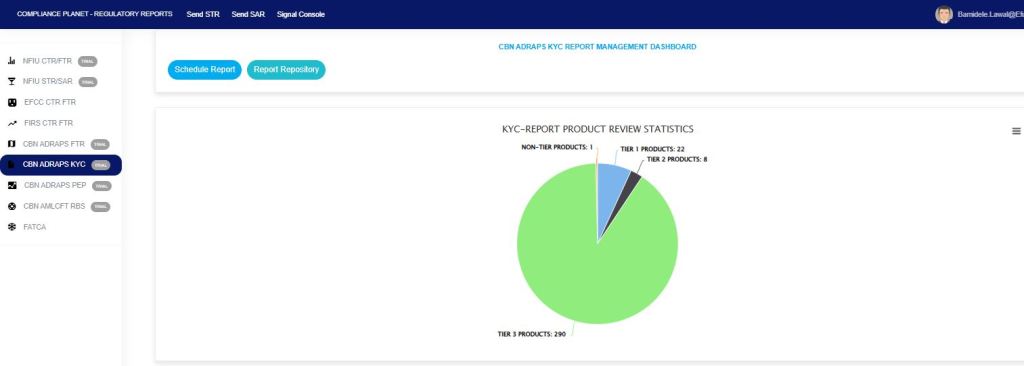
Click on “CBN ADRAPS KYC” on the drop-down list, and this displays the ADRAPS KYC page as shown in the Fig. below.

Fig

This displays all account product(s) that have been classified as Tier 1, Tier 2, Tier 3, and Non-Tier. This Non-Tier product will not be captured for CBN ADRAPS KYC reporting, nor for CTR/FTR and STR reporting purposes.

For further enquiries: 
Tel: +234(0) 816 555 9818
Email: solutions@efuelite.com 
Web: http://solutions.efuelite.com
CBN Foreign Transaction Report (ADRAPS FTR) Process Panel In Compliance Planet Anti Money Laundering/Core Banking Finance Software

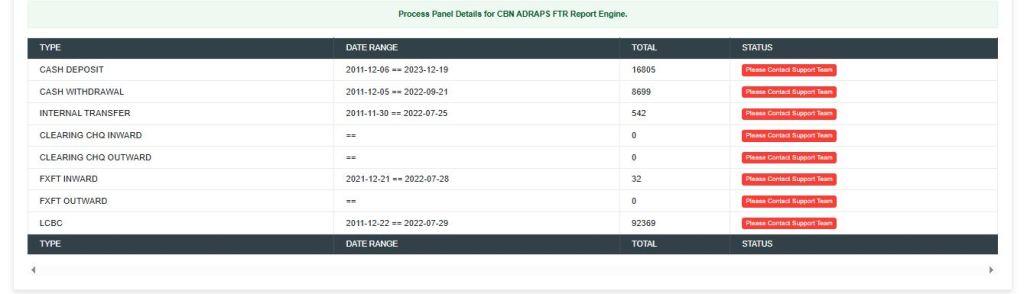
The CBN ADRAPS FTR process panel presents all transaction types and their corresponding date ranges, as well as the number of transactions under each type that have been processed on the Compliance Planet. The date range on the planet refers to the earliest and the latest dates of the transactions processed in Compliance Planet.

Note: Only persons assigned the right(s) to ‘view CTR reports’ and ‘process CTR reports’ will be able to carry out this operation.

From the app dashboard, click on “REGULATORY REPORTS” as shown below

Fig

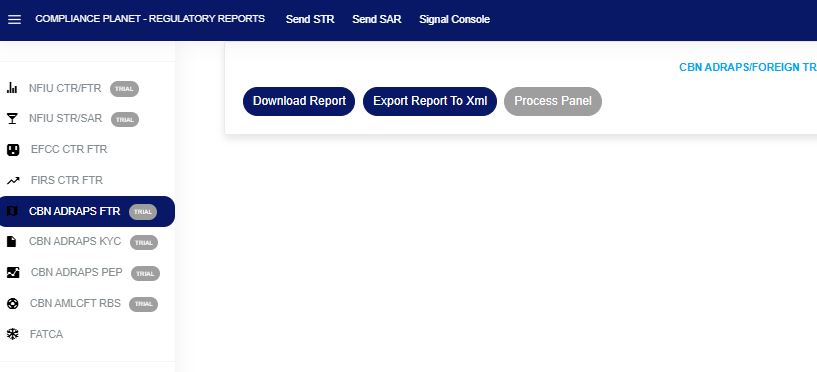
Click on ‘CBN ADRAPS FTR’ on the drop-down list. See an example in Fig below. This will display the CBN ADRAPS FTR page.

Fig

From the menu, click “Process Panel”, which will display all transaction types, date ranges, total records, and status, as shown in the Fig. below.

 
For further enquiries: 
Tel: +234(0) 816 555 9818
Email: solutions@efuelite.com 
Web: https://solutions.efuelite.com