CBN Foreign Transaction Report (ADRAPS FTR) Process Panel In Compliance Planet Anti Money Laundering/Core Banking Finance Software

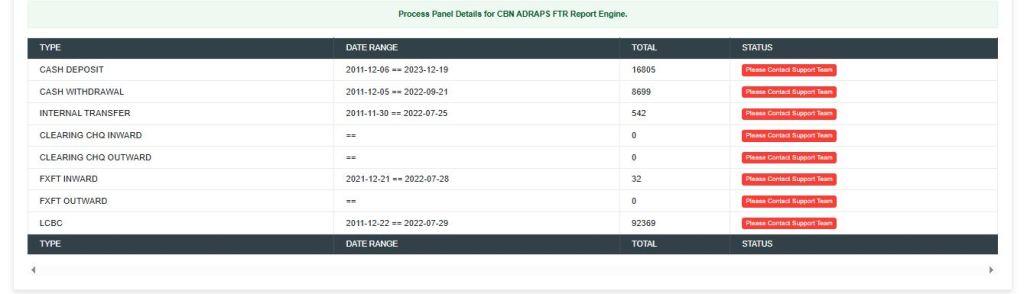
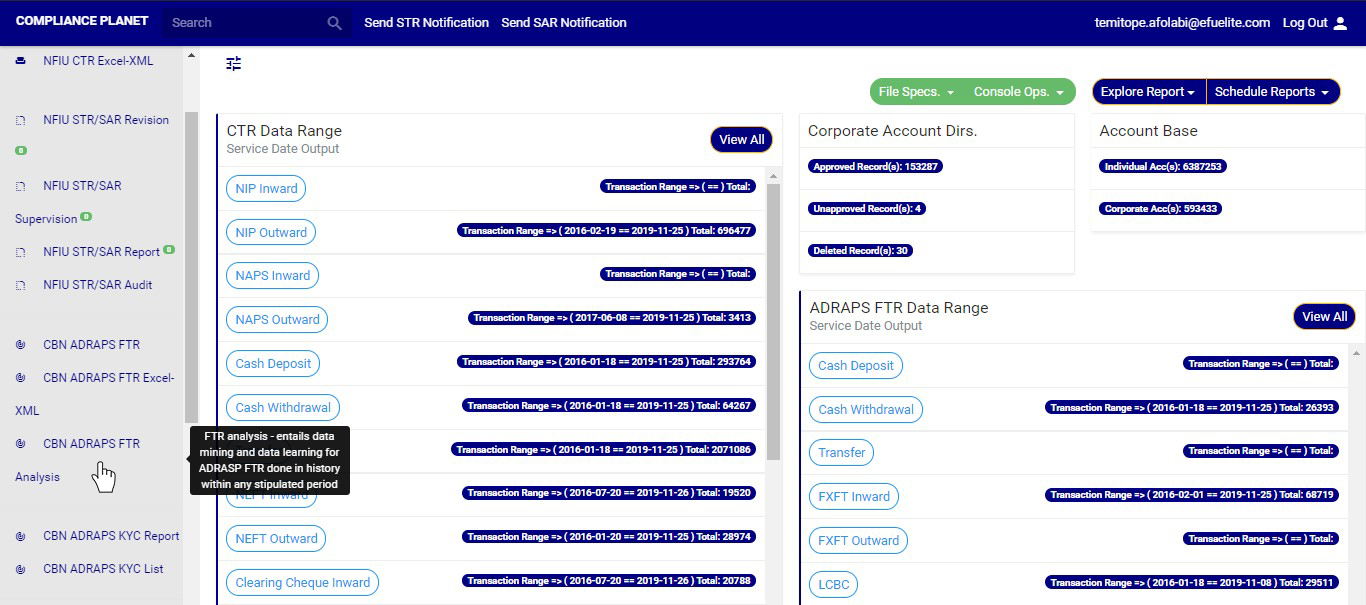
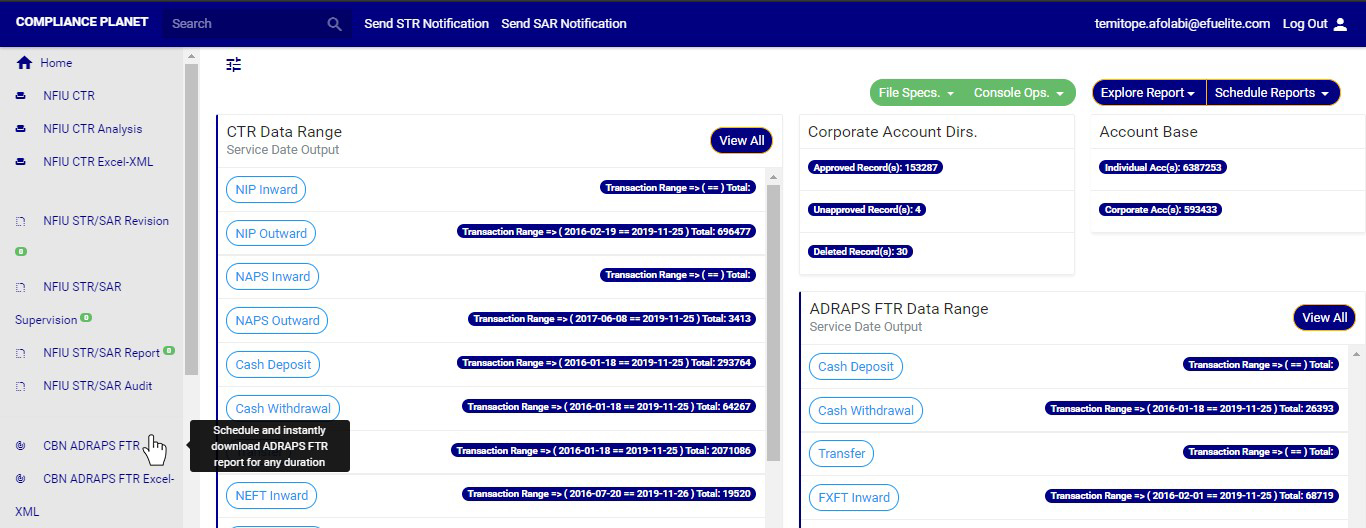
The CBN ADRAPS FTR process panel presents all transaction types and their corresponding date ranges, as well as the number of transactions under each type that have been processed on the Compliance Planet. The date range on the planet refers to the earliest and the latest dates of the transactions processed in Compliance Planet.

Note: Only persons assigned the right(s) to ‘view CTR reports’ and ‘process CTR reports’ will be able to carry out this operation.

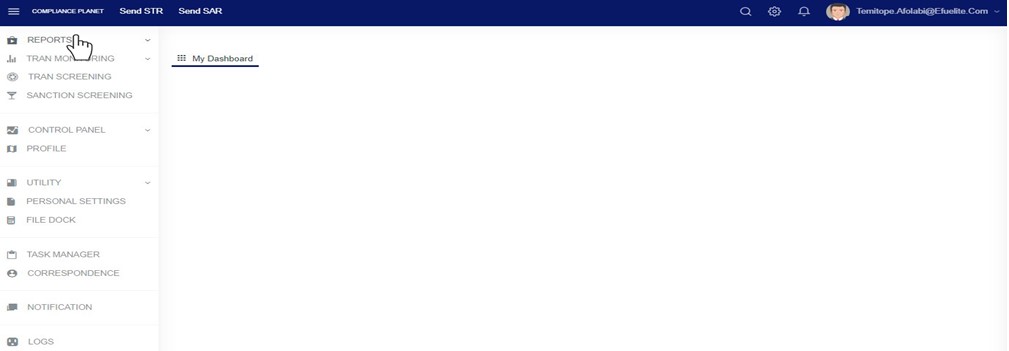
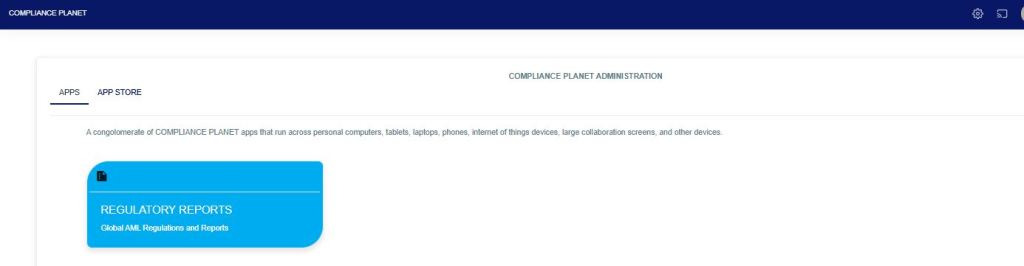
From the app dashboard, click on “REGULATORY REPORTS” as shown below

Fig

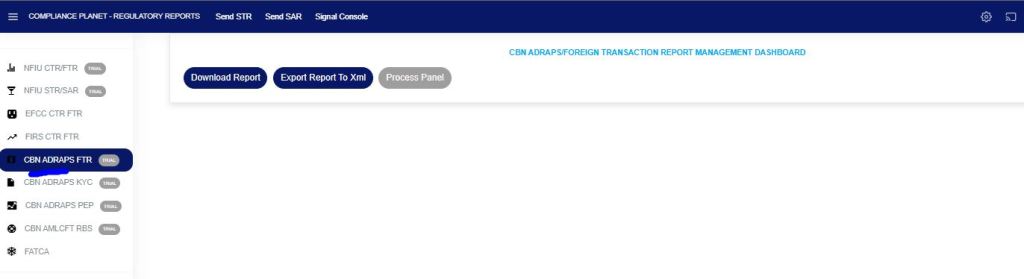
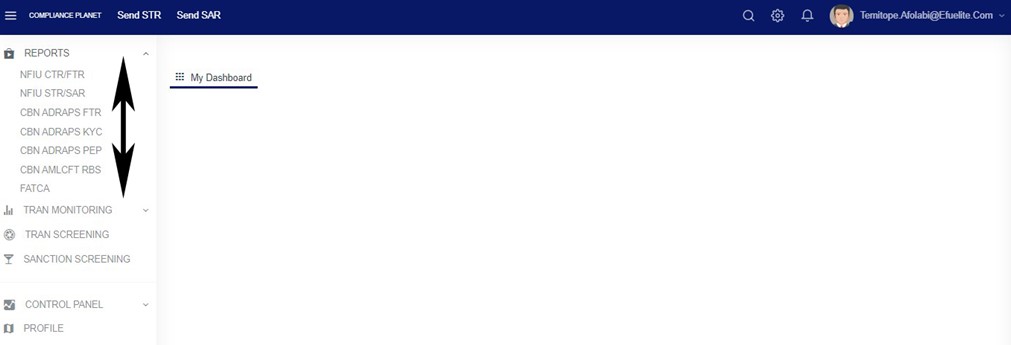
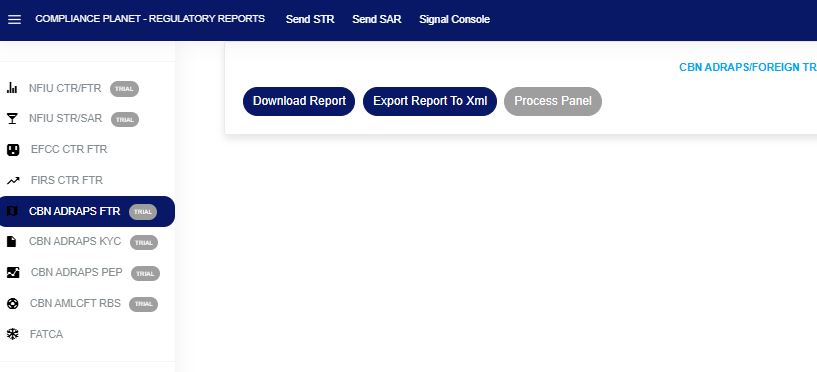
Click on ‘CBN ADRAPS FTR’ on the drop-down list. See an example in Fig below. This will display the CBN ADRAPS FTR page.

Fig

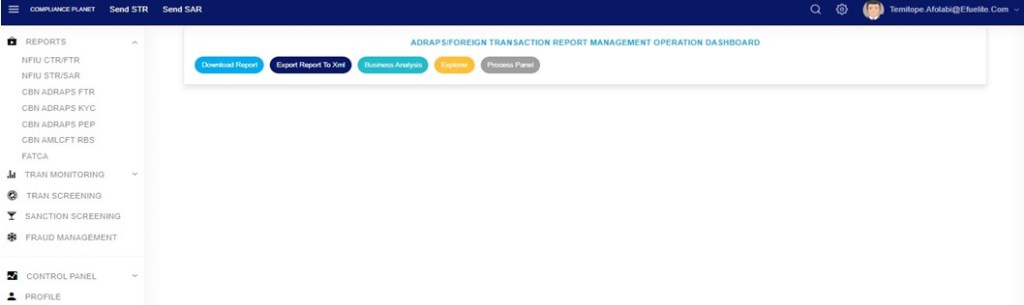
From the menu, click “Process Panel”, which will display all transaction types, date ranges, total records, and status, as shown in the Fig. below.

 
For further enquiries: 
Tel: +234(0) 816 555 9818
Email: solutions@efuelite.com 
Web: https://solutions.efuelite.com

How To Report ADRAPS Foreign Transaction Report (ADRAPS FTR) To The Central Bank Of Nigeria In Compliance Planet Anti Money Laundering/Core Banking Finance Software

This operation involves downloading foreign transaction reports. The processes and operations outlined in this report are similar to those described in the CTR FTR Report. Here is how to schedule and download ADRAPS FTR:

NOTE: Only person(s) profiled and assigned the right to ‘Process FTR Reports’ will be able to carry out this operation.

Step 1: From the app dashboard, click on “REGULATORY REPORTS” as in Fig. 3.4a below.

Fig 3.4a

Step 2: Click on “CBN ADRAPS FTR” on the drop-down list, and this displays the ADRAPS FTR page as in Fig. 3.4b below.

Fig 3.4b

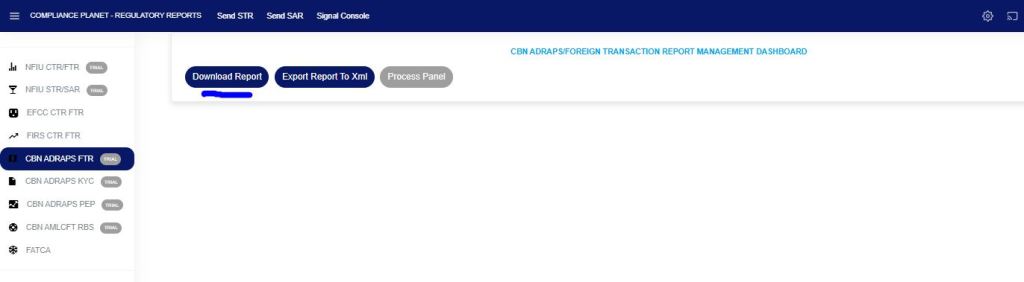
Step 3: From the menu, click “Download Report” as shown in Fig. 3.4c below.

Fig 3.4c

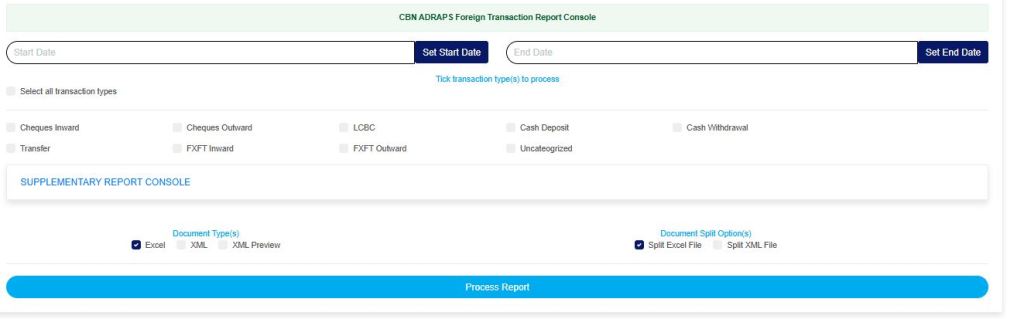
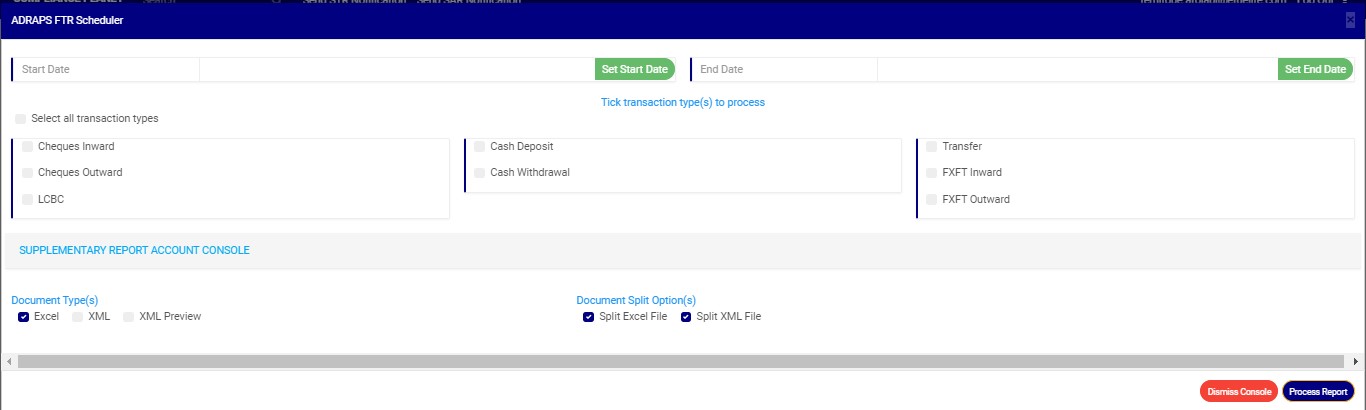
A console will be displayed on the screen as in Fig. 3.4d below, for you to fill in the details and parameters for your report.

Fig. 3.4d

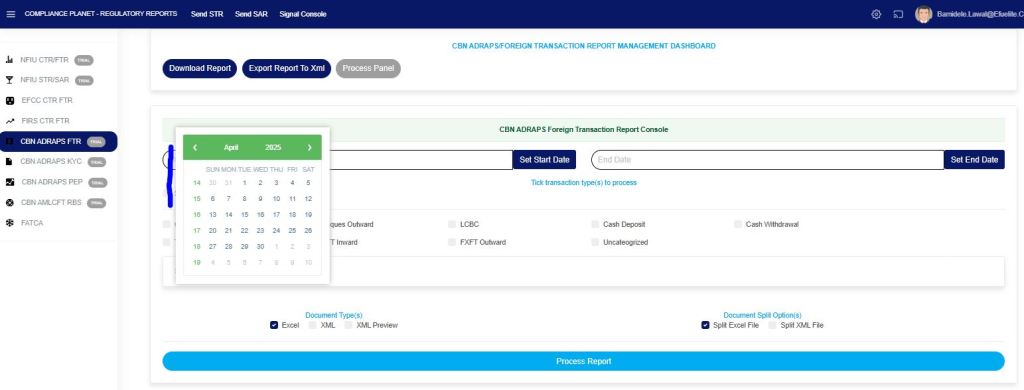
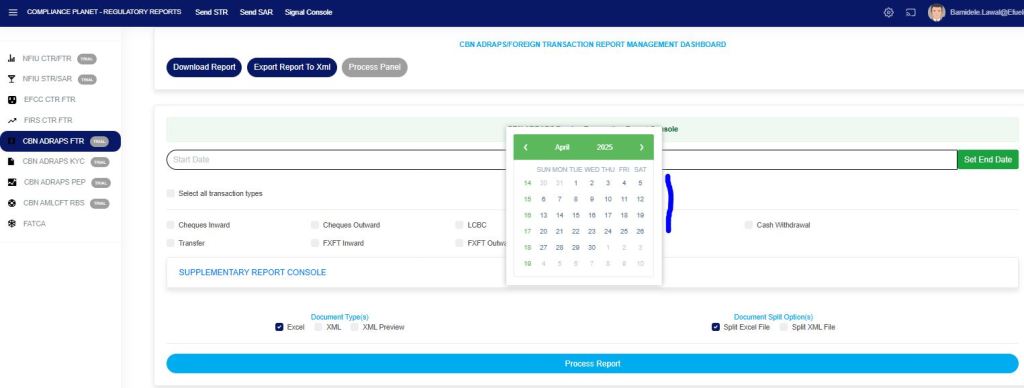
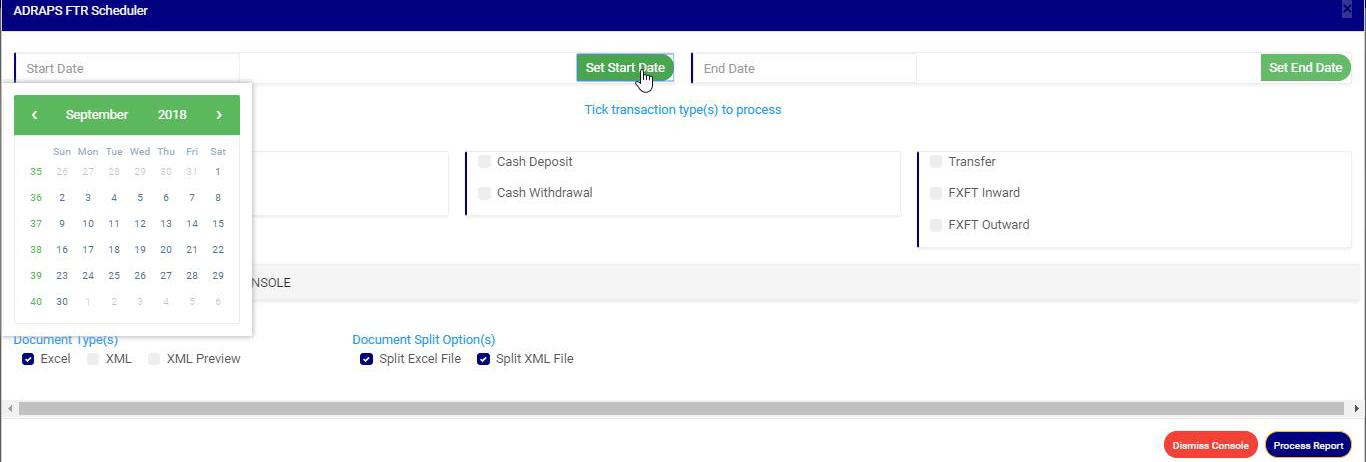
STEP 4: Click on “SET START DATE and SET END DATE” to specify the beginning and the end of the period (respectively) for which report(s) to be generated. A calendar drops below the date box, like in Fig. 3.4e and Fig. 3.4f.

Fig. 3.4e

Fig 3.4f

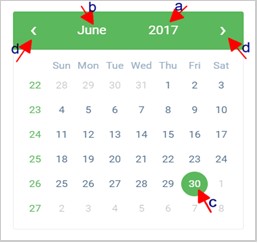
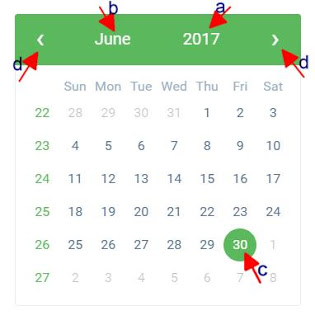
Take a look at the arrows labelled a to d in Fig. 3.4g to study the calendar.

  1. Click on the given year to change it to your year of choice.
  2. Click on the given month to change it to your month of choice.
  3. Then, click on the date of the month.
  4. You can also click on the angle brackets on the calendar [ ‘<’ or ‘>’ ] to go backward or forward.

Fig. 3.4g

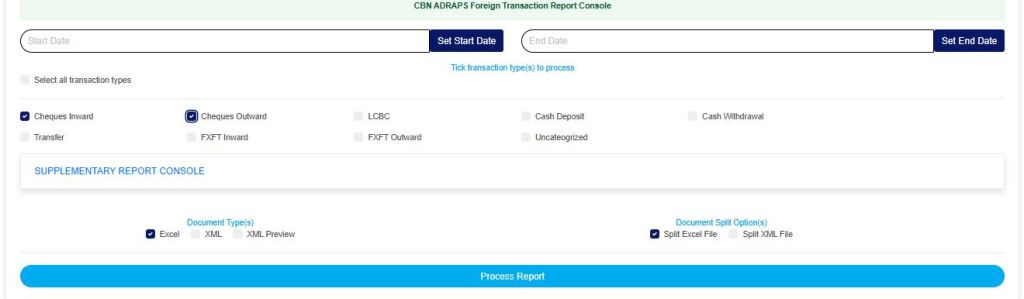
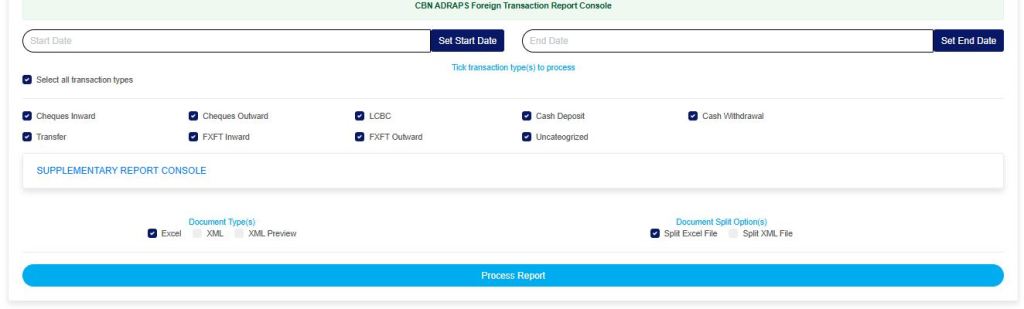
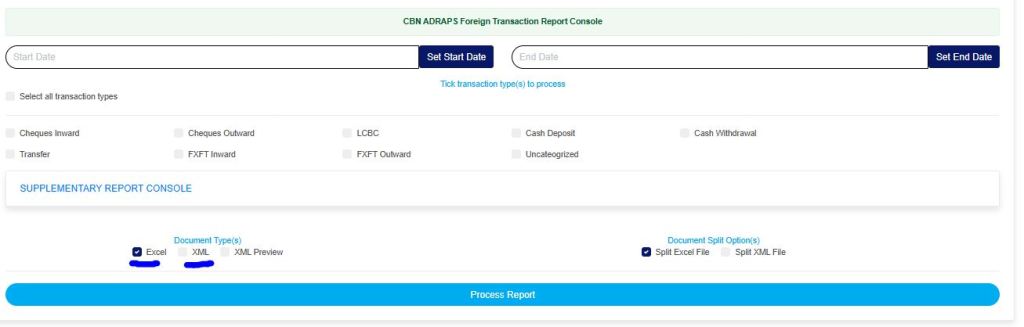
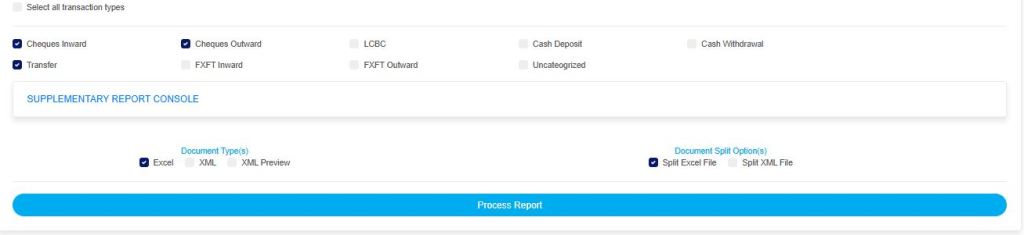
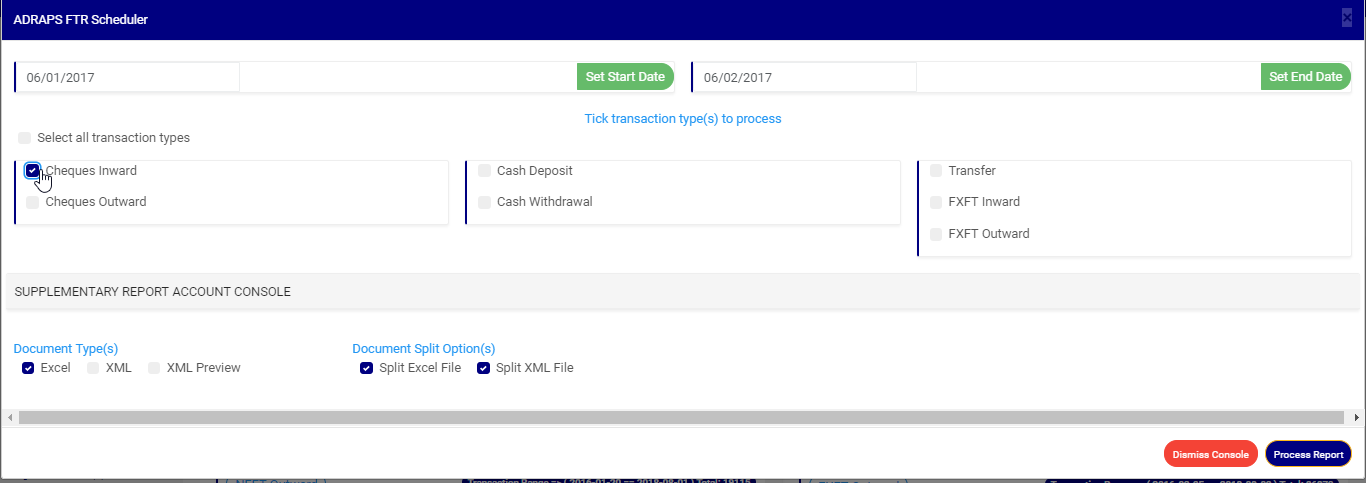
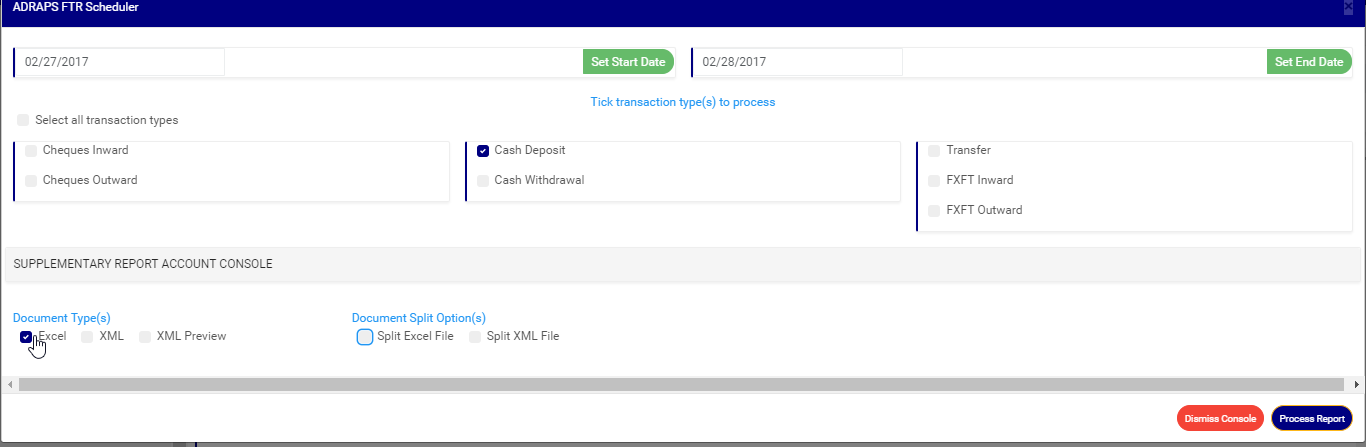
STEP 5: Select the transaction(s) you wish to process by marking their checkboxes. You can select one or more, as in Fig. 3.4h.

Fig 3.4h

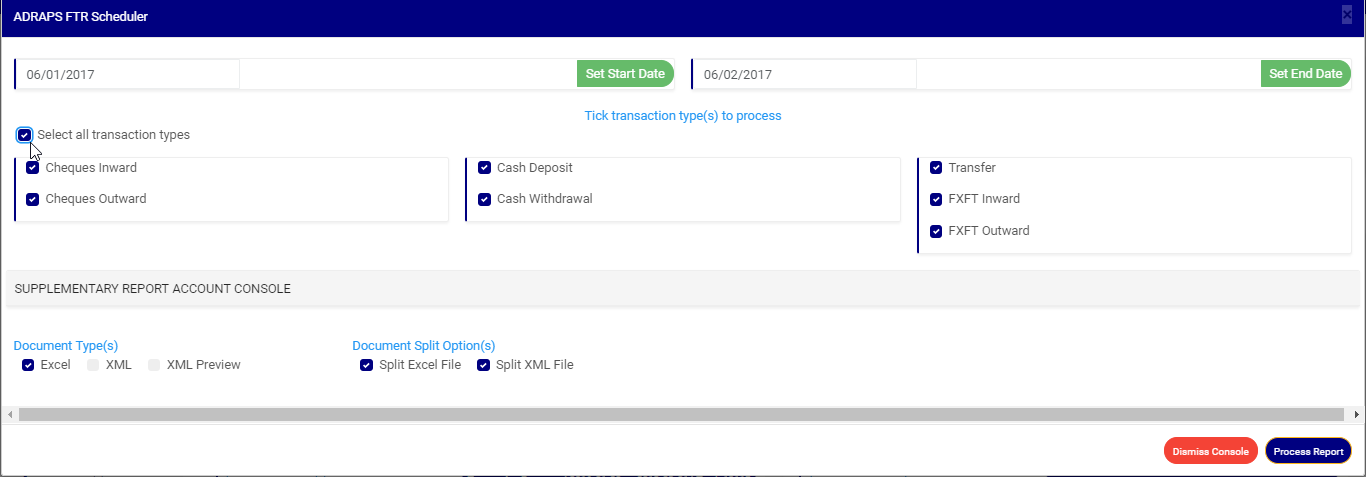
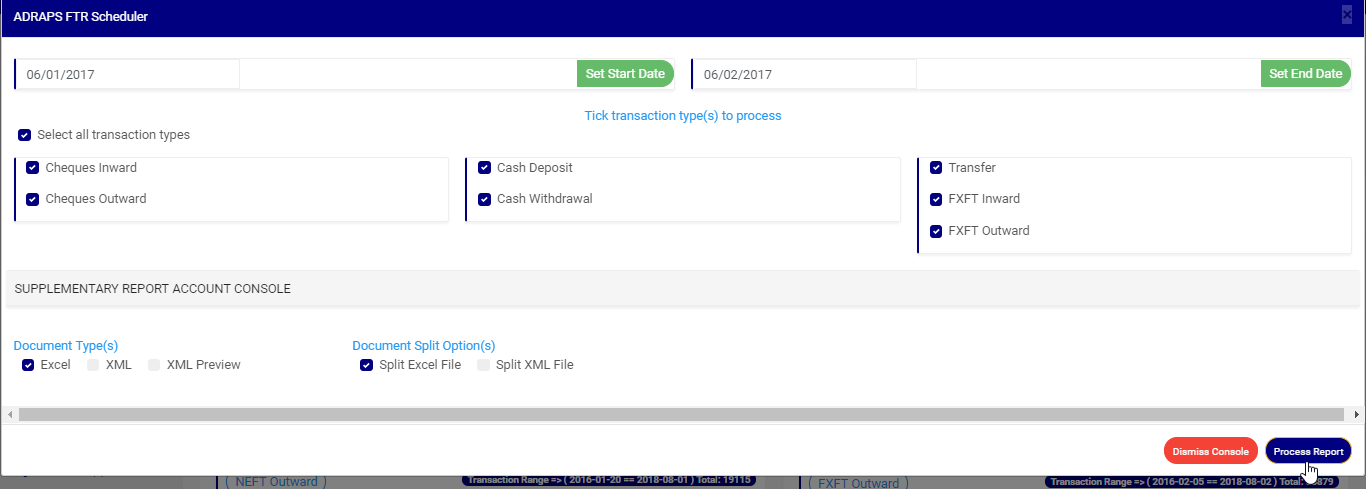
You can select all transactions by clicking on ‘Select all transaction types’ as in Fig. 3.4i for processing at once.

Fig 3.4i

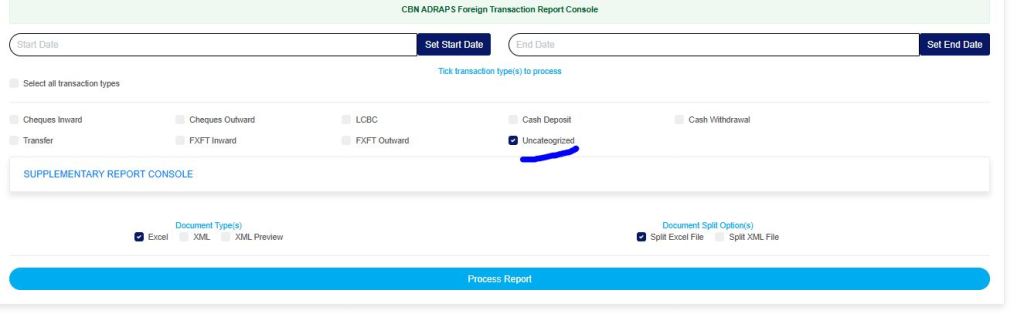
You can also select the “Uncategorized” option, which will give you all reportable transactions (irrespective of the transaction type) for the specified date range, as shown in Fig. 3.4j below. This type of report does not include external customer data.

Fig 3.4j

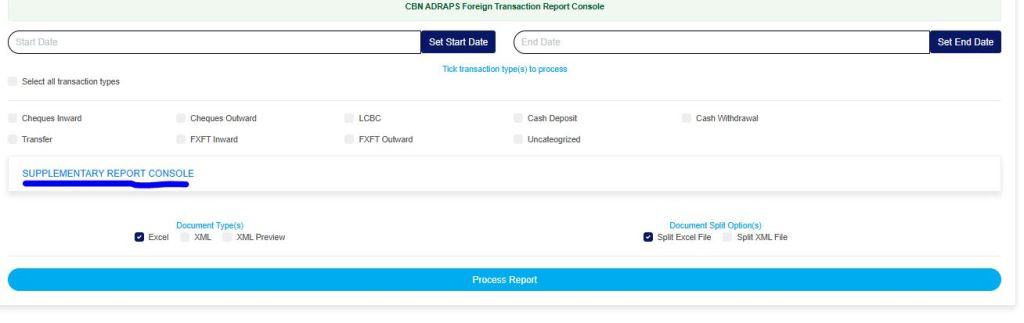
STEP 6: Click on ‘SUPPLEMENTARY REPORT CONSOLE’ as in Fig 3.4k below to download the report on the Specific account number(s) only within the period selected.

Fig 3.4k

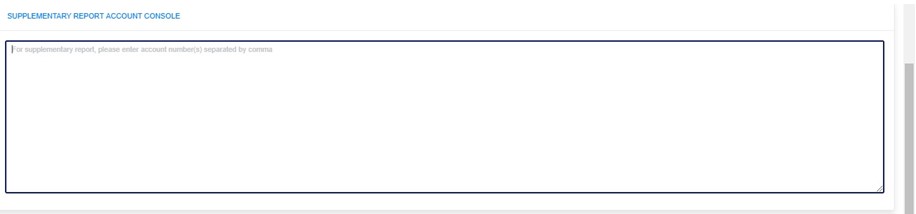
  • This displays a text box where the account number(s) are to be entered. Note that each account number is to be separated by a comma. See an example in Fig. 3.4l below.

Fig 3.4l

STEP 7: Select the document type; there are two options: Excel or XML. So, tick either of the two or select both. See Fig. 3.4m for an example.

Fig 3.4m

STEP 8: Tick the document split option(s). This step is optional. It all depends on whether you want to combine all the selected FTRs that you wish to process into one file or produce the reports for each FTR in separate files. By clicking on the document split options for either the Excel file or the XML, the software will generate individual reports for the different transaction types. For instance, in the fig. 3.4n, marking the split option will result in the planet generating each ADRAPS FTR file separately. Reports can be exported in Excel format and XML format without any additional steps.

Fig 3.4n

STEP 9: Click on “Process Report” to generate files as in Fig. 3.4o below.

Fig 3.4o

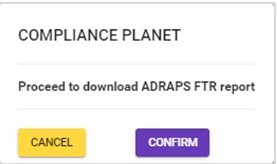
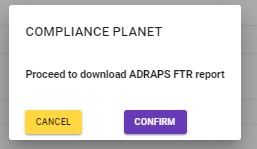
To make changes to your report settings on the ADRAPS FTR Console, click on Cancel. This will take you back to the scheduler.

Click on “Confirm” to confirm your answer.

Fig 3.4p

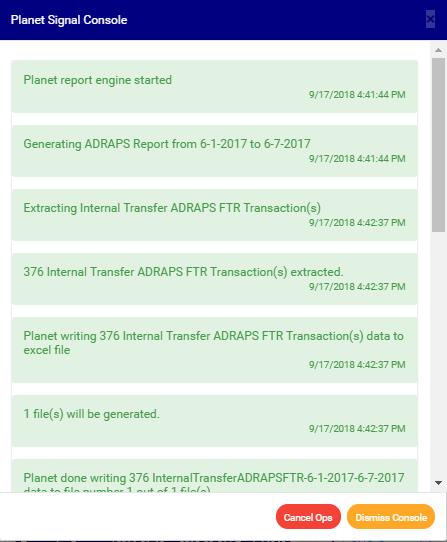
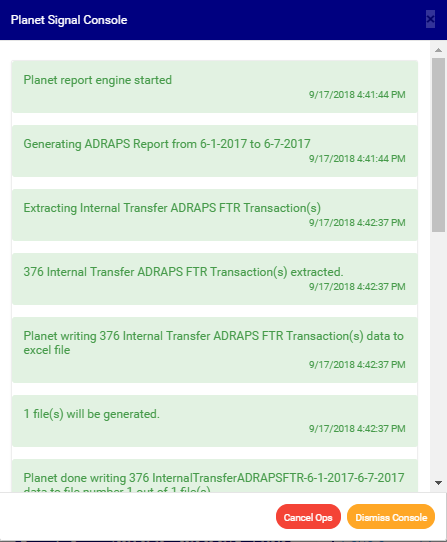
  • The signal console shows ongoing processes. An example of a signal console is fig. 3.4q below.

Fig 3.4q

  • You can terminate unfinished processes by clicking CANCEL OPS.
  • To minimize the signal console, click on “DISMISS CONSOLE. This button is next to the CANCEL OPS button.

For further enquiries: 
Tel: +234(0) 816 555 9818
Email: solutions@efuelite.com 
Web: http://solutions.efuelite.com

How to carry out data analysis and business intelligence on CBN ADRAPS foreign transaction report (ADRAPS FTR) In Compliance Planet Anti Money Laundering/Core Banking Finance Software

Here, the software can generate graphs with the value and/or volume of transactions plotted against the time or period in which they occur. To get the planet to give you an analysis of any ADRAPS FTR type over a period of time, here is how to go about it.

NOTE: Only person(s) assigned right(s) to ‘process FTR Reports’ will be able to carry out this Operation.

STEP 1: From the left hand side menu, Click on ‘REPORTS’ as shown below

  • This will display a drop down . The dropdown lists the report types available on the compliance planet software.

STEP 2: Click ‘CBN ADRAPS FTR’ on the drop down list. See an example below.

  • This will display the ADRAPS FTR page as shown below

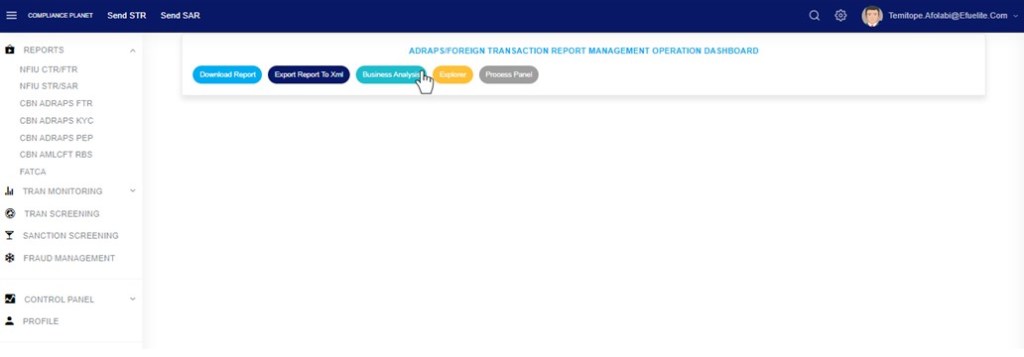
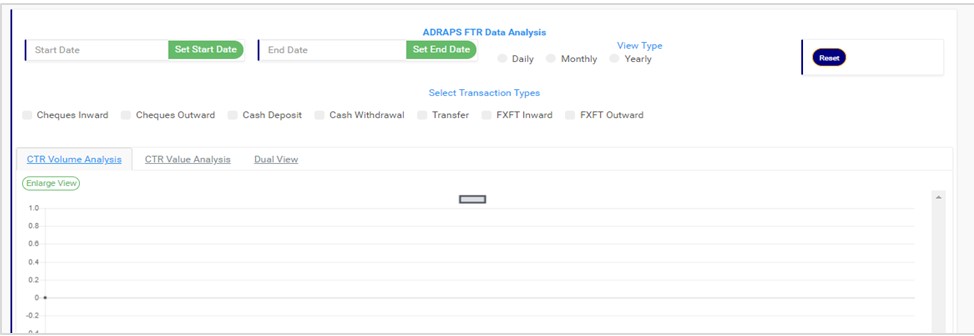
STEP 3: From the Top menu, click “Business Analysis” as shown in fig 3.6a below

(fig. 3.6a)

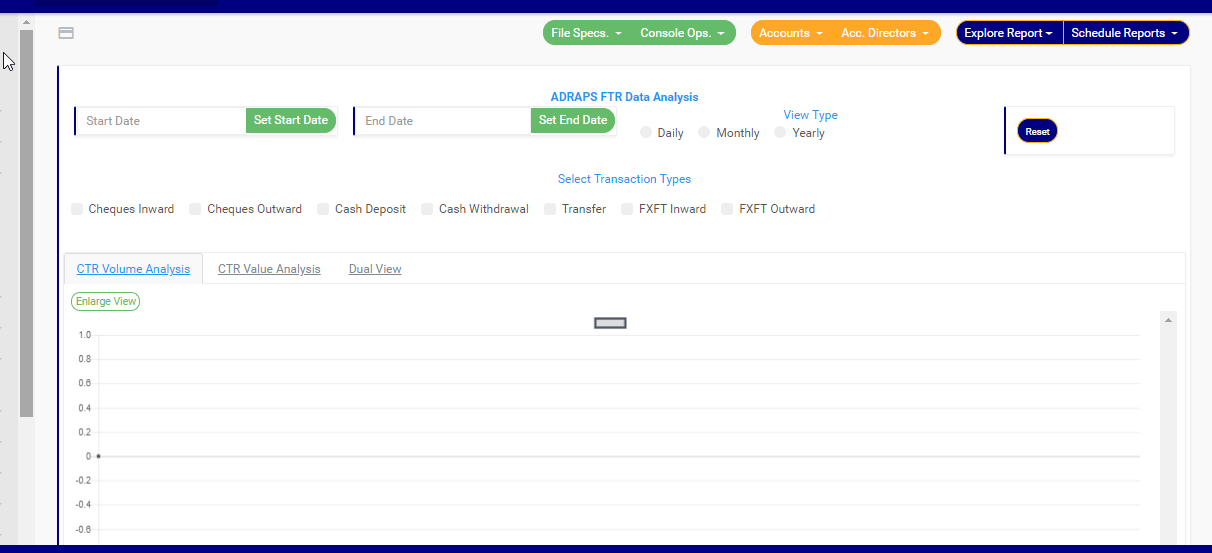
This displays a page as in fig. 3.6b below.

(fig. 3.6b)

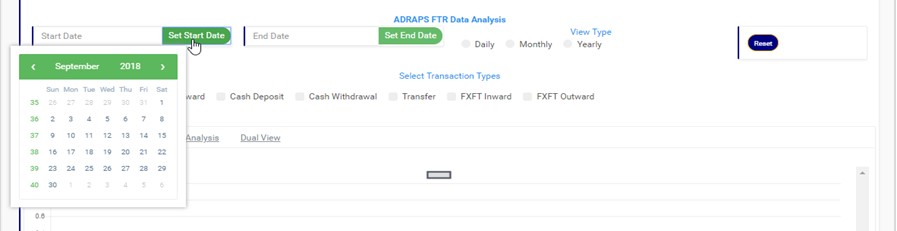
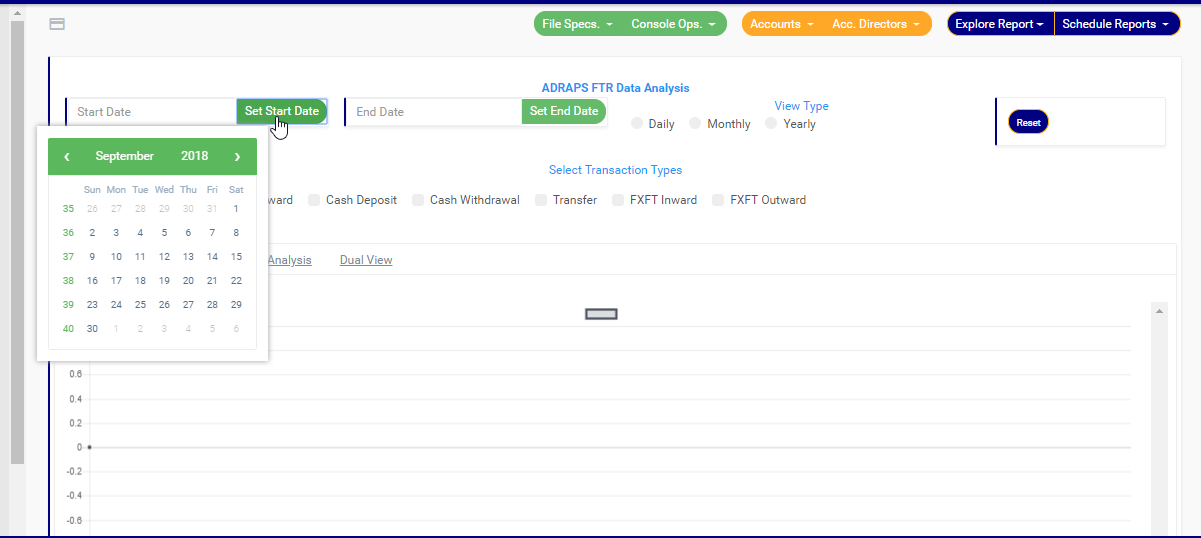
STEP 4:          Click on SET START DATE and SET END DATE to specify the beginning and the end of the period the analysis will cover. You must set your date parameters before selecting any transaction type for analysis. Take a look at fig. 3.6c to see how to set the date. Fig. 3.6d shows a labelled calendar next.

(fig. 3.6c)
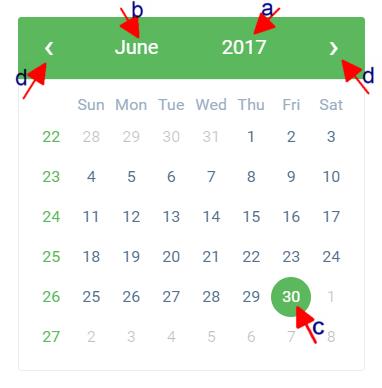
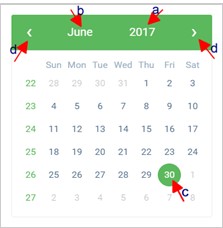
Take a look at the arrows labelled a to d in fig. 3.6d to study the calendar.

  1. Click on the given year to change it to your year of choice.
  2. Click on the given month to change it to your month of choice.
  3. Then, click on the date of the month.
  4. You can also click on the angle brackets on the calendar [ ‘<’ or ‘>’ ] to go backward or forward.

(fig. 3.6d)

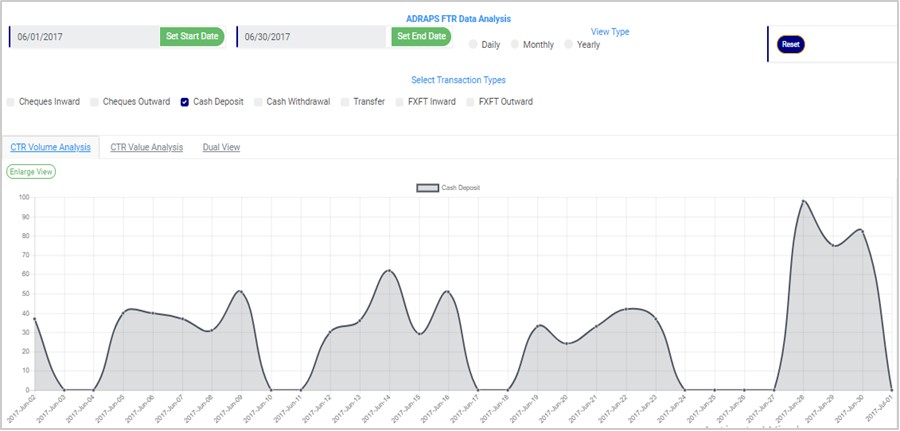
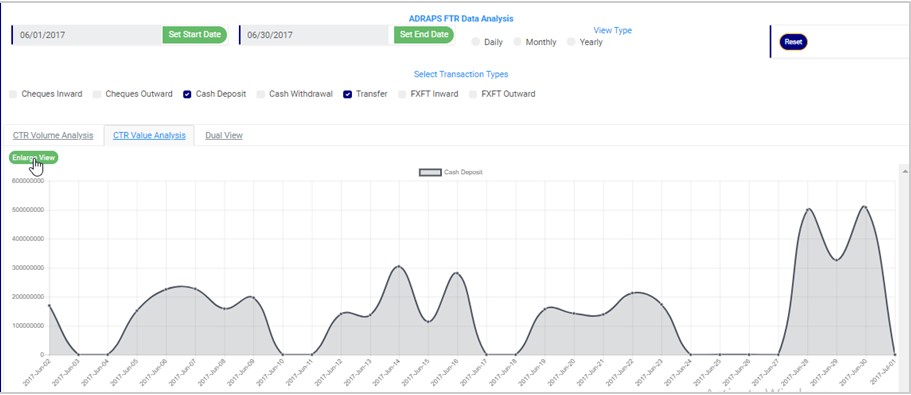
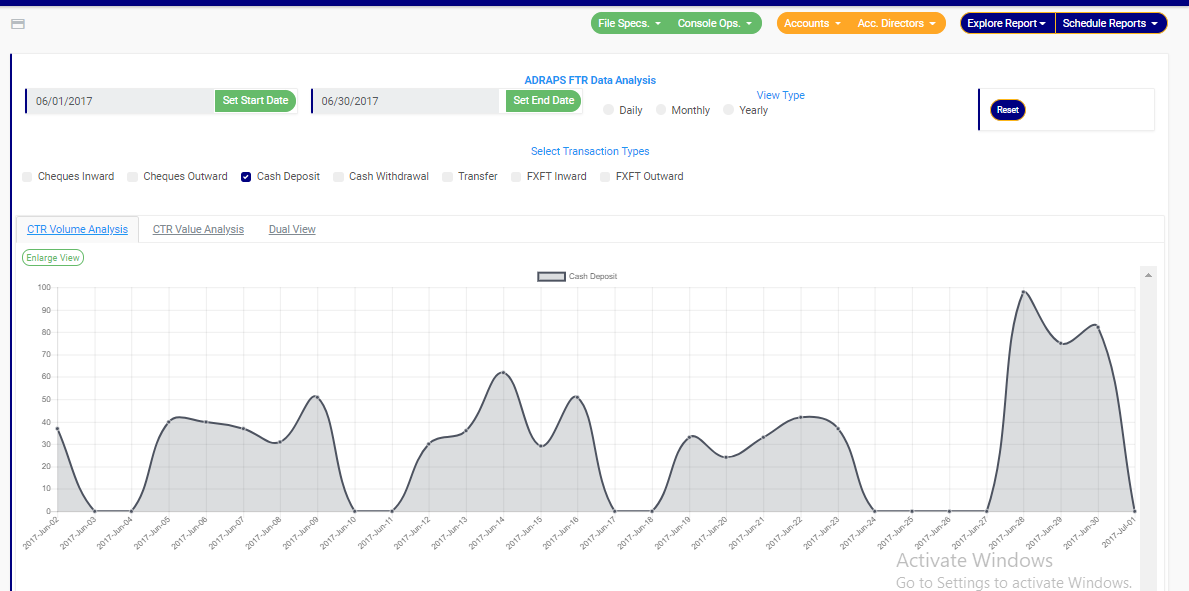
STEP 5:          Tick the checkbox ◻ of the FTR type(s) you want to view. As soon as you select a transaction type, the software processes it and displays a graph instantly. Fig. 3.6e below is an example for Cash Deposit ADRAPS FTR for 1st of June, 2017 to 30th of June, 2016.

(fig. 3.6e)

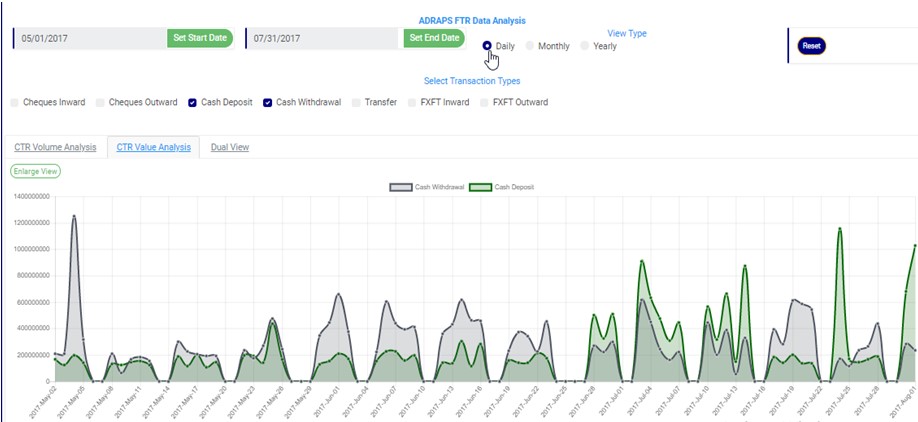
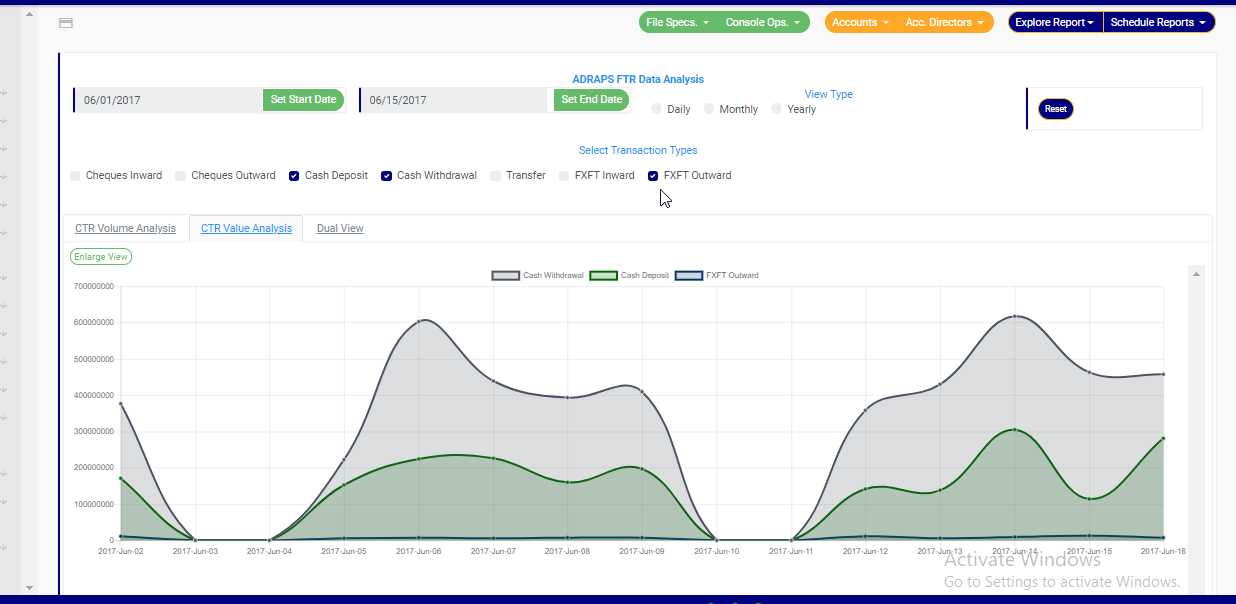
  • More than one transaction can be selected. You can select all if you wish. See fig. 3.6f below for an example of graph analysis for more than one transaction.

(fig. 3.6f)

  • ADRAPS FTRs can be analysed by the volume of the selected transactions or the value of the selected transactions. The Volume analysis is the default analysis you will get anytime you want to analyse any transaction. However, you can view both analysis side by side.
  • By clicking on the CTR Volume Analysis, the graph analysis will be according to the number of the transactions that occurred in the period you specified in your date settings. Look at fig. 3.6e above for an example.
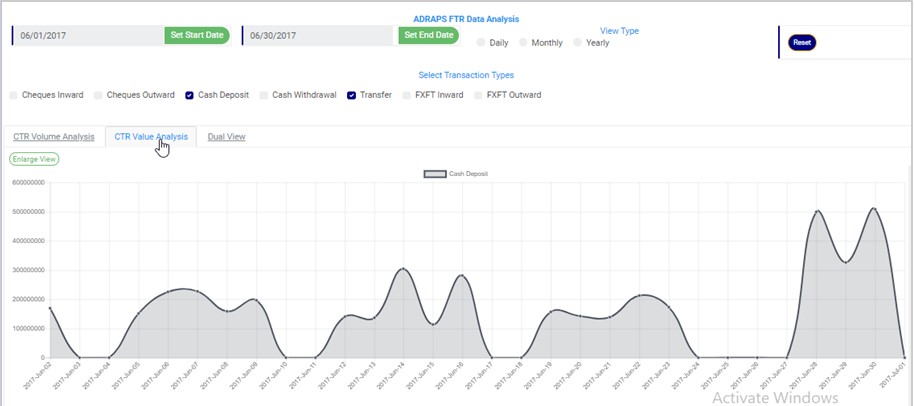
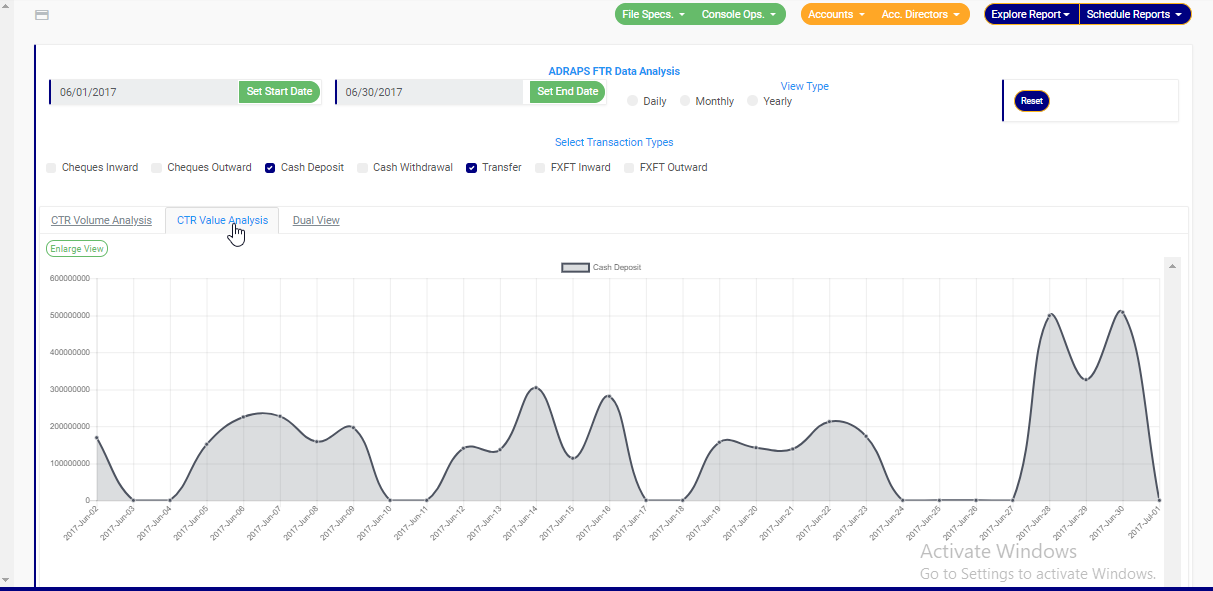
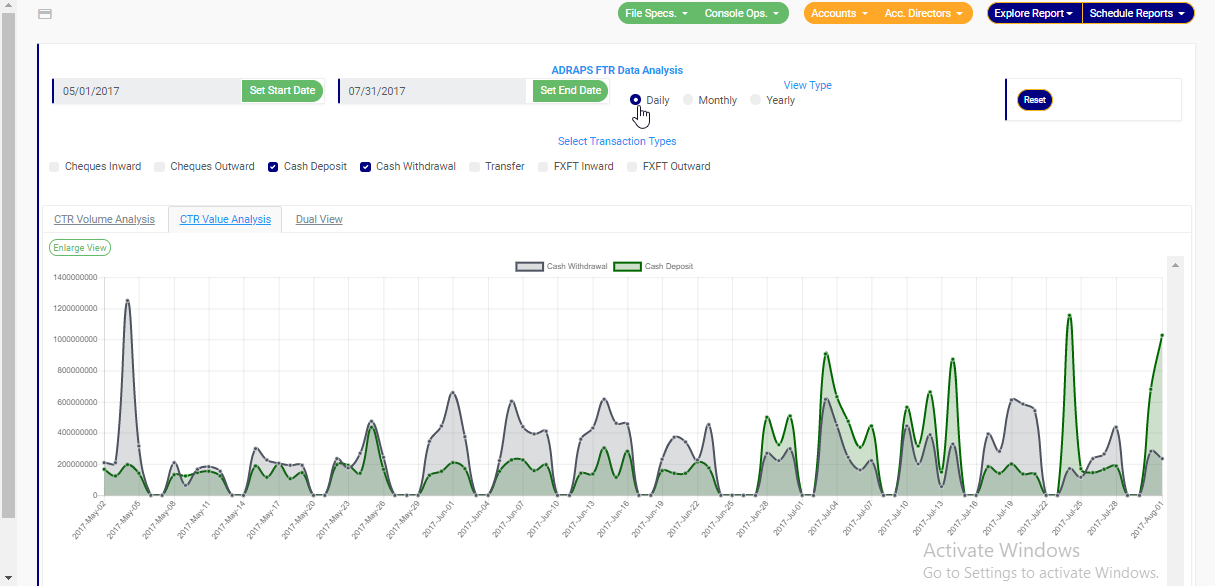
  • By clicking on the CTR Value Analysis, the graph analysis will be according to the amounts (in naira) of the transactions that occurred in the period you specified in your date settings. Look at fig. 3.6g below for an example on value analysis.

(fig. 3.6g)

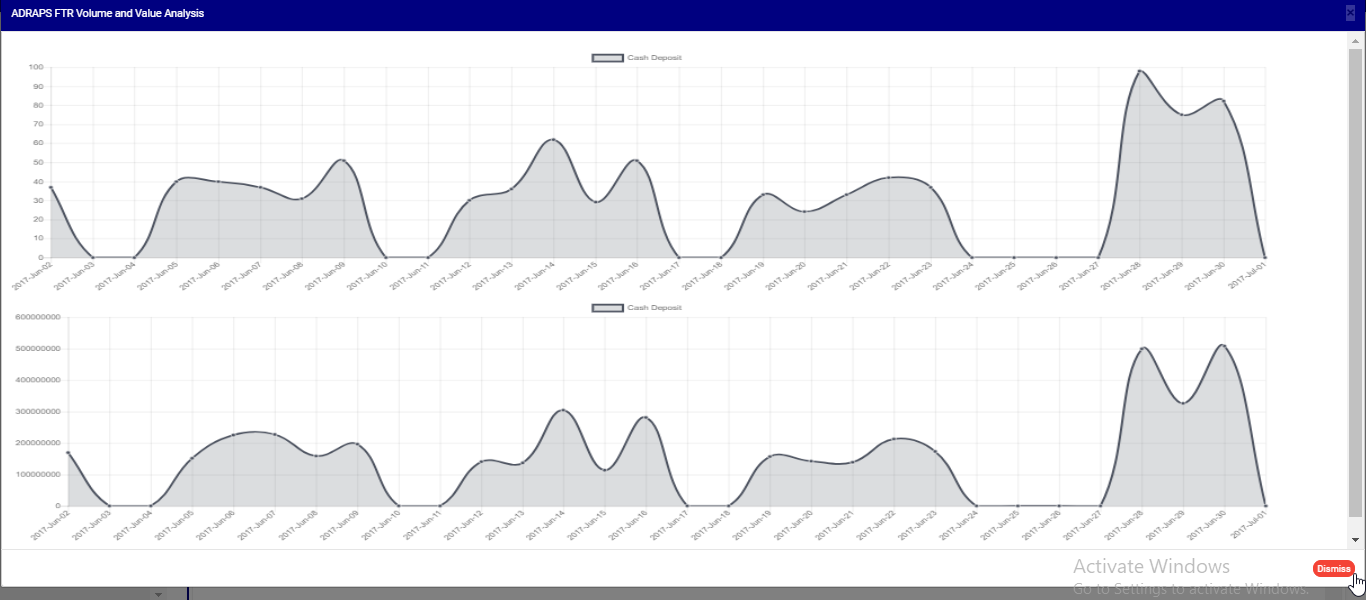
  • By clicking on the Dual View, the planet places both analysis, that is both volume and value, side by side. See an example of a dual view in fig. 3.6h.

(fig. 3.6h)

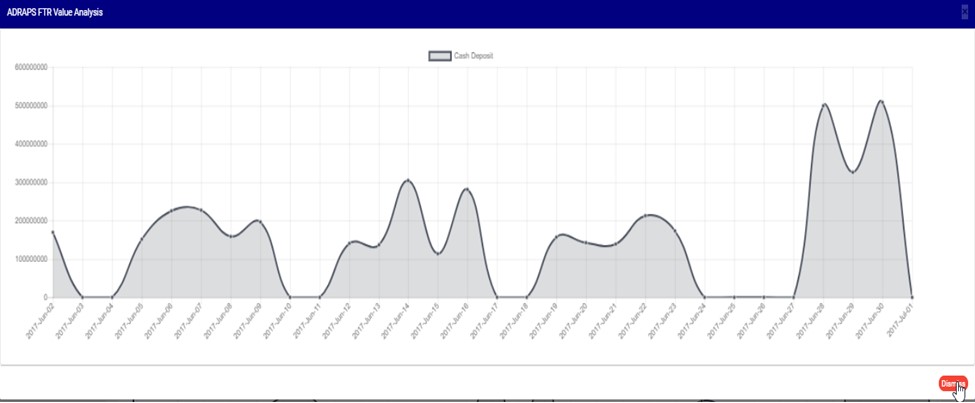
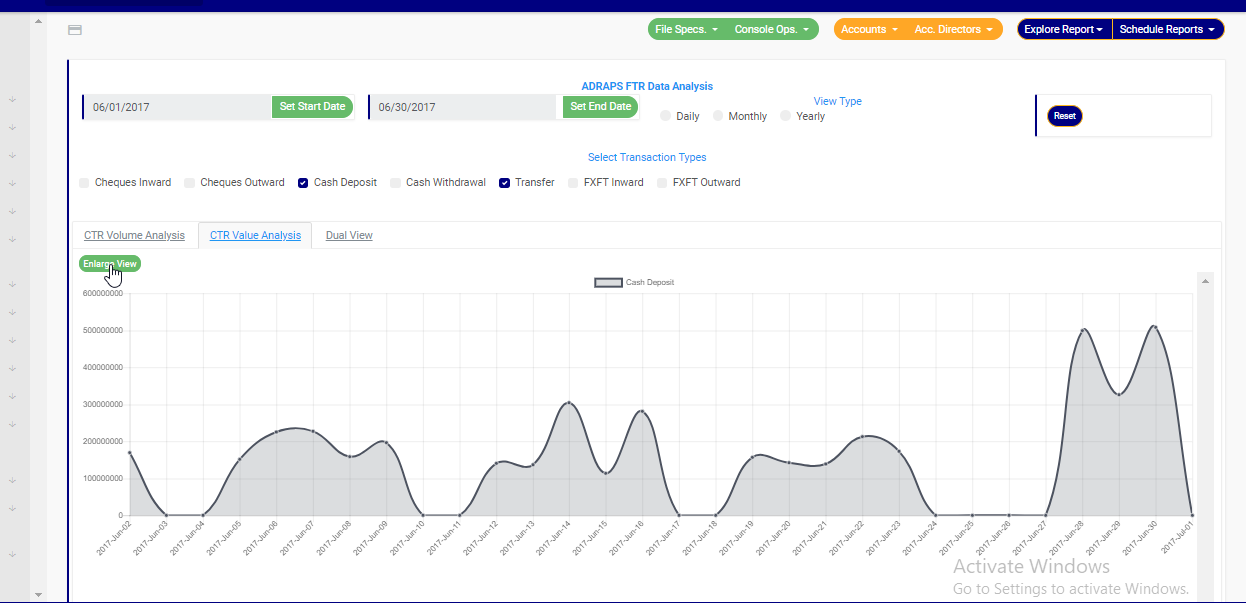
  • To see a bigger view of your graph, click on the ENLARGE button. Check out fig. 3.6i to see the button.

(fig. 3.6i)

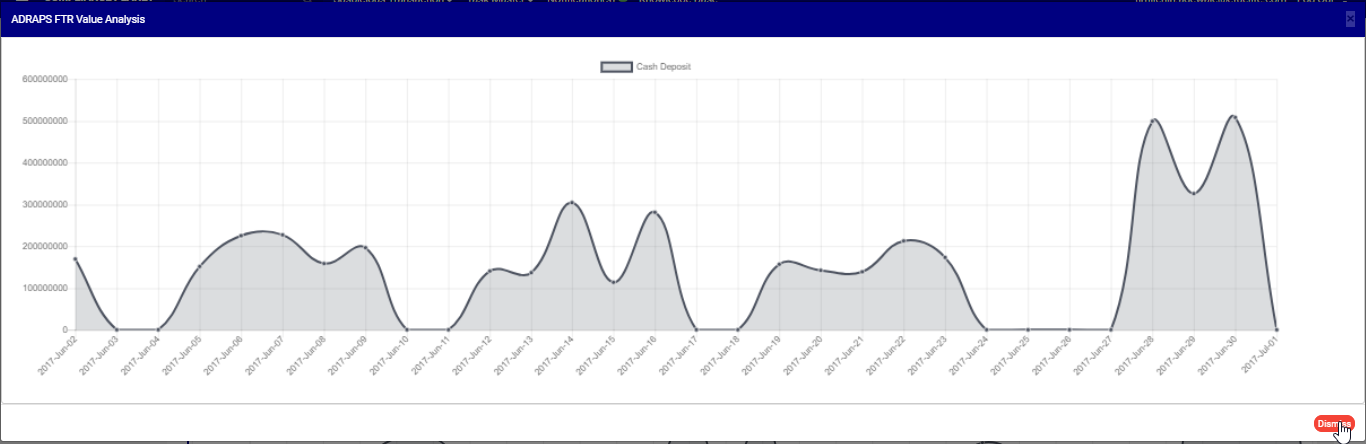
  • See fig. 3.6j and fig. 3.6k for an enlarged view of a graph (one analysis) and an enlarged view of two graphs together (dual view of the value and volume analysis) respectively.

(fig. 3.6j)

(fig. 3.6k)

  • There is a red button at the bottom-right corner of the graph console. It is the DISMISS button for closing the console. Click on it as in fig. 3.6k above and the enlarged view will be closed.

STEP 6: Click on DAILY or MONTHLY or YEARLY to change parameter of the time or period. You can switch these view options to see analyses differently. These buttons are next to the End Date button on the page. See fig. 3.6l below to view them.

(fig. 3.6l)

  • By clicking Daily, the value or volume of the transaction type is plotted against each day within the period specified in the date settings. This is the default view setting on the planet for every analysis.
  • By clicking Monthly, the value or volume of the transaction type is plotted against each month within the period specified in the date settings. This will have effect on analyses with date settings that spread to two or more months.
  • By clicking yearly, the value or volume of the transaction type is plotted against each year within the period specified in the date settings. This feature will have effect if the period specified in your date settings spreads to two or more years.
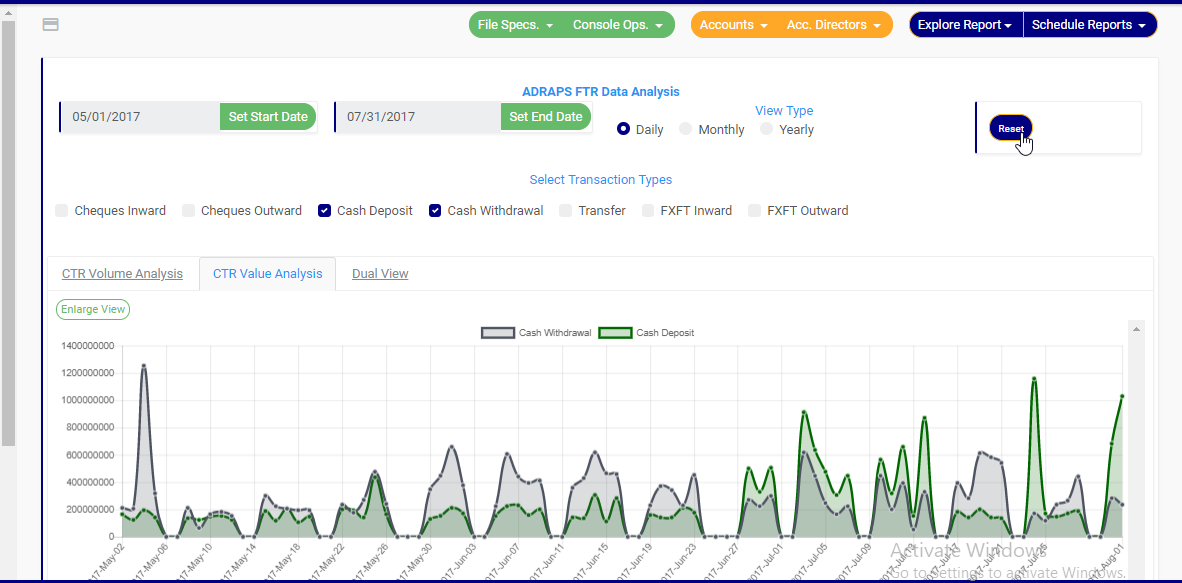
  • Once you select any start date, end date and you mark any transaction for analysis, the software processes the details of the transaction selected right away, so, you cannot undo any setting you have made. You can only switch between volume and value analysis and change your view type. To make new settings for a fresh analysis, click on the RESET button. The software will wipe off all your previous selections. See fig. 3.6l below to view the Reset button. It is next to the View Type buttons

(fig. 3.6m)

For further enquiries : 
Tel +234(0) 816 555 9818
Email solutions@efuelite.com 
Web http://solutions.efuelite.com

How to generate CBN ADRAPS Foreign Transaction report (ADRAPS FTR) XML In Compliance Planet Anti Money Laundering/Core Banking Finance Software

What is XML?

XML stands for Extensible Markup Language. It is a markup language that defines a set of rules for encoding documents in a format that is both human-readable and machine-readable. It is a metalanguage that allows users to define their own customized markup language, particularly for displaying documents on the internet. It was designed to store, transport, and describe data. It is a flexible way to create information formats and electronically share structured data via both public and corporate networks.

NOTE: Only person(s) Assigned right(s) to ‘Process FTR’ reports will be able to carry out this Operation.


The software can help you generate XML files from Excel. Here’s how to proceed.

Step 1: From the app dashboard, click on “REGULATORY REPORTS” as in Fig. 3.5a below.

Fig 3.5a

Step 2: Click on “CBN ADRAPS FTR” in the drop-down list, and this displays the ADRAPS FTR page, as shown in Fig. 3.5b below.

Fig 3.5b

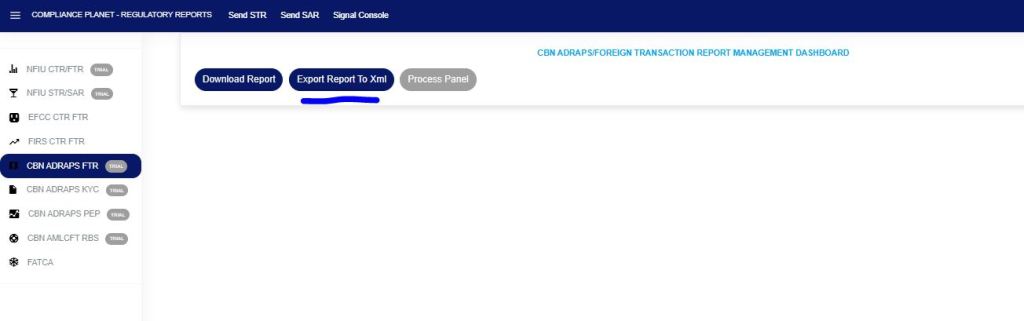
Step 3: From the menu, click “Export Report to XML” as in Fig. 3.5c below.

Fig 3.5c

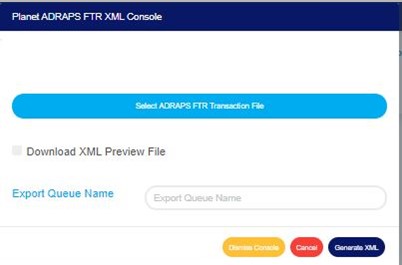
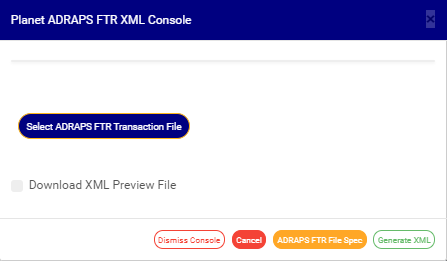
A ‘Planet ADRAPS FTR XML Console’ as in Fig. 3.5d below will be displayed.

Fig 3.5d

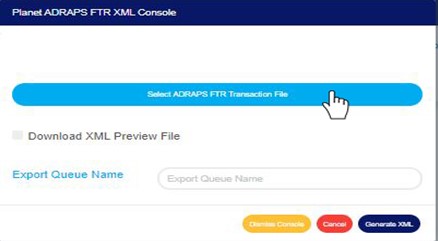
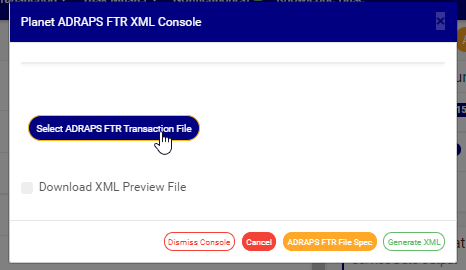
Step 4: Click on ‘Select ADRAPS FTR Transaction File’ to upload an ADRAPS FTR file from your computer, as in Fig. 3.5e. The information in the uploaded file is what Compliance Planet will convert into an XML file. See how to upload a file from your computer.

  • Note: if you are uploading a transaction file downloaded from the Compliance Planet, you must
  1. Unlock the Excel file; to do this, open the Excel file and click “enable editing” in the Excel editor.
  2. Delete the S/N column in the Excel file to be uploaded.

Fig 3.5e

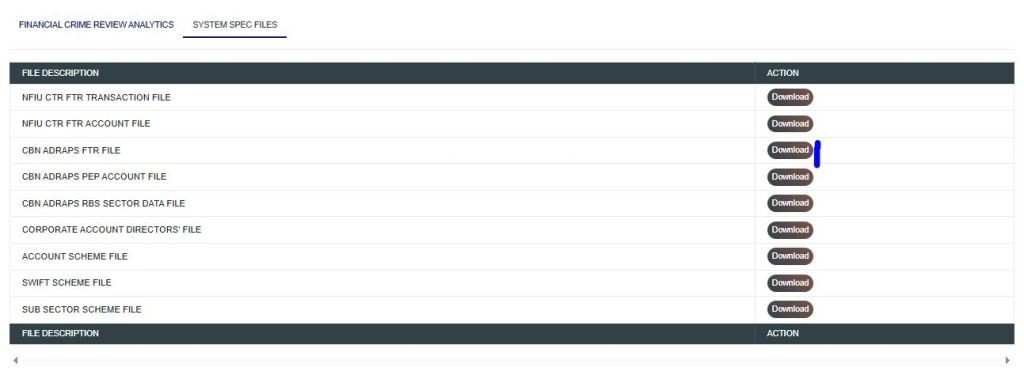
  • If you do not have the file specification for uploading the ADRAPS FTR transaction, you can download it from the “SYSTEM DATA SPEC FILES” on the software.
  • Go to the Regulatory Report page and click “SYSTEM DATA SPEC FILES” as shown below.
  • Click the download button associated with the report type, as shown below.
  • An Excel file will be downloaded to your computer with pre-filled titled columns under which the details will be entered. Open the file, fill in the required details of the ADRAPS FTR account data, and save the changes. Renaming the file on your computer is optional. Go back to the software and click on ‘Select ADRAPS FTR Transaction File’ to select the file.
  • The file must be unlocked in the Excel editor by clicking enable editing, and data must be filled in, as the software will not process an empty file.

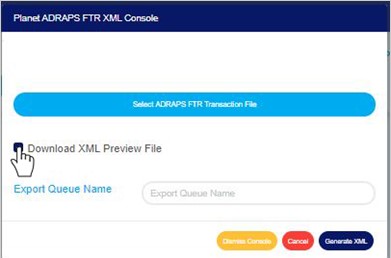
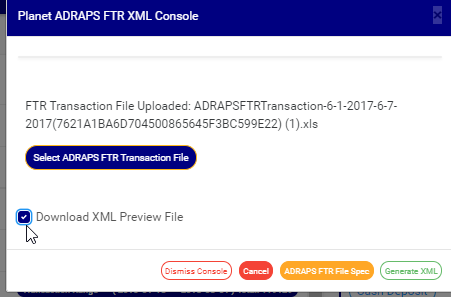
Step 5: Tick ‘Download XML Preview File’ to download the XML preview file. This preview file provides a numerical download report on the XML file generated, including the total number of transactions XML generated, the total number of transactions not generated, and the number of transactions extracted from the ADRAPS file uploaded. It also gives details of transactions with missing information. It is in Excel format. See Fig. 3.5f to see the checkbox.

Fig 3.5f

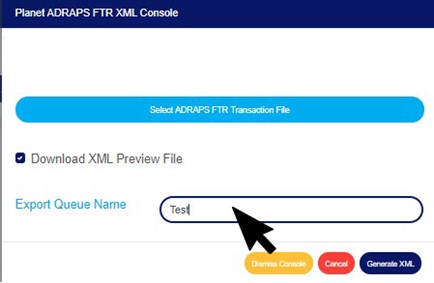
Step 6: Click on the ‘Export Queue Name’ textbox to set the file name. See an example in Fig. 3.5g below.

 Fig 3.5g

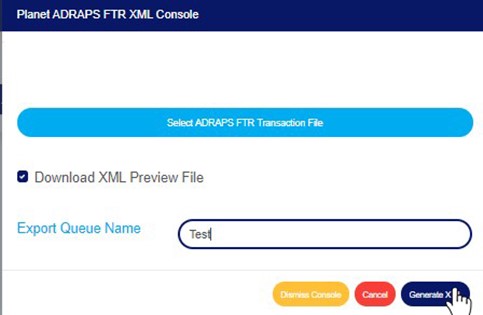
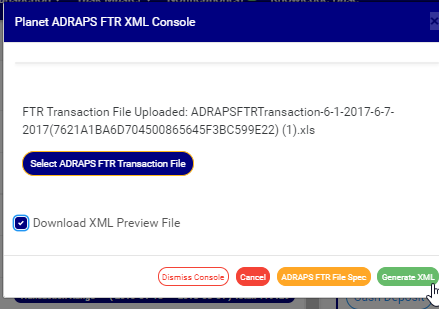
Step 7: Click on “GENERATE XML. Refer to Fig. 3.5h below to locate the blue button at the bottom-right corner of the console.

 Fig 3.5h

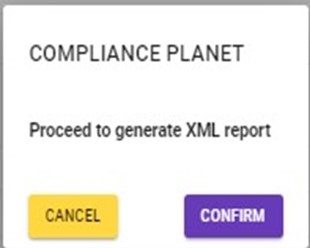
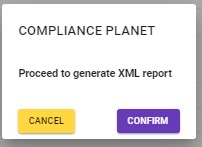
  •  This displays a confirmation console as in Fig. 3.5i below.

Fig 3.5i

  • To make changes to your report settings on the ADRAPS FTR Console, click on Cancel. This will take you back to the ADRAPS FTR XML Console.
  • Click on “CONFIRM “to continue or “CANCEL” to return to the FTR console.
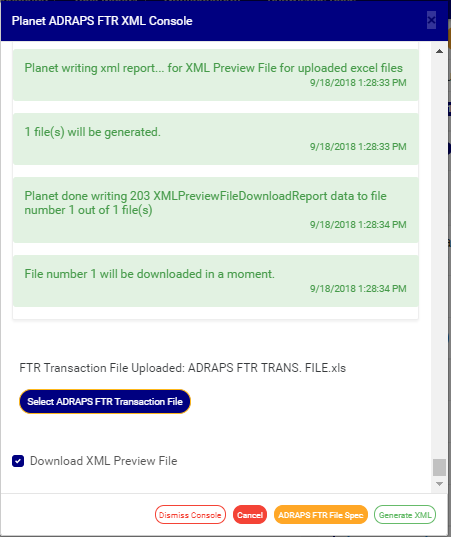
  • The Signal console shows ongoing processes as in Fig. 3.5j below

Fig 3.5j

  • Click on the “DISMISS CONSOLE to close the console.
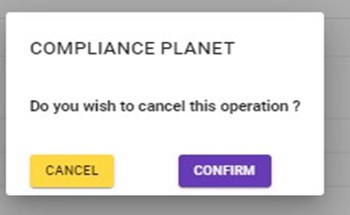
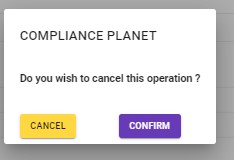
  • Click on CANCELto stop the operation if you do not want to continue with generating the XML file. A confirmation console as in Fig. 3.5k will be displayed. Click on CONFIRM to confirm that you wish to cancel the operation, or CANCEL to return to the XML Console.

Fig. 3.5k

For further enquiries: 
Tel: +234(0) 816 555 9818
Email: solutions@efuelite.com 
Web: http://solutions.efuelite.com

How to carry out data analysis and business intelligence on CBN ADRAPS foreign transaction report (ADRAPS FTR) In Compliance Planet Anti Money Laundering/Core Banking Finance Software

Here, the Software can generate graphs with the value and/or volume of transactions plotted against the time or period in which they occur. To get the software to give you an analysis of any ADRAPS FTR type over a period of time, here is how to go about it.

NOTE: Only person(s) profiled and assigned right to ‘View FTR Reports’ will be able to carry out this operation.

STEP 1: From the left hand side menu, click on CBN ADRAPS FTR Analysis as in fig. 3.6a below.

(fig. 3.6a)

This displays a page as in fig. 3.6b below.

(fig. 3.6b)

STEP 2: Click on SET START DATE and SET END DATE to specify the beginning and the end of the period (respectively) for which you want to see. You must set your date parameters before selecting any transaction type for analysis. Take a look at fig. 3.6c to see how to set the date. Fig. 3.6d shows a labelled calendar next.

(fig. 3.6c)

Take a look at the arrows labelled a to d in fig. 3.6d to study the calendar.

a. Click on the given year to change it to your year of choice.

b. Click on the given month to change it to your month of choice.

c. Then, click on the date of the month.

d. You can also click on the angle brackets on the calendar [ ‘’ ] to go backward or forward.

 (fig. 3.6d)

STEP 3: Tick the checkbox ◻ of the FTR type(s) you want to view. As soon as you select a transaction type, the software processes it and displays a graph instantly. Fig. 3.6e below is an example for Cash Deposit ADRAPS FTR for 1st of June 2017 to 30th of June 2016.

(fig. 3.6e)

➔ Multiple transaction type can be selected. You can select all if you wish. See fig. 3.6f below for an example of a graph having analysis for more than one transaction.

(fig. 3.6f)

➔ ADRAPS FTRs can be analysed by the volume of the selected transactions or the value of the selected transactions. The Volume analysis is the default analysis . However, you can view both analysis side by side.

➔ By clicking on the CTR Volume Analysis, the graph analysis will be according to the number of the transactions that occurred in the period you specified in your date settings. Look at fig. 3.6e above for an example.

➔ By clicking on the CTR Value Analysis, the graph analysis will be according to the amounts (in naira) of the transactions that occurred in the period you specified in your date settings. Look at fig. 3.6g below for an example on value analysis.

(fig. 3.6g)

➔ By clicking on the Dual View, the software places both analysis, that is, volume and value, side by side. See an example of a dual view in fig. 3.6h.

(fig. 3.6h)

➔ To see a bigger view of your graph, click on the ENLARGE button. Check out fig. 3.6i to see the button. It is a green button right under the CTR Volume Analysis, CTR Value Analysis and Dual View switches.

(fig. 3.6i)

➔ See fig. 3.6j and fig. 3.6k for an enlarged view of a graph (one analysis) and an enlarged view of two graphs together (dual view of the value and volume analysis) respectively.

(fig. 3.6j)

(fig. 3.6k)

➔ There is a red ‘DISMISS” button at the bottom-right corner of the graph console. It is for closing the console. Click on it as in fig. 3.6k above and the enlarged view will be closed.

STEP 4: Click on DAILY or MONTHLY or YEARLY to change the time or period parameter. You can switch these view options to see analysis differently. These buttons are next to the End Date button on the page. See fig. 3.6l below to view them.

(fig. 3.6k)

➔ By clicking Daily, the value or volume of the transaction type is plotted against each day within the period specified in the date settings. This is the default view setting on the software for every analysis.

➔ By clicking Monthly, the value or volume of the transaction type is plotted against each month within the period specified in the date settings. This will have effect on analysis with date settings that spread to two or more months.

➔ By clicking yearly, the value or volume of the transaction type is plotted against each year within the period specified in the date settings. This feature will have effect if the period specified in your date settings spreads to two or more years.

➔ Once you select any start date, end date and you mark any transaction for analysis, the software processes the details of the transaction selected right away, so, you cannot undo any setting you have made. You can only switch between volume and value analysis and change your view type. To make new settings for a fresh analysis, click on the RESET button. The software will clear previous selections. See fig. 3.6l below to view the Reset button. It is next to the View Type buttons

(fig. 3.6)

For further enquiries :
Tel +234(0) 816 555 9818
Email solutions@efuelite.com
Web http://solutions.efuelite.com

How to generate CBN ADRAPS Foreign Transaction report (ADRAPS FTR) XML In Compliance Planet Anti Money Laundering/Core Banking Finance Software

What is XML?

XML stands for Extensible Mark-up Language. It is a mark-up language that defines a set of rules for encoding documents in a format that is both human-readable and machine-readable. It is a metalanguage which allows users to define their own customized mark-up language, especially in a way to display documents on the internet. It was designed to store and transport data and describe data. It is a flexible way to create information formats and electronically share structured data via both public and corporate networks.
The Compliance planet software can help you generate XML from Excel files. Here is how to go about it.

NOTE: Only person(s) assigned right(s) to process ADRAPS FTR Notifications will be able to carry out this Operation.

STEP 1: From the left hand side menu, click on CBN ADRAPS FTR Excel XML. Look at fig. 3.5a below.

(fig. 3.5a)

This displays a ‘Planet ADRAPS FTR XML Console’ as in fig. 3.5b below

(fig. 3.5b)

STEP 2: Click on ‘Select ADRAPS FTR Transaction File’ to upload an ADRAPS FTR file from your computer. It is the information in the uploaded file that the software will convert into an XML file. See how to upload a file from your computer.

(fig. 3.5c)

➔ If you do not have the file to upload, the software can generate an empty excel file with columns according to ADRAPS FTR Specification to fill in details of the transactions you want to see in XML format. Click on the ADRAPS FTR File Spec. button to download the file specification.

(fig. 3.5d)

➔ Open the downloaded file and fill in the details of the transactions for which you want to generate XML for. Ensure you save the changes to the file. Then, back on the Compliance Planet, click on ‘Select ADRAPS FTR Transaction File’ to upload the file.

➔ After successful upload of file, the console will show the title of the file, that is, the file name. See fig. 3.5e to see an example of how the console looks like when you successfully upload a file from your computer.

STEP 3: Tick ‘Download XML Preview File’ to download a XML preview file. This preview file gives a numerical download report on the XML file that was generated, like the total number of transactions XML generated, the total number of transactions not generated, number of transactions extracted from the ADRAPS file uploaded. It also gives details of transactions with missing information. It is in Excel format. See fig. 3.5e to see the checkbox.

(fig. 3.5e)

STEP 4: Click on GENERATE XML. Look at fig. 3.5f below to see the green button at the bottom-right corner of the console.

(fig. 3.5f)

➔ This displays a confirmation console as in fig. 3.5g below.

(fig. 3.5g)

➔ To make changes to your report settings on the ADRAPS FTR Console, click on cancel. The software takes you back to the ADRAPS FTR XML Console.

➔ Click on CONFIRM to Proceed. The signal console shows on going processes. See an example of a signal console is fig 3.5h below

 (fig. 3.5h)

➔ Click on the DISMISS CONSOLE to close console.

➔You can terminate unfinished processes by  clicking CANCEL, this will display a  confirmation console as in fig. 3.5i .

Click on proceed to confirm that you want to cancel the operation or cancel to go back to the XML Console.

(fig. 3.5i)
For further enquiries :
Tel +234(0) 816 555 9818
Email solutions@efuelite.com

How to report ADRAPS foreign transaction report(ADRAPS FTR) to the Central Bank Of Nigeria In Compliance Planet Anti Money Laundering/Core Banking Finance Software

This operation involves the download of foreign transaction reports. The processes and operations under this report are similar to those of CTR FTR Report.

NOTE: Only person(s) profiled and assigned right to ‘Process FTR Reports’ will be able to carry out this operation.

Here is how to schedule and download ADRAPS FTR.

STEP 1: From the main dashboard, click on reports. (See fig. 3.4a)

(fig. 3.4a)

STEP 2: From the left hand side menu, click on CBN ADRAPS FTR to schedule your report

(fig. 3.4 b)

A console will be displayed on the screen just as in fig 3.4c below, for you to fill in the details and parameters for your report.

(fig. 3.4c)

STEP 3:Click on SET START DATE and SET END DATE to specify the beginning and the end of the period (respectively) for which you want to generate report. A calendar drops below the date box as in fig. 3.4d.

(fig. 3.4d)

Take a look at the arrows labelled a to d in fig. 3.4e to study the calendar.

a. Click on the given year to change it to your year of choice.

b. Click on the given month to change it to your month of choice.

c. Then, click on the date of the month.

d. You can also click on the angle brackets on the calendar [ ‘’ ] to go backward or forward.

(fig. 3.4e)

STEP 4: Click on the check boxes to select the transaction(s). You can select one or more as in fig. 3.4f.

(fig. 3.4f)

Click on ‘select all transactions’ to  select all transactions with just a single click and the software will mark all the FTRs for you. Click on ‘Select all transaction types’ as in fig. 3.4g to mark all transactions for processing at once, instead of marking them one by one.

(fig. 3.4g)

STEP 4: Click on ‘SUPPLEMENTARY REPORT ACCOUNT CONSOLE’ as shown below to download report pertaining to Specific account numbers only within the period selected.

  • This displays a textbox where the account number(s) are to be inserted. Note that each account number is to be separated by a comma. See an example below

 1

STEP 5: Select the document type you want your report to be in. The software has two options; Excel or XML. So, tick either of the two or select  both options. See fig. 3.4h for an example.

(fig. 3.4h)

STEP 6: Tick the document split option(s). This step is optional. It all depends on if you want to combine all the selected FTRs that you want to process into one file or produce the reports of each FTR into separate files. By clicking on the document split options for either Excel file or XML, the software will generate report for the different transaction types separately. For instance, in the fig. 3.4i, ticking the split option will result in the software generating separate file for each ADRAPS FTR transaction type. Reports can be exported in Excel format or XML format.

(fig. 3.4i)

STEP 7: Click on Process Report to generate files. The ‘Process Report’ button is the blue button at the bottom-right corner of the ADRAPS FTR Console. Check out fig. 3.4j below to see this button.

➔ Next to it is the Dismiss Console button for closing the console. When you dismiss the console, you can also go back to it by clicking on ‘Generate Report’ and you can continue with your scheduling.

(fig. 3.4j)

➔ When you click on ‘Process Report’, a confirmation console will be displayed as in fig. 3.4k. The confirmation console presents two buttons; Confirm and Cancel.

➔ To make changes to your report settings on the ADRAPS FTR Console, click on cancel. The software takes you back.

➔ Click on Confirm to confirm your answer.

(fig. 3.4k)

➔ The signal console shows on going processes. This console will notify you of successful and unsuccessful processes. An example of a signal console is fig. 3.4l below.

(fig. 3.4l)

➔You can terminate unfinished processes by  clicking CANCEL OPS.

➔ To minimize signal console, click on DISMISS CONSOLE. This button is next to the CANCEL OPS. button.

➔ If you want to view processes going on after closing the signal, click on the ‘Console Ops.’ drop-down button. This button is one of the green buttons at the top of the page, irrespective of whatever page you are working on. A list will be displayed below the button with DISPLAY CONSOLE and CLEAR CONSOLE as in fig. 3.4m. So, click on display console to view the ongoing processes on a signal console like fig. 3.4m or click on clear console to delete the notifications in the signal console.

(fig. 3.4m)

For further enquiries :
Tel +234(0) 816 555 9818
Email solutions@efuelite.com
Web http://solutions.efuelite.com
ADRAPS Foreign Currency Transaction Report (ADRAPS FTR) In Compliance Planet Anti Money Laundering/Core Banking Finance Software

WHAT IS ADRAPS FTR REPORT?

ADRAPS stands for ANTI-MONEY LAUNDERING/COMBATING THE FINANCING OF TERRORISM (AML/CFT) DATA RENDITION AND PROCESSING. ADRAPS Reports comprise of three (3) reports;

ADRAPS Foreign Currency Transaction Report (ADRAPS FTR)

ADRAPS Politically Exposed Persons Report (ADRAPS PEP)

ADRAPS Three Tiered Know Your Customer Report (ADRAPS KYC)

Foreign Currency Transactions are transactions denominated in a currency other than the local (domestic) currency of the country in which the banking office is located. In compliance with section 2(1) of the MLPA, 2011, financial institutions are required to render reports on transfers to or from a foreign country of funds or securities by a person or body corporate including a Money Service Business of a sum exceeding US$10,000 or its equivalent to the Central Bank of Nigeria (CBN),

WHAT ARE THE FTR TYPES?

The Foreign transaction types are; Cash Deposit, Cash Withdrawal, Cheque operations, Transfers and FXFT. Here in ADRAPS FTR, only transaction files are generated.

Cash Deposit
This refers to the deposit of foreign currencies into domiciliary accounts.

Cash Withdrawal
This is a transaction in which a customer receives money (in foreign currency).

Cheques
Transactions here refer to foreign transactions involving the use of a cheque. Cheque operations can be inward or outward.

Internal Transfer
This refers to internal transfer of money in foreign denomination between customers of the same reporting bank.

FXFT (Foreign Exchange Foreign Transaction)
FXFT refers to the sale or purchase of foreign currencies. This transaction involves the currencies of two countries . Simply put, the foreign exchange transaction is an agreement of exchange of currencies of one country for another at an agreed exchange rate on a definite date. FXFT transactions can either be Inward or Outward.

ADRAPS FTR REPORT OPERATIONS

The operations pertaining to ADRAPS FTR on the Compliance Planet are three (3);

  1. Generating Transaction Reports
  2. Generating XML
  3. Analysing transactions

For further enquiries :
Tel +234(0) 816 555 9818
Email solutions@efuelite.com
Web http://solutions.efuelite.com