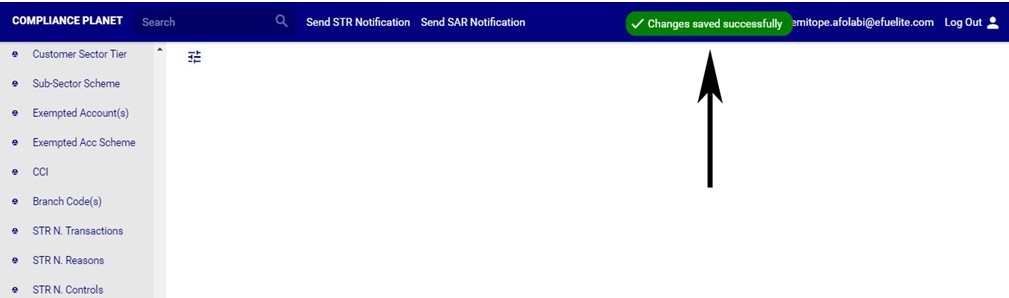
This data control feature provides a list of account scheme-tier tags. The operations include;
- Editing an account scheme tier,
- Deleting an account scheme tier, and
- Creating a new account scheme tier tag.
Note: Only person(s) profiled as deputy supreme admin can carry out account scheme operations.
To perform any of the operations on ACCOUNT SCHEME-TIER TAGS;
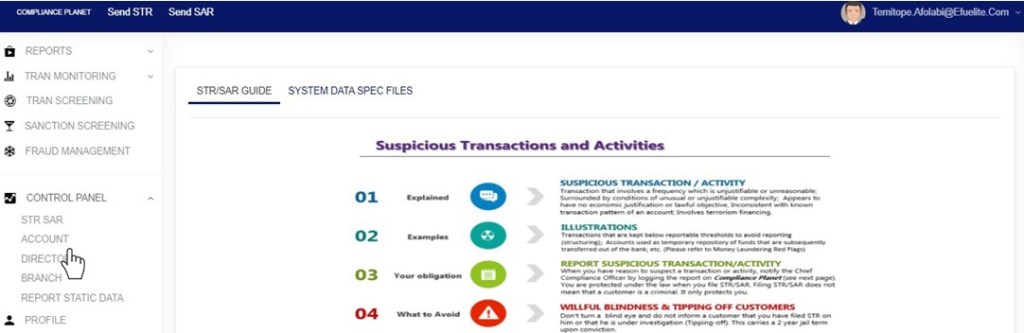
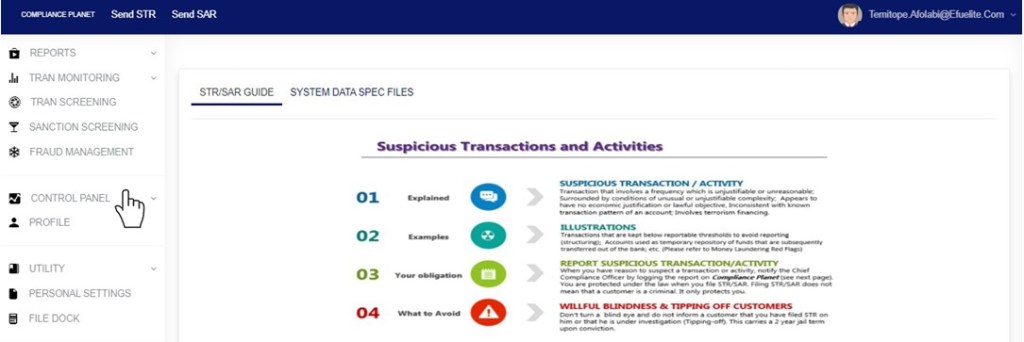
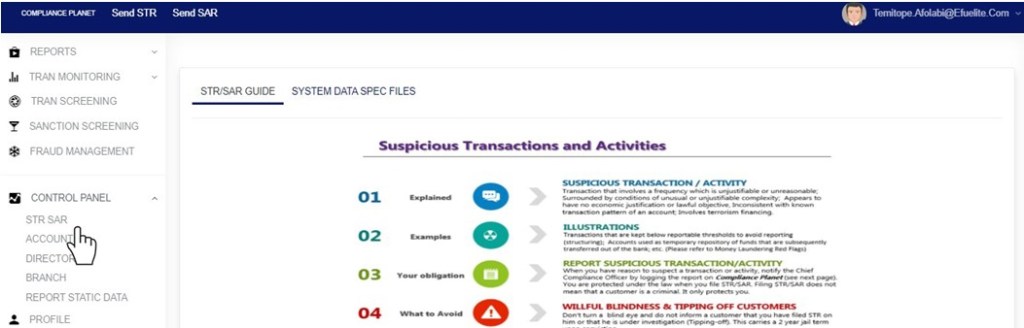
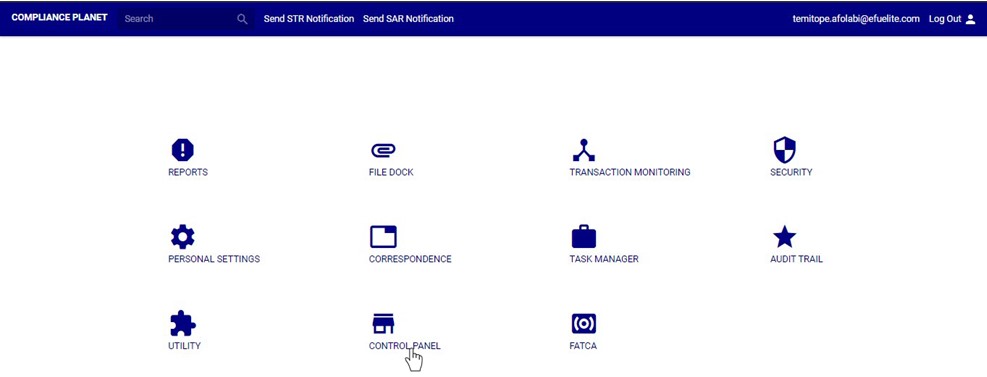
STEP 1: From the left hand side menu, Click ‘Control panel’ as in fig. 13.2a.
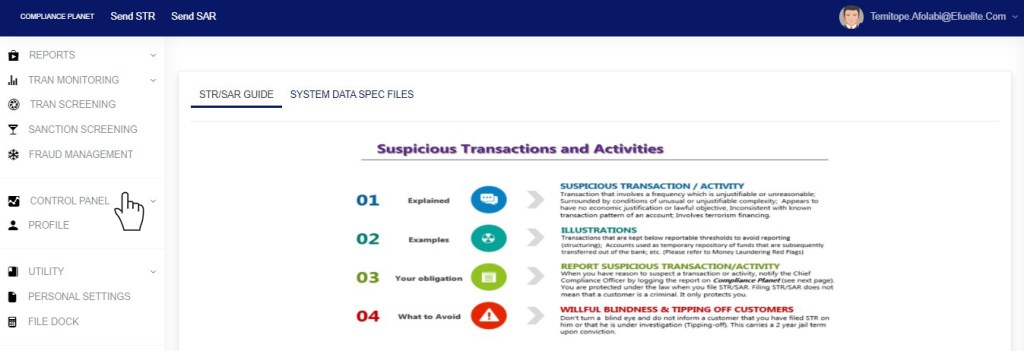
Fig 13.2a
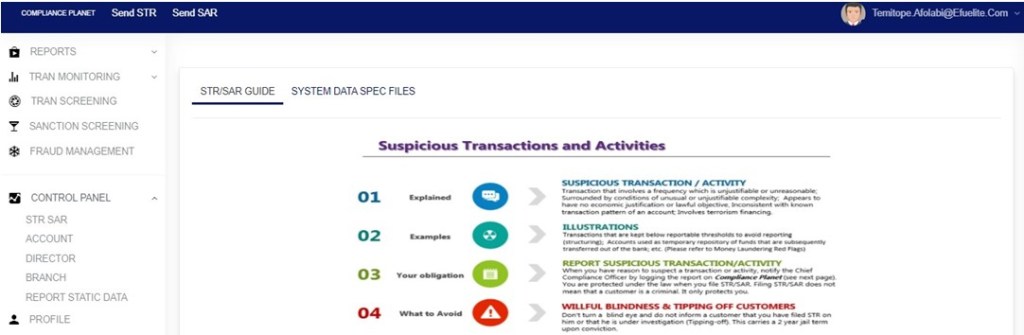
- This will display a drop down as in Fig 13.2b below.
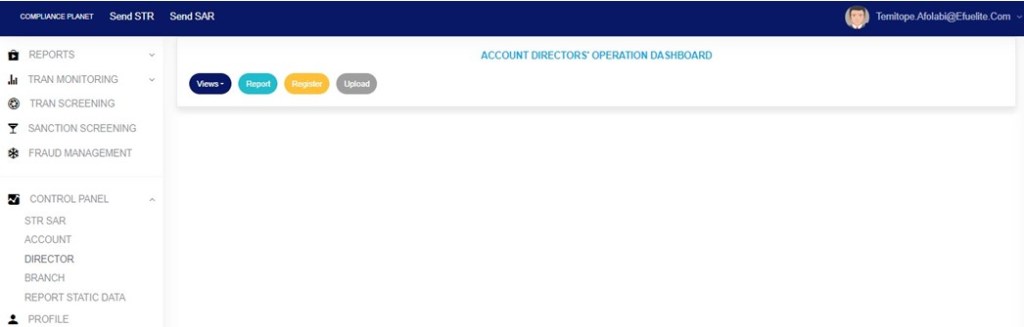
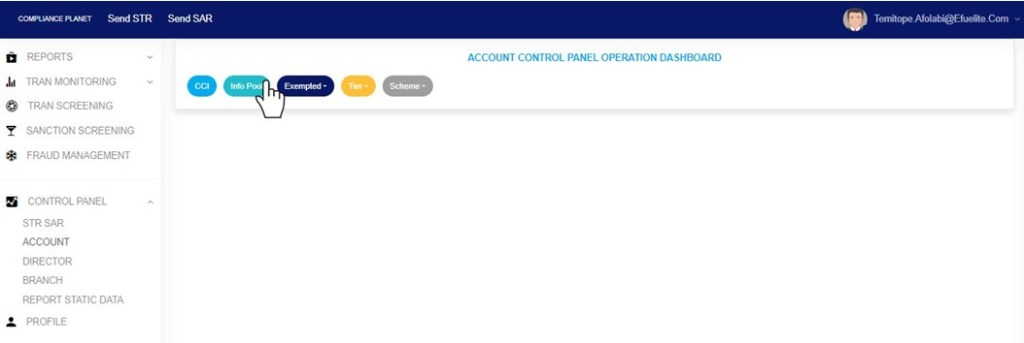
STEP 2: Click ‘ACCOUNT’ on the drop down list. See an example in Fig 13.2b below.
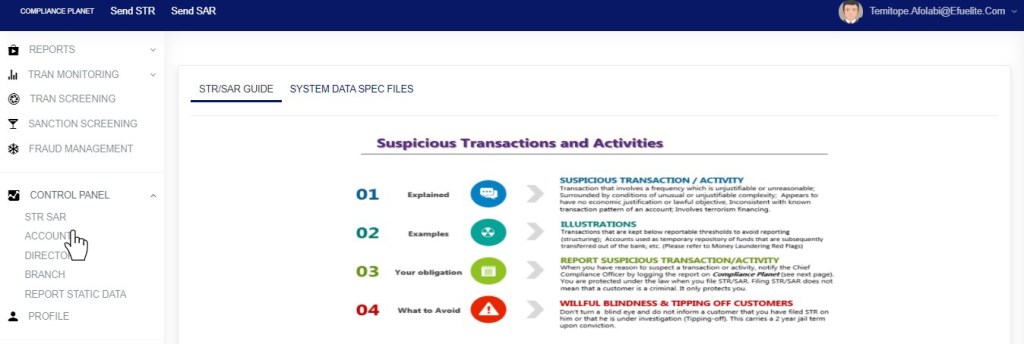
Fig 13.2b
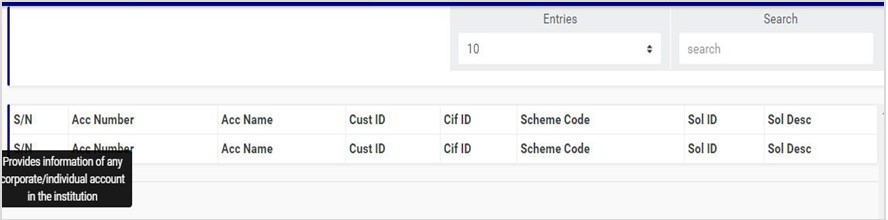
- This will display the ACCOUNT CONTROL PANEL OPERATIONS dashboard as in Fig 13.2c below
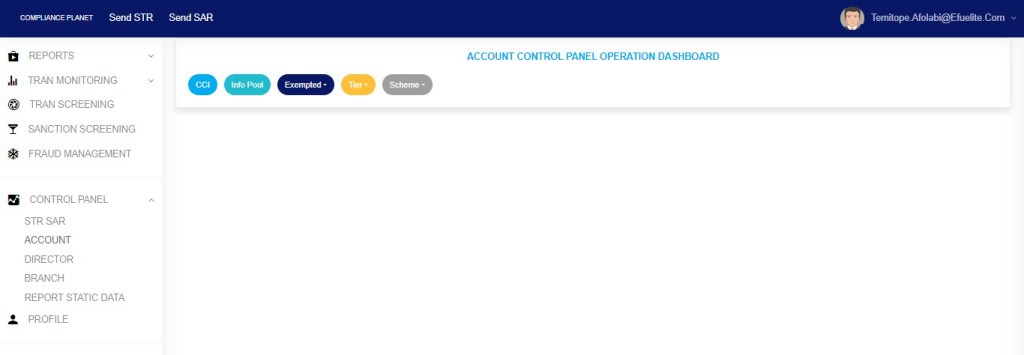
Fig 13.2c
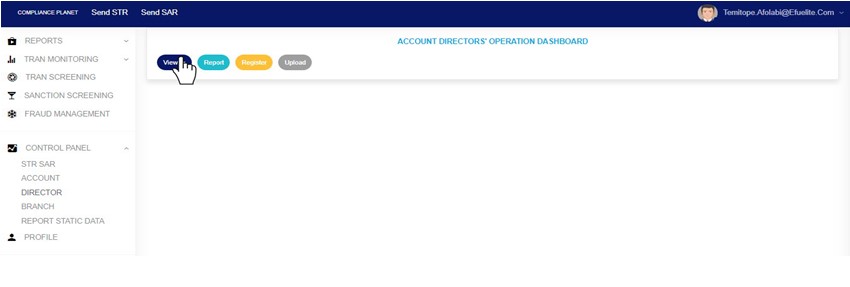
STEP 3: Click “Tier” from the top menu, on the account page. See an example in fig13.2d below

Fig 13.2d
- This displays a dropdown as in fig 13.2e below
STEP 4: Click “Account” on the drop down list as in fig 13.2e below

Fig 12.2e
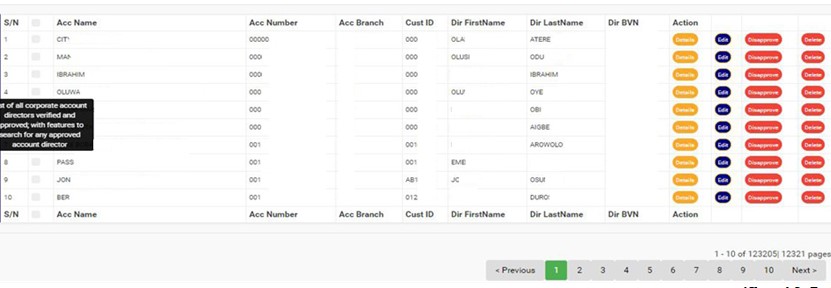
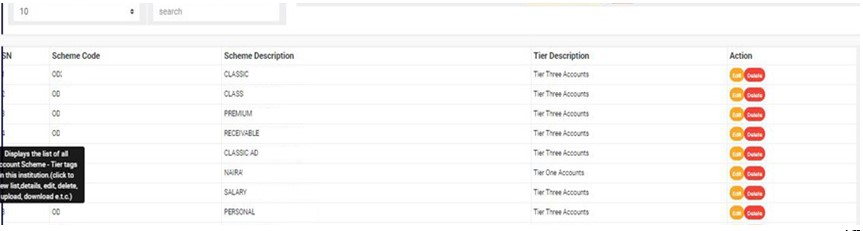
- This displays a page showing a list of all account schemes and their tier tags.See fig. 13.2f for an example.
(fig. 13.2f)
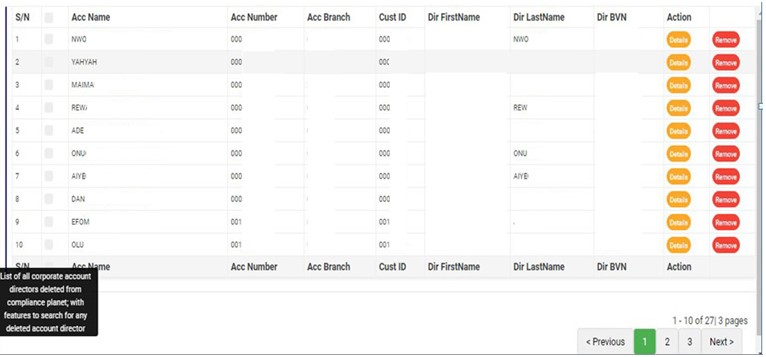
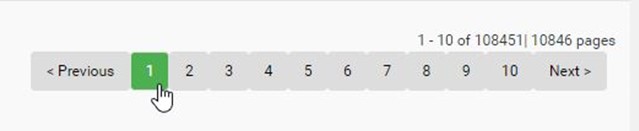
- From fig. 13.2f above, at the bottom-right corner of the page, the software gives information about the number of pages of the list, with the page numbers written out. The page numbers represent buttons to go to each page. By clicking on any of the page number, the software takes you to that particular page. Click ‘NEXT’ to go to the next page or ‘PREVIOUS’ to go to the page before the current page.
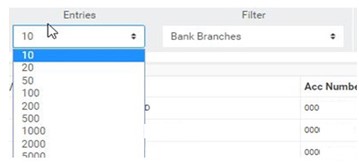
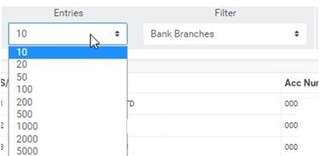
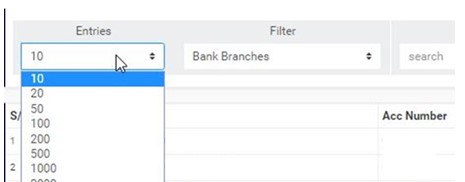
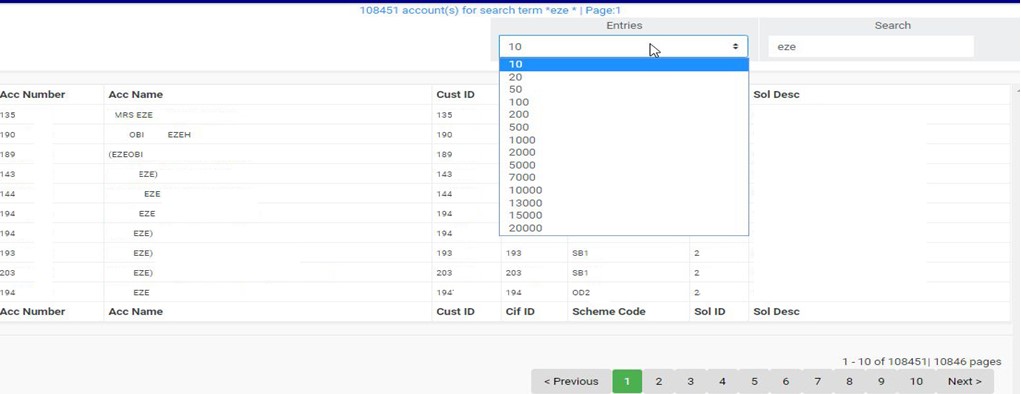
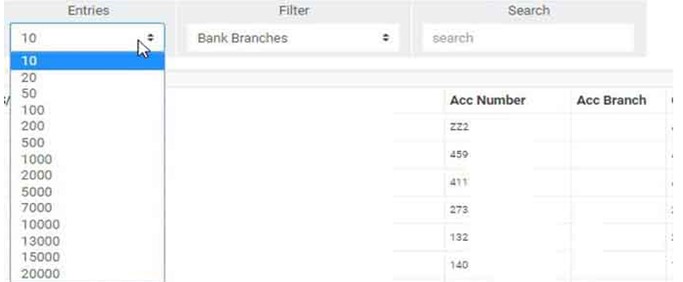
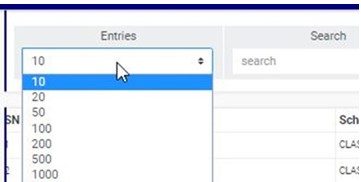
- Adjust the number of account scheme tier tags per page by clicking on the ‘ENTRIES’ box. See fig. 13.2g for an example.
(fig. 13.2g)
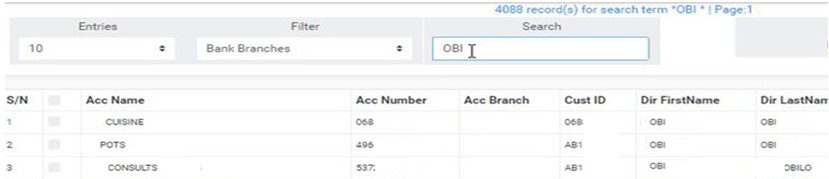
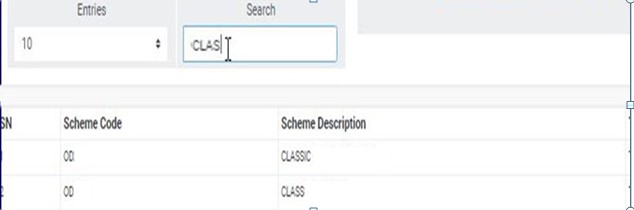
- Search for Account Schemes and their tier tags by typing the scheme code, scheme description or tier description. Search results will be displayed immediately a character is typed in the search box. See fig. 13.2h below for an example.
(fig. 13.2h)
- Each entry has two (2) action buttons; ‘Edit’ button and ‘Delete’ button. The operations are explained below.
How To Edit an Account Tier
To change details of an account scheme-tier tag;
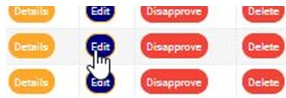
STEP 1: Click on the ‘Edit’ button as shown in fig.13.3a below.

(fig. 13.3a)
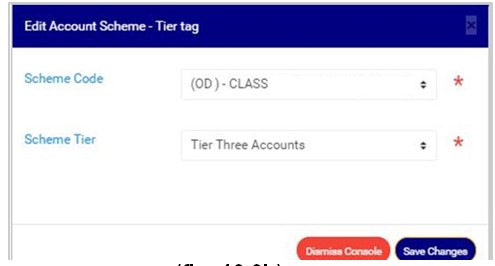
- This displays an ‘Edit Account Scheme-Tier tag’ console, as in fig. 13.3b.
(fig. 13.3b)
STEP 2: Select a scheme code and/or a scheme tier as in fig. 13.3c and fig. 13.3d respectively, depending on what you want to edit.
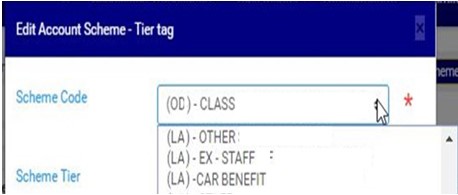
(fig. 13.3c)
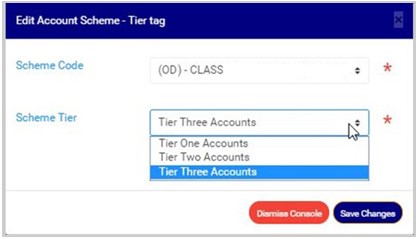
(fig. 13.3d)
STEP 3: Click ‘SAVE CHANGES’ as shown in fig. 13.3e below, to update the new changes on the software.
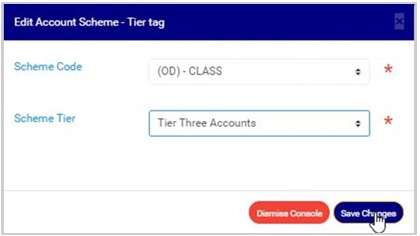
(fig. 13.3e)
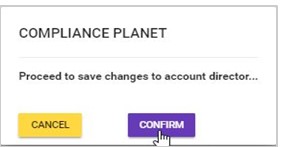
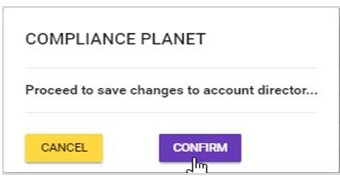
- This displays a confirmation console as in fig. 13.3f to confirm you want to change the details.

(fig. 13.3f)
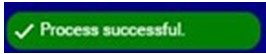
- Click on ‘CONFIRM’ as in fig. 13.3f above to save the changes or cancel to discontinue action. When the changes are saved, a notification will be displayed at the top of the page as in fig. 13.3g below.

(fig. 13.3g)
How to Delete an Account Tier
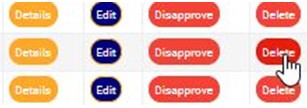
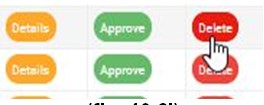
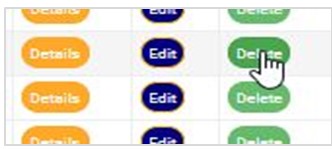
- To delete an account scheme-tier tag, click on ‘DELETE’ as in fig. 13.4a below.

(fig. 13.4a)
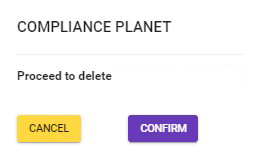
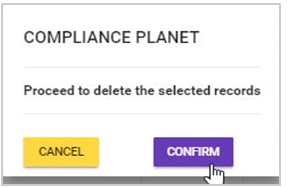
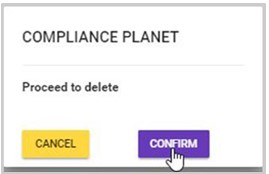
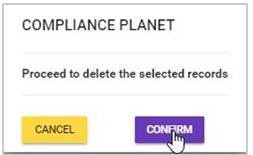
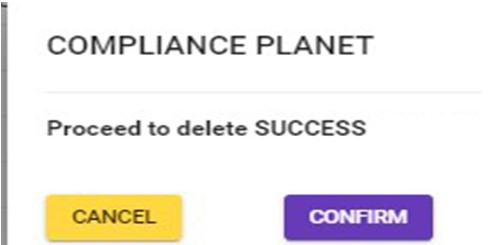
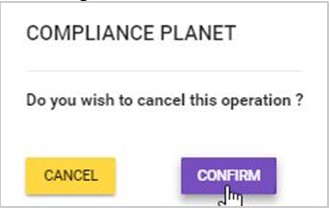
- This displays a confirmation console to confirm your request to delete the account scheme-tier tag as in fig. 13.4b. Click on ‘CONFIRM’ to proceed or ‘CANCEL’ to discontinue.
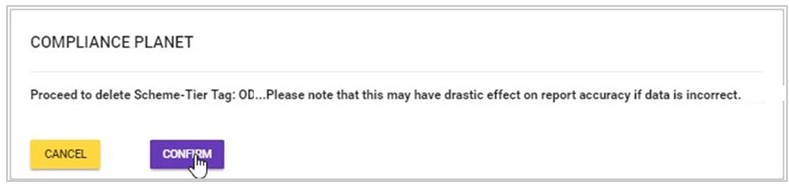
(fig. 13.4b)
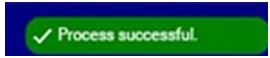
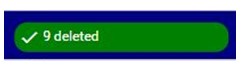
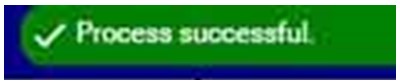
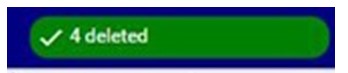
- A notification as in fig. 13.4c will be displayed at the top of the page when scheme-tier tag delete is complete.

(fig. 13.4c)
How to Create New Account Scheme-Tier Tag
- This refers to the adding of a new account scheme-tier tag. Here is how to do this.
STEP 1: Click on ‘NEW ACCOUNT SCHEME-TIER’ as in fig. 13.5a below.
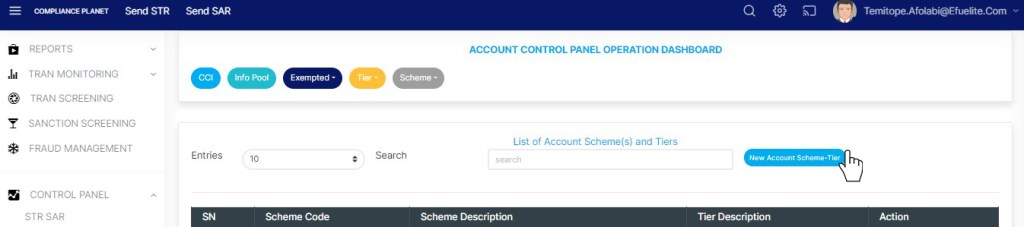
(fig. 13.5a)
- Clicking on ‘NEW ACCOUNT SCHEME-TIER’ will display a console titled, ‘NEW ACCOUNT SCHEME-TIER TAG’, on which you are to select details of the scheme. See fig. 13.5b below for an example.
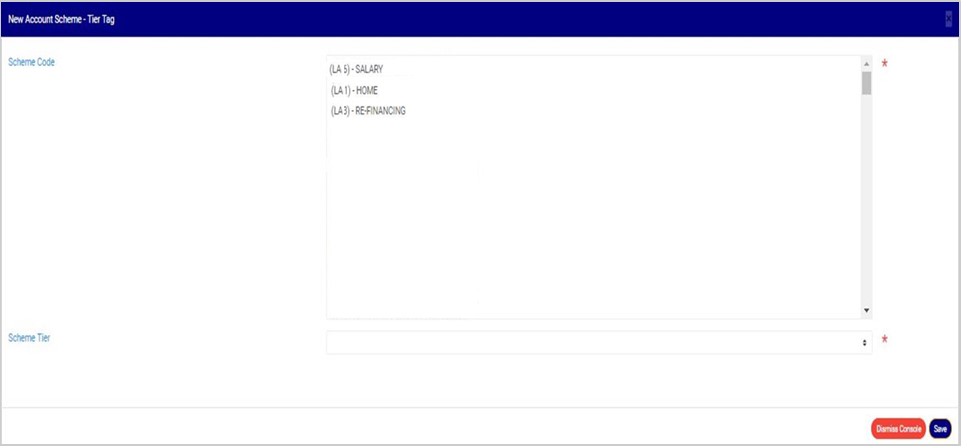
(fig. 13.5b)
- Select account scheme code from the list of scheme codes as seen in fig. 13.5c for an example.

(fig. 13.5c)
- Select scheme-tier tag as shown in fig. 13.5d below.
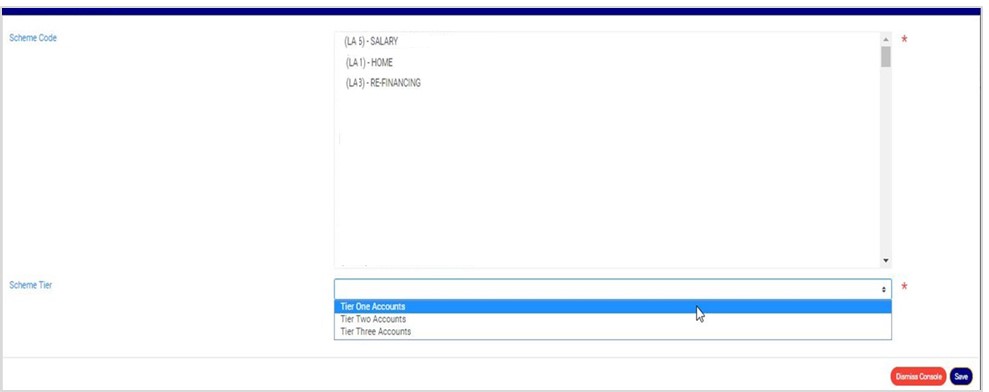
(fig. 13.5d)
STEP 2: Click ‘SAVE’ as shown in fig. 13.5e below to add the new scheme tier-tag.

(fig. 13.5e)
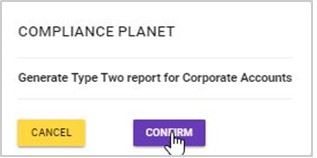
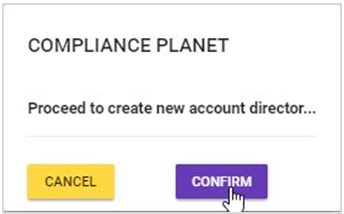
- This displays a confirmation console as in fig. 13.5f below. Click on ‘CONFIRM’ to proceed with the creation of a new account scheme tier tag or ‘CANCEL’ to discontinue.

(fig. 13.5f)
- If you proceed, a notification as in fig. 13.5g will be displayed at the top of the page when the account scheme-tier tag is successfully created.

(Fig. 13.5g)
For further enquiries :
Tel +234(0) 816 555 9818
Email solutions@efuelite.com
Web http://solutions.efuelite.com