This operation involves searching out miscellaneous accounts that exist on the Compliance planet. Here, the software can give you miscellaneous accounts from each branch of the institution or all the branches together.
NOTE: Only person(s) profiled as ‘Deputy Supreme Admin’ can carry out these operations
Here are steps on how to generate a list of miscellaneous accounts.
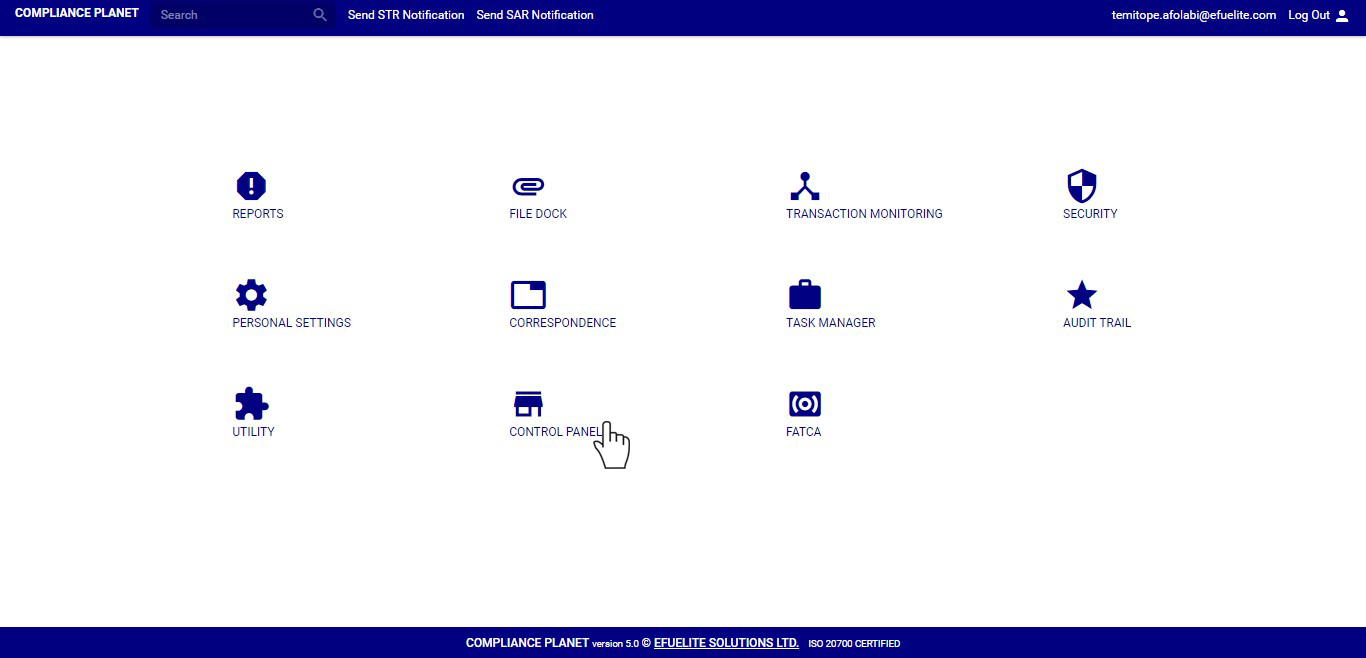
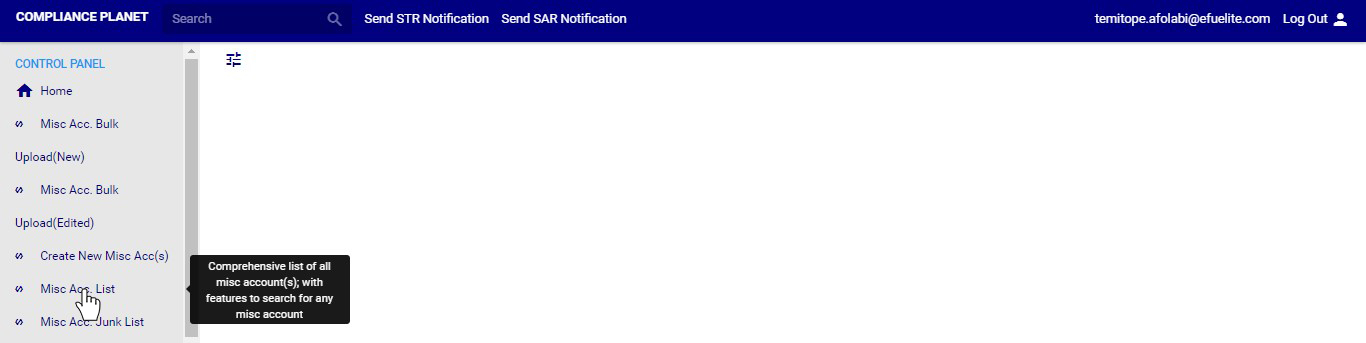
STEP 1: From the main dashboard, click on ‘CONTROL PANEL’. See an example below
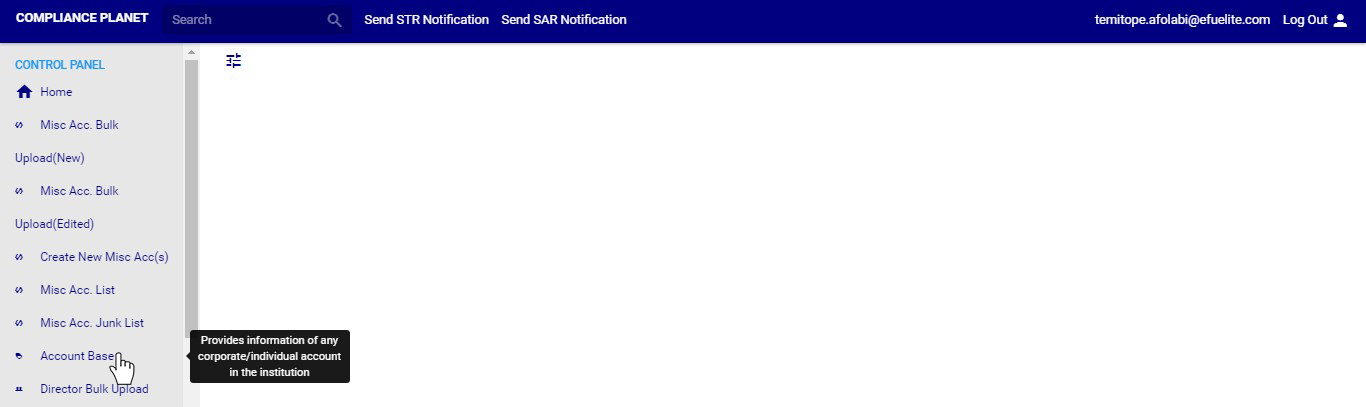
➔ From the left hand side menu, click on ‘Misc. Acc. List’ Check out fig. 8.6a below
(fig. 8.6a)
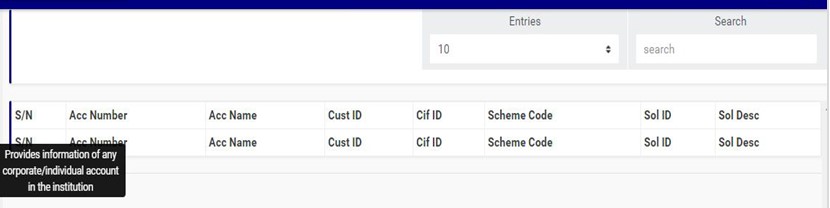
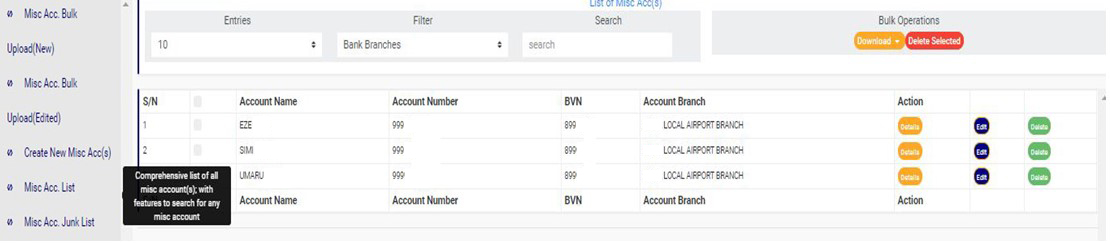
➔ Clicking on ‘Misc. Acc. List’ displays a page listing out all the miscellaneous accounts on the software. See fig. 8.6b below for an example.
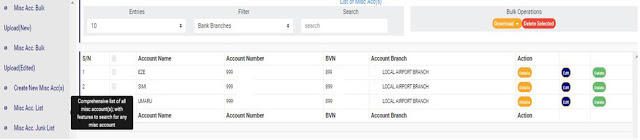
(fig. 8.6b)
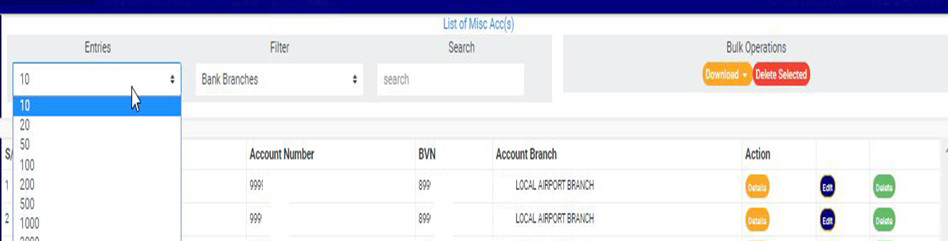
➔ You can increase the number of accounts you want to see per page by clicking on the ENTRIES box and then select the number of entries you want to see. See fig. 8.6c below for an example.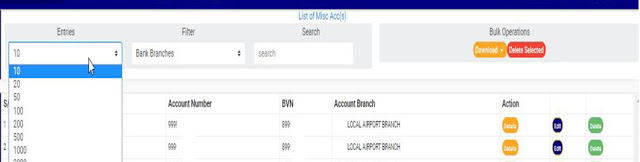
(fig. 8.6c)
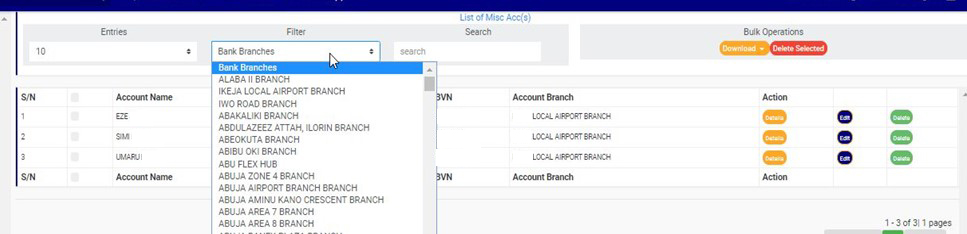
➔ To see accounts pertaining to one of the branches, select branch name from the filter box as in fig. 8.6d below. The default account list is always for all branches of the institution.
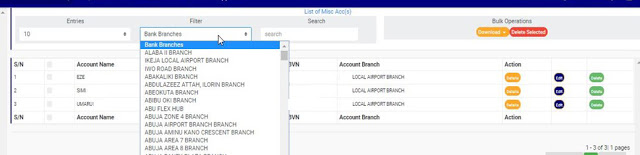
(fig. 8.6d)
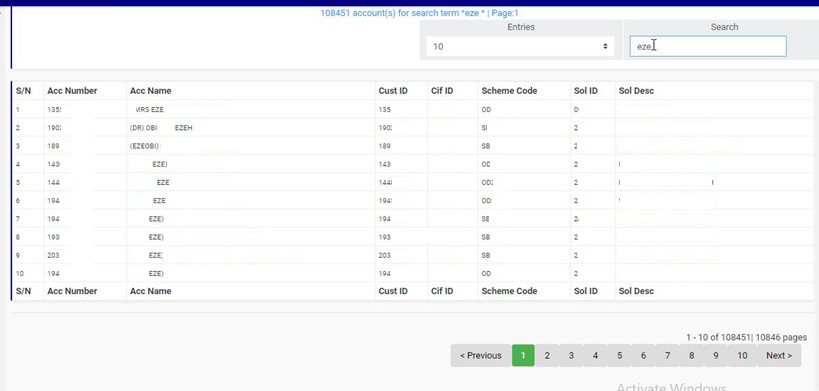
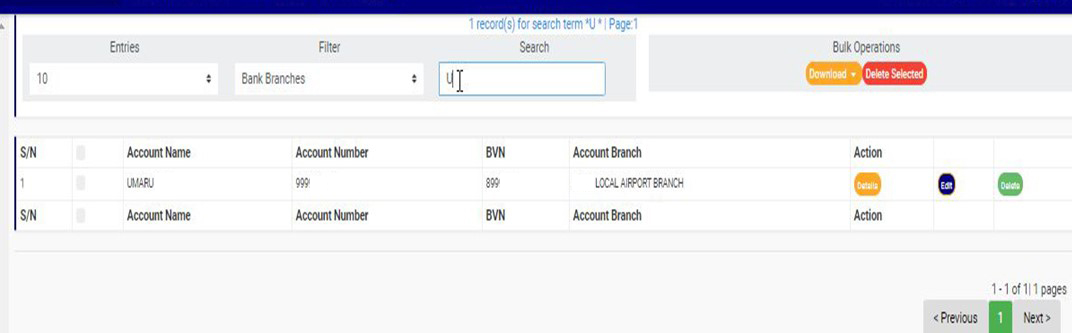
➔ You can search out miscellaneous accounts by typing the account name or account number in the search box. See an example in fig. 8.6e below.
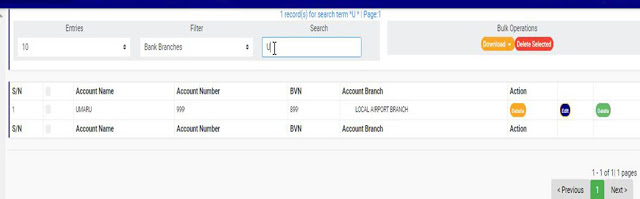
(fig. 8.6e)
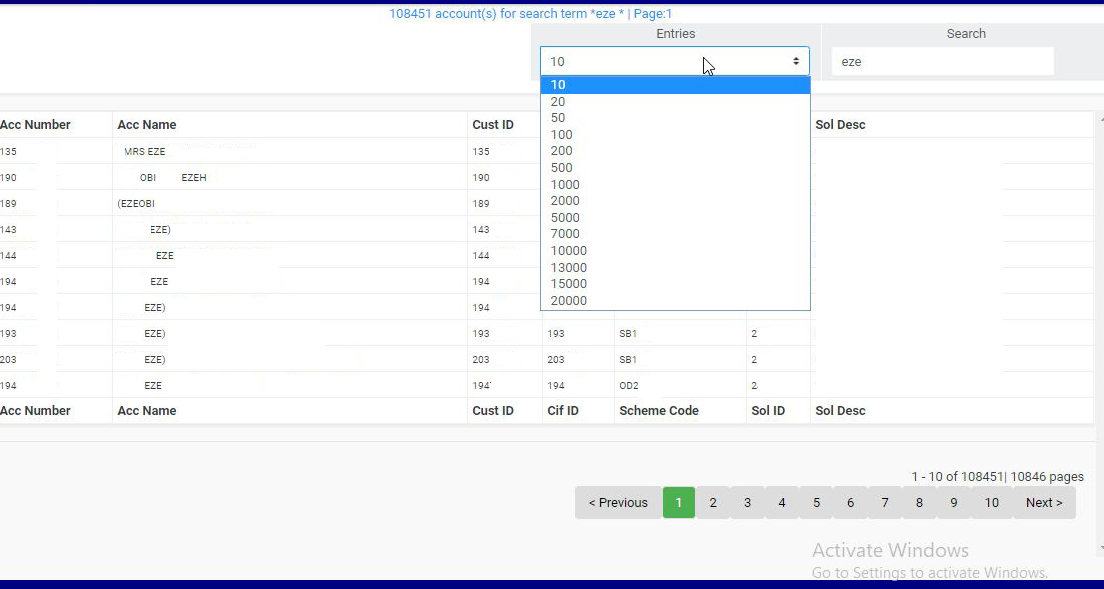
➔ At the bottom-right corner of the page, the software gives information about the number of pages, with the page numbers written out. All the page numbers represent buttons to go to each page. By clicking on any page number, the software takes you to that particular page. There is the NEXT button to take you to the next page when you click on it and there is a PREVIOUS button to take you to the page before the one you are viewing at that moment. See these features in fig. 8.6e above.
➔ Each account in the Misc. Acc. list has three buttons for individual operations and they are;
● ‘DETAILS’ button
● ‘EDIT’ button and
● ‘DELETE’ button
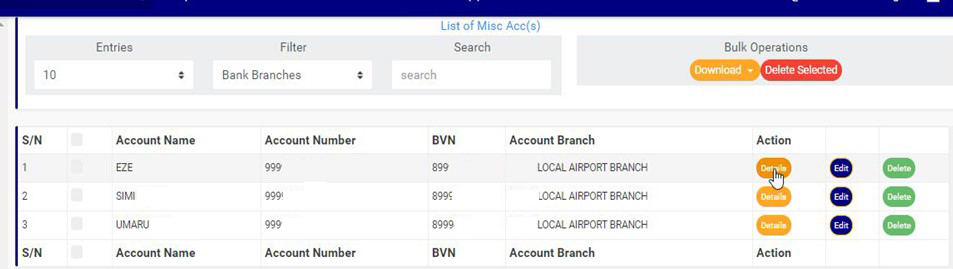
➔ To see details of an account, click on ‘DETAILS’ as in fig. 8.6f below.
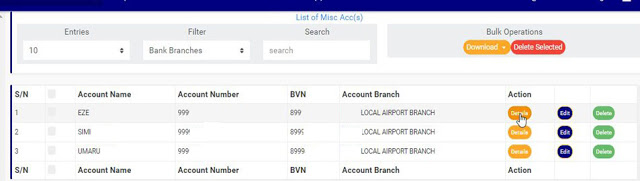
(fig. 8.6f)
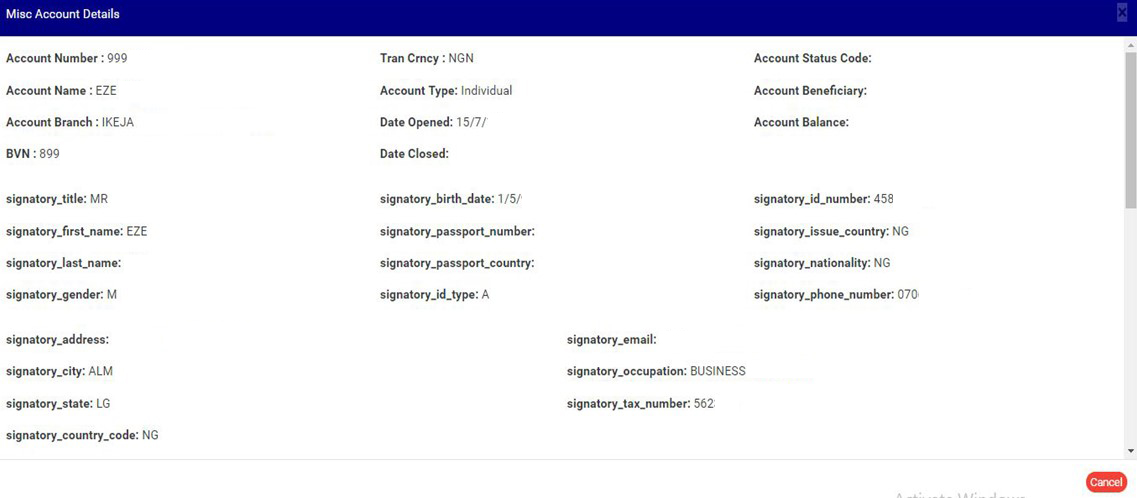
● This will display a ‘Misc. Account Details’ console. Note, you can only view the details of the miscellaneous account. See an example in fig. 8.6g below. Click on ‘CANCEL’ to close the console.
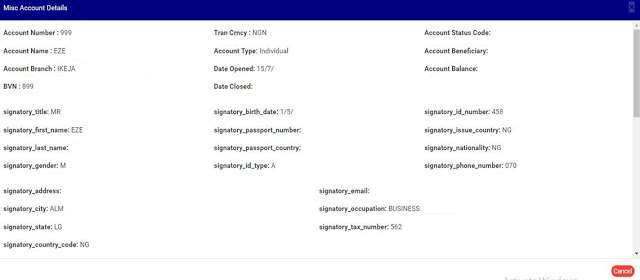 (fig. 8.6g)
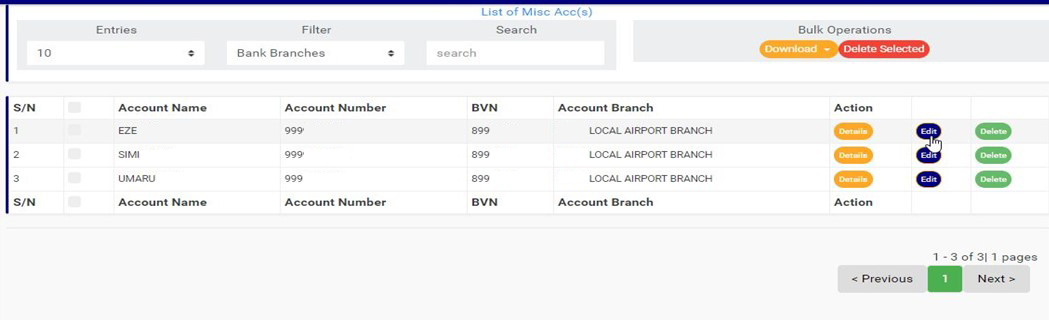
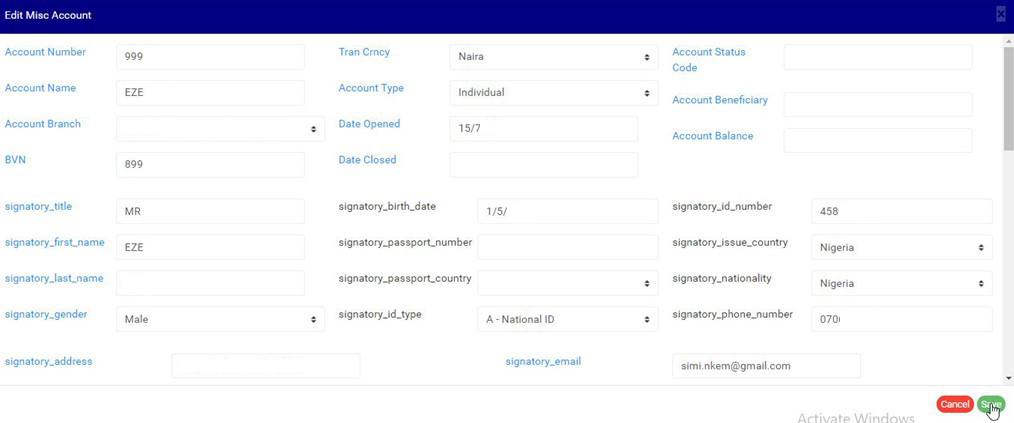
➔ To modify the details of a miscellaneous account, click on ‘EDIT’ as in fig. 8.6h below. This displays a ‘Edit Misc. Account’ console where you can edit the details and/or input details in the fields that are yet to be filled.
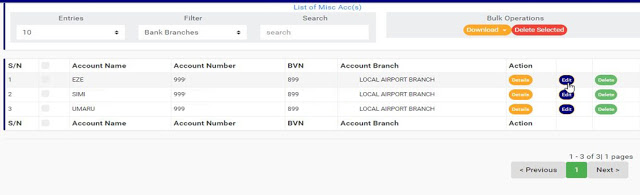
(fig. 8.6h)
● See fig. 8.6i for an example of ‘EDIT MISC ACCOUNTS’ console.
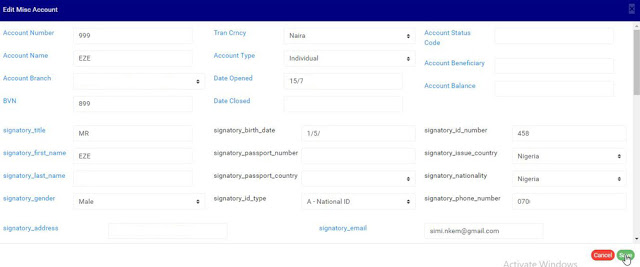
(fig. 8.6i)
● Click on ‘SAVE’ as in fig 8.6i above to update the miscellaneous account detail.
● A confirmation console as in fig. 8.6j will also be displayed. Click on ‘CONFIRM’ to save the changes or CANCEL to cancel the operation.
(fig. 8.6j)
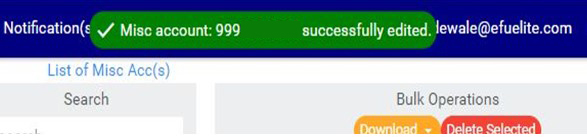
● A temporary notification will be displayed at the top of the page as in fig. 8.6k below.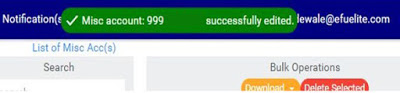
(fig. 8.6k)
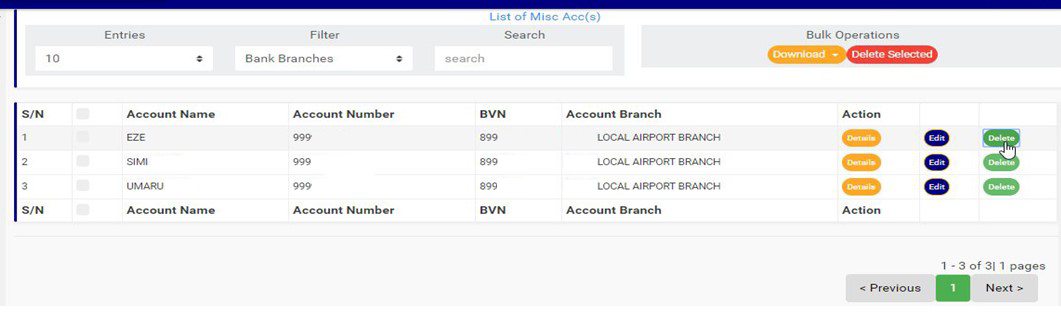
➔ To delete a miscellaneous account from the general list of miscellaneous account, click on ‘DELETE’. See an example in fig. 8.6l below.
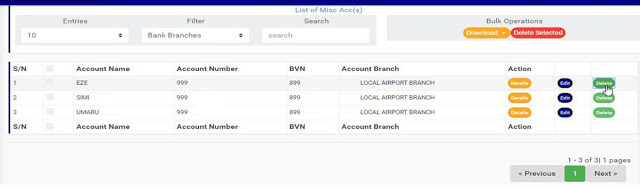
(fig. 8.6l)
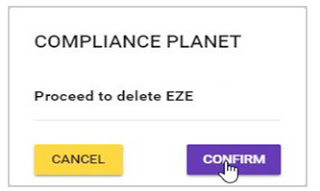
● A confirmation console as in fig. 8.6m will be displayed. To proceed, click on ‘CONFIRM’ to delete the account.
(fig. 8.6m)
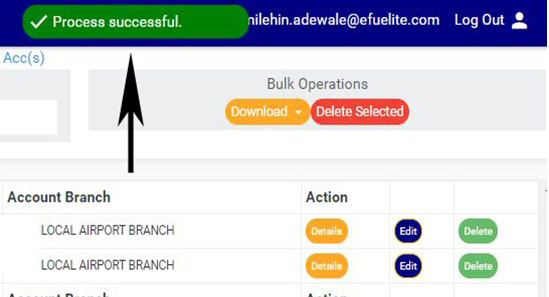
● On confirming your approval, the account will be removed from the general list immediately and added to the junk list of miscellaneous accounts. A notification will be displayed at the top of the page.
(fig. 8.6n)
● This does not mean the miscellaneous account is permanently deleted from the software (To delete the account permanently, go to the junk list under the Misc. Account menu and delete it from the list. This process is explained under the ‘MISCELLANEOUS JUNK LIST’ section.)
➔ Also on this page, there are features to carry out bulk operations. Bulk operation refers to operations on more than one account at the same time. I.e. you can view details, delete and edit multiple accounts at the same time. The buttons for carrying out bulk operations are at the top-right area of the page as shown in fig. 8.6n above. These features are; ‘Download’ and ‘Delete Selected’.
➔ To carry out any bulk operation, first, select checkboxes of the the accounts to be treated. See fig. 8.6f below for an example.

(fig. 8.6o)
➔ To select all the accounts on the page, click on the checkbox on the title bar, that is, the checkbox between ‘S/N’ and ‘ACCOUNT NAME’.
➔ After making your selection, proceed to carry out the bulk operations. The bulk operations are explained below.
Bulk Operations – Bulk DownloadThis feature allows you to download details of the selected accounts either to view or edit them.
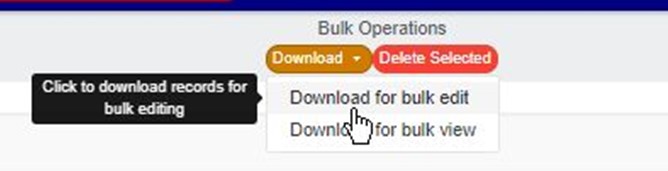
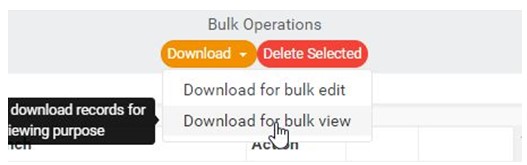
STEP 1: Click on the ‘DOWNLOAD’ button to see a drop-down list with two options as shown in fig. 8.6p below;
(fig. 8.6p)
1. Download for bulk edit
This Operation downloads an excel file filled with the details of the selected miscellaneous accounts you want to edit. (See the post on “How to Edit Miscellaneous Accounts” for guide on how to edit the downloaded file.)
STEP 1: Click on ‘DOWNLOAD FOR BULK EDIT’ as in fig. 8.6q below.
(fig. 8.6q)
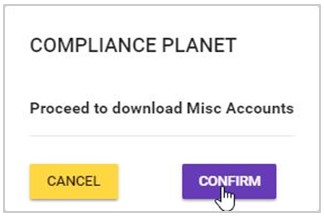
STEP 2: This will display a confirmation console as in 8.6r below. Click on ‘CONFIRM’ to proceed with the download or ‘CANCEL’ to close the console.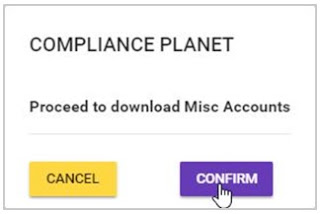
(fig. 8.6r)
➔ The signal console shows ongoing processes as shown in fig. 8.6s below. Once download is complete, a notification will be displayed at the top of the page as seen in fig. 8.6s.
(fig. 8.6s)
STEP 3: Open the excel file on your computer and edit the details you want to change. You can also add details that are yet to be added concerning the accounts. Ensure you save the changes you made.
➔ Read ‘How to Edit Miscellaneous Accounts’ for guide on how to edit the downloaded miscellaneous account file
2. Download for bulk view
This Operation downloads an excel file filled with the details of the account you selected. Note, the downloaded file is only to view miscellaneous account details and it is different from the file downloaded when you want to edit the miscellaneous accounts (which contains “ComplianceACCId” column)
STEP 1: Click on ‘DOWNLOAD FOR BULK VIEW’ as in fig. 8.6v below
(fig. 8.6v)
➔ A confirmation console in fig. 8.6w will be displayed. Click on ‘CONFIRM’ to proceed with the download or ‘CANCEL’ to close the console,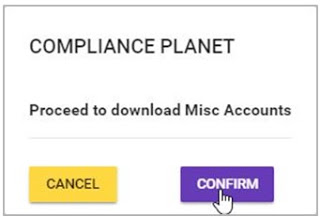
(fig. 8.6w)
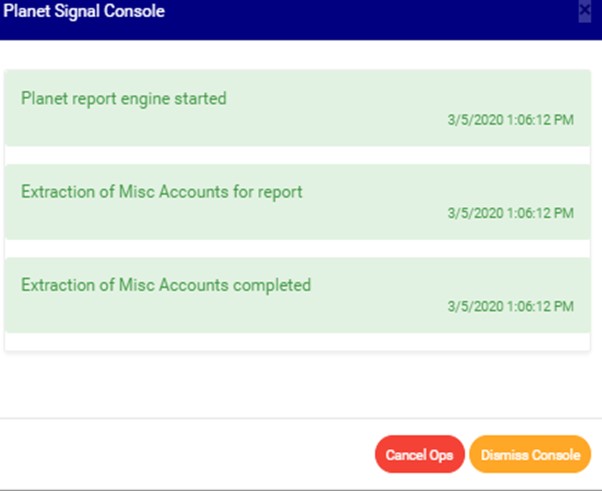
➔ The signal console shows on going processes. An example of a signal console is shown in fig. 8.6x below.
(fig. 8.6x)
➔ The software will write the selected accounts into an excel file. Once download is complete, a notification will also be displayed at the top of the page as seen in fig. 8.6x above. Open the file to view the details of the selected accounts.
Bulk Operations – Bulk Delete.
This operation will delete the selected miscellaneous account list from the general list.
STEP 1: Click on ‘DELETE SELECTED’ as in fig. 8.6y below.

(fig. 8.6y)
➔ A confirmation console will be displayed as in fig. 8.6z below.
(fig. 8.6z)
STEP 2: Click on ‘CONFIRM’ to proceed or click on cancel to close the console.
➔ The selected accounts will be removed immediately from the general list and added to the junk list. However, this operation does not permanently delete the miscellaneous accounts from the Compliance Planet rather it moves them to the junk list. Deleting of accounts permanently is carried out in the junk list page.