How to Carry out User Session Log Operations In Compliance Planet Anti Money Laundering/Core Banking Finance Software

The User Session Log page shows a record of active and inactive users’ sessions. A new session starts when a user logs into the software on a new browser or device and ends when the user logs out.

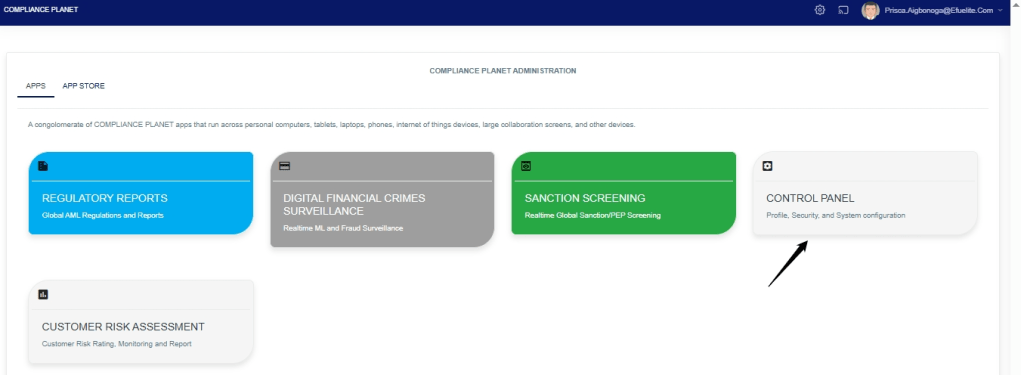
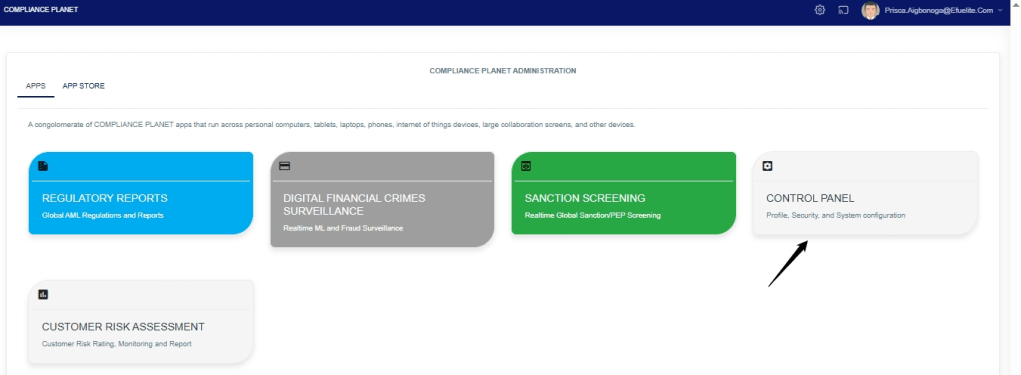
 STEP 1: From the dashboard, click “Control Panel” as in Fig. 28 .5a below.

Fig. 28.5a
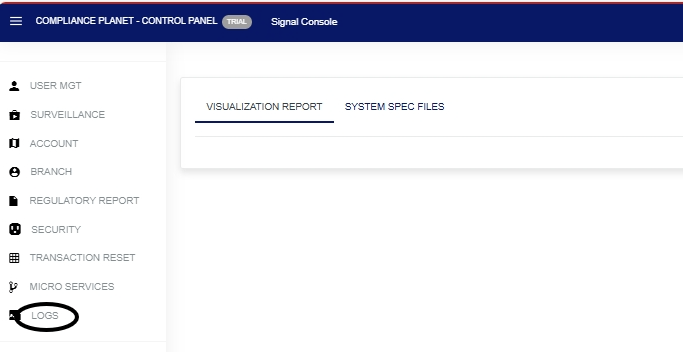
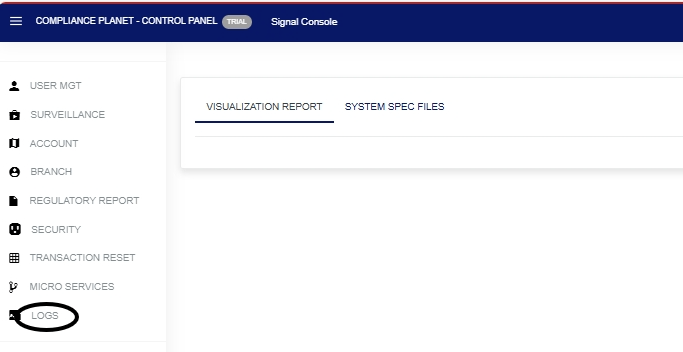
  • This will display a page, then click “Logs” as in Fig. 28 .5b below
   

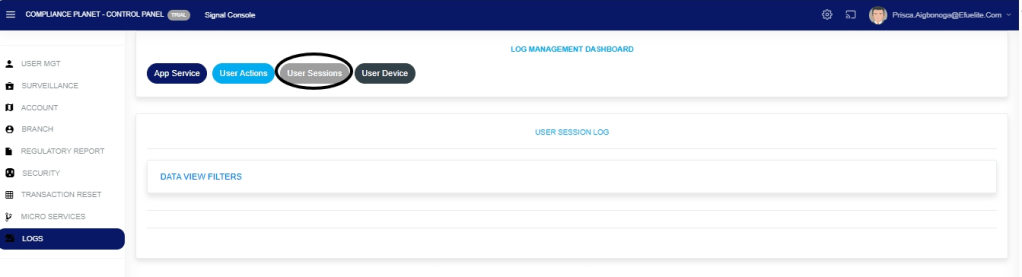
STEP 2: From the top menu, click “User Session” as in Fig. 28.5c below.

Fig.28.5c
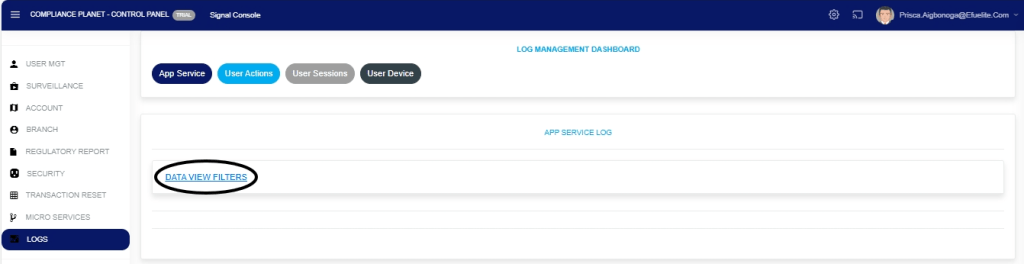
STEP 3: This displays the Service User Session log page. Click “Dataview filter” as shown in the Fig.28.5d below.

Fig.28.5d
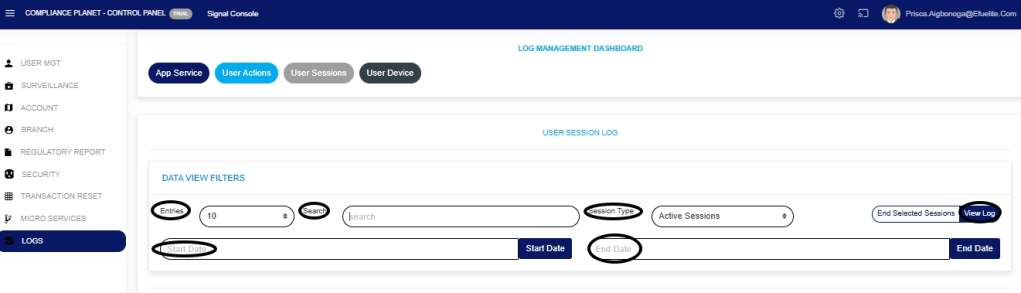
STEP 4: Fill in all the parameters as circled and explained in Fig.28.5e below:

Click on the ‘Start Date’ button to specify the start date; this also displays a calendar below the date box.

Click the ‘End Date’ button to specify the end date; this will also display a calendar below the date box.

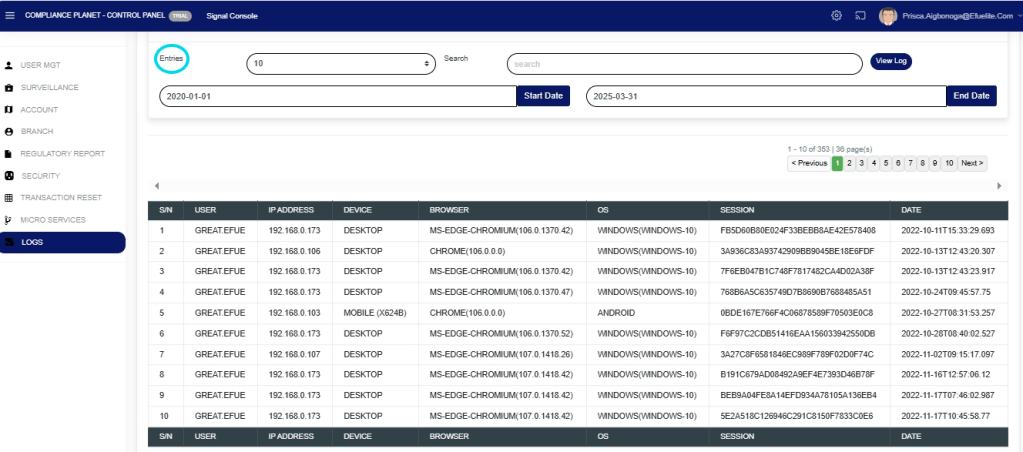
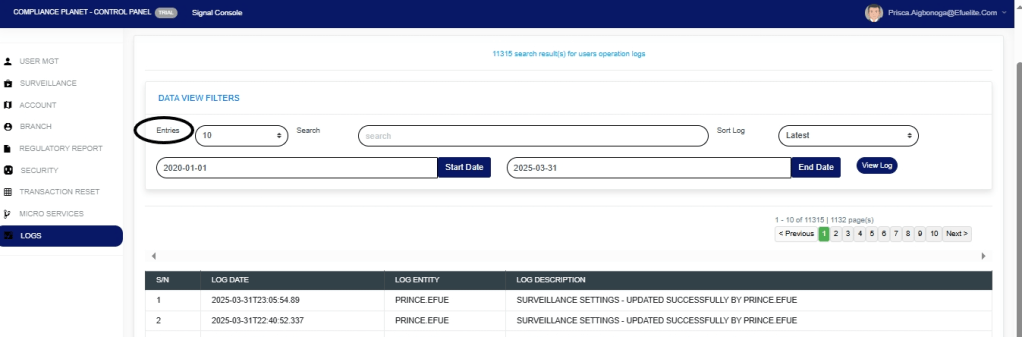
Click on the ‘Entries’ in the entries box to change the number of entries you want to see per page.

 Click on the ‘Search’. You can search for a service by typing the search term in the Search box. The software displays the results in real time.

Click the “Session Type” box to change the view to either active or inactive sessions

Note that the software displays active user sessions by default when you navigate to the user session log.

Fig.28.5e
Click on ‘View Log’ as in Fig.28.5e above to view the services.

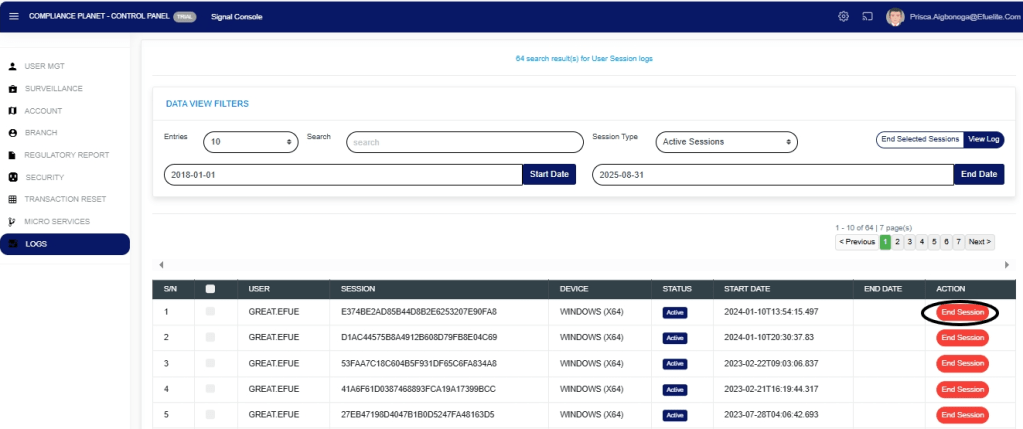
This will display a page, as shown in Fig. 28.5f below, which lists user sessions that are currently Active within the specified date range. The page also provides additional information, such as the user’s device, session status, session start date, and end date.

Fig.28.5f

STEP 5: Click the “End Session” button attached to a user’s record, as in Fig.28.5g below, to end that session.

Fig.28.5g
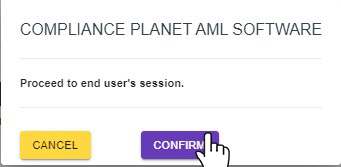
This displays a confirmation console, as shown in Fig.28.5h below.

STEP 6: Click the “Confirm” to proceed or “Cancel” to close the console.

Fig.28.5h
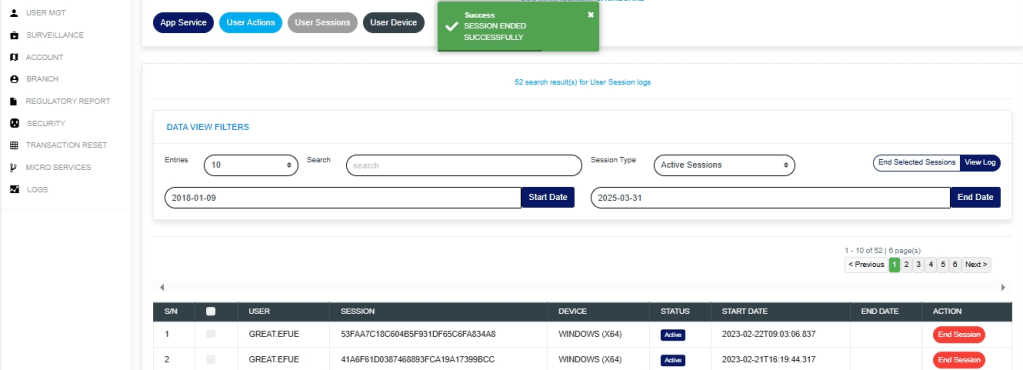
  • A notification will be displayed at the top of the page in green colour as in Fig.28.5i below, showing that the session has been successfully ended and the user is successfully logged out.
    • Fig.28.5i

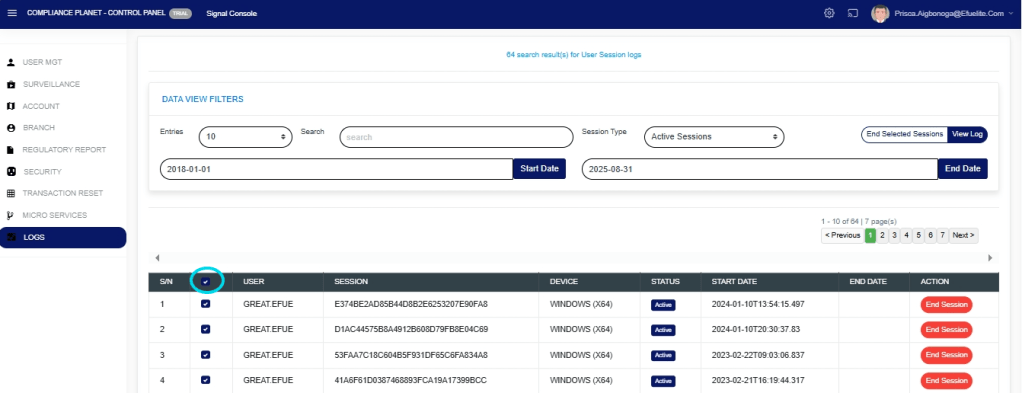
STEP 7: Click the checkbox at the top or bottom of the table, as in Fig.28.5j below, to select all the records displayed in the table.

Fig.28.5j
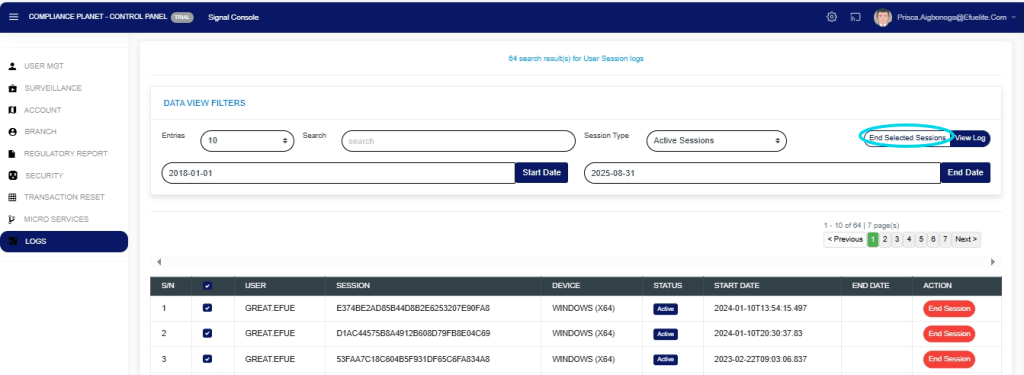
STEP 8: Click the “End Selected Sessions” as in Fig.28.5k below to end the session.

Fig.28.5k
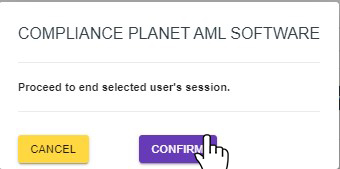
  • This will display a confirmation console as in Fig.28.5l below

STEP 9: Click “Confirm” to proceed or “Cancel” to close the console.

Fig.28.5l
  • A notification will be displayed at the top of the page to indicate that the sessions have been successfully ended and the users are logged out.

For further enquiries : 
Tel +234(0) 816 555 9818
Email solutions@efuelite.com 
Web https://solutions.efuelite.com

How to Carry out User Device Log Operations In Compliance Planet Anti Money Laundering/Core Banking Finance Software

The User Device Log page displays a record of user devices currently logged in to the Compliance Planet AML software.

STEP 1: From the dashboard, click “Control Panel” as in Fig.28.6a below

Fig.28.6a

This will display a Log Management Operations dashboard as in Fig.28.6b below

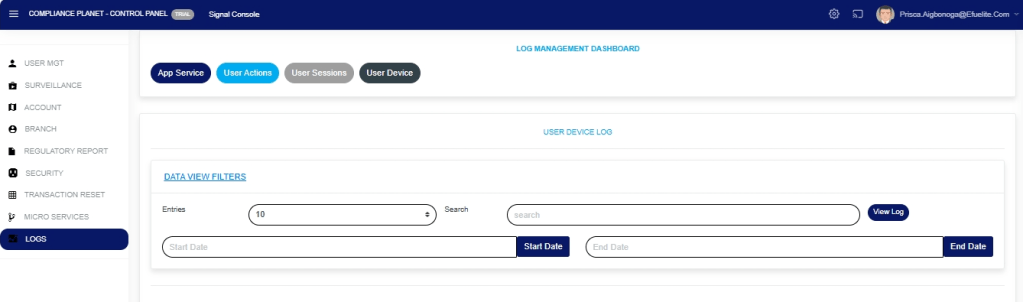
    STEP 2: From the top menu, click “User Device” as in Fig.28.6b below

    Fig.28.6b

    STEP 3: This will display the Click “Dataview filter” as shown in the Fig.28.6c below.

    Fig.28.6c

      STEP 4: This will display the “Parameters” as shown in Fig.28.6d below.

      Fig.28.6d 

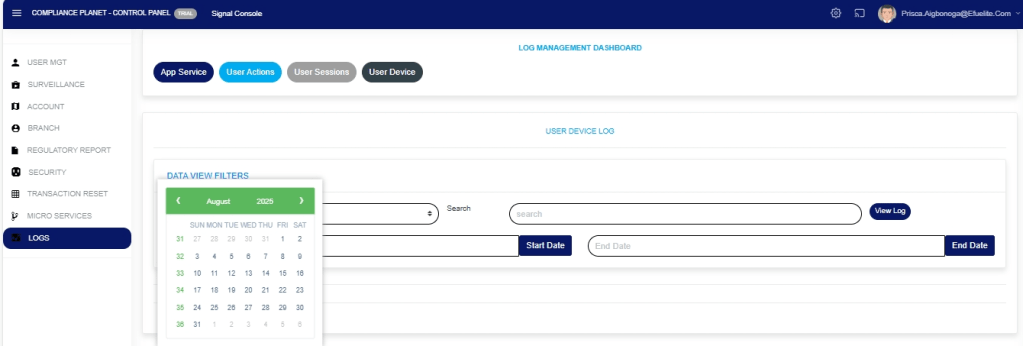
      STEP 3: Click “Start Date” and “End Date” as in Fig.28.6e and Fig.28.6f below to select the end and start date for the records you want to view.

      Fig 28.6e

      Fig.28.6f

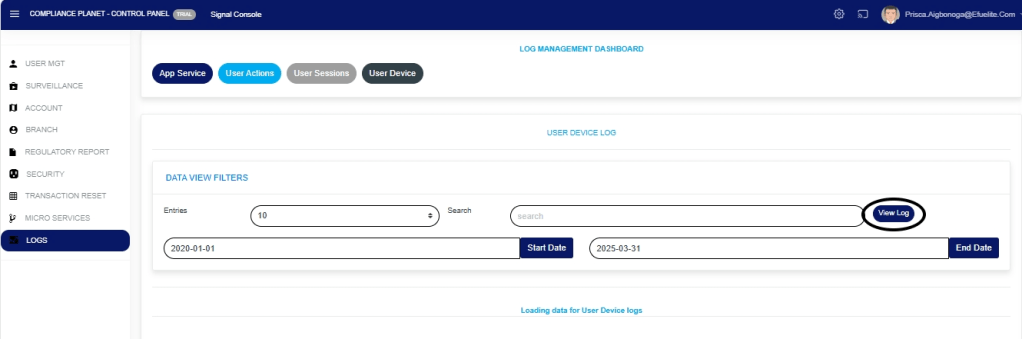
      STEP 4: Click “View Log” (Fig. 28.6g below) to view the User Device log for the selected date range.

      Fig 28.6g

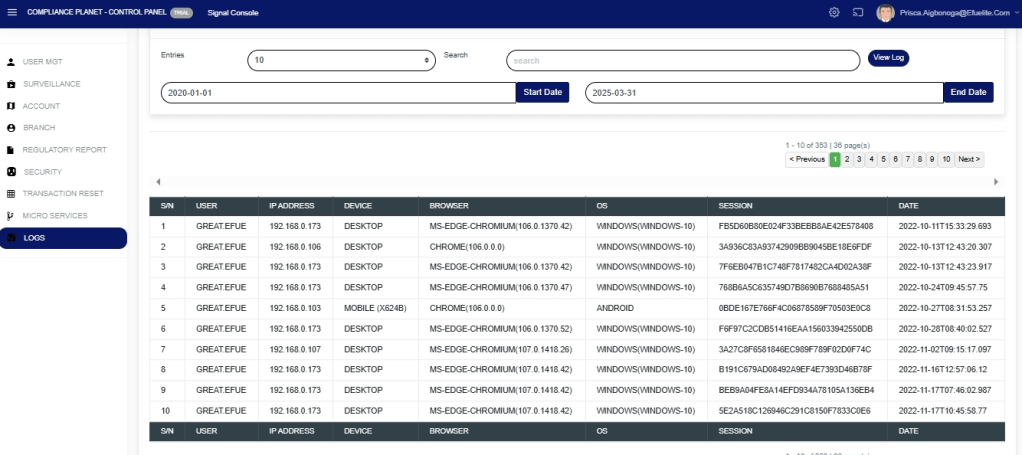
      STEP 5: This will display a page showing the records of users’ devices that are currently logged in to the software. The page also provides information such as the device IP Address, Browser, Operating system, and date the device was used to log into the software, as in Fig. 28.6h below

      Fig 28.6h

        STEP 5: Click the “Entries” box as in Fig.28.6i below to select the number of records you want to see per page.

        Fig.28.6i

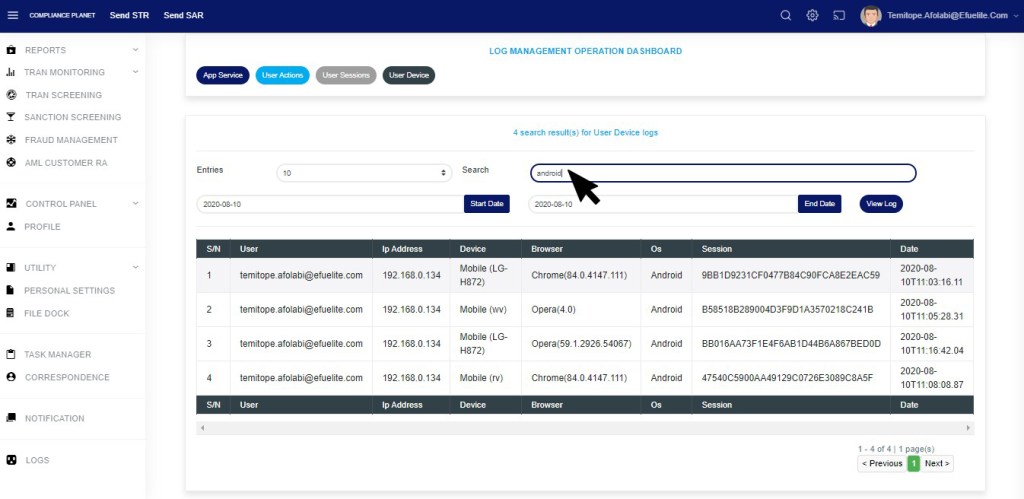
        STEP 6: Click the “Search” textbox as in Fig.28.6j below to search records by inputting either the user email, device name, browser name, or OS (Operating System). Note that the software displays the search results in real time as you input each character of the search term.

        Fig.28.6j

        This image has an empty alt attribute; its file name is 28.6i.jpg

        For further enquiries : 
        Tel +234(0) 816 555 9818
        Email solutions@efuelite.com 
        Web https://solutions.efuelite.com

        How to Carry Out App Service Log Operations In Compliance Planet Anti Money Laundering/Core Banking Finance Software

        The service log keeps a record of the Compliance Planet software services, forming a logical path linking a sequence of operations on the software. The service log provides a list of services that have affected an operation in a sequential order. It is used to trace the services that have affected the contents of a record.

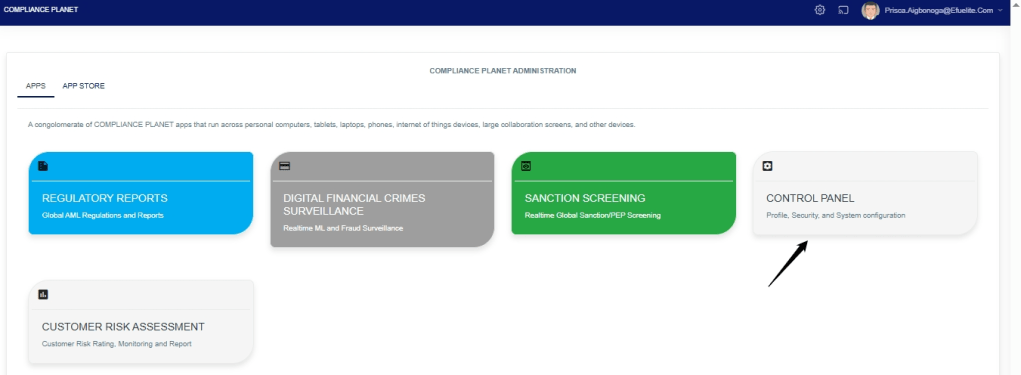
        STEP 1: From the dashboard, click “Control Panel” as in Fig. 28 .3a below

        Fig .28.3a

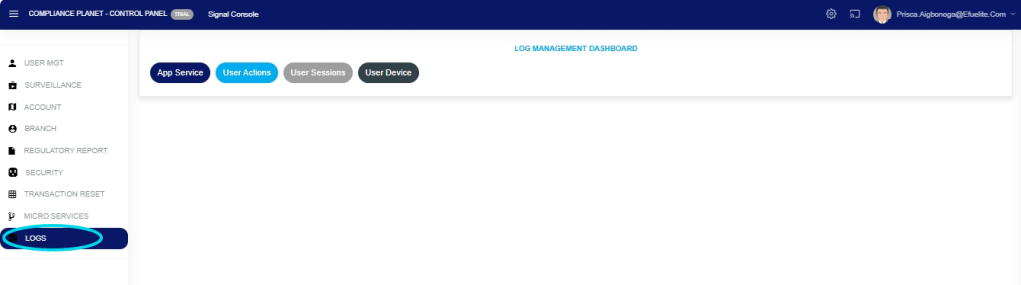
        • This will display a page, then click “Log” as in Fig. 28 .3 b below
          • Fig. 28 .3 b

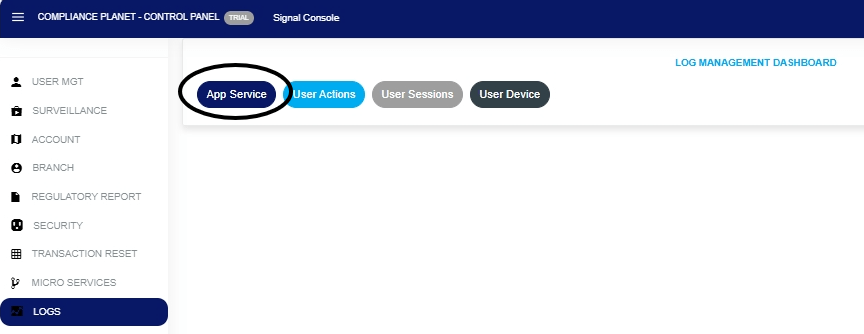
        STEP 2: Click “App Service” as in F.ig 28.3c below

        F.ig 28.3c

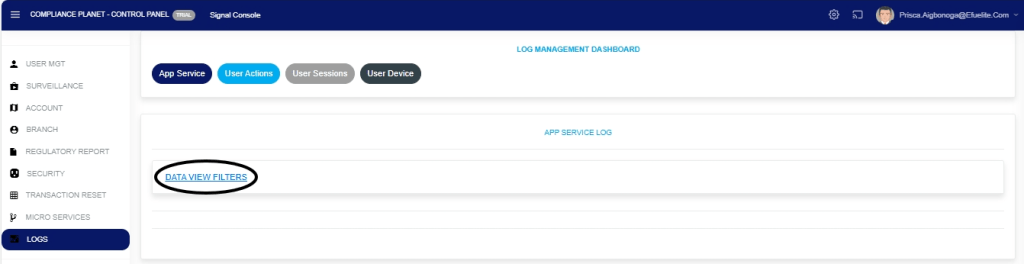
        This will display the service App Service log page. Click “Dataview filter” as shown in Fig.28.3c below.

        Fig.28.3c

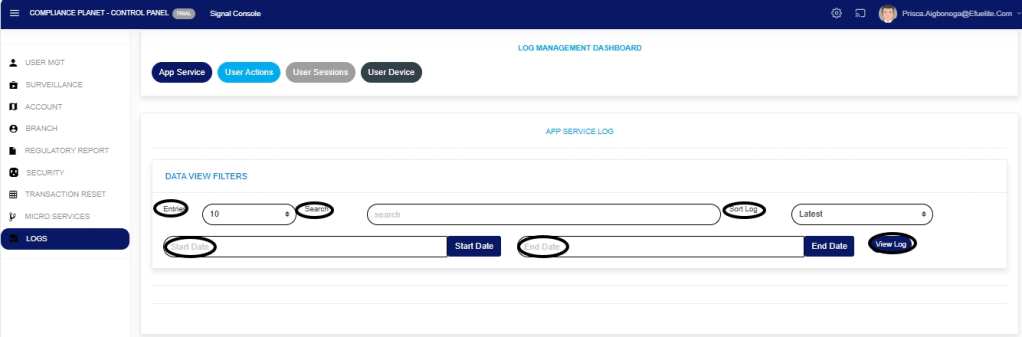
        STEP 4: Fill in all the parameters as circled and explained in Fig.28.3d below:

        Click on the ‘Start Date’ button to specify the start date; this also displays a calendar below the date box.

        Click on the ‘End Date’ button to specify the end date; this also displays a calendar below the date box.

        Click on the ‘Entries’ in the entries box to change the number of entries you want to see per page.

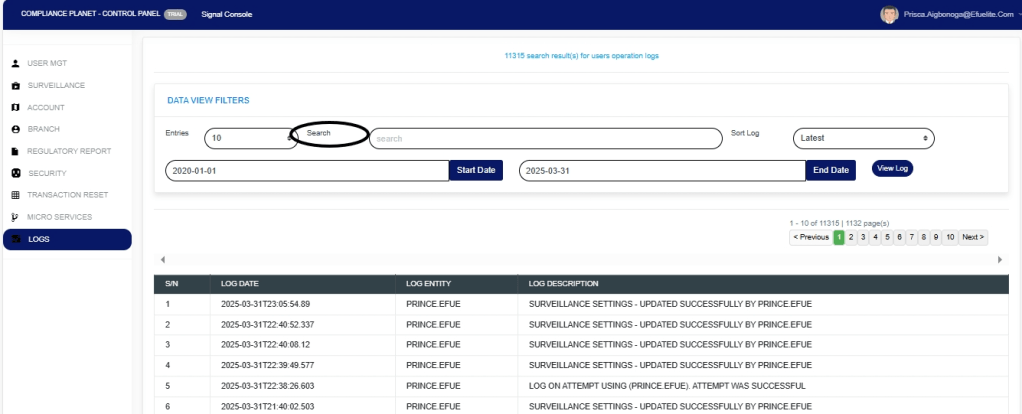
         Click on the Search’. You can search for a service by typing the search term in the Search box. The software displays the results in real time.

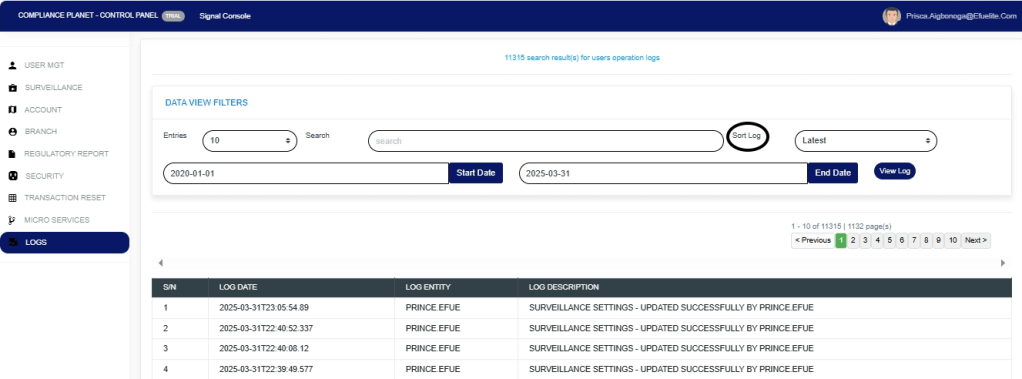
        Click on the Sort Log’. You can sort the records from the latest to the earliest or vice versa. Specify the order of the list by clicking on the Sort Log box

        Click on ‘View Log’ as in Fig.28.3d below to view the services.

        Fig.28.3d

        STEP 5: This displays a list of services related to operations carried out within the specified period. See Fig.28.3e for an example.

        Fig.28.3e

        STEP 6: Click on the At the bottom-right corner of the page, the software provides information about the number of pages, with the page numbers written out. Clicking any page number takes you to that particular page. Click ‘NEXT’ to go to the next page and click on ‘PREVIOUS’ to go to the page before the current page. See these features in Fig.28.3f below.

        Fig.28.3f

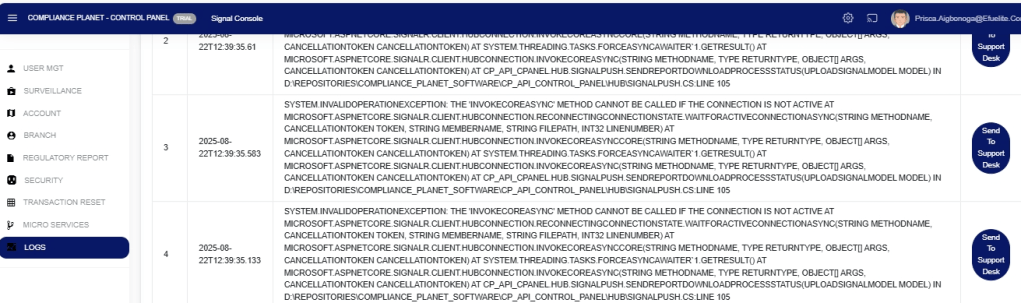
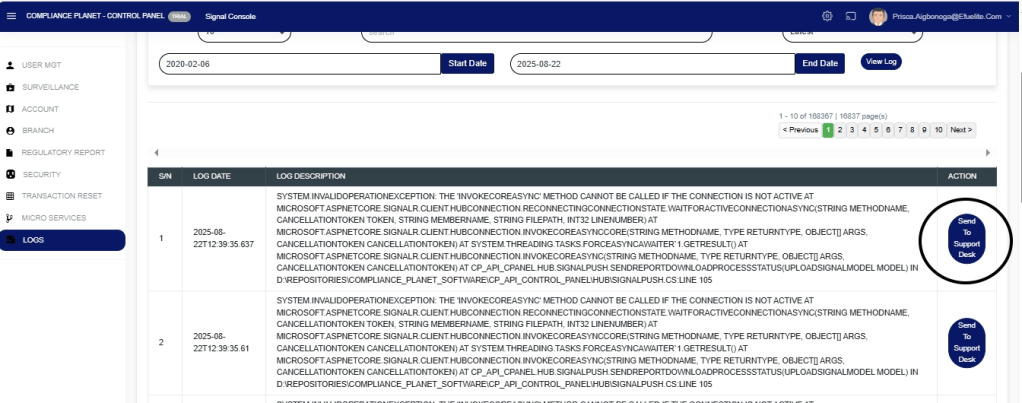
        STEP 7: Each service log entry includes an action button for mailing the service log to the Compliance Support desk.

        Click on ‘Send To Support Desk’. This button is at the end of the row of each log entry. See this in Fig.28.3g below.

        Fig.28.3g

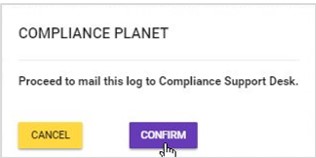
        STEP 8: This displays a confirmation console, as shown in Fig. 28.3h. Click on ‘Confirm’ to proceed.

        Fig.28.3h

        STEP 8: A notification will be displayed at the top of the screen, as in Fig.28.3i, when the mail is sent successfully, and the action button for that log will change to ‘Sent’.

        Fig.28.3i

        For further enquiries : 
        Tel +234(0) 816 555 9818
        Email solutions@efuelite.com 
        Web https://solutions.efuelite.com

        How to View User Action Log In Compliance Planet Anti Money Laundering/Core Banking Finance Software

        The User Action log provides a list of activities or actions that were carried out successfully and completed on the Compliance Planet software in a chronological order at any time. Here is how to view a user log for any period.

        STEP 1: From the dashboard, click “Control Panel” as in Fig.28.4a below.

        Fig.28.4a

        This will display a “Log Management Operations dashboard as in Fig.28.4b below

        STEP 2: This will display a page, then click “Logs” as in Fig. 28 .4b below

        Fig. 28 .4b

        STEP 3: From the top menu, click “User Action” as in Fig.28.4c below.

        Fig.28.4c

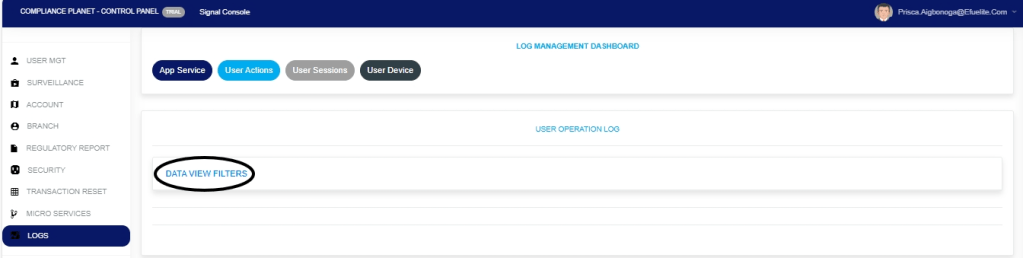
        STEP 4: This displays the Service User Action log page. Click “Dataview filter” as shown in Fig.28.4d below.

        Fig.28.4d

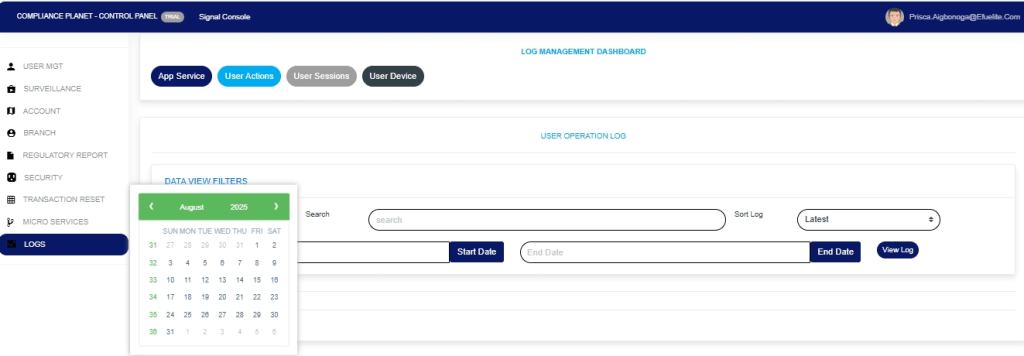
        STEP 5: Click on the ‘Start Date’ button to specify the start date. This will display a calendar below the date. See Fig.28.4e for an example.

        Fig.28.4e

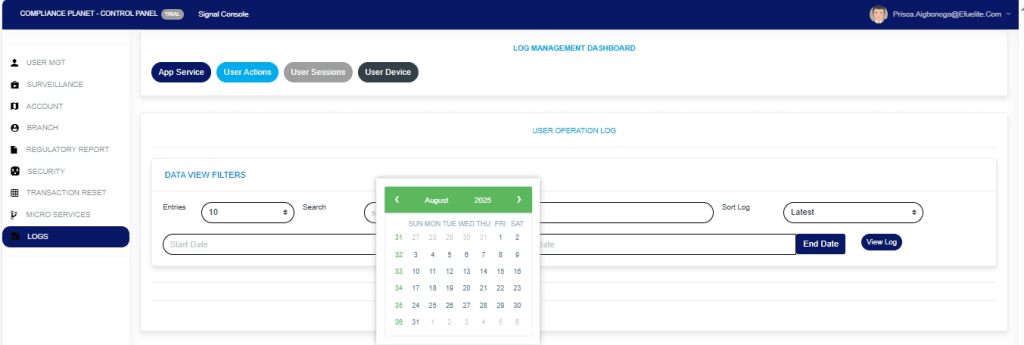
        STEP 6: Click on the ‘End Date’ button to specify the end date. This displays a calendar below the date box. See Fig.28.4f for an example.

        Fig.28.4f

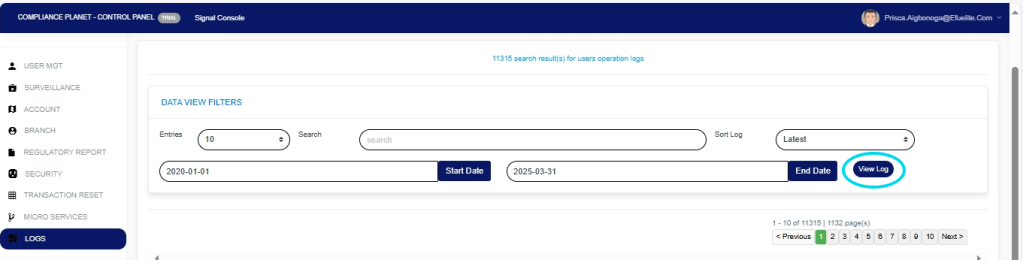
        STEP 7: Click on ‘View Log’ as in Fig.28.4g to view the services.

        Fig.28.4g

        STEP 8:This displays a list of activities that were carried out within the specified date range. See Fig.28.4h for an example.

        Fig.28.4h

        STEP 9:Click on the ‘entries’ box to change the number of entries you want to see per page. See Fig.28.4i

        Fig.28.4i

        STEP 10:Search for an activity by inputting a search term in the ‘Search’ box. See Fig.28.4j for an example of a search.

        Fig.28.4j

        STEP 11:You can sort the records from the latest to the earliest or vice-versa by clicking on the ‘Sort Log’ box and selecting your preferred order as in Fig.28.4k below.

        Fig.28.4k

        STEP 12:At the bottom-right corner of the page, the software provides information about the number of pages, with the page numbers written out. Clicking on a page number to go to that page. Click on ‘NEXT’ to go to the next page and click on ‘PREVIOUS’ to go to the page before the current page. See these features in Fig.28.4l below.

        Fig.28.4l

        For further enquiries : 
        Tel +234(0) 816 555 9818
        Email solutions@efuelite.com 
        Web https://solutions.efuelite.com
        How to Carry Out Log Operation On Customer Risk Assessment In Compliance Planet Anti Money Laundering/Core Banking Finance Software

        The Log operation helps to view modified manually risk rated account in the Compliance planet.

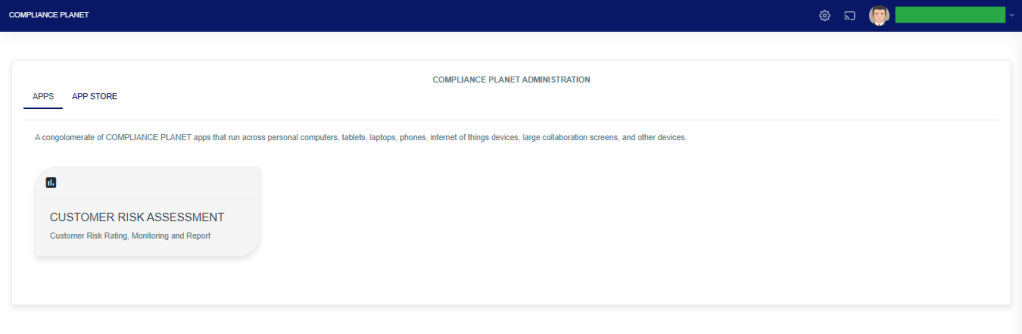
        STEP 1: From the app dashboard, click on “CUSTOMER RISK ASSESSMENT” as displayed in the image below.

        The above action will display a page as seen in the image below.

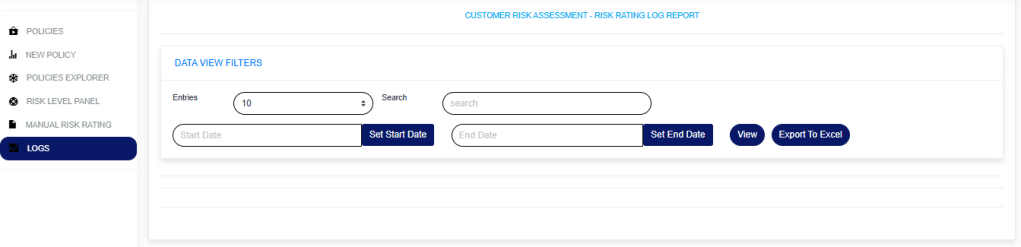
        STEP 2: Click on “LOGS”, then select “DATA VIEW FILTERS”.

        1. Enter a “Start date” and “End date” to view the result.
        2. Click on the “View” button to see the logs.
        3. Entries: Select the number of records you want to see on the page.
        4. Search: This is to search for a modified account or who modified an account.
        5. To export the result to Excel, click on the “Export To Excel” button.

        For further enquiries: 
        Tel: +234(0) 816 555 9818
        Email: solutions@efuelite.com 
        Web: http://solutions.efuelite.com