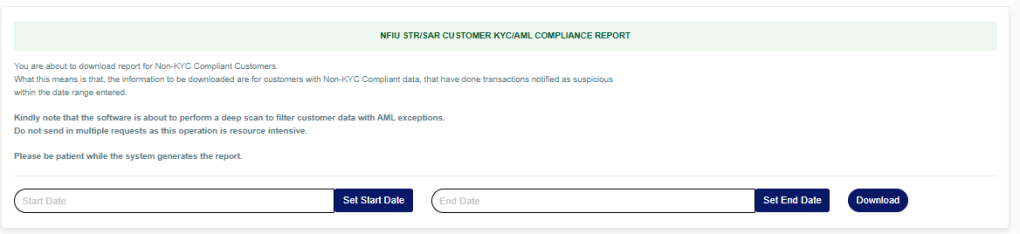
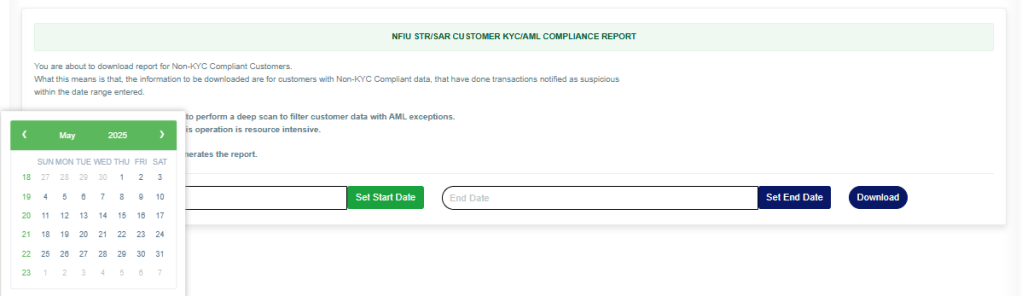
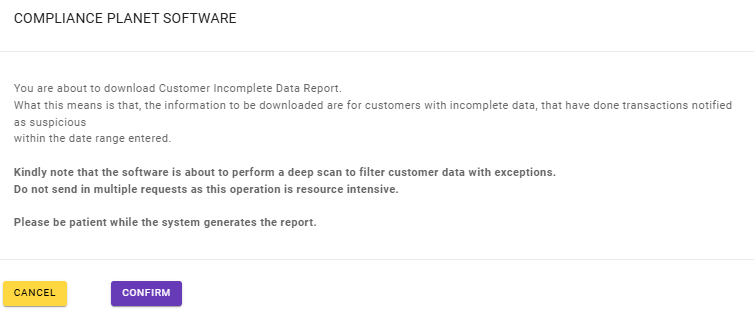
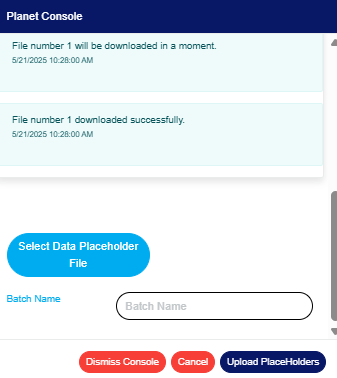
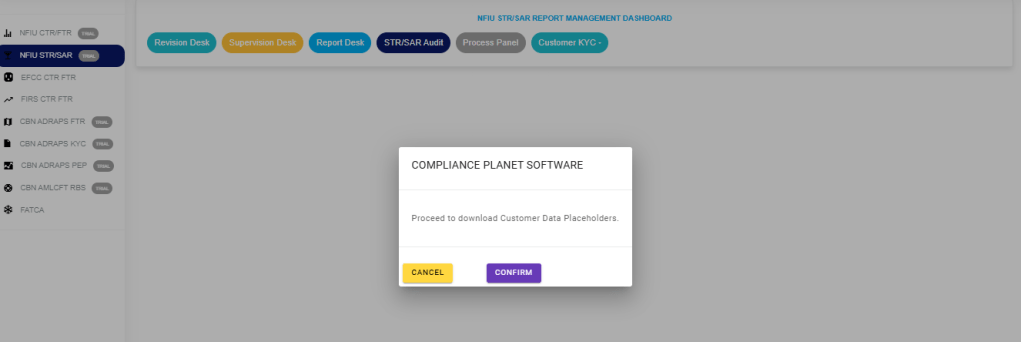
NOTE: This action can only be carried out by person(s) profiled as Administrator in the software
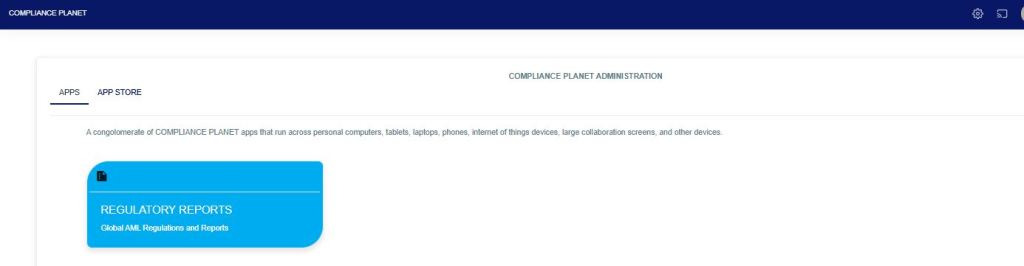
From the app dashboard, click on “REGULATORY REPORTS” as shown below.
This will display a drop-down as in the image below. The dropdown lists the report types available on the Compliance Planet software.
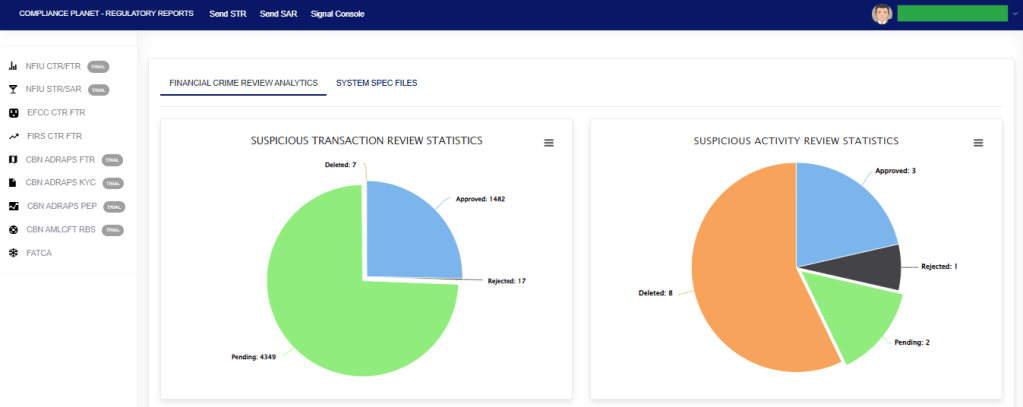
Click “NFIU STR/SAR” from the drop-down menu to open the NFIU STR/SAR page. See the image below.
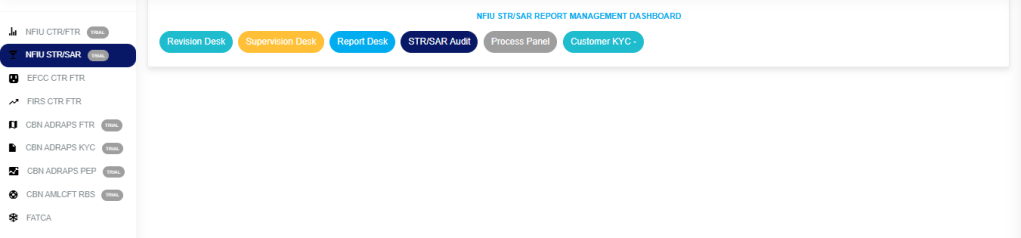
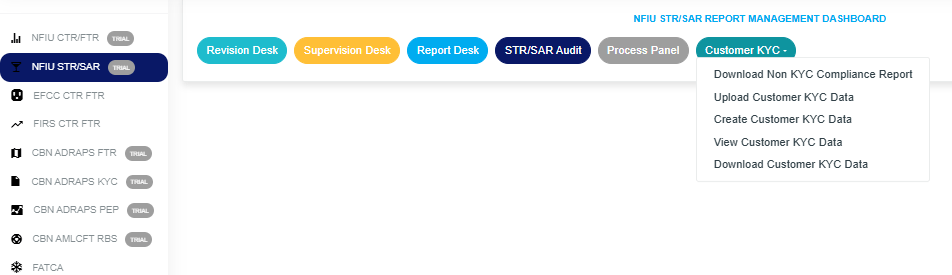
Click on “CUSTOMER KYC” which then displays a page as seen below.
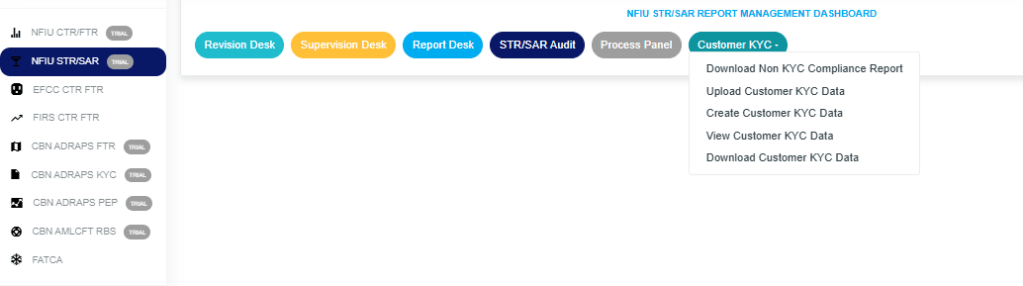
STEP 1: From the drop-down, click “View Customer KYC data” which then displays a drop-down as in the image below.
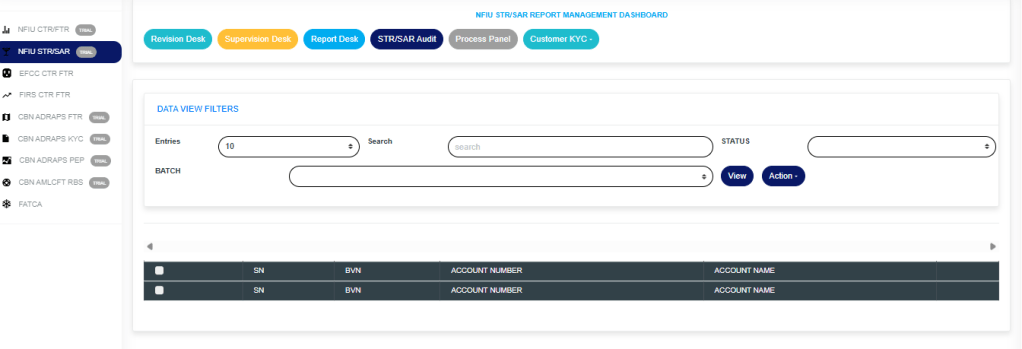
- Enter a batch name. ( the batch name entered when uploading data Placeholders for Customers)
- Click on the “Status” button to select from the dropdown and choose approved or not approved records.
- Note: The Approved record is the Customer’s incomplete data that has been approved by a person profiled as an administrator in the Compliance Planet Software. The Not Approved record is the customer data that is yet to be approved.
- select the record to be deleted or approved
- Click on Action to approve a record or delete a record.
- Click on details to see the Details of the record to be approved or deleted
For further enquiries:
Tel: +234(0) 816 555 9818
Email: solutions@efuelite.com
Web: http://solutions.efuelite.com