
The EFCC CTR page on the Compliance Planet features is designed to download the EFCC CTR report for a specified period.
This is different from the NFIU CTR FTR Report. In this section, all transaction types are generated in a single Excel sheet, and it is submitted in Excel format (i.e., you do not download XML or convert to XML as in NFIU CTR FTR)
The Steps to carry out these operations are explained below.
Note: Only persons assigned the right(s) to ‘view CTR reports’ and ‘process CTR reports’ can carry out this operation.
Step 1: From the app dashboard, click on “REGULATORY REPORTS” as in Fig. a below.
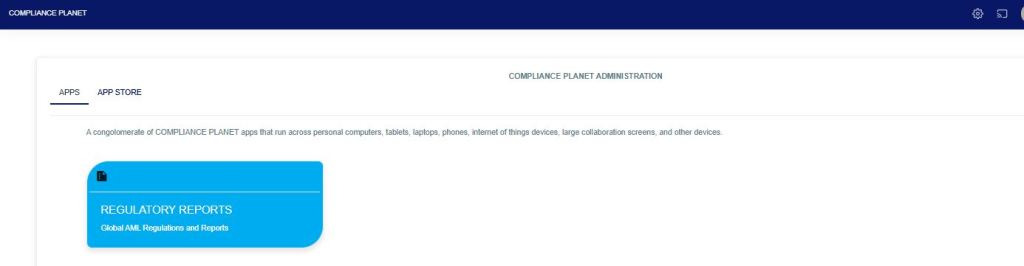
Fig a
Step 2: Click on “EFCC CTR” on the drop-down list, and this displays the EFCC CTR page as in Fig. b below.
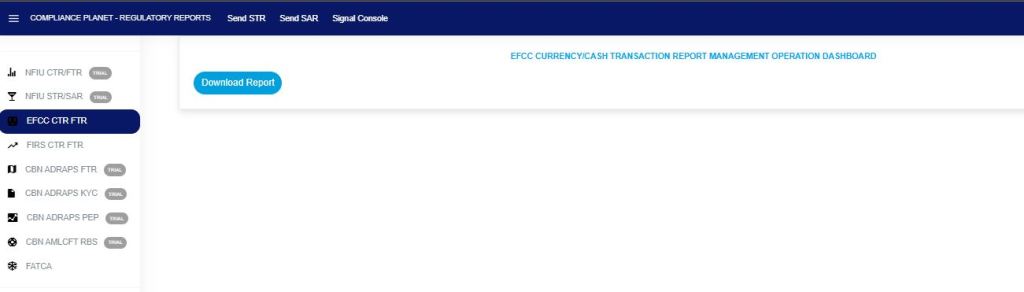
Fig b
You can instantly download EFCC CTR reports for any period. Reports are exported in Excel format. Here is how to schedule and download EFCC CTR transactions.
NOTE: Only the person(s) Assigned right(s) to ‘Process CTR reports’ will be able to carry out this Operation.
STEP 3: On the EFCC CTR homepage, click “Download Reports,” as shown in Fig. C below.
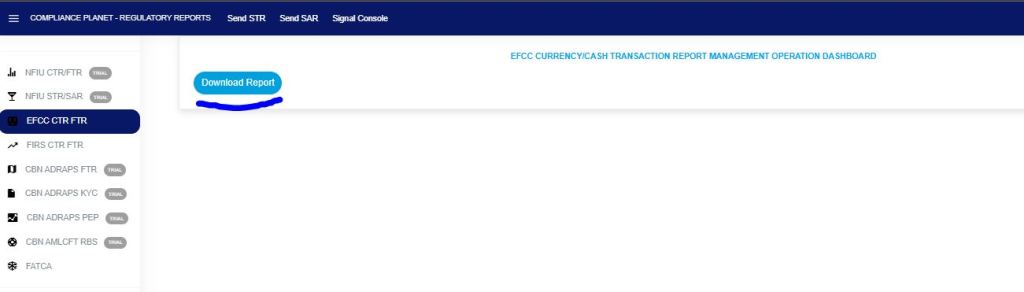
Fig. c
- This displays an EFCC CTR Report Console, as shown in Fig. d below.
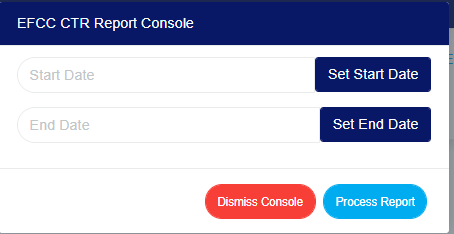
Fig .d
STEP 4: Click ‘Set Start Date’ and ‘Set End Date’ to specify the periods you want the software to download reports for.
- This will display a calendar dropdown as if Fig. e and f below.

Fig e

Fig f
- Look at the arrows labelled a to d in Fig h to study the calendar.
- Click on the given year to change it to your year of choice.
- Click on the given month to change it to your month of choice.
- Click on the day of the month.
- You can also click on the angle brackets on the calendar ( ‘<’ or ‘>’ ) to go backward or forward.
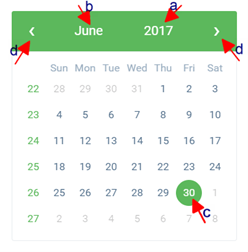
Fig g
STEP 5: Click on the “PROCESS REPORT” button to generate a report. If you want to cancel the schedule, click on the DISMISS CONSOLE button. These buttons are at the bottom-right corner of the console as in Fig h below.
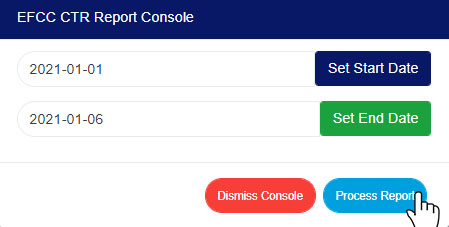
Fig h
- Clicking ‘Process Report’ displays a confirmation console, as shown in Fig i.
- Click “Confirm” to proceed with the download or “Cancel” to return to the console.
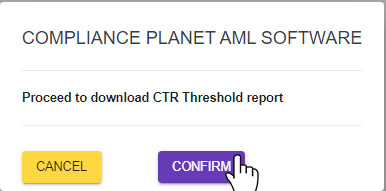
Fig i
- Clicking confirm displays the signal console as in Fig j below, which shows ongoing processes.
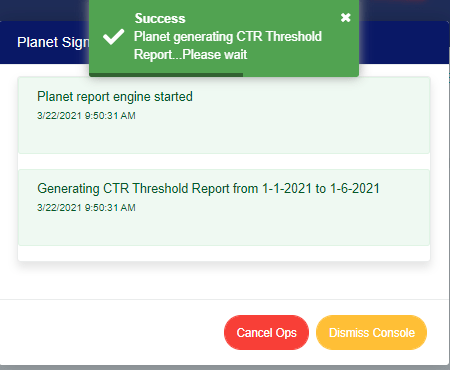
Fig j
- You can terminate unfinished processes by clicking CANCEL OPS.
For further inquiries:
Tel: +234(0) 816 555 9818
Email: solutions@efuelite.com
Web: https://solutions.efuelite.com
