The bulk upload helps in uploading more than one scan parameter into the system for the automatic scan.
Note: This operation requires the Administrator or Auditor’s permission.
How to Prepare the Scan Parameters in an Excel File
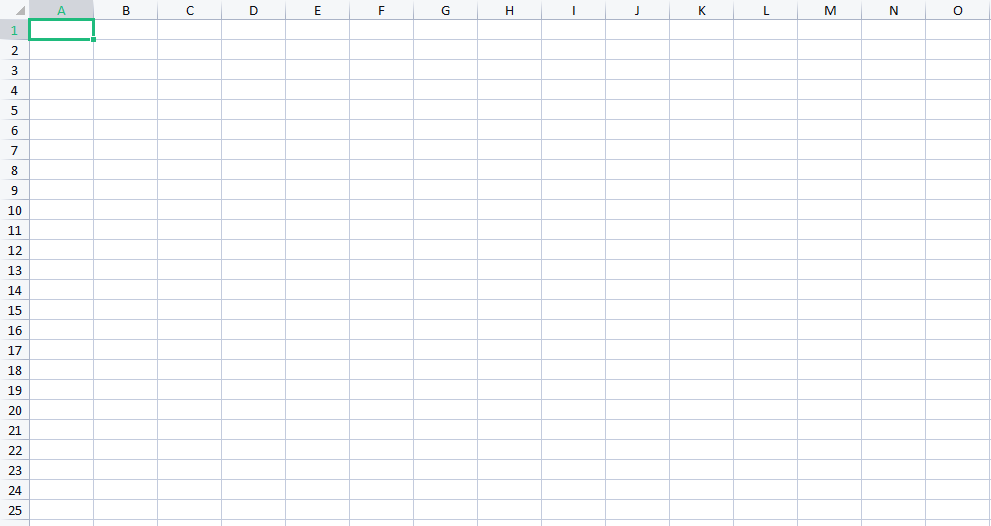
STEP 1: Open an excel sheet as seen in the image below. This must be the first sheet(Sheet1) in the excel workbook.
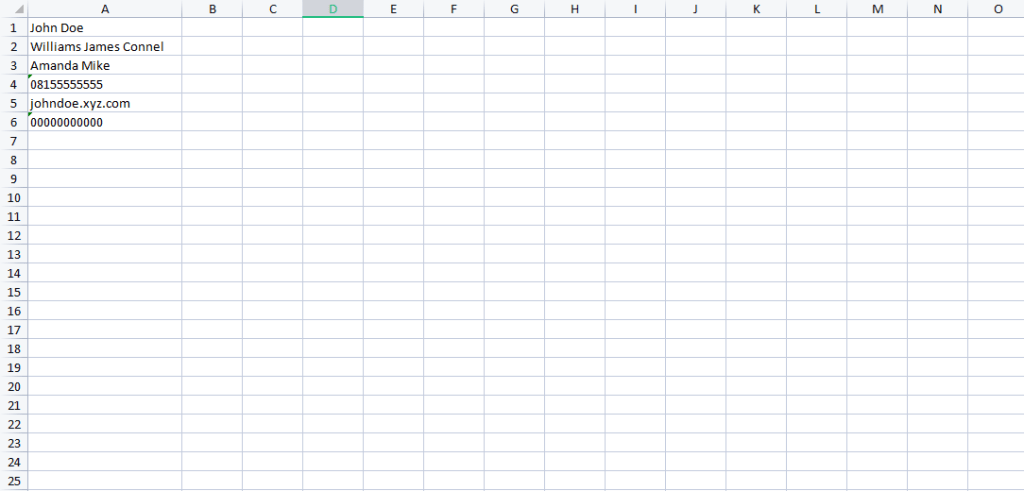
STEP 2: Fill in the scan parameters in the first column (column A) as seen in the image below.
The excel sheet should not have column names(Start inputting the scan parameters from row 1).
These scan parameters can be either a name, phone number, email address, ID Number, or BVN.
Note: The first, last and middle name must be in the same column with a space in between them (Column A).
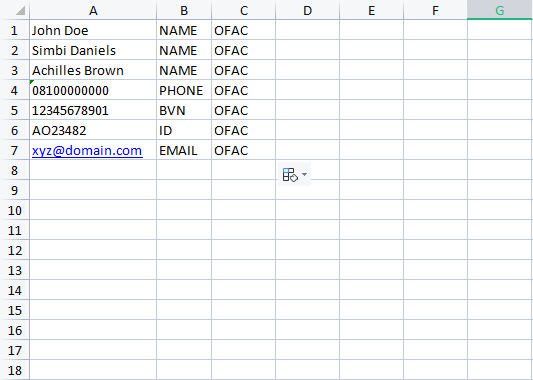
STEP 3: Fill in the scan parameter category in the second column (column B) as seen in the image below.
The software accepts four different parameter categories(Name, Email address, Phone Number, ID Number, and BVN).
1. When a scan parameter is a name, the category should be NAME
2. When a scan parameter is a phone number, the category should be PHONE
3. When a scan parameter is an email address, the category should be EMAIL
4. When a scan parameter is a BVN, the category should be BVN
5. When a scan parameter is an ID Number, the category should be ID
STEP 4: Fill in a reason in the third column (column C) as seen in the screenshot below.
Save the excel file and proceed to the Compliance Planet AML software.
How to Upload the scan parameters in the Compliance Planet Software
STEP 5: From the left-hand side menu, click “SCREENING” as seen below.
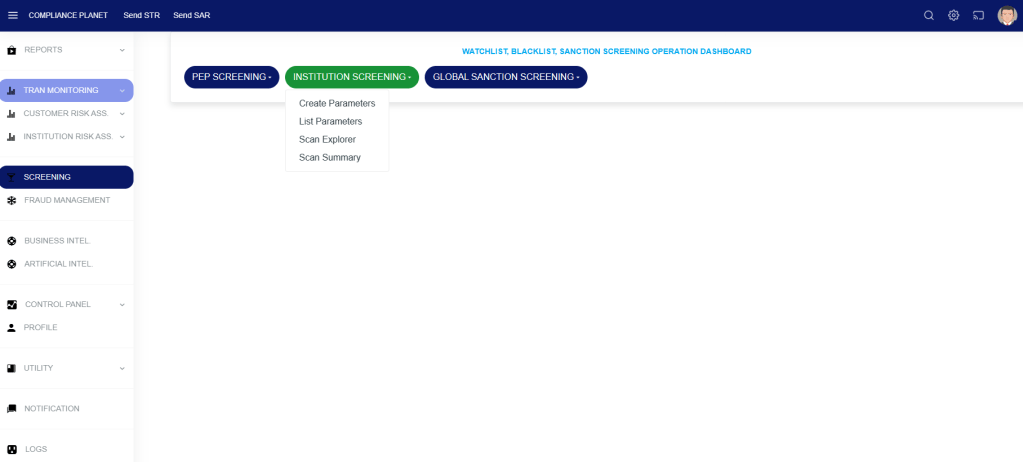
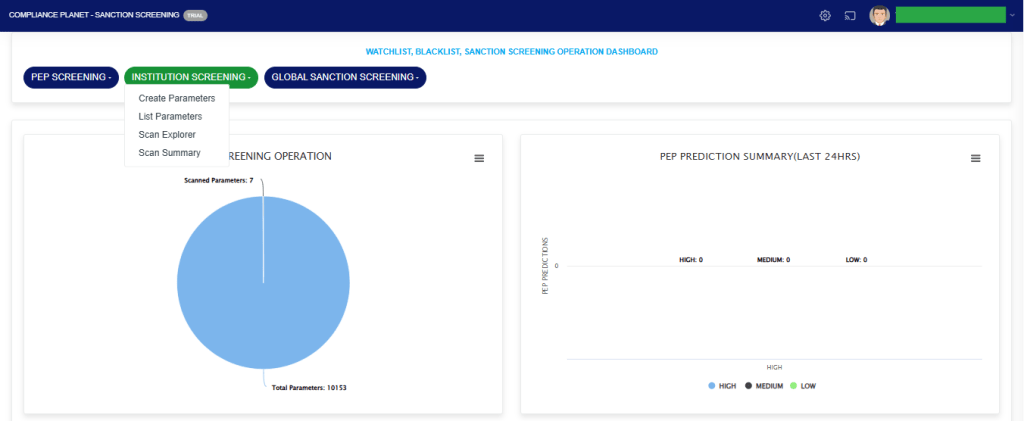
STEP 6: From the top menu, click “INSTITUTION Screening”, this action will display a dropdown menu as seen in the image below. From the dropdown menu, click “Create Parameters”.
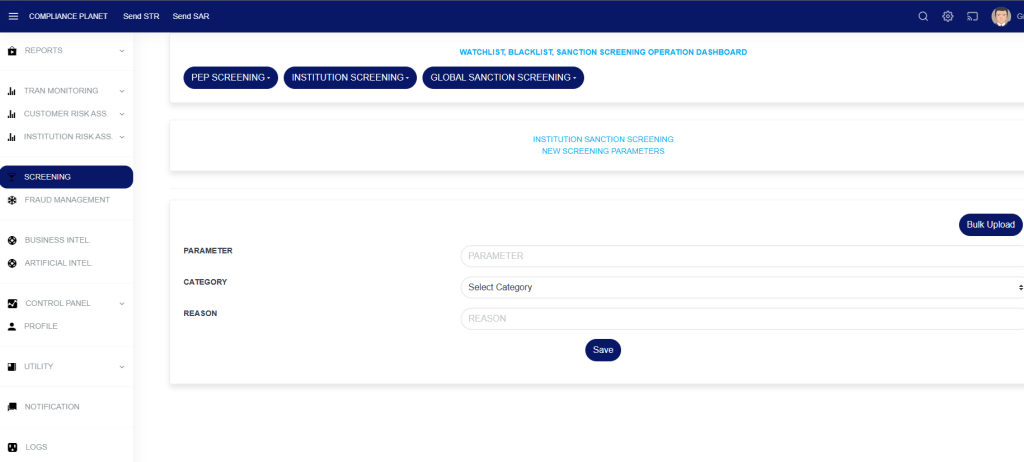
STEP 7: On the NEW SCREENING PARAMETERS page, click on the “Bulk Upload” button to select the excel file which you have earlier filled with the scan parameters.
STEP 8: Click on the Save button.
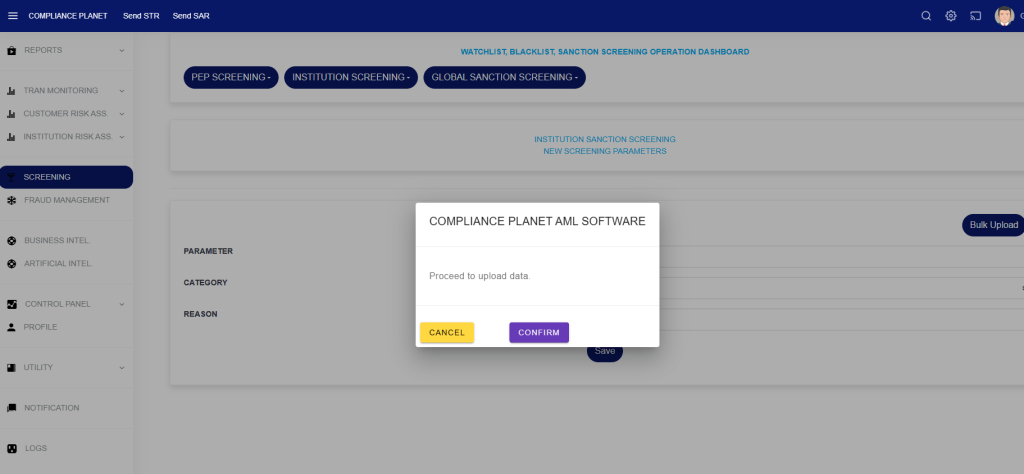
STEP 9: Click on the CONFIRM button to begin the upload process.
Note: This operation requires the Administrator’s or Auditor’s permission.
The Institution screening helps to scan an institution based on certain parameters. If a match is found, it further displays the Scan Results (customers’ account(s)) and the system’s assigned score prediction.
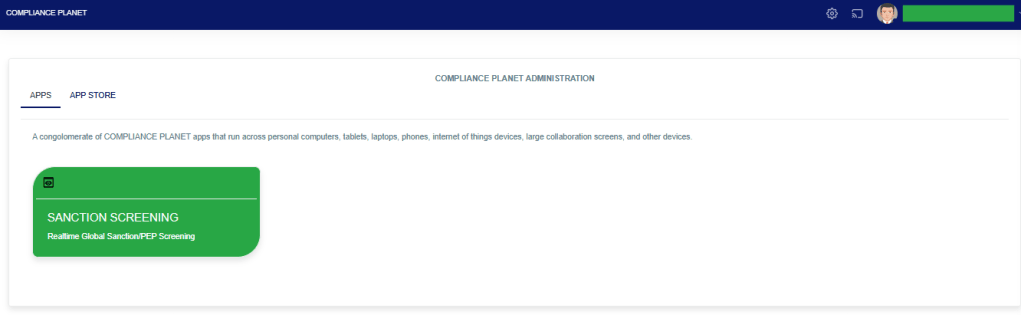
STEP 1: From the app dashboard, click “SANCTION SCREENING” as seen below.
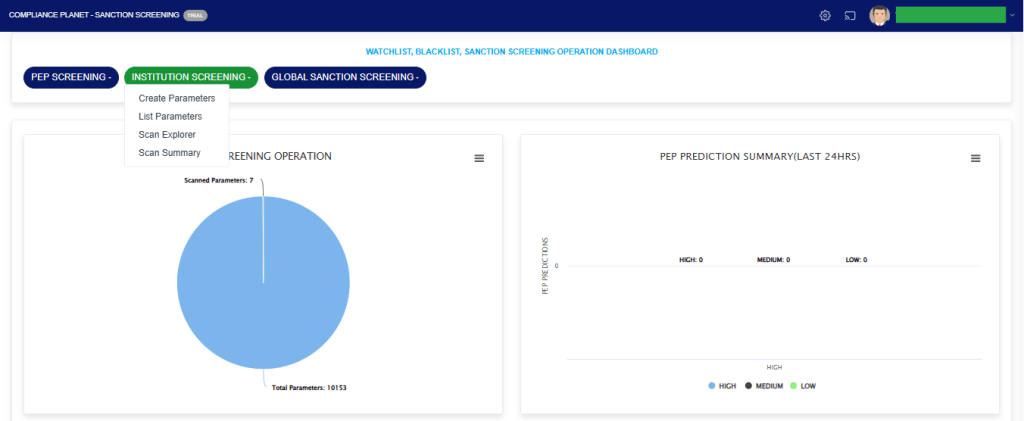
STEP 2: From the top menu, click “Institution Screening.” This action will display a dropdown menu as seen in the image below. From the dropdown menu, click “Create Parameters”.
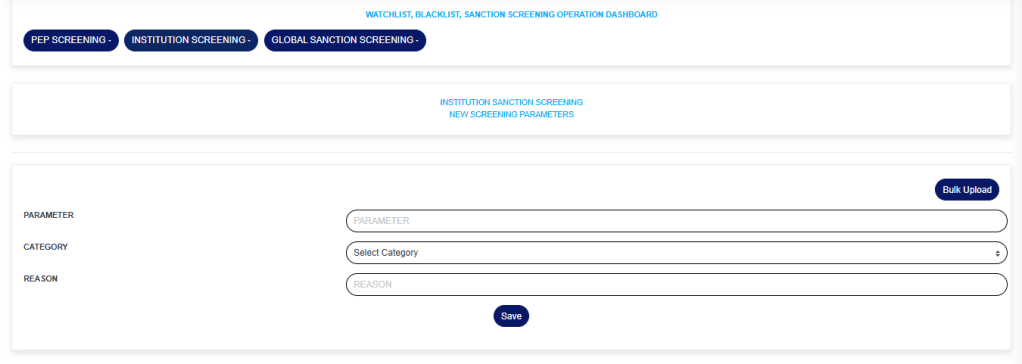
STEP 3: Fill in the fields on the “NEW SCREENING PARAMETERS” page
Click on the “Save” button to save the parameter.
Note: The selected category determines the entered parameter. e.g., if the selected category is “NAME”, then the parameter should be a name. If the selected category is “EMAIL”, the parameter should be an email address.
How to list the Institution Screening Parameters
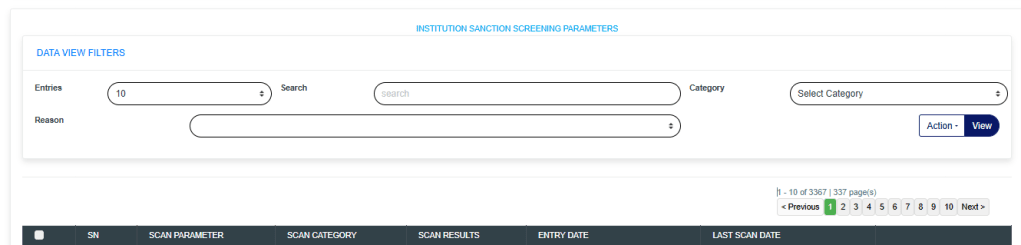
STEP 1: Click on “List Parameters” to see the list of parameters entered into the software.
STEP 2: The “INSTITUTION SCREENING PARAMETERS” page shows the list of parameters that have been entered into the software and their scan status.
How to view the Institution Screening scan explorer
Step 1: Click on the Institution Screening dropdown button and select the “Scan Explorer” option.
The above action will display a page as seen in the image below.
The Scan Explorer provides details of scan results across the entered date ranges. These results can be filtered down to only results that are meaningful to you by applying various scan filters.
The function of the scan filters is explained below;
Start Date and End Date: These fields allow you to filter the list of scan results to a specific date range. The date range refers to the dates the parameters were scanned. This filter is mandatory.
Category: To view scan results having the same Category, select the desired Category from the Category dropdown and click on the View button.
Reasons: To view scan results having the same scan reason, select the desired Reason from the Reasons dropdown and click on the View button.
Entries: The number of scan results to see on the page.
Search: To search for the parameter(s).
L. Score and H. Score: The low score and high score work together to filter the results based on score prediction. The L. Score entered must be less than the H. Score. After entering your desired score prediction range, click on the View button to see the result.
Export To Excel: To export the list of scan results to Excel, click on the ‘Action‘ dropdown button and select “Export To Excel.”
The data representation of the columns is explained below;
Account Number: The account number that the scan parameter matched.
Account Name: The account name that the scan parameter matched.
Date Opened: The date the matched account was opened.
Date Closed: The date the matched account was closed(This field is empty if the account is still open).
Account Status: The status of the matched account.
Scan Parameter: The actual scan parameter entered into the system
Scan Category: The category the scan parameter falls under. e.g Name, BVN, Email, etc…
Scan Prediction: The system’s prediction score for each parameter.
Scan Reason: The reason entered alongside the scan parameter.
Scan Date: The date the parameter was scanned.
How to view the Institution Screening scan summary
Step 1: Click on the Institution Screening dropdown button and select the “Scan Summary” option.
The above action will display a page as seen in the image below.
TOTAL PARAMETERS: This Section Value quickly informs the reviewer of the number of parameters uploaded to the system for scanning/screening.
Parameters could be BVN, NAMES, ID Numbers, PHONE NUMBERS, or EMAILS.
TOTAL SCANNED PARAMETERS: This Section Value informs the reviewer how many parameters have been scanned thus far. This number would increase daily.
TOTAL SCANNED RESULTS: This Section Value informs the reviewer how many results are present from all parameters that have been scanned.
TOTAL SCANNED RESULTS(LAST 24 HRS): This Section Value informs the reviewer of the total number of new results from the scan conducted in the last 24 hours.
This aids the reviewer who may be reviewing on a daily basis, focusing on the newer scans and helping to attain a thorough review process. There are explorers where these scan results can be targeted by the date the software entered them.
TOTAL HIGH PREDICTIONS(LAST 24 HRS): This Section Value plays a very important role as the software uses artificial intelligence and Machine Learning to learn the data from Scan results and give scores on how sure it is about the matches. The lowest score is 1, and the highest is 100.
100 means that the software is extremely confident that the scan result (a customer’s account) is an exact match to the scanned parameter.
This enables the reviewer to focus more closely on high matches and easily sort them out, thereby avoiding time wasted on false positives.
The software categorizes HIGH PREDICTIONS as scan results that score 80 and above. Further, high predictions for the last 24 hours indicate how many records should be prioritized from the total scanned results in that period.
This further streamlines the review process. Predictions in this category are colored red for easy identification.
TOTAL MEDIUM PREDICTIONS(LAST 24 HRS): The software categorizes MEDIUM PREDICTIONS as scan results that score between 50 and 79. Predictions in this category are colored yellow for easy identification.
TOTAL LOW PREDICTIONS(LAST 24 HRS): The software categorizes LOW PREDICTIONS as scan results that score between 1 and 49. Predictions in this category are colored blue for easy identification.
HIGH PREDICTIONS%(LAST 24 HRS): This tells the percentage of high predictions in the scan results from scans conducted in the last 24 hours.
MEDIUM PREDICTIONS% (LAST 24 HRS): This indicates the percentage of medium predictions in the scan results from the last 24 hours.
LOW PREDICTIONS%(LAST 24 HRS): This tells the percentage of low predictions in the scan results from scans conducted in the last 24 hours. The software assigns a special prediction score of 81 to scan parameters it detects, naming individuals that match the Signatory/Director of corporate accounts. With the software’s artificial intelligence and machine learning capabilities to scan and predict the probability of match accuracy in scores, reviewing these scan results is easier than expected.