How to Delete Suspicious Transaction /Activity Notification (STR/SAR) on Supervision Desk In Compliance Planet Anti Money Laundering/Core Banking Finance Software

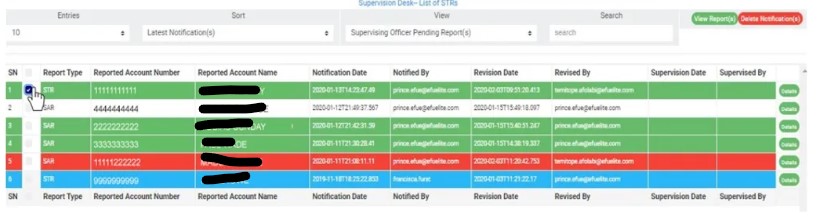
STEP 1: Click on the checkbox beside the report type to select the Notifications you want to delete. See an example in Fig 6.4w below

(fig. 6.4w)

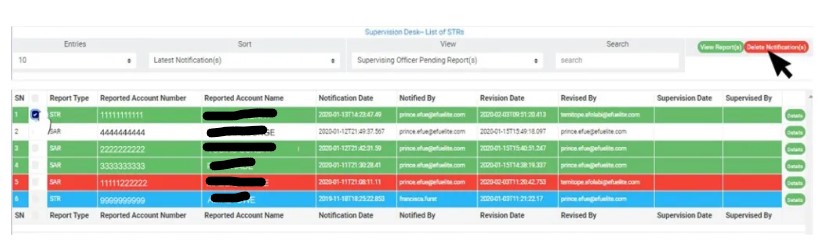
STEP 2: Click on the “Delete Notification(s)” button as shown in in Fig 6.4x below

(fig. 6.4x)

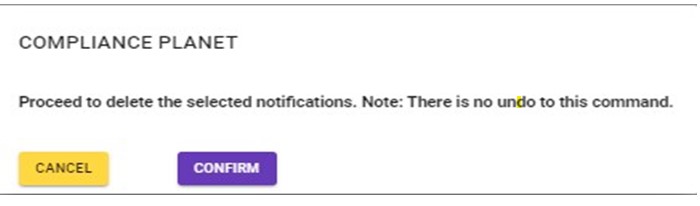
STEP 3: Clicking on “Delete Notification(s)” will display a console to confirm your selected action. See an example in Fig 6.4y     below. To proceed, click on CONFIRM and to dismiss the operation, click on CANCEL.

(fig. 6.4y)

NOTE: You have to be profiled as a ‘supervisor’ and a ‘Team Lead’ on supervision Desk.

For further enquiries : 
Tel +234(0) 816 555 9818
Email solutions@efuelite.com 
Web http://solutions.efuelite.com

How to evaluate Suspicious Transaction/Activity Notification (STR/SAR) On report desk In Compliance Planet Anti Money Laundering/Core Banking Finance Software

            This is the final stage of processing STR/SAR Notifications. Once approved by the reporting officer, the Notifications can be downloaded. Below are steps on how to finalize approval to report STRs/SARs. Also, in this section, you will learn how to download an STR/SAR file.

How to Evaluate and Give Final Approval

Notifications that have been approved by revising officer(s) and/or supervising officer(s) move to the ‘REPORTING OFFICER PENDING NOTIFICATION (S)’ list to be given the final approval. The treatment of a SAR Notification is different from that of a STR Notification. Therefore, the review and final approval on the reporting desk is categorized into two (2) on this desk; EVALUATING AND APPROVING STRs and EVALUATING AND APPROVING SARs.

NOTE: You have to be profiled as a report evaluation officer on report desk with rights to EDIT to be able to carry out this operation.

In this section, you will learn how to evaluate and give final approval for each Notification type, but first, here is how to locate a pending Notification irrespective of its Notification type (STR or SAR).

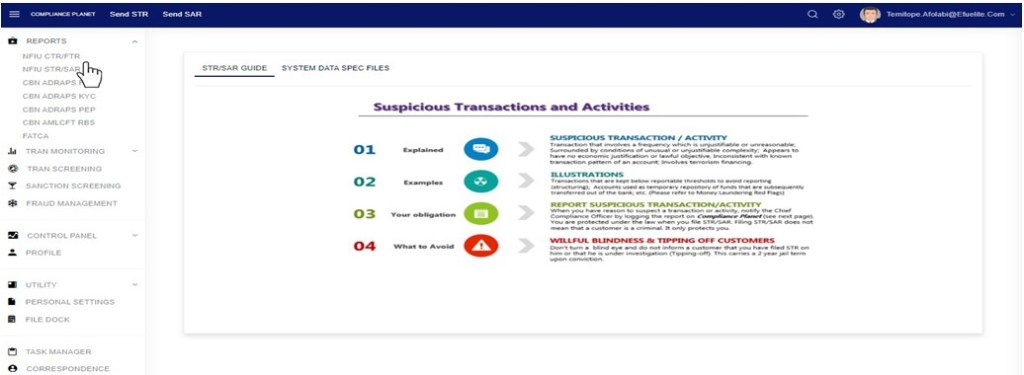
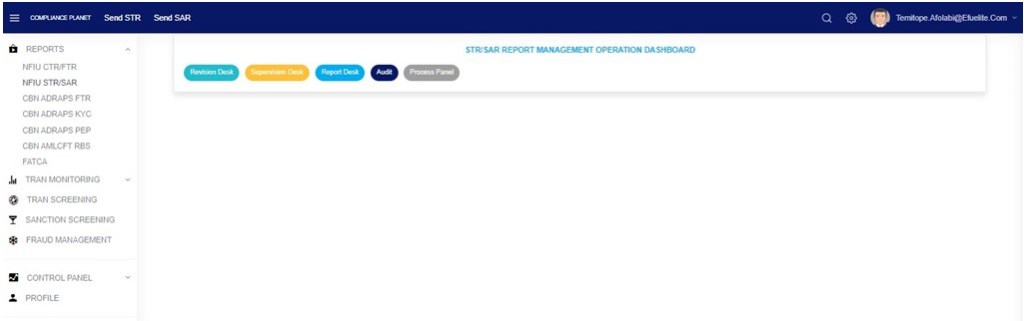
STEP 1: from the left hand side menu, Click on ‘REPORTS’ as in fig 6.5a below

fig 6.5a

  • This will display a drop down as in fig 6.4.1b below. The dropdown lists the report types available on the compliance planet software.

STEP 2: Click ‘NFIU STR/SAR on the drop down list. See an example in Fig 6.5b below.

fig 6.5b

  • This will display the NFIU STR/SAR page as in Fig  6.5c below

Fig 6.5c 

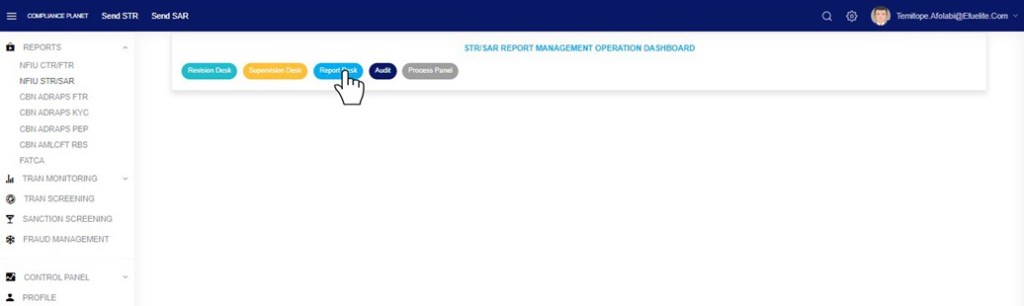
STEP : From the top menu, click Report desk as in Fig 6.5d below

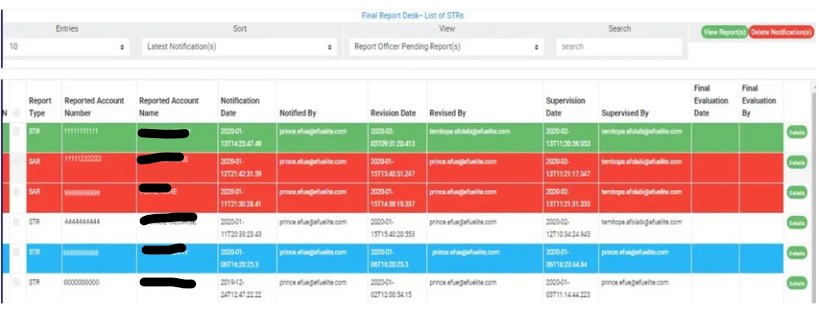
  • This displays a page as in fig. 6.5e below.

(fig. 6.5e)

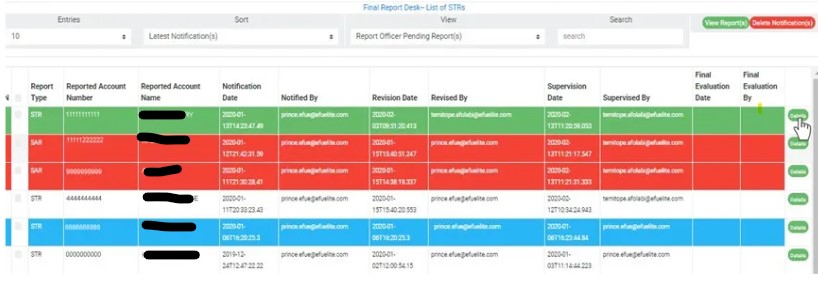
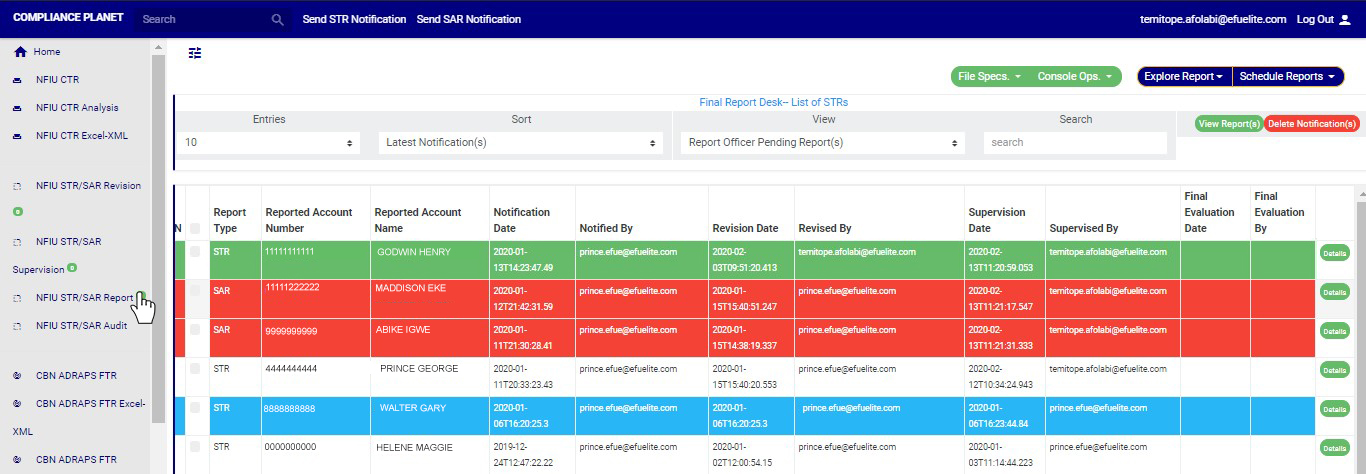
  • The notification(s) highlighted “RED” indicates that the notification(s) has not been viewed by anyone on the Reporting desk.
  • The notification(s) highlighted “GREEN” indicates that the notification(s) has been viewed by you alone.
  • The notification(s)  highlighted “WHITE” indicates that the notification(s) has been viewed by you and at least one other Reporting officer(s)
  •  The notification(s)  highlighted “BLUE” indicates that the notification(s) has been viewed by other Reporting officer(s) excluding you

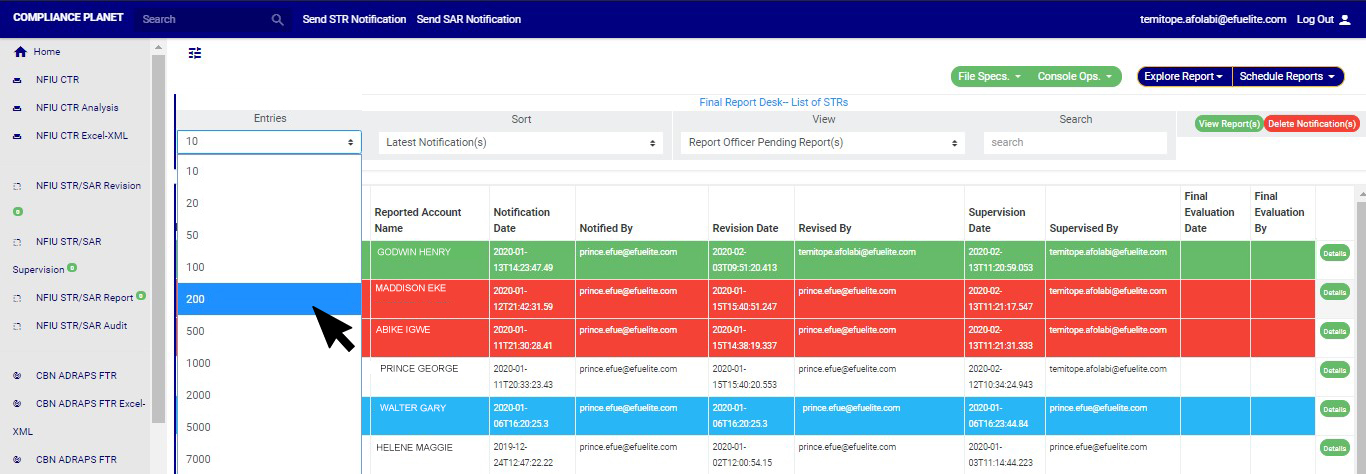
You can increase the number of notifications you want to see per page by clicking on the ENTRIES box. Pick any number of entries per page of your choice. See fig. 6.5f below for an example.

(fig. 6.5f)

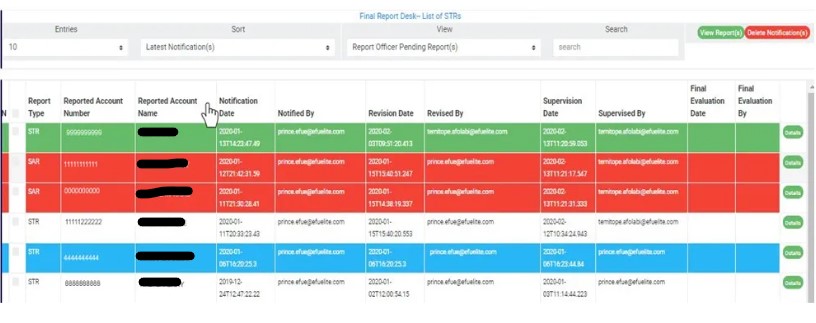
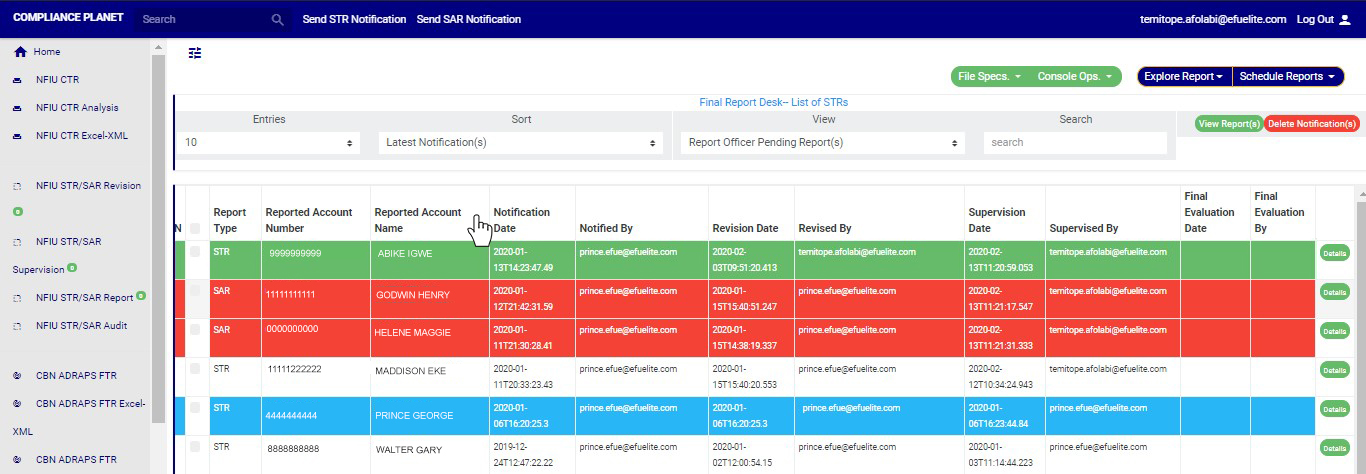
STEP 2: You can sort the notifications by clicking on any of the column header, either by alphabetical order or from the latest to the earliest notifications or vice-versa. This step is optional. See fig. 6.5g for an example.

(Fig. 6.5g)

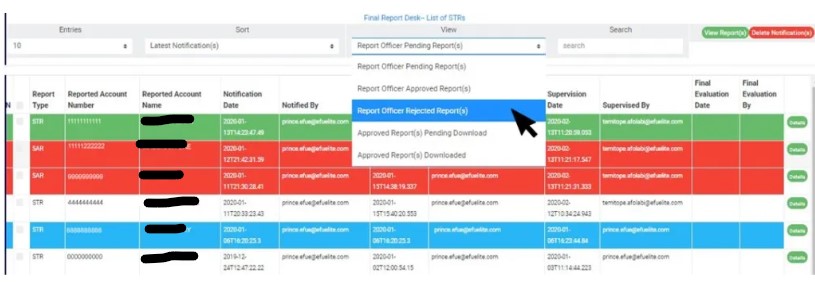
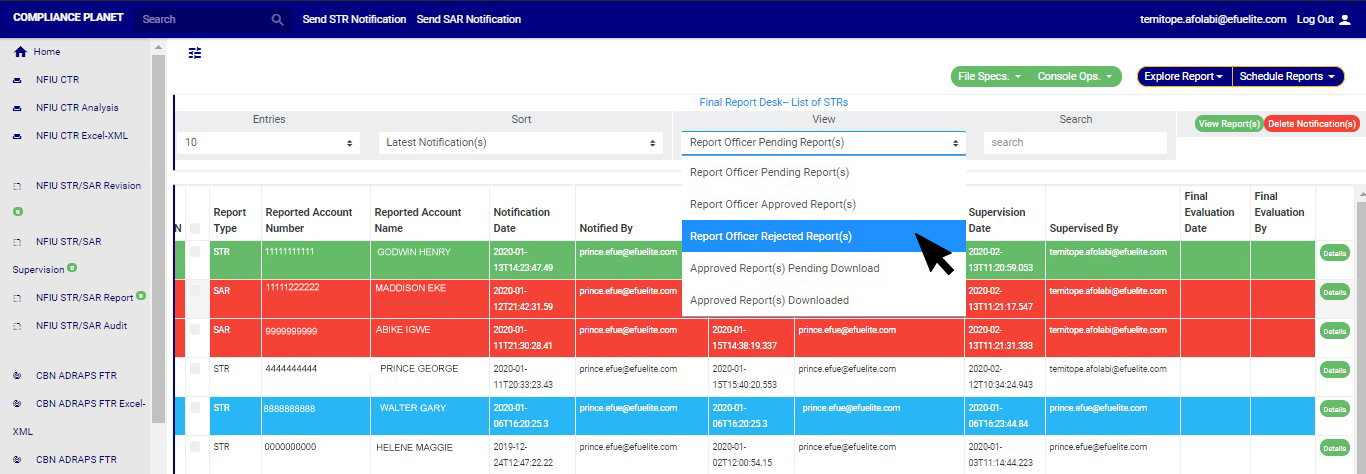
STEP 3:          Click on the VIEW box to see notifications classified according to the stage of processing they have gotten to. See fig. 6.5h for the classes of Notifications available to a reporting officer’s view. Select any of them.

(fig. 6.5h)

As seen in fig. 6.5e above, the classes are;

  1. Reporting Officer Pending Notification(s); these are STR/SAR notifications that have been reviewed and approved by a revision officer and/or supervising officer but they have not been treated by the reporting officer. This is the default view of the reporting officer
  2. Reporting Officer Approved Notification (s); these are STR/SAR notifications that have been treated, approved by reporting officer. Once a notification is approved by reporting officer, it joins the Approved Report(s) Pending Download list.
  3. Reporting Officer Rejected Notification(s); these are STR/SAR notifications that are not satisfactory to the reporting officer. When a notification is rejected by the reporting officer, the supervising officer will get a mail notification to revisit the STR/SAR notification and send again if need be.
  4. Approved Notification(s) Pending Download; these are STR/SAR notifications that have been treated and approved by all officers and await download.
  5. Approved Notification(s) Downloaded; these are STR/SAR notifications that have been downloaded.

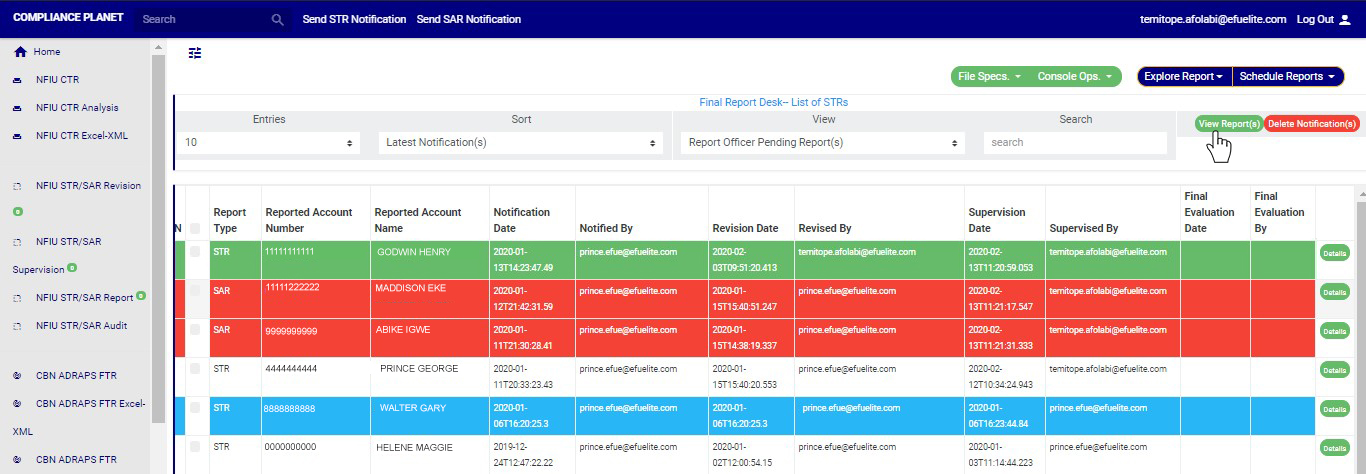
STEP 4: After selecting the class of Notification (s) from the VIEW box, click on ‘VIEW REPORT(S)’ to see the notification(s). This button is at the top-right corner of the page just as it was in the pages for the other desks. See fig. 6.5i for an example.

(fig. 6.5i)

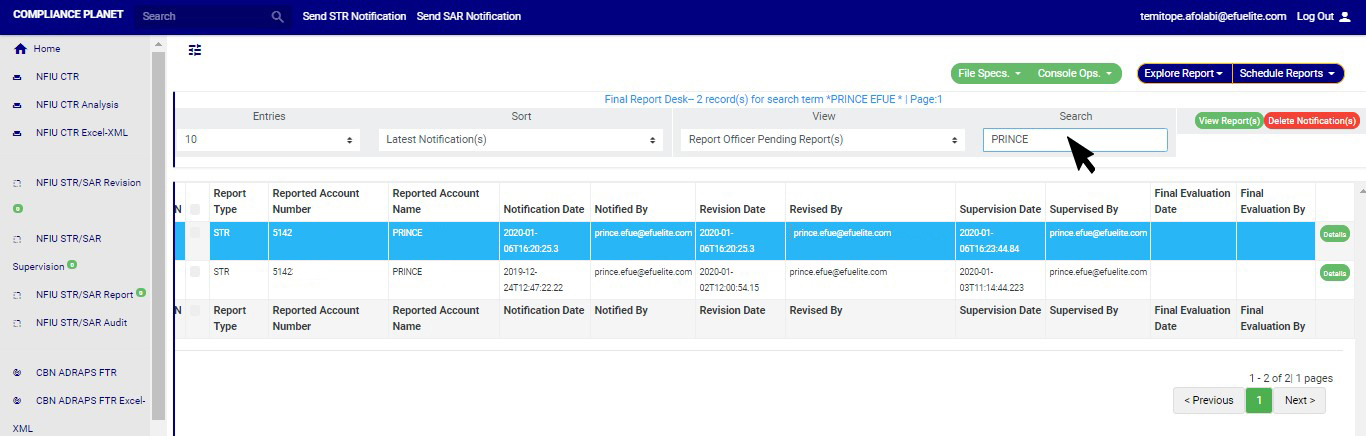
  • Also, you can search for a particular notification by typing the customer name or account number concerned in the search box. See fig. 6.5j below for an example of a search

(fig. 6.5j)

  • Also, at the bottom-right corner of the page, the software gives information about the number of pages, with the page numbers written out. All the page numbers represent buttons to go to each page. By clicking on any page number, the software takes you to that particular page. There is the ‘NEXT’ button to take you to the next page when you click on it and there is the ‘PREVIOUS’ button to take you to the page before the current page. See these features in fig. 6.5g above.
  • From fig. 6.5e, 6.5f, 6.5g, 6.5h, 6.5i and 6.5j above, it can be seen that the NFIU STR report page reveals information about the notifier, the date of notification, the reported account number, the reported account name and the report type.  The report type column specifies if the Notification is a suspicious transaction or a suspicious action. As stated earlier, the treatment of Notifications differs according to their report type. Now, that you already know how to locate Notifications for final review and approval on the reporting desk, here is how to treat each report type.

A.      EVALUATING  AND APPROVING A SUSPICIOUS TRANSACTION (STR)

This section provides a guide on how to evaluate and approve a suspicious transaction. The STR Notifications awaiting final approval are in the ‘REPORTING OFFICER PENDING NOTIFICATION(S)’ list.

Note: You have to be profiled as a Reporting officer on report desk with rights to EDIT to be able to carry out this operation.

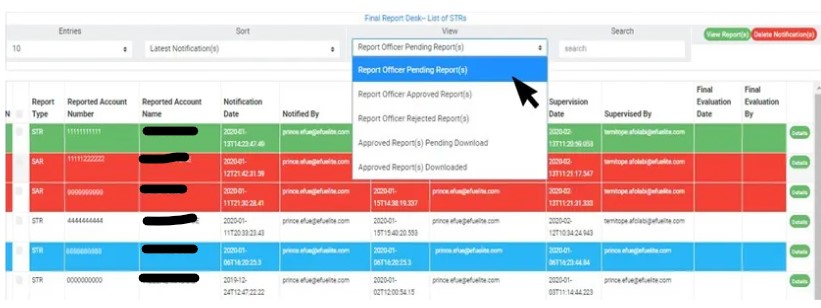
STEP 1: Select ‘REPORTING OFFICER PENDING NOTIFICATION(S)’ from the VIEW box as shown in fig. 6.5k below.

(fig. 6.5k)

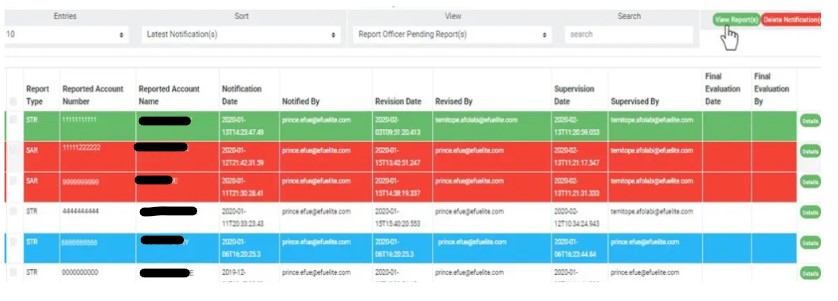
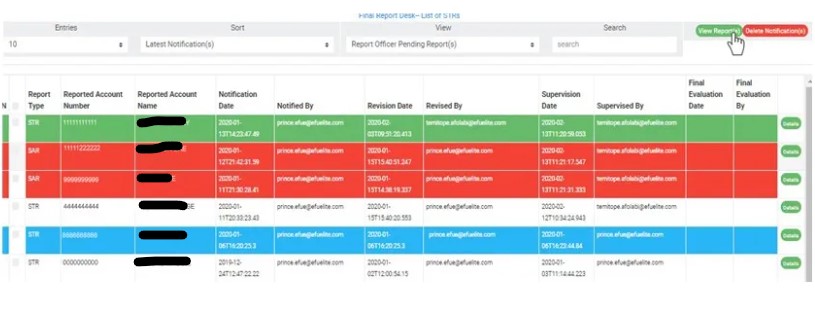
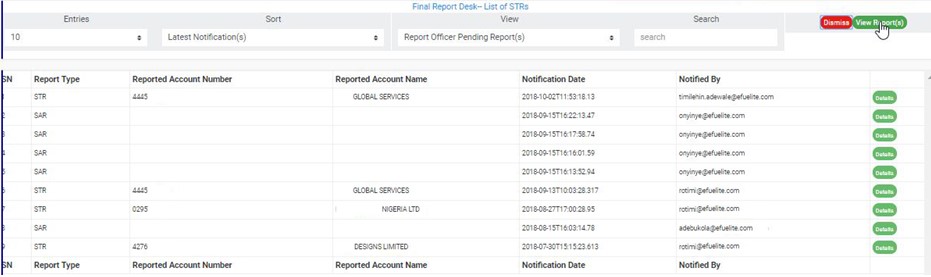
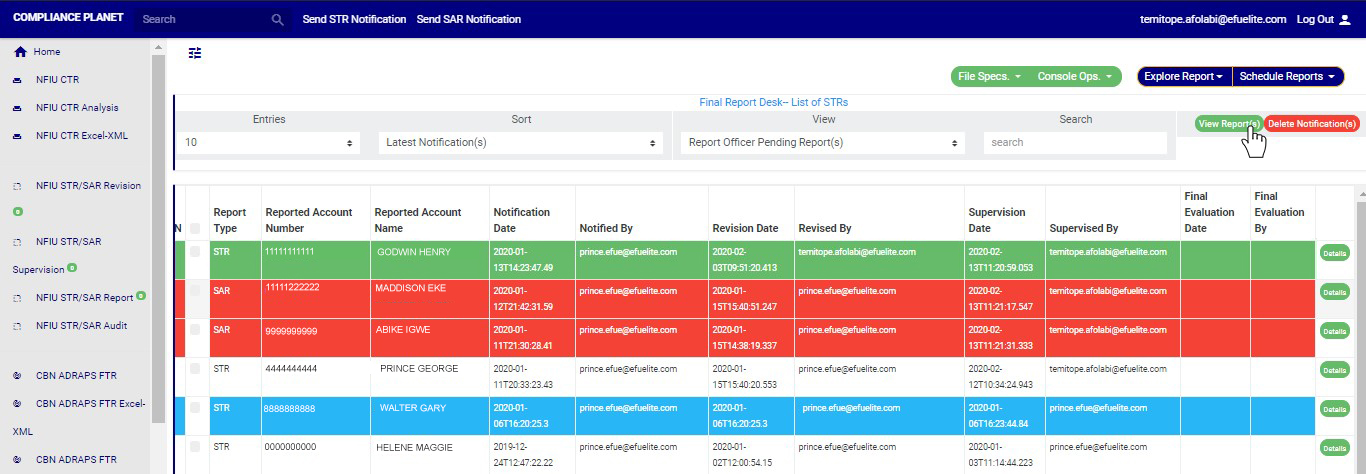
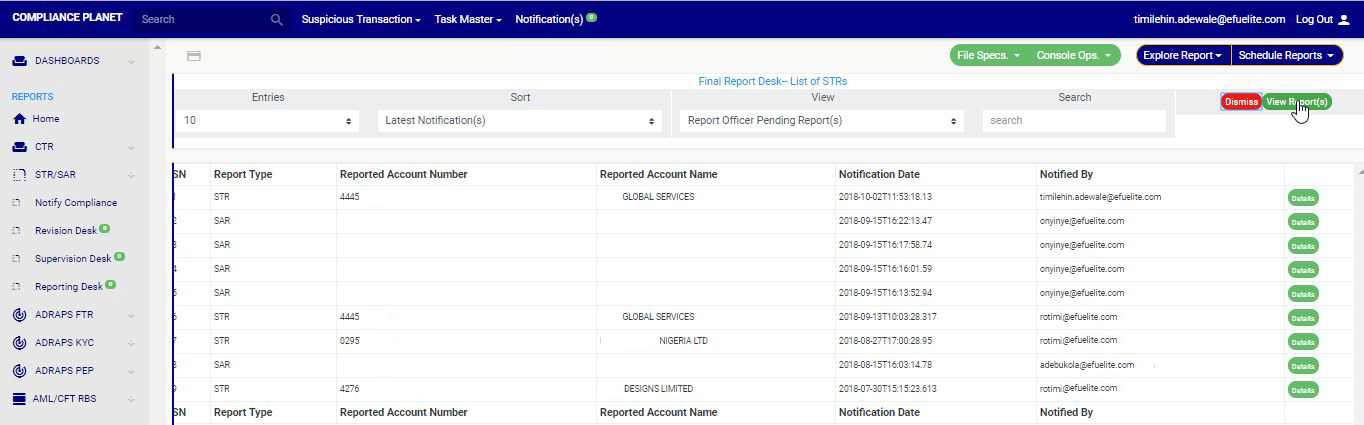
STEP 2: Click on VIEW REPORTS. This will display Notifications awaiting final approval.  See the cursor clicking on this button and the Notifications in fig. 6.5l below.

(fig. 6.5l)

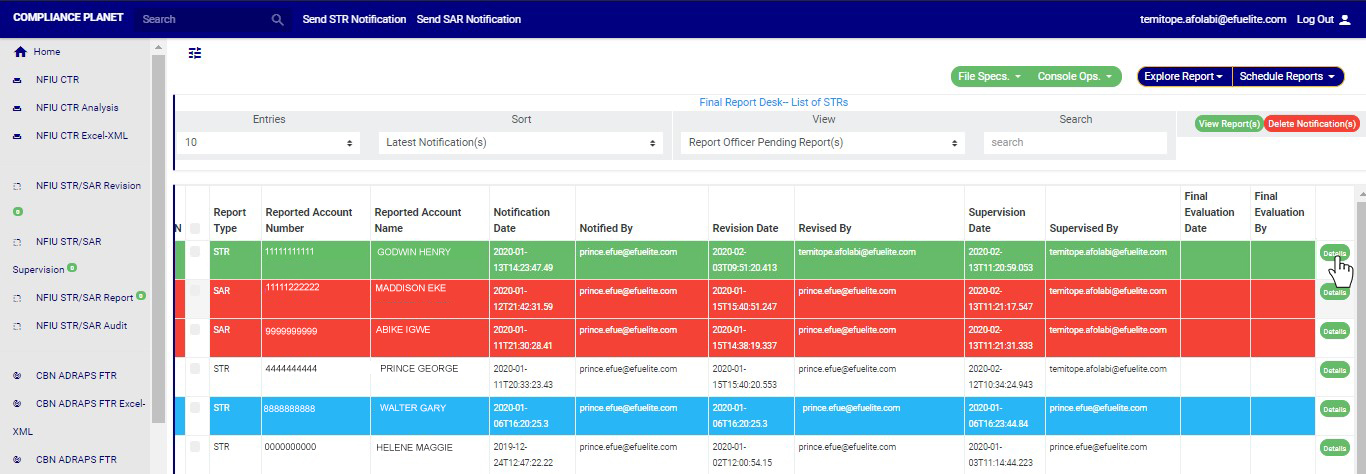
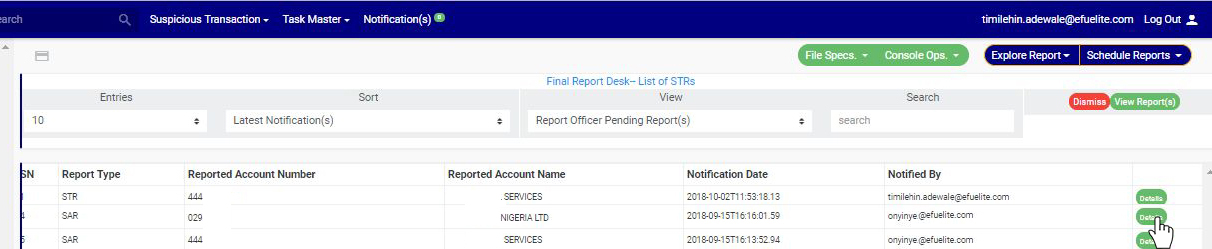
STEP 3: Select the STR to be treated by clicking on the ’DETAILS’ button at the end of the notification row. See the cursor clicking on the button in fig. 6.5m below.

(fig. 6.5m)

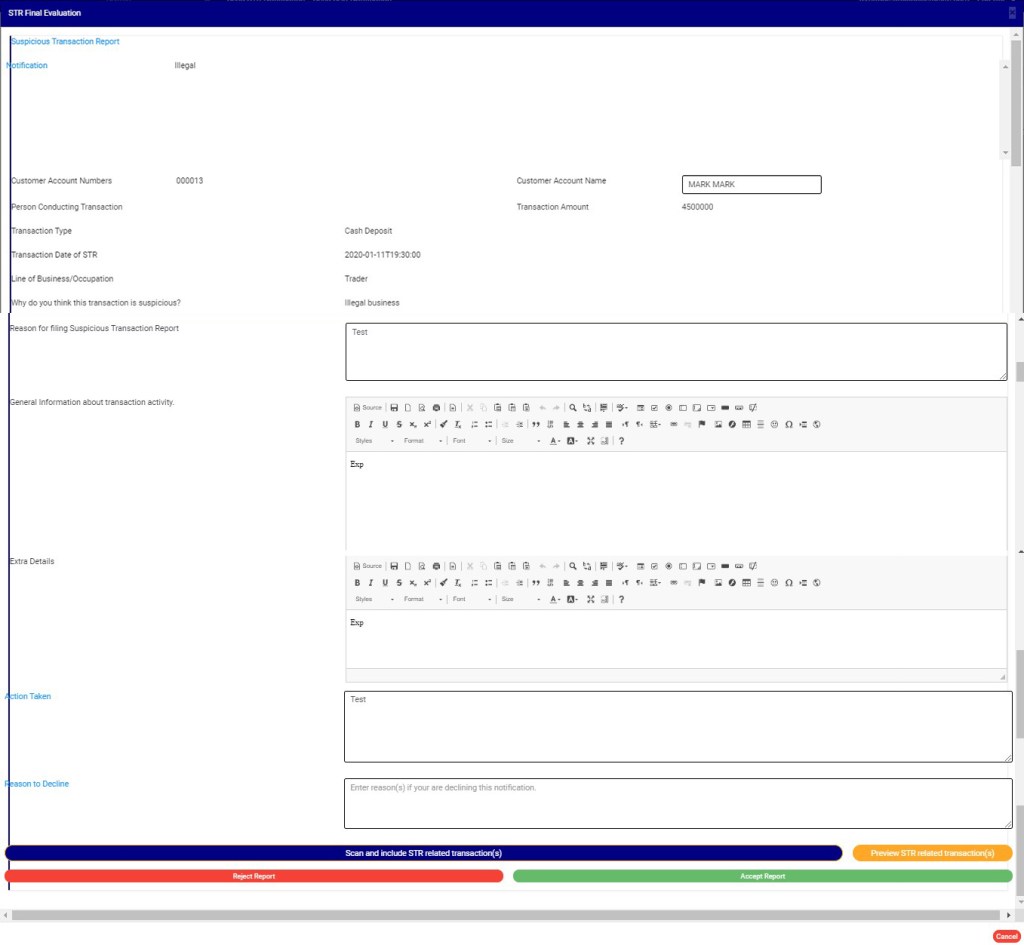
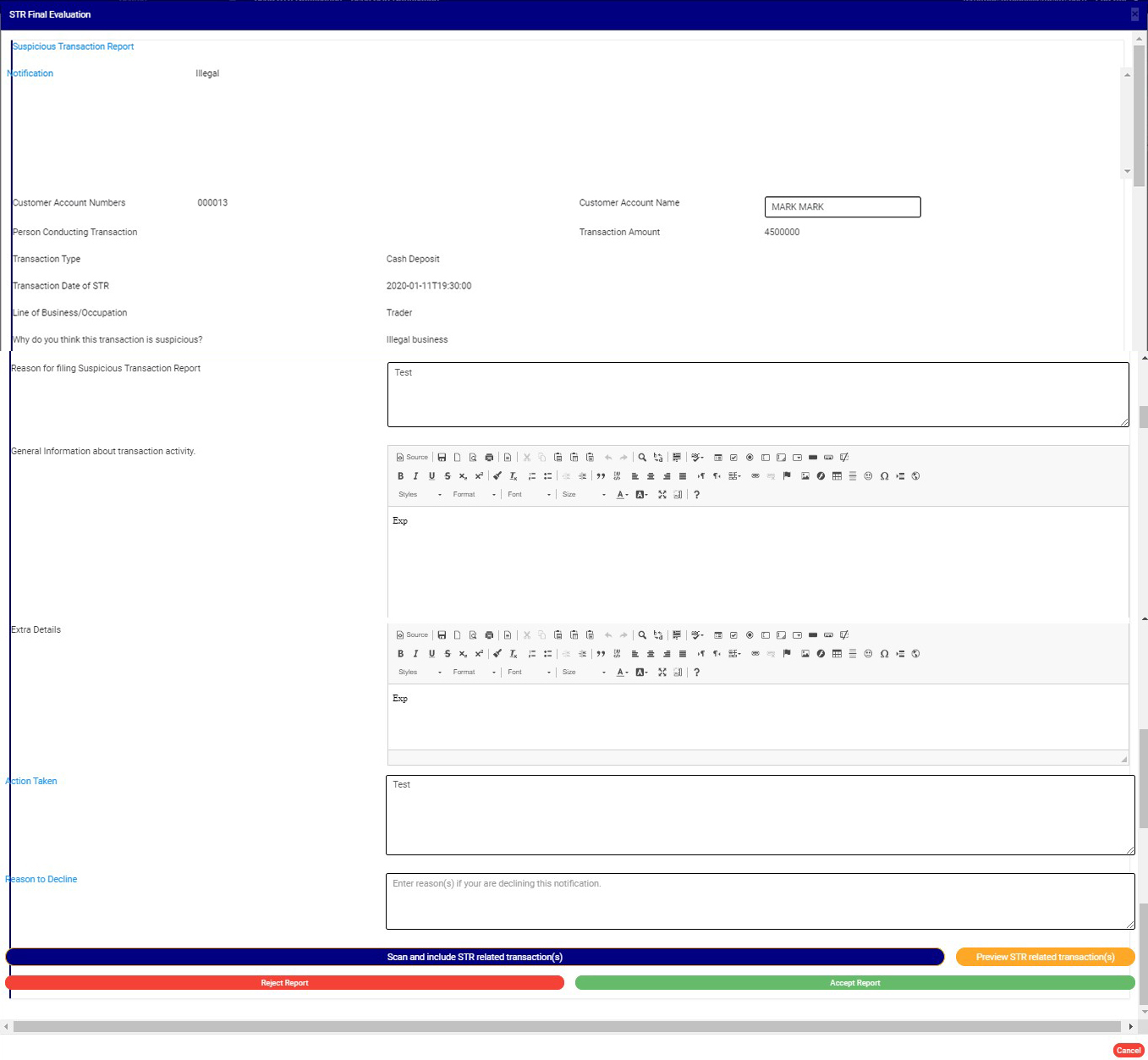
  • This displays a console titled, ‘STR Final Evaluation’. See fig. 6.5n below for an example of the STR final approval console.

(Fig. 6.5n)

  • This console offers information about the revision officer and the supervision officer with their comments and actions. The final approval console for STRs has two features the console for SARs does not have.

These are;

  1. Scanning and adding details of transactions related to a suspicious transaction in the report to be generated.
  2. Previewing the tagged related STR transactions.

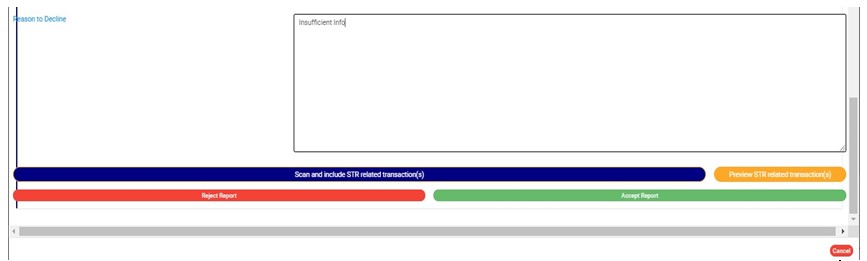
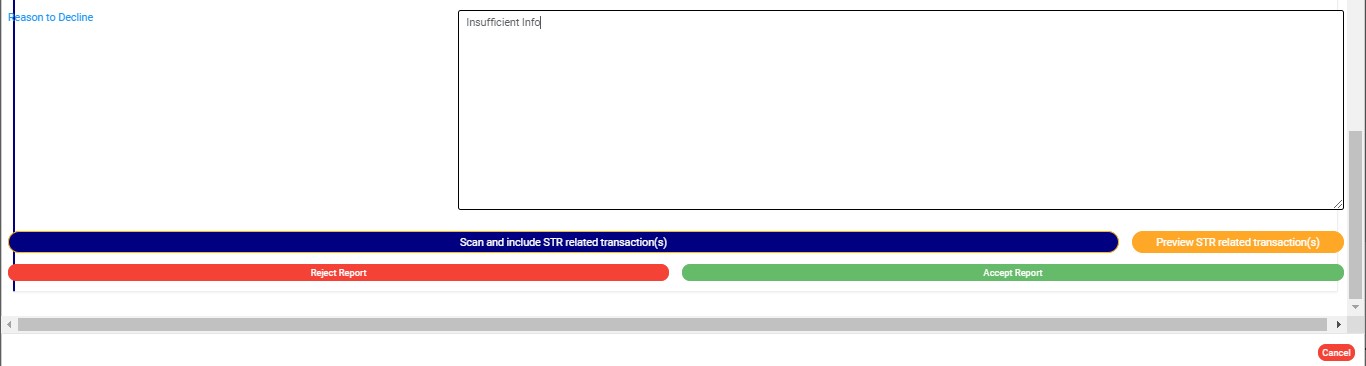
STEP 4:          Enter reason to decline (If any) based on your observation. This step is mandatory if you want to reject the Notification. Check out fig. 6.5o below for an example.

(Fig. 6.5o)

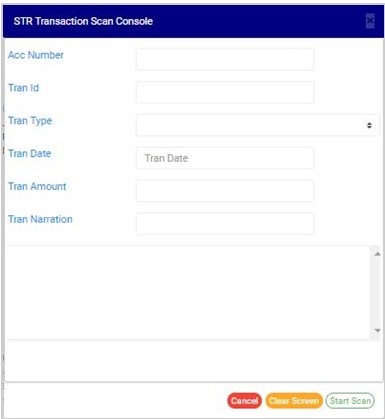
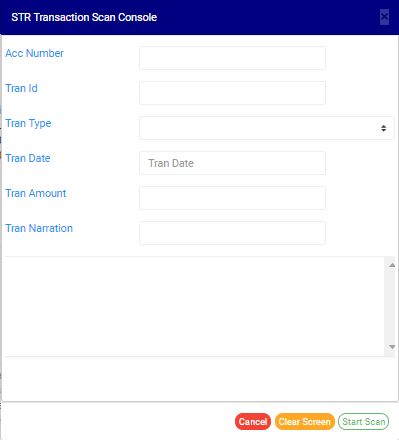
STEP 5: Click on ‘SCAN AND INCLUDE STR RELATED TRANSACTION’ to add STR related transaction(s) to the report to be generated. Adding details of related STR transactions will make your report comprehensive and well detailed. Clicking on this button will bring up another console on which you are to input the details of the related transaction. See fig. 6.5p below for an example of a scan console.

(fig. 6.5p)

Follow the instructions below to make use of a SCAN CONSOLE;

  1. Enter the Account Number involved in the related transaction. This account number must exist in the account base.
  2. Enter the transaction ID.
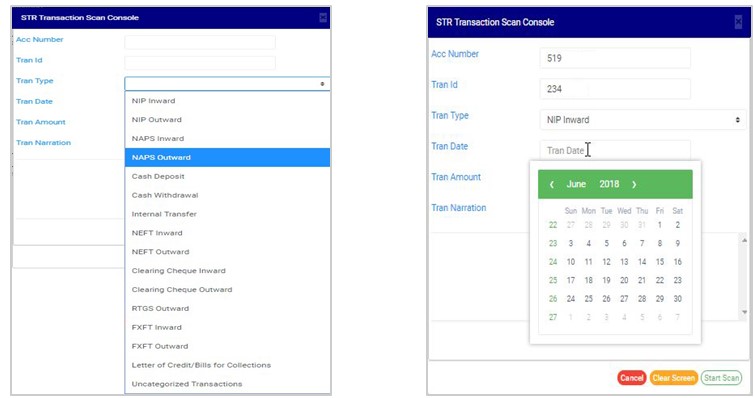
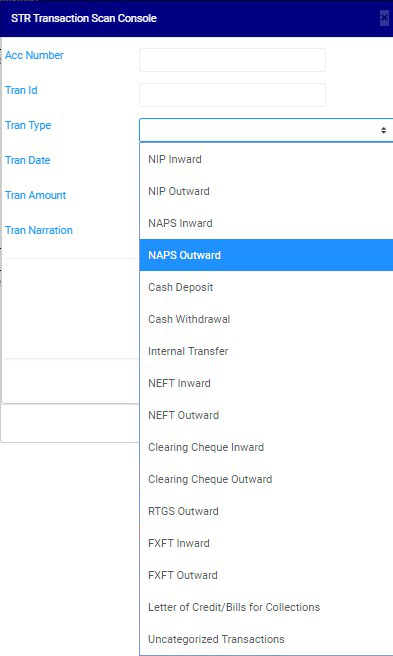
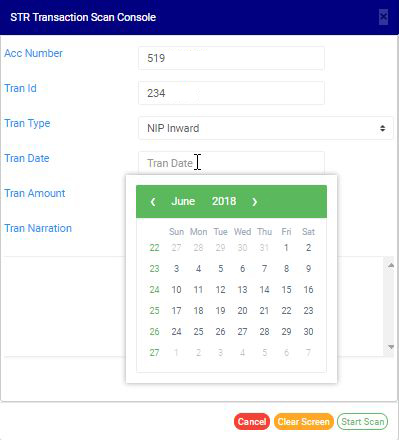
  3. Click on the ‘Tran Type’ box to select the CTR/FTR Transaction type from a drop-down list as in fig. 6.5q below and set the transaction date from ‘Tran Date’ as seen in fig. 6.5r also.

(fig. 6.5q)                                                                              (fig. 6.5r)

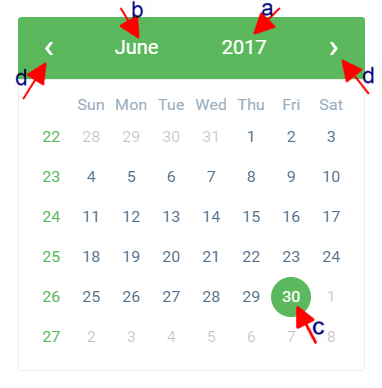
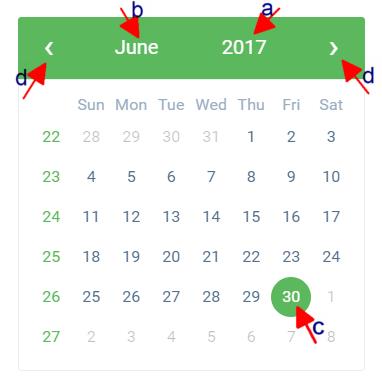
  • Here is how to make use of a calendar. Take a look at the arrows labelled a – d in fig. 6.5s to study the calendar;
  • Click on the given year to change it to your year of choice.
  • Click on the given month to change it to your month of choice.
  • Click on the date of the month.
  • You can also click on the angle brackets on the calendar [ ‘<’ or ‘>’ ] to go backward or forward.

(Fig 6.5s)

  1. Enter the amount involved in the related transaction.
  2. Input the ‘narration’ of the related transaction.
  3. Click on ‘START SCAN’ for software to scan and include the transaction in the Notification. See the cursor pointing to this button in fig. 6.5q below.
  4. To clear all the details already entered in, click on ‘CLEAR SCREEN’. The software will wipe off the details immediately.
  5. To close the scan console, click on ‘CANCEL’.

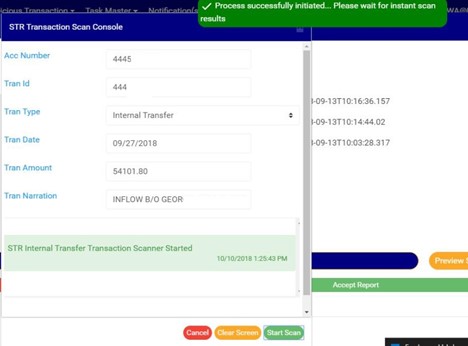
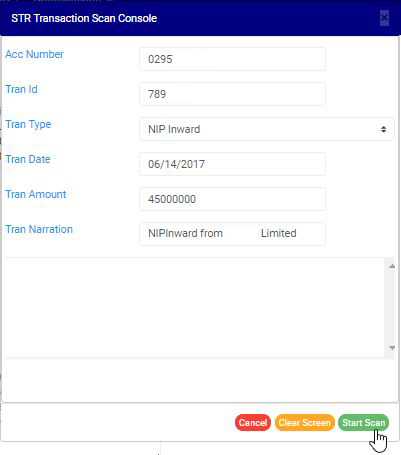
See fig. 6.5t below for an example of a console with already filled in details, ready for scanning.

(fig. 6.5t)

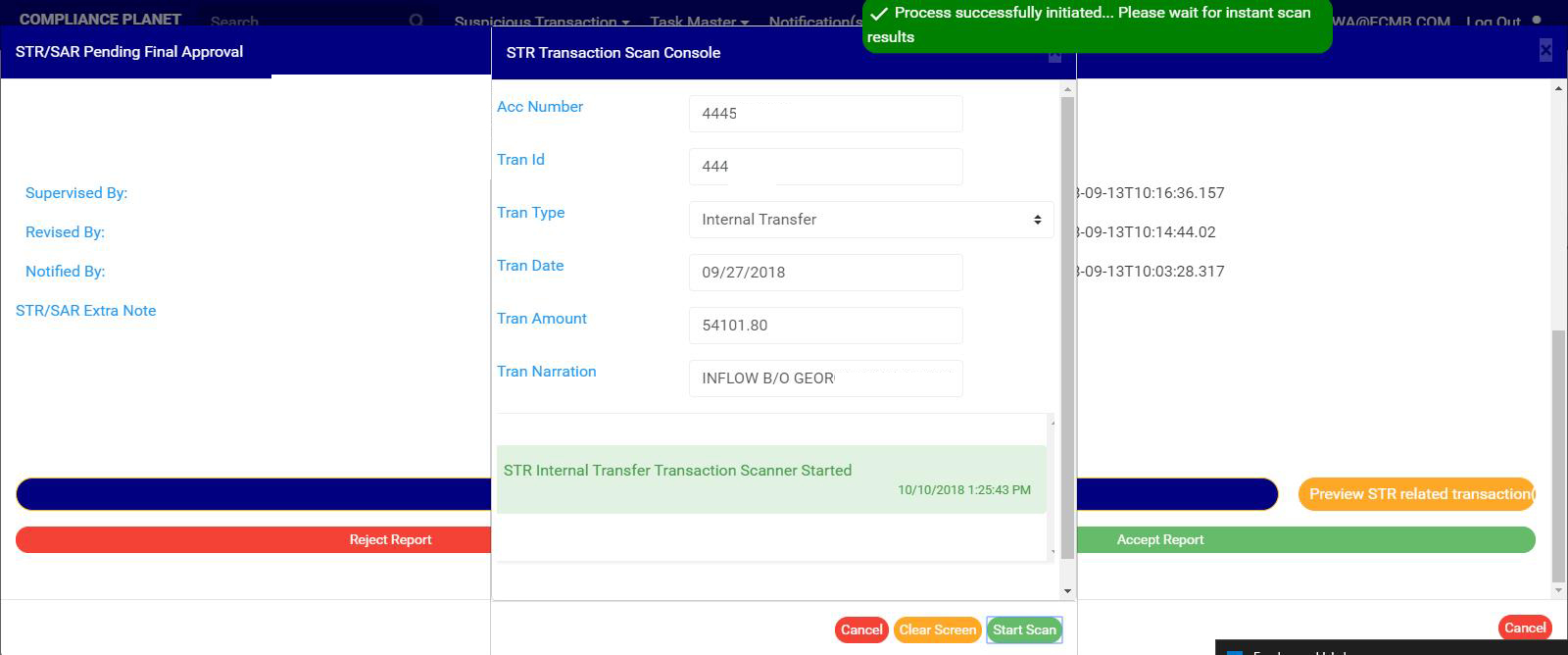
  • The software immediately starts a scan when you click on ‘Start Scan’. During the scan a notification will be displayed at the top of the page. See fig. 6.5u for an example.

(fig. 6.5u)

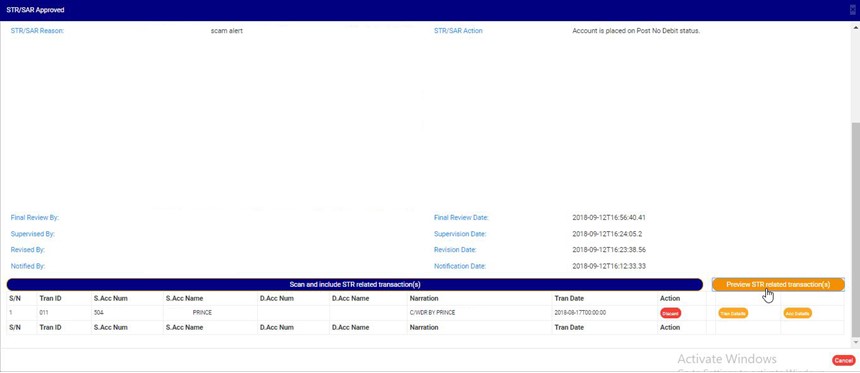
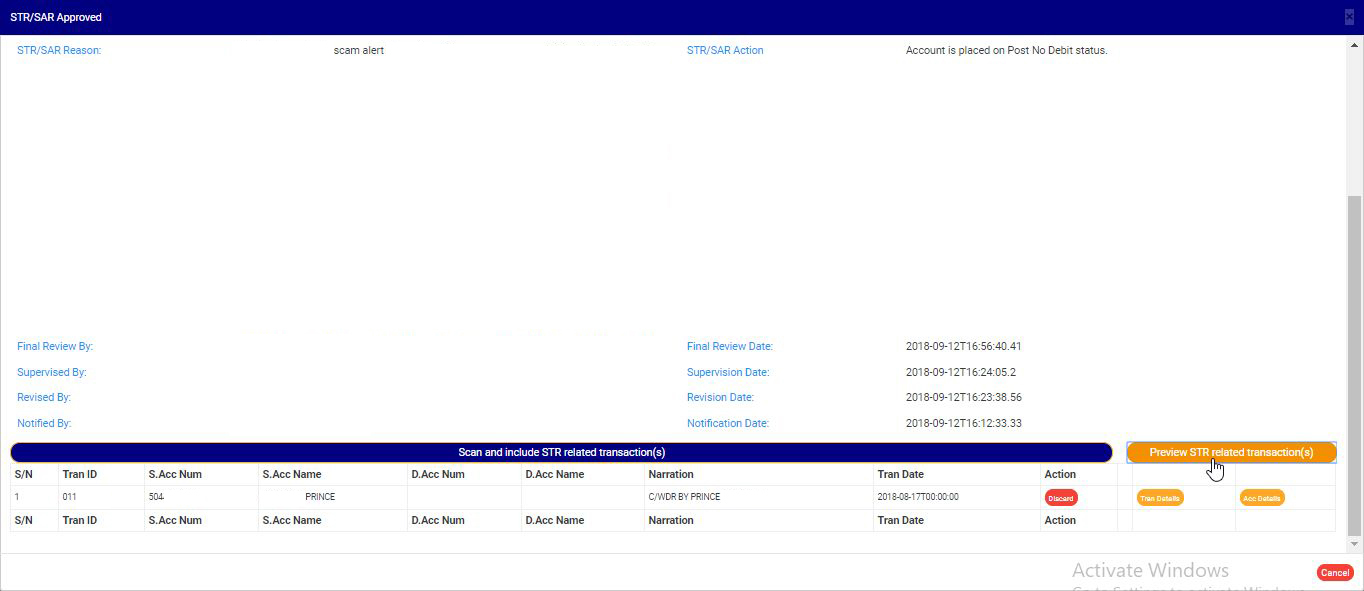
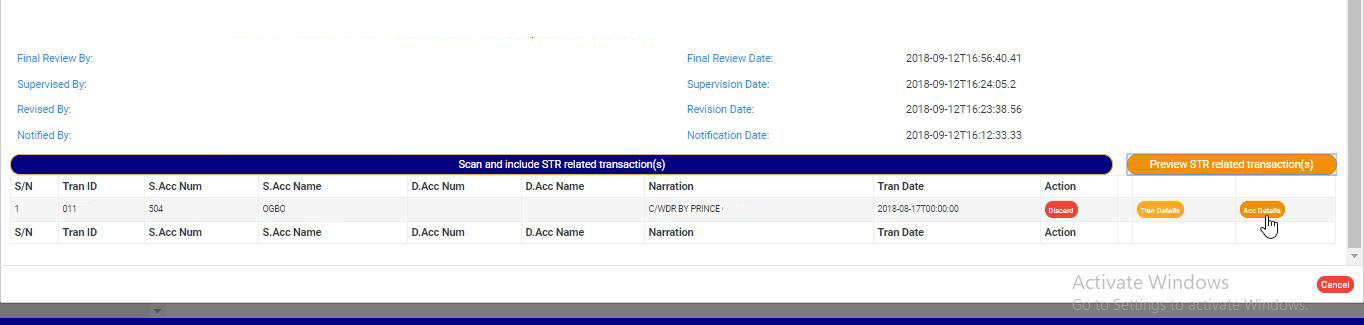
 STEP 6: Click on ‘Preview STR Related Transaction(s)’ to see the related STR transactions you scanned earlier. This button is next to the ‘SCAN AND INCLUDE STR RELATED TRANSACTION’ button. See this feature in fig. 6.5o above. By clicking on the preview button, a table will appear right under the scan and preview button, listing the scanned STR related transaction(s) as in fig, 6.5v below.

(Fig. 6.5v)

  • As seen in fig. 6.5v above, the table comes with features to delete the transaction from the STR, see the details of the transaction and details of the account involved.
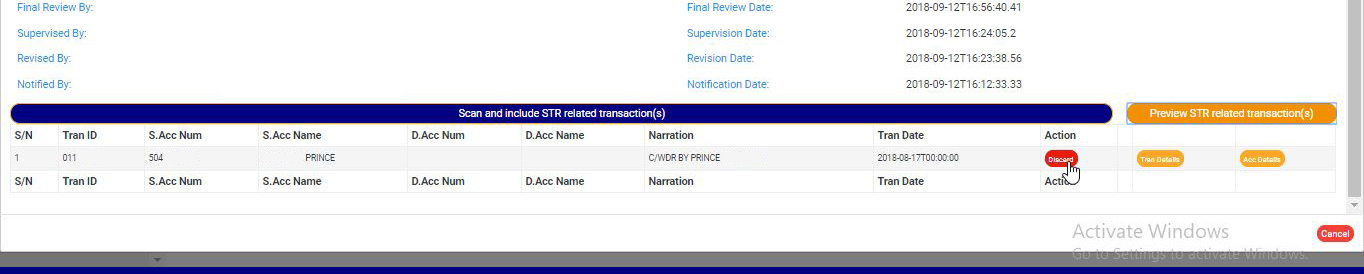
  • To delete a scanned transaction from the Notification, click on ‘DISCARD’. See an example in fig. 6.5w below.

(fig. 6.5w)

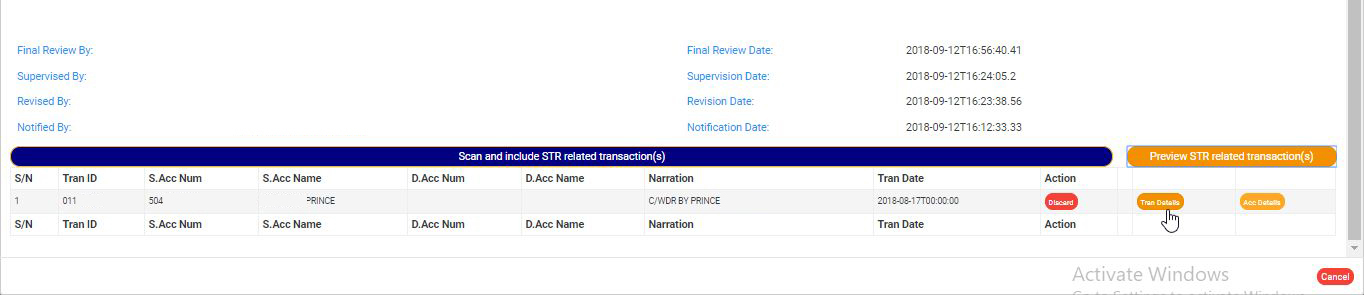
  • To see the details of a transaction, click on ‘TRAN DETAILS’. This button is between the ‘discard button’ and the ‘Acc details’ button as seen in fig. 6.5x below.

(fig. 6.5x)

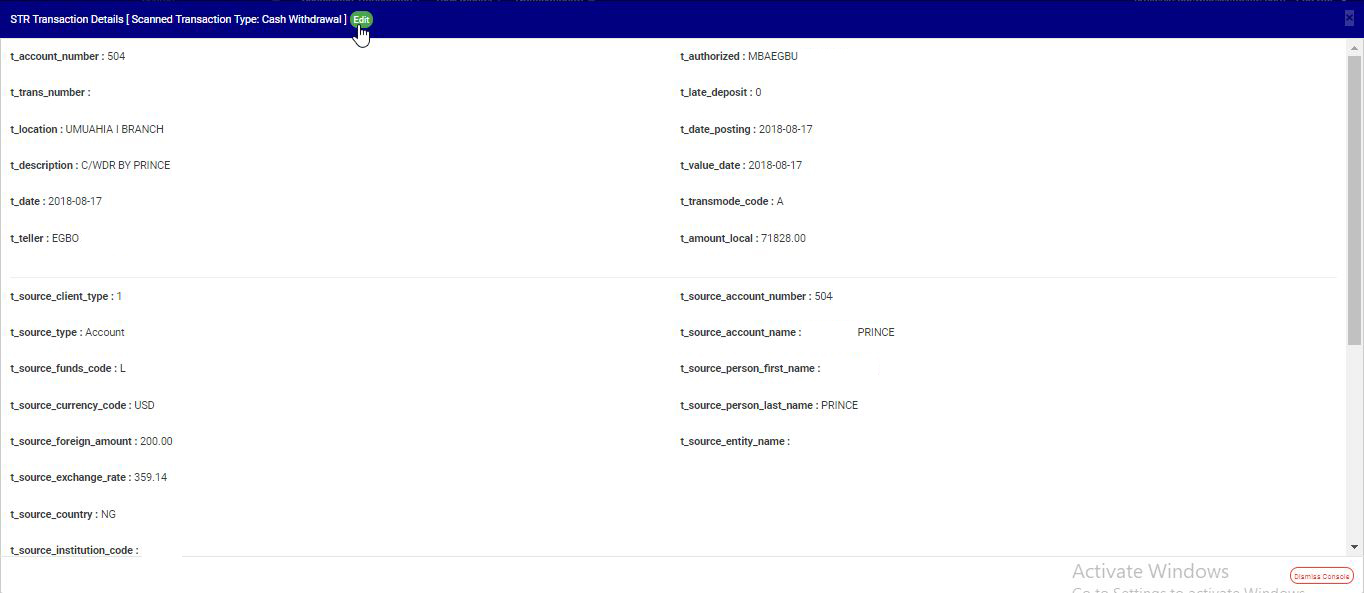
  • By clicking on ‘TRAN DETAILS’, a console as in fig. 6.5y below will be displayed, giving details about the scanned transaction.

(fig. 6.5y)

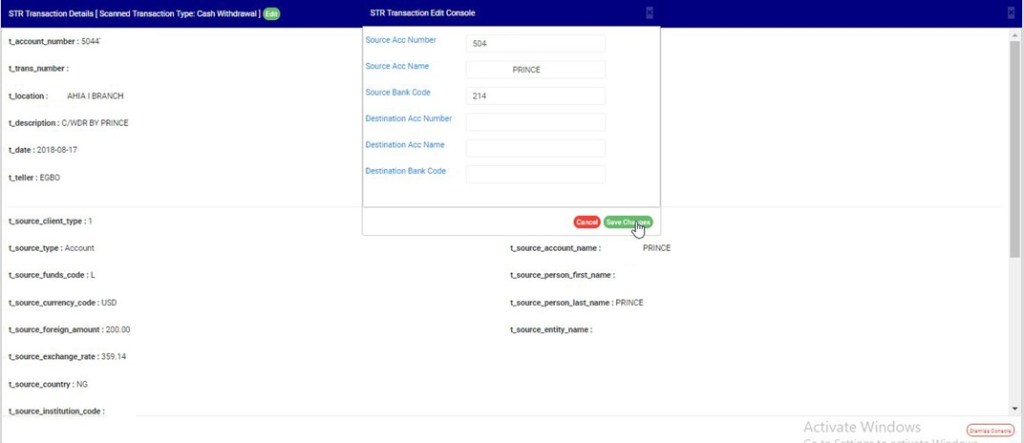
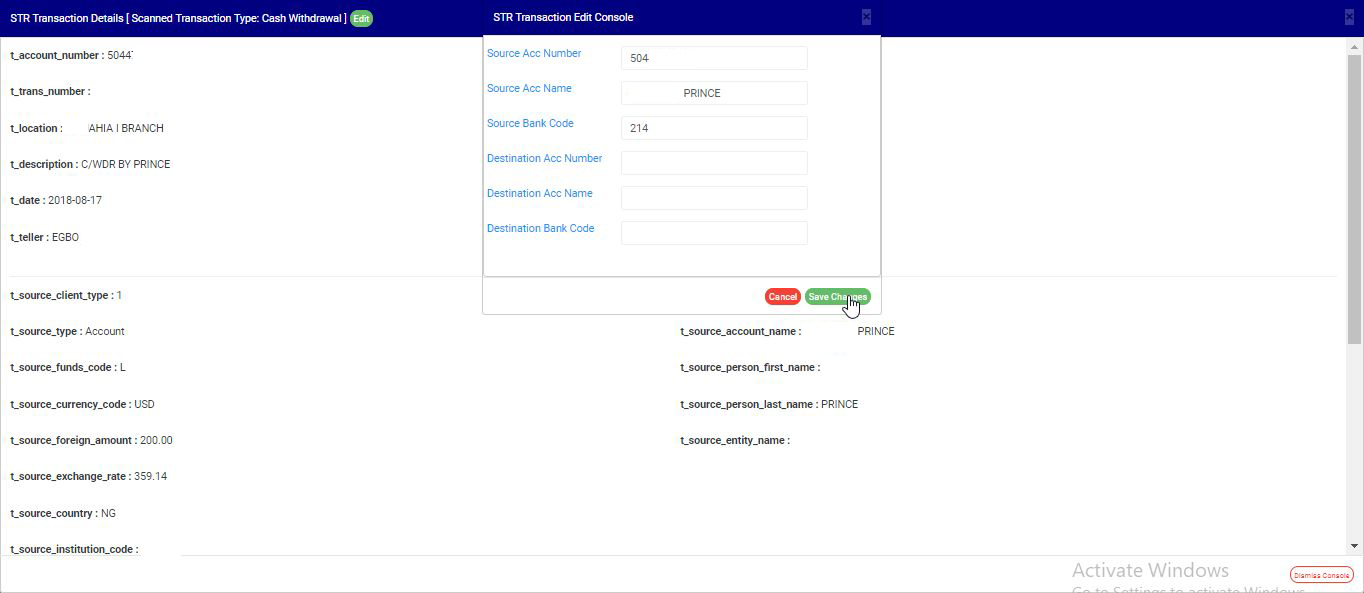
  • You can also edit some of the transaction details. The details that can be changed are; source account number, source account name, source account bank code, destination account number, destination account name and destination bank code. To edit these details, click on ‘EDIT’. This button is on the title pane of the console. See the cursor clicking on the ‘EDIT’ button in fig. 6.5y above.
  • Clicking on ‘EDIT’, a console with the aforementioned details will be displayed as in fig. 6.5z below. Make the changes you want and click on ‘SAVE CHANGES’. See the cursor clicking on the button to save the changes made in fig. 6.5z.

(fig. 6.5z)

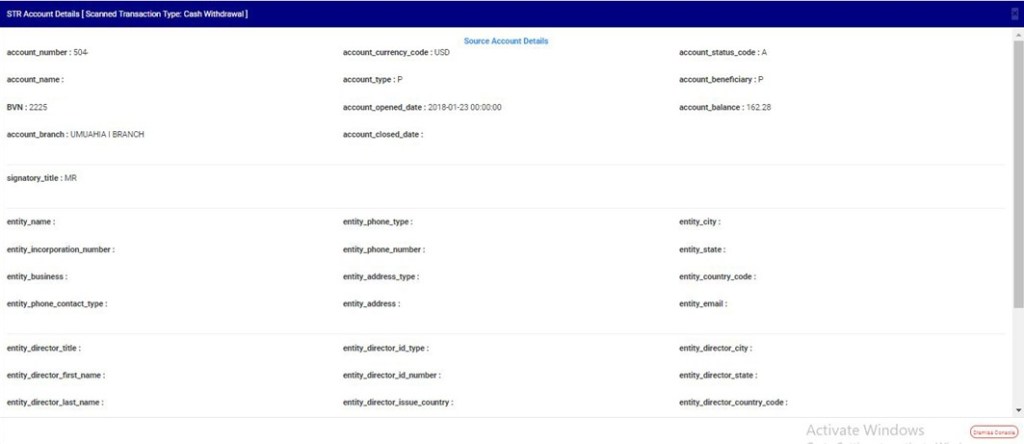
  • Click on ‘ACC DETAILS’ to see the details of the accounts involved in the scanned related transaction. See an example in fig. 6.5aa below.

(fig. 6.5aa)

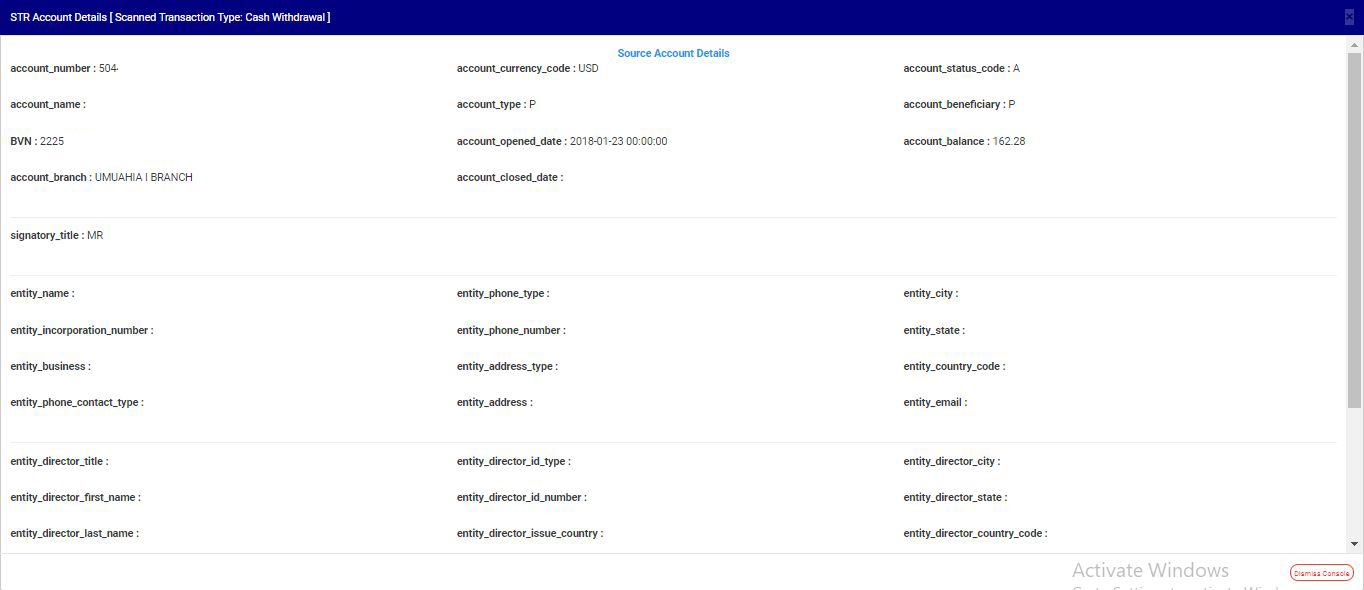
  • Clicking on the ‘ACC DETAILS’ button, a console will be displayed as in fig. 6.5ab below. As seen below, this console gives details about both the source account and the destination account. These details cannot be edited. After viewing, click on the ‘DISMISS CONSOLE’ button at the bottom-right corner of the console.

(fig. 6.5ab)

  • You can scan and include as many transactions as you want to your suspicious transaction Notification.

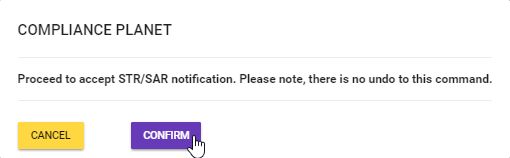
STEP 7: Click on ‘ACCEPT’ to approve the STR or ‘REJECT’ if Notification is unsatisfactory. The software will display a confirmation console to confirm your selected option. See fig. 6.5ac and 6.5ad to see examples of when you choose to ‘accept’ or ‘reject’ respectively. To proceed, click on CONFIRM and to cancel the action, click on CANCEL. Check that you are sure of your options before confirming your request to reject or accept the Notification because this step is irreversible.

     (fig. 6.5ac)                                                                         (fig. 6.5ad)

B.      EVALUATING AND APPROVING A SUSPICIOUS ACTION (SAR)

This section provides a guide on how to treat a suspicious action and give a final approval. The SAR Notifications awaiting final approval are also in the ‘REPORTING OFFICER PENDING NOTIFICATION(S)’ list.

NOTE: You have to be profiled as a report evaluation officer on report desk with rights to EDIT to be able to carry out this operation.

STEP 1:          Select ‘REPORTING OFFICER PENDING NOTIFICATION(S)’ from the VIEW box as shown in fig. 6.5ae below.

(fig. 6.5ae)

STEP 2: Click on VIEW REPORTS and notifications awaiting final approval will be displayed immediately.  See the cursor on this button and the Notifications in fig. 6.5af below.

(fig. 6.5af)

STEP 3: Select the SAR to be treated by clicking on the ’DETAILS’ button at the end of the SAR notification     row. See the cursor clicking on the button in fig. 6.5ag below.

(fig. 6.5ag)

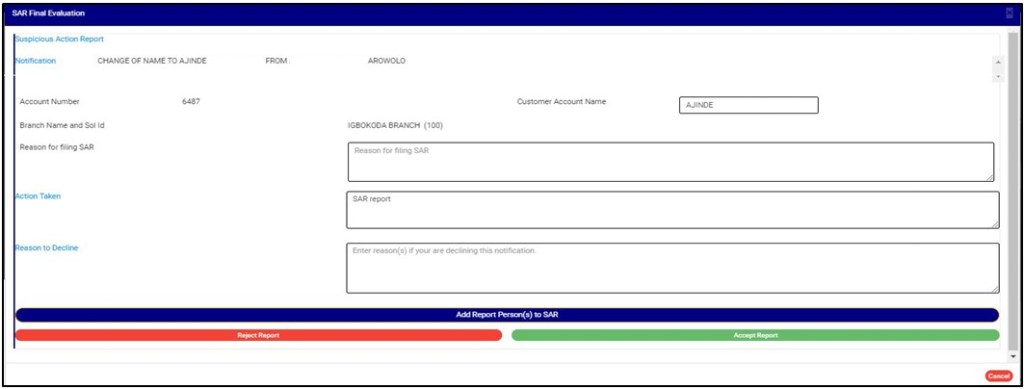
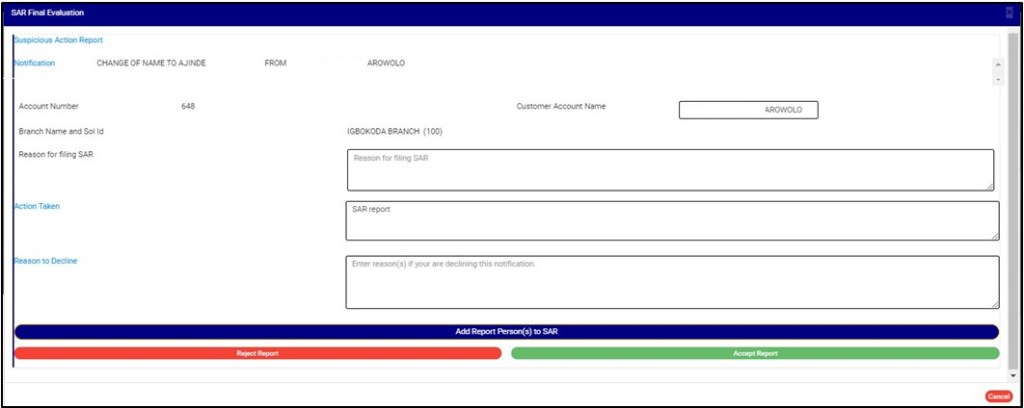
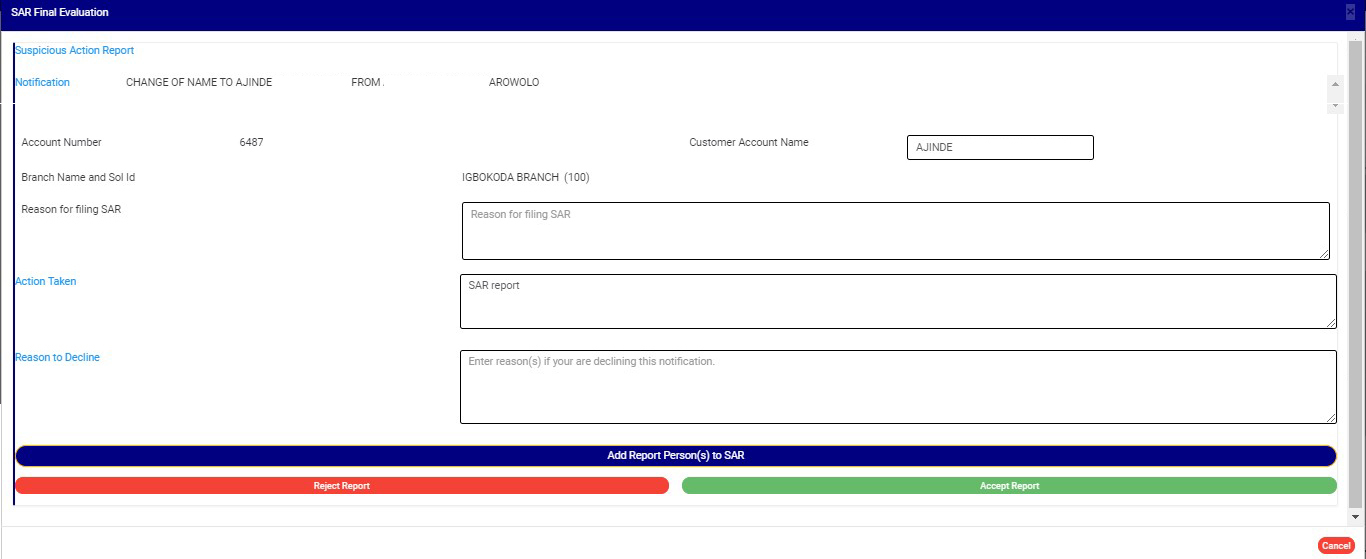
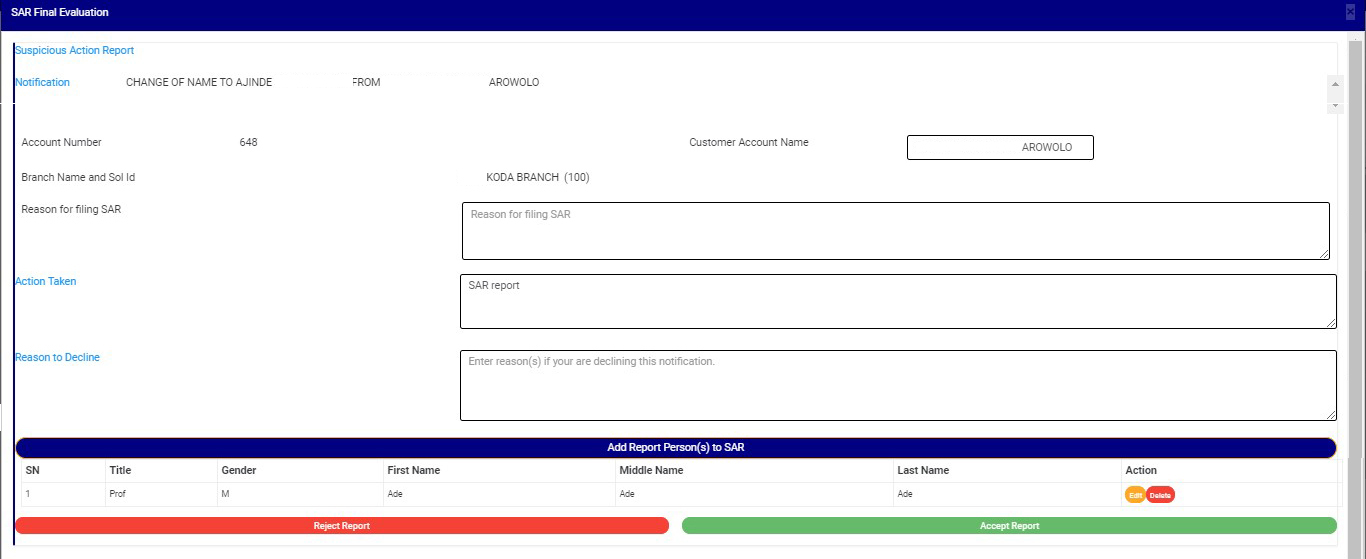
  • This displays a console titled, ‘SAR FINAL EVALUATION’. See fig. 6.5ah below for an example of the SAR final approval console.

(fig. 6.5ah)

  • From the example in fig. 6.5ah shown above, the final approval console for SARs reveals information about action taken and the reason(s) for the Notification, but is different from the console for a STR. This console has a feature for adding report person(s) to an SAR.

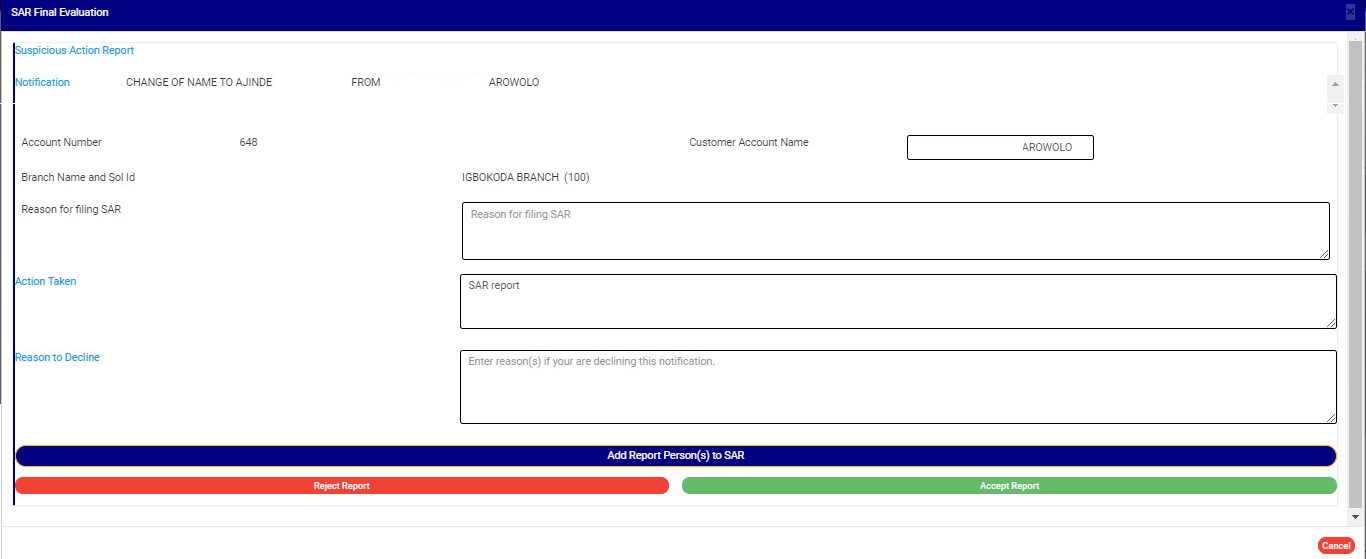
STEP 4: Enter any extra notes in the “reason to decline “box based on your observation. This step is mandatory if you want to reject the Notification. Check out fig. 6.5ai below for an example.

(fig. 6.5ai)

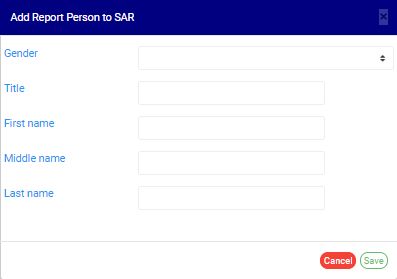
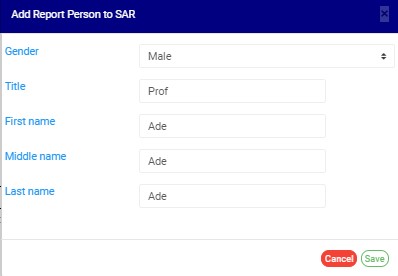
STEP 5: Click on ‘ADD REPORT PERSON(S) TO SAR’ to add details of report person. Report person refers to the person that sent the SAR Report.This displays a console as in. Fig. 6.5aj is an example of the console to input details of report person.

(fig. 6.5aj)

  • Follow the instructions below to make use of the console seen in fig. 6.5ag.
  • Select the gender of report person by clicking on the ‘Gender’ box.
  • Enter the title of report person
  • Enter the first name of report person
  • Enter the middle name of report person
  • Enter the last name of report person
  • Click on ‘SAVE’. To close the console, click on CANCEL.

See fig. 6.5ak for an example of a console with details ready to save

(fig. 6.5ak)

  • The software will add the new information you have added right under the ‘ADD REPORT PERSONS TO SAR’ button just as in fig. 6.5al below. Click on ‘ADD REPORT PERSONS TO SAR’ to add more persons.

(fig. 6.5al)

  • As shown in fig. 6.5al above, there are two buttons at the end of the row for each report person. These are; ‘EDIT’ button and ‘DELETE’ button. To change the details for a report person, click on ‘EDIT’ and the console just as in fig. 6.5ak above will be displayed.  Make the changes and click on save. To remove a report person from a SAR, click on ‘DELETE’.

STEP 6: Click on ‘ACCEPT’ to give final approval or ‘REJECT’ to disapprove the Notification. A confirmation console will be displayed to confirm your selected action. See fig. 6.5am and 6.5an to see examples of when you choose to ‘accept’ or ‘reject’ respectively. To proceed, click on ‘CONFIRM’ and to cancel the action, click on ‘CANCEL’. Check that you are sure of your options before confirming your request to accept or reject the Notification because this step is irreversible.

(Fig. 6.5am)                                                                            (fig. 6.5an)

For further enquiries : 
Tel +234(0) 816 555 9818
Email solutions@efuelite.com 
Web http://solutions.efuelite.com

Suspicious Activity/Transaction Report (STR/SAR) Notification Process Panel In Compliance Planet Anti Money Laundering/Core Banking Finance Software

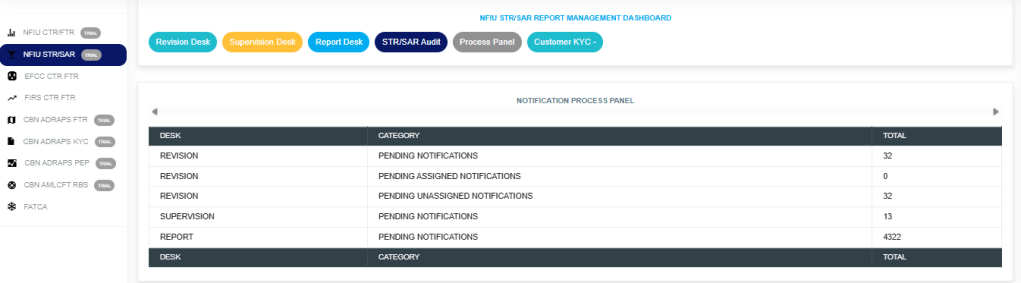
The STR/SAR notification process panel gives information about Pending Notifications (i.e. notifications that are yet to be attended to) on STR/SAR revision, supervision and report desk.

Note:  Only persons assigned right(s) to ‘view STR/SAR reports’ will be able carry out this operation.

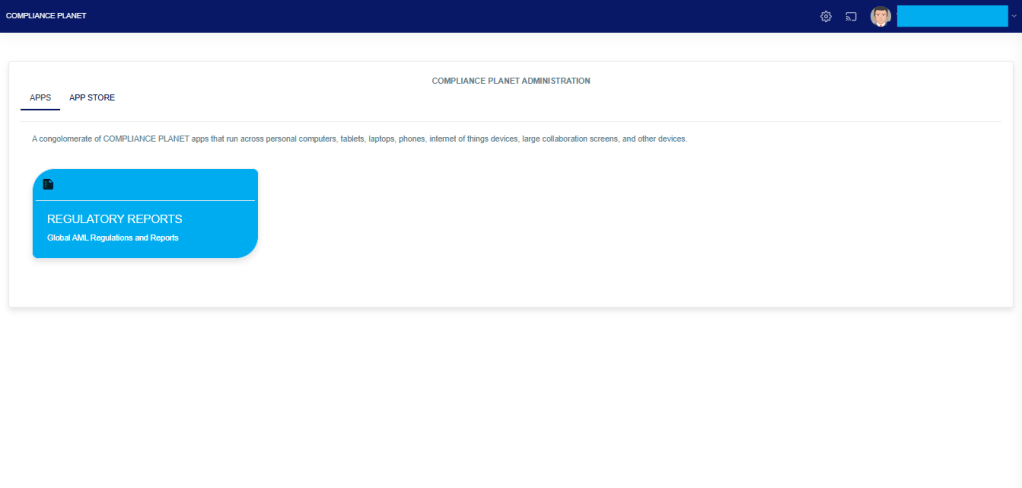
From the app dashboard, click on “REGULATORY REPORTS” as displayed in the image below.

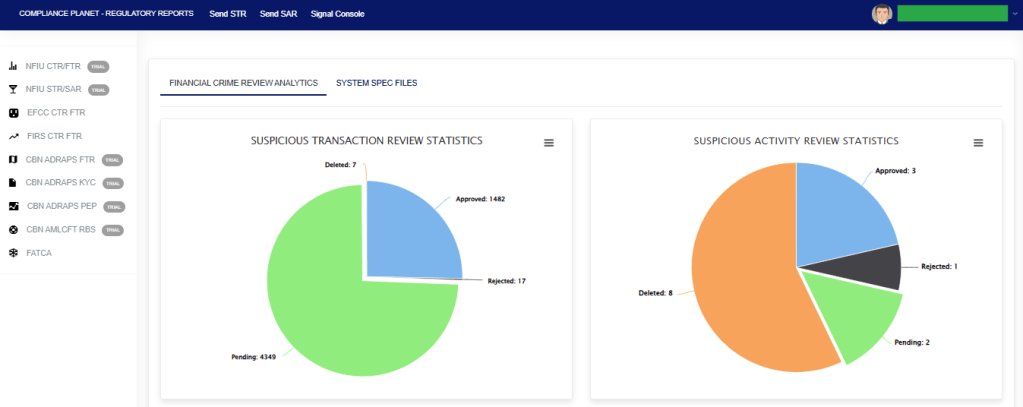
This will display a drop-down, as shown in image below. The drop-down menu lists the report types available on the Compliance Planet software.

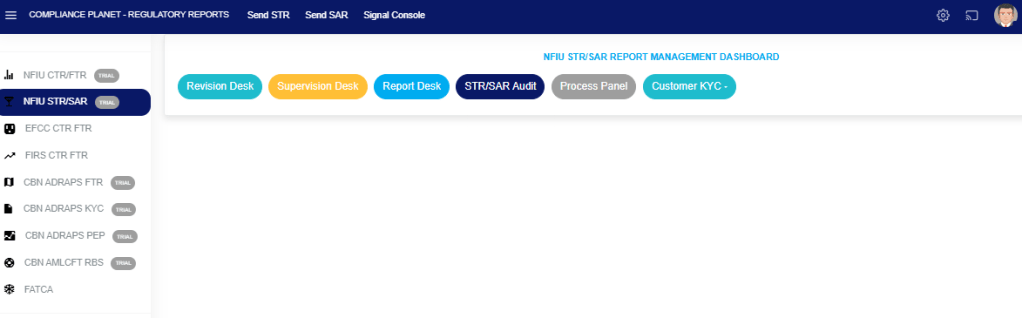
Click ‘NFIU STR/SAR’ on the drop-down list and display the STR/SAR page as displayed in the image below.

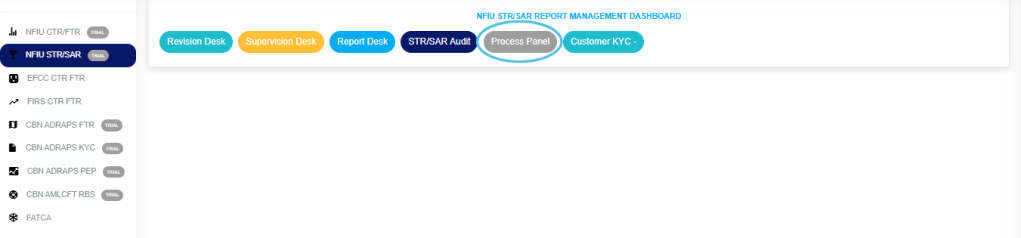
STEP 1: From the top menu, Click “Process Panel” as in the image below.

  • The above action will display the Notification Process Panel Page as shown below.
  • On the page the software gives information of total revision desk pending Notifications, revision desk pending assigned notifications, revision desk pending assigned notifications, supervision desk pending notifications and reporting desk pending notifications.

For further enquiries: 
Tel: +234(0) 816 555 9818
Email: solutions@efuelite.com 
Web: http://solutions.efuelite.com

How to report Suspicious Transaction / Activity notification (STR/SAR) to the NFIU In Compliance Planet Anti Money Laundering/Core Banking Finance Software

When a Notification is given final approval, the Notification will move to the ‘REPORT OFFICER APPROVED NOTIFICATION(S)’ list and ‘APPROVED NOTIFICATION(S) PENDING DOWNLOAD’ list. Here, the notification can be downloaded, and details of the Notification can also be viewed. Notifications can also be downloaded under the ‘APPROVED NOTIFICATION(S) DOWNLOADED’ list. A Notification can be downloaded as many times as you desire. The generated STR/SAR will be in the XML file type. See the steps below to download an STR/SAR.

From the app dashboard, click on “REGULATORY REPORTS” as displayed in the image below.

This will display a drop-down, as shown in image below. The drop-down menu lists the report types available on the Compliance Planet software.

Click ‘NFIU STR/SAR’ on the drop-down list and display the STR/SAR page as displayed in the image below.

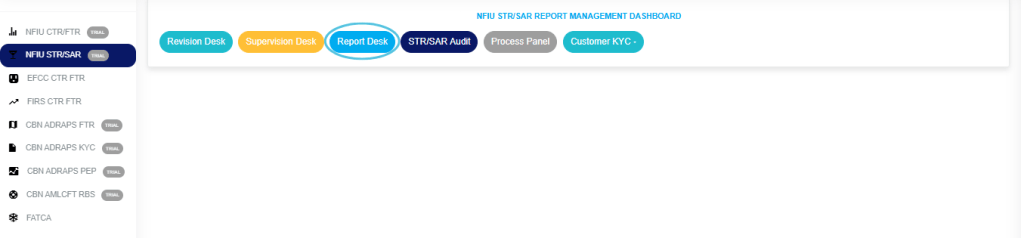
STEP 1: Click on “REPORT DESK” as displayed in the image below.

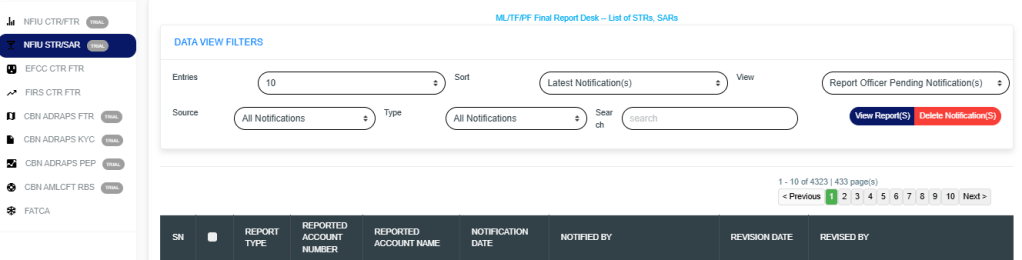
The above action will display the FINAL REPORT DESK PAGE as seen in the image below. Then select the “DATA VIEW FILTERS”.

  • Click on the “ENTRIES” box to increase the number of Notifications you want to see per page.
  • Click on the “SORT” box to sort the notifications either by alphabetical order or from the latest to the earliest notifications or vice-versa as shown.
  • Click on the “VIEW” box to see notifications classified according to the stage of processing they have gotten to.
  • Click on the “SOURCE” box to select either All Notifications, Digital Surveillance Notification or Manually Filled Notifications.
  • Click on the “TYPE” box to select either All Notification, Suspicious Transaction Notification and Suspicious Activity Notification.
  • Click on the “SEARCH” box to search for a particular notification by typing in the customer’s name or account number concerned. More details below.
  • Click on the “VIEW REPORTS” button after selecting the class of Notification(s) from the VIEW box. This is to view the notifications from any of the selected class. This button is at the top-right corner of the page.
  • Click on the “DELETE NOTIFICATIONS” to delete notifications.

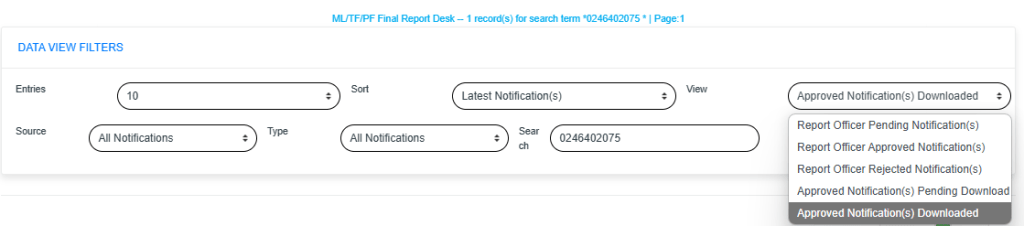
STEP 2: Click on the “VIEW” box on the reporting desk page and select ‘REPORT OFFICER APPROVED NOTIFICATION(S)’ or ‘APPROVED NOTIFICATION(S) PENDING DOWNLOAD.’ All approved Notifications will be displayed in the ‘REPORT OFFICER APPROVED NOTIFICATION(S) list irrespective of their download status. Notifications that have been downloaded previously will appear in the ‘APPROVED NOTIFICATION(S) DOWNLOADED’ list, while those yet to be downloaded at all will appear in the ‘APPROVED NOTIFICATION(S) PENDING DOWNLOAD’ list. See an example in the image below.

Click on ‘VIEW REPORTS’ to see the Notifications as in the image below.

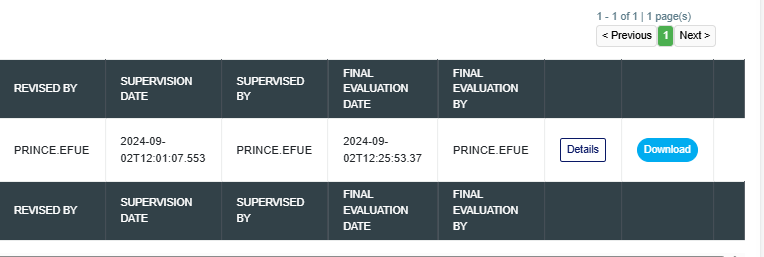
 STEP 3: To see details of an STR/SAR Notification, click on ‘DETAILS’. It is the button at the end of each Notification row.
To download an STR/SAR, click ‘DOWNLOAD.’ This button is next to the ‘DETAILS’ button. See the image below.

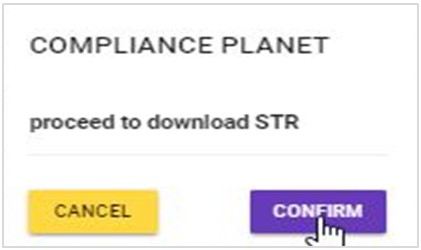
  • By clicking on the ‘DOWNLOAD’ button, a confirmation console—shown in the image below—will appear on your screen. Click “CONFIRM” to proceed with the download, or “CANCEL” if you choose not to download the notification.
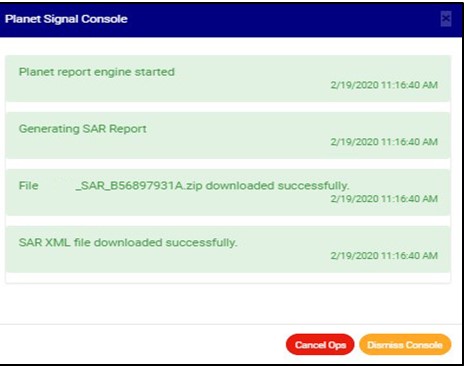
  • The signal console shows ongoing processes, as shown below.
  • After successful download, the Notification will move from the ‘APPROVED NOTIFICATION(S) PENDING DOWNLOAD’ list to the ‘APPROVED NOTIFICATION(S) DOWNLOADED’ list but still remain in the REPORTING OFFICER APPROVED NOTIFICATION(S) list.
  • The final step is to submit the downloaded STR/SAR XML to the NFIU GOAML portal.
  • You can check the download history of a notification by selecting ‘APPROVED NOTIFICATION(S) DOWNLOADED’ in the VIEW box, which is still on the reporting desk page.  Then, click VIEW REPORTS to see a page, as shown in the image below.
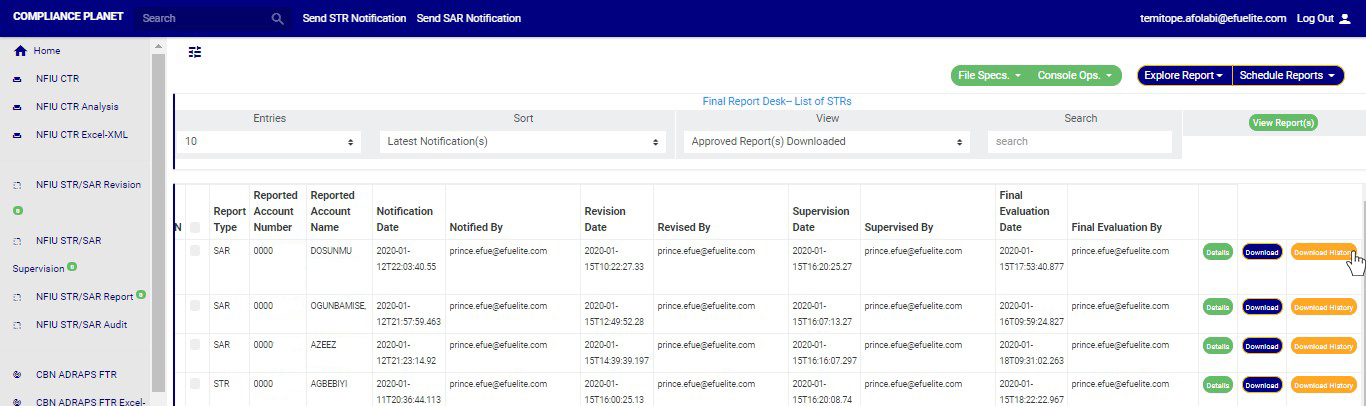
  • As seen in the image below, the Notifications have three buttons at the end of their rows. These are the ‘DETAILS’ button, the ‘DOWNLOAD’ button, and the ‘DOWNLOAD HISTORY’ button.
  • Click on ‘DOWNLOAD HISTORY’ to see information about the date(s) the notification was downloaded and who downloaded it.  See the cursor on the ‘DOWNLOAD HISTORY’ button in the image below.

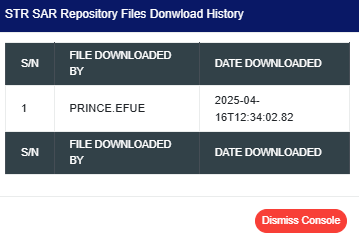
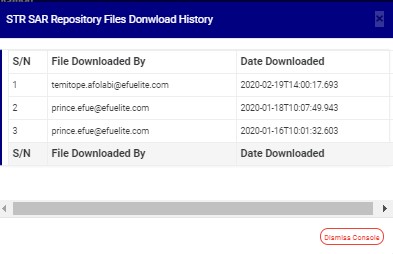
➔ by clicking the “DOWNLOAD HISTORY” button will display a console, as shown in the image below. To close the console after viewing it, click “DISMISS CONSOLE”, as illustrated in the example.

For further inquiries: 
Tel: +234(0) 816 555 9818
Email: solutions@efuelite.com 
Web: http://solutions.efuelite.com

How to Audit Suspicious Transaction or Activity Report (STR/SAR) In Compliance Planet Anti Money Laundering/Core Banking Finance Software

NOTE: You have to be profiled as an ‘Auditor’ and ‘report evaluation officer’ on report desk with rights to EDIT to carry out this operation.

From the app dashboard, click on “REGULATORY REPORTS” as displayed in the image below.

This will display a drop-down, as shown in image below. The drop-down menu lists the report types available on the Compliance Planet software.

Click ‘NFIU STR/SAR’ on the drop-down list and display the STR/SAR page as displayed in the image below.

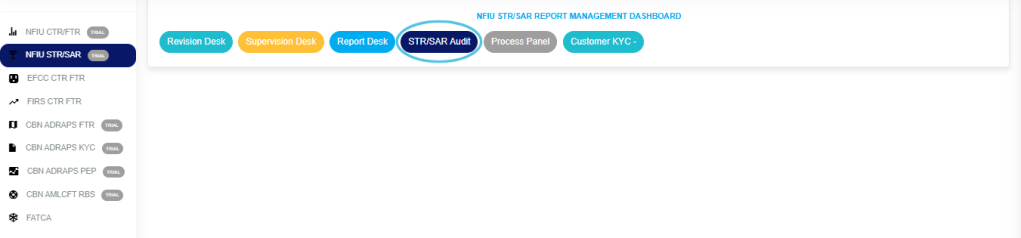
STEP 1: From the top menu, click “STR/SAR Audit” as in image below.

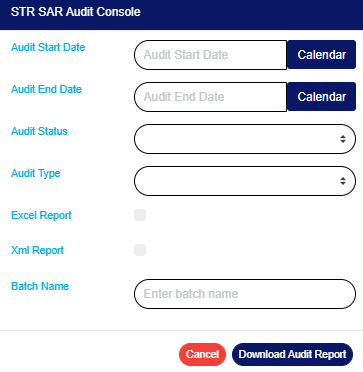
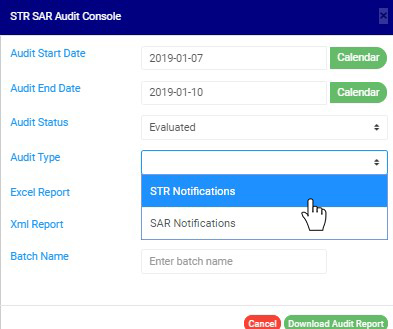
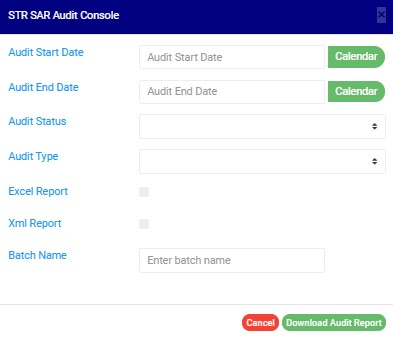
  • This above action will display an “STR SAR AUDIT CONSOLE” as shown below.

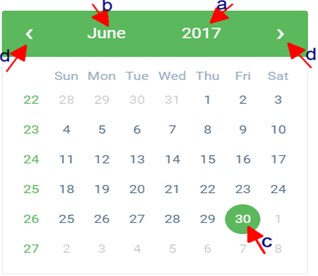
STEP 2: Click on “AUDIT START DATE and AUDIT END DATE” to specify the beginning and the end of the period (respectively) for which you want to generate report. A calendar drops below the date box.

  • Take a look at the arrows labelled a – d in image above to study the calendar.   
  • Click on the given year to change it to your year of choice.
  • Click on the given month to change it to your month of choice.
  • Then, click on the date of the month.                                                
  • You can also click on the angle brackets on the calendar ‘<’ or ‘>’ to go backward or forward.

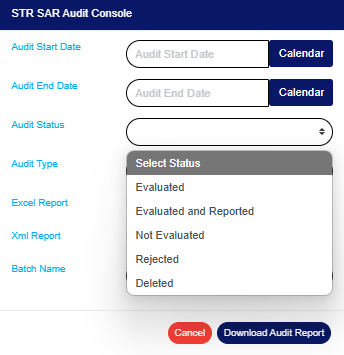
STEP 3: Click on “AUDIT STATUS to select the status of the report(s) you want to audit i.e. Evaluated, Evaluated and reported, Not Evaluated, Rejected or deleted reports. See an example in Fig below.

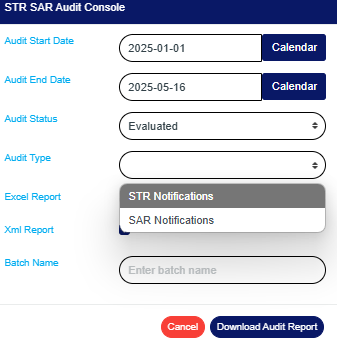
STEP 4: Click on “AUDIT TYPE to select the type of notification audit report you want to download i.e. STR Notifications or SAR notifications. See an example in the image below.

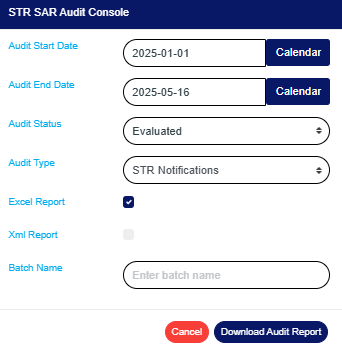
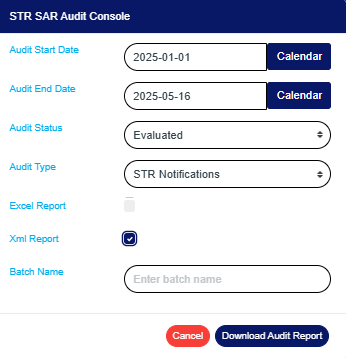
STEP 5: Tick the “Excel Report checkbox to export your report to Excel file format or XML REPORT” to export reports to XML. Note you can tick one or the two check boxes. This is illustrated in the images below.


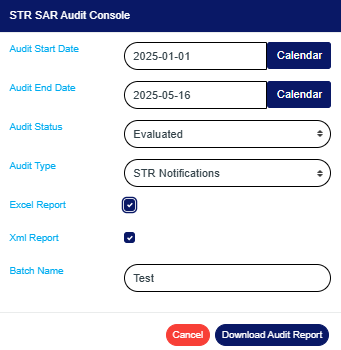
STEP 6: Fill in the name of your report in the “BATCH NAME” box. The report name should be any title of your choice for easy identification later on. See image for an example.

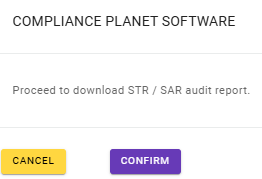
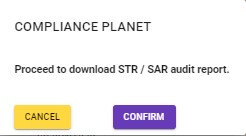
STEP 7: Click on the “DOWNLOAD AUDIT REPORT” button to generate report. If you want to cancel schedule, click on the “CANCEL” button. These buttons are at the bottom-right corner of the console. (See image above).  A console will be displayed like in the image below if you choose to process report.

  • Click on “Confirm” to continue.
  • Click on “Cancel” If you want to make changes to the settings of your report, like changing the date or selecting/deselecting an Audit type, etc. The software will take you back to the Audit console.
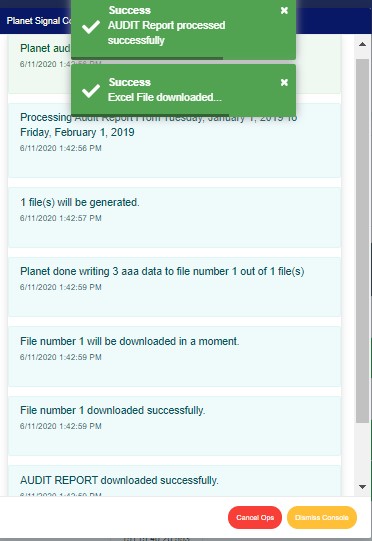
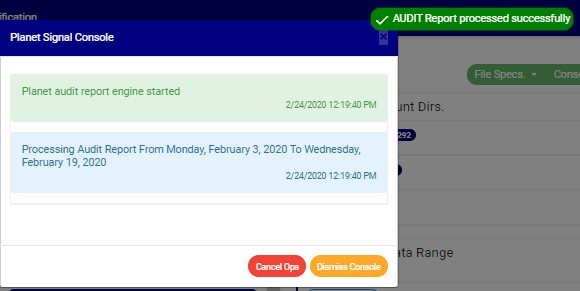
  • The signal console shows ongoing processes. An example of a signal console is in the image below.
  • Terminate ongoing operations by clicking “CANCEL OPS.                                     
  • To minimize signal console, click on “DISMISS CONSOLE.

How to View Audit Trail for a single STR/SAR Notification

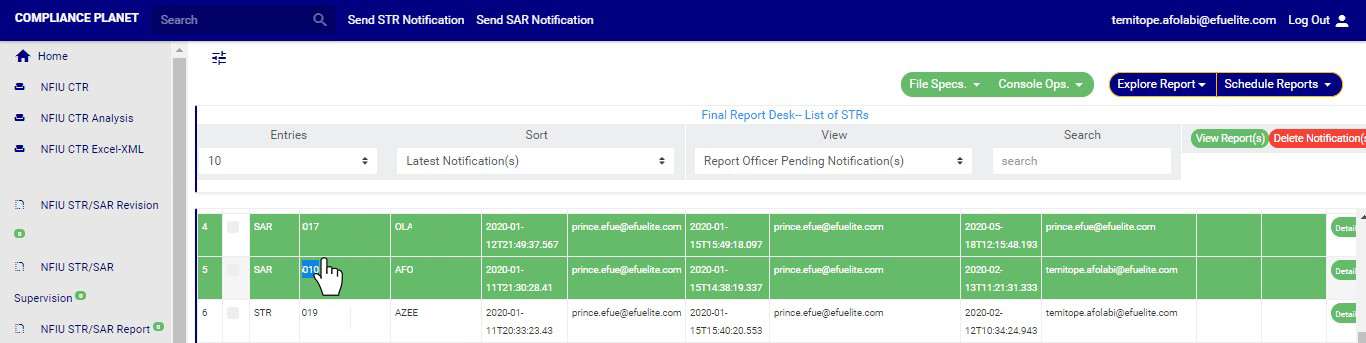
  • You can view the audit trail for a particular transaction on any of the three desks i.e. the revision, supervision or reporting desk by double clicking the Account name or Account number as in the image below.
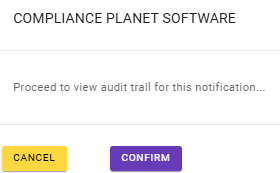
  • This will display a confirmation console as shown below. Click ‘confirm’ to proceed or ‘cancel’ to close the console.
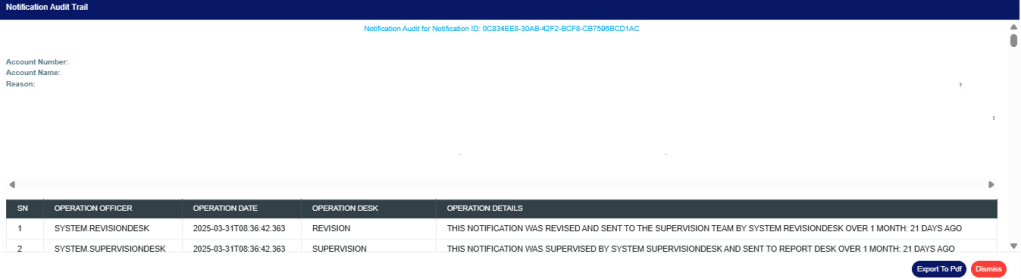
  • Clicking ‘confirm’ will display a ‘STR/SAR Audit Trail’ console as in the image below. The console shows detail of every action taken on the notification from the time it was sent to the current state of the notification.
  • Click on ‘Dismiss Console’ to close the console or click ‘Export to PDF’ to download the data as a PDF file.
  • Clicking on ‘export to pdf’ will display a notification at the top of the page as in the image below and a file will be downloaded to your computer.

For further enquiries: 
Tel: +234(0) 816 555 9818
Email: solutions@efuelite.com 
Web: http://solutions.efuelite.com

How to Carry Out STR/SAR Notification Setting Operations In Compliance Planet Anti Money Laundering/Core Banking Finance Software

This section provides a guide on settings pertaining to STR and SAR notifications on the Compliance Planet, with step-by-step instructions and pictures.

Under this Control panel feature, the software provides options to;

  1. Modify the route an STR or SAR notification will go through
  2. Allow file attachments to be uploaded with the STR or SAR notification
  3. Validate account number when Sending an STR or SAR notifications

NOTE: Only person(s) profiled as a deputy supreme admin will be able to carry out these operations

To perform any of the operations on STR SAR NOTIFICATION SETTINGS;

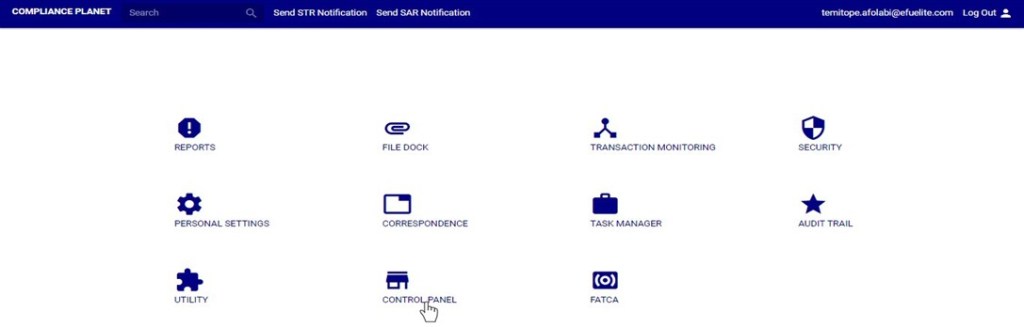
STEP 1:  From the main dashboard, click ‘CONTROL PANEL’ as in fig 25.1a below

(fig. 25.1a)

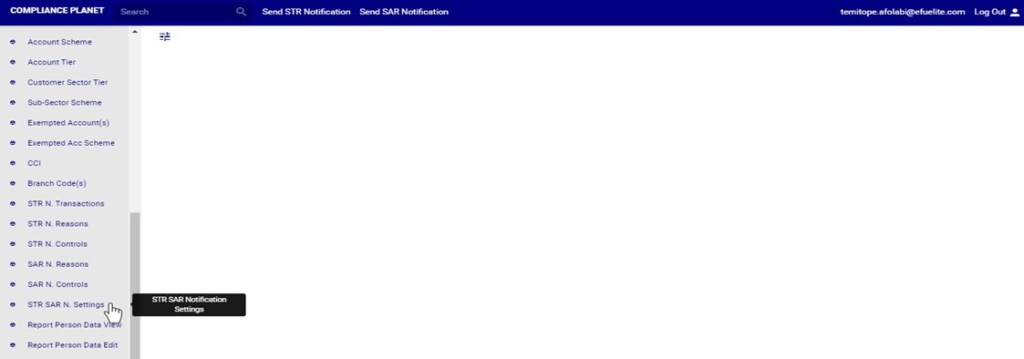
STEP 2:          Click on ‘STR SAR NOTIFICATION SETTINGS’ on the left hand side menu as in fig. 25.1b below.

(fig. 25.1b)

Clicking on SAR NOTIFICATION SETTINGS will display page showing a list of all STR SAR notification settings. See fig. 25.1c for an example.

(fig. 25.1c)

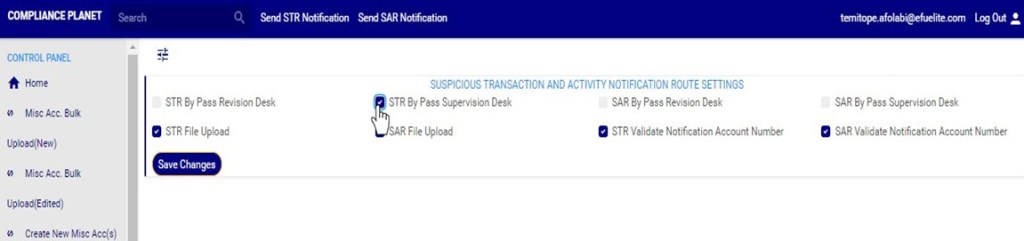
STEP 3: Select the any of the STR SAR notification settings checkbox to activate that particular setting. See an example in fig 25.1d below

(fig. 25.1d)

Selecting the STR SAR notification settings checkbox will activate that particular setting while deselecting the checkbox means you want to deactivate the setting.

  • STR by pass revision desk: Selecting this option will deactivate the revision desk; this means that all STR notifications sent will by-pass or will not go through the revision desk. This option may be used when the financial institution does not have a revision desk in the compliance department.
  • STR by pass supervision desk: Selecting this option will deactivate the supervision desk; this means that all STR notifications sent will by-pass or will not go through the supervision desk. This option may be used when the financial institution does not have a supervision desk in the compliance department.
  • SAR by pass revision desk: Selecting this option will deactivate the revision desk; this means that all SAR notifications sent will by-pass or will not go through the revision desk. This option may be used when the financial institution does not have a revision desk in the compliance department.
  • SAR by pass supervision desk: Selecting this option will deactivate the supervision desk; this means that all SAR notifications sent will by-pass or will not go through the supervision desk. This option may be used when the financial institution does not have a supervision desk in the compliance department.
  • STR file Upload: Selecting this enables the option to upload documents (attachments) to accompany the STR notification.
  • SAR file upload: Selecting this enables the option to upload documents (attachments) to accompany the SAR notification
  • STR Validate Notification account number: Selecting this option means that when sending an STR notification, the planet will validate the inputted AC number if it exists on the financial institutions’ database.
  • SAR Validate Notification account number: Selecting this option means that when sending an SAR notification, the planet will validate the inputted AC number if it exists on the financial institutions’ database.

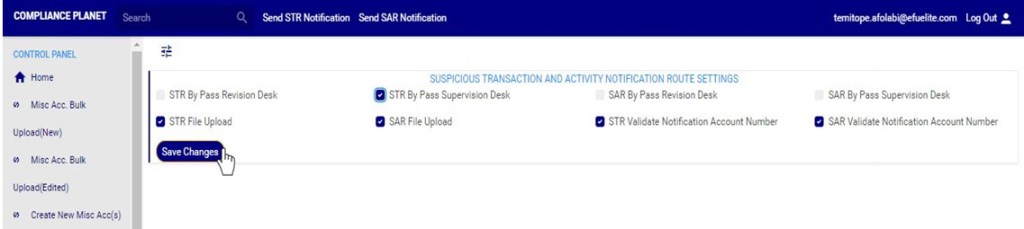
STEP 4: Click on ‘SAVE CHANGES’ button to save the changes. See an example in fig  25.1e below.

(fig. 25.1e)

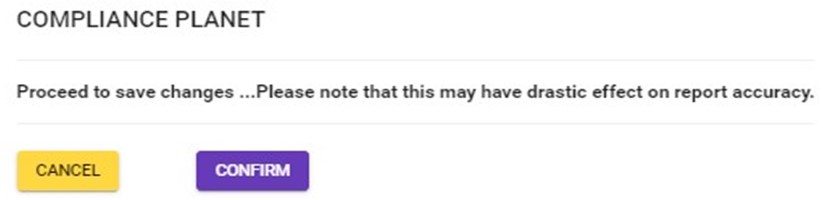
  • Clicking on the save changes button will display a confirmation console as in Fig 25.1f below. Click on ‘CONFIRM’ to save the changes or cancel to discontinue action.

(Fig 25.1f)

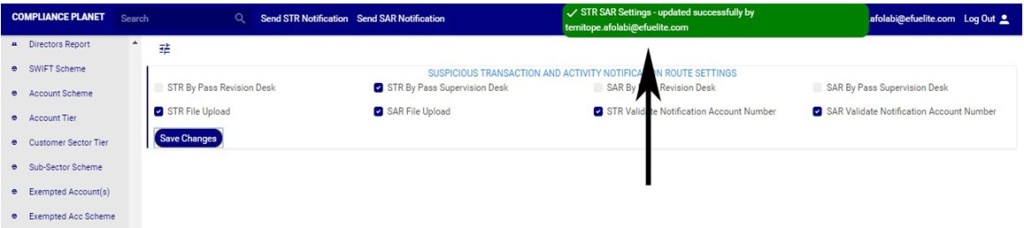
  •  When the changes are saved, a notification will be displayed at the top of the page as in fig. 25.1g below.

(Fig 25.1g)

For further enquiries : 
Tel +234(0) 816 555 9818
Email solutions@efuelite.com 
Web http://solutions.efuelite.com

How to Carry Out SAR Notification Reason Operations In Compliance Planet Anti Money Laundering/Core Banking Finance Software

This section provides a guide on how to modify “REASON” options available when sending an SAR notification (see section 6.2.2) on the Compliance Planet, with step-by-step instructions and pictures. These options are available when filling “Reason for filing SAR” when sending an SAR notification. 

SAR NOTIFICATION REASON OPERATIONS 

Here, the operations are; 

1. Editing notification reason, 

2. Deleting reason 

3. Adding a new reason 

NOTE: Only person(s) profiled as deputy supreme admin can carry out these operations.

To perform any of the operations; 

STEP 1: From the main dashboard, click ‘CONTROL PANEL’ as in fig 23.1a below 

(fig. 23.1a) 

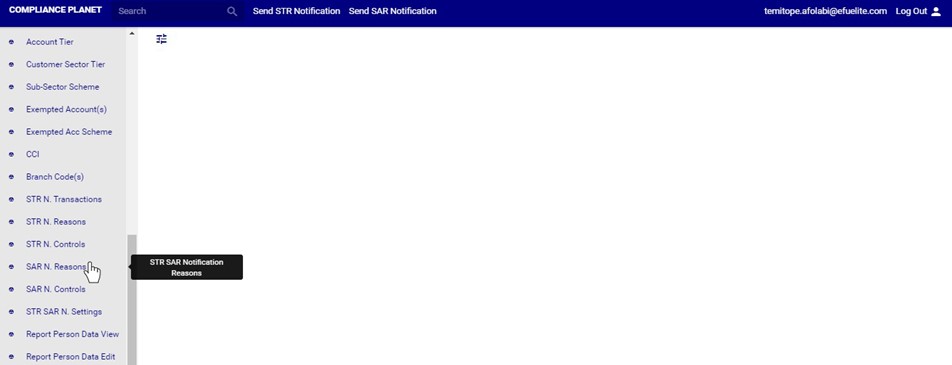
STEP 2: Click ‘SAR N. REASON’ on the left hand side menu as in fig 23.1b below 

 (fig. 23.1b) 

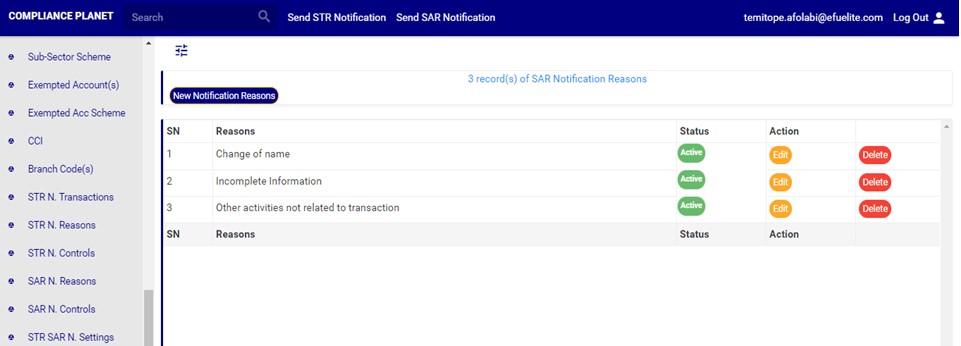
➔ This will display a page showing a list of all reasons that have been created and available on the planet. See fig. 23.1c for an example. 

(fig. 23.1c) 

This refers to changing the description or status of the SAR notification reason. Here is how to do this. 

How to edit SAR notification reason 

STEP 1: Click on the ‘EDIT’ button on the action column. See fig. 23.2a for an example. 

(Fig 23.2a) 

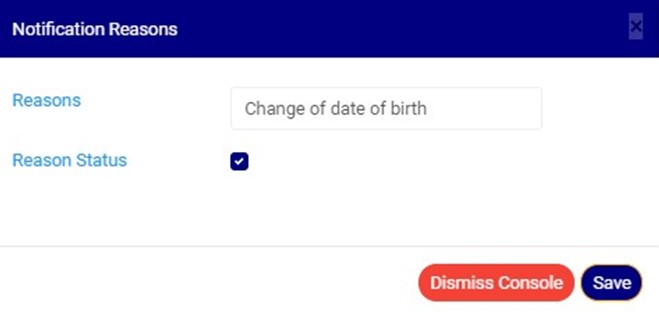
➔ Clicking the EDIT button will display a console titled, ‘Notifications Reasons’ as shown in fig 23.2b below. 

(Fig 23.2b) 

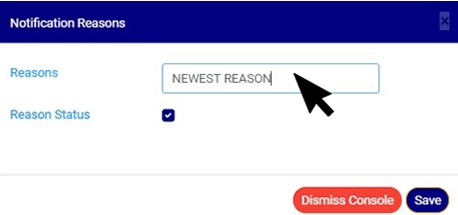
STEP 2: Click on the reasons textbox to change the Notification reason description. See an example in Fig 23.2c below. 

(Fig 23.2c) 

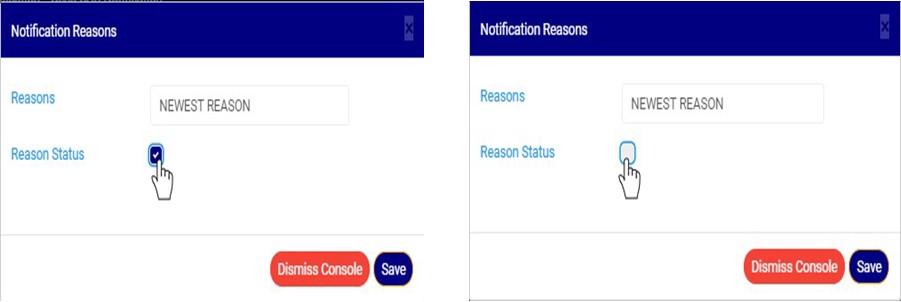
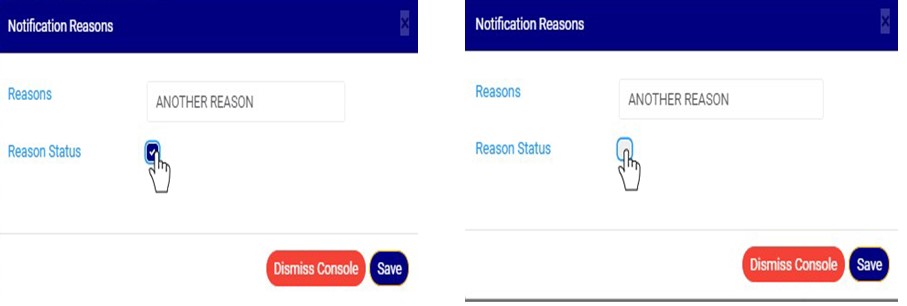
STEP 3: Click on the reason status checkbox to make that notification reason active or inactive. This is illustrated in Fig 23.2d and Fig 23.2e below 

(Fig 23.2d) (Fig 23.2e) 

➔ Fig 23.2 d shows that the notification reason is set ACTIVE while Fig 23.2e shows that the notification reason is set INACTIVE. 

➔ An active notification reason will form part of the available options when sending a SAR notification on the compliance planet software while an inactive notification reason will no longer be part of the available options when sending a new SAR notification on the compliance planet. 

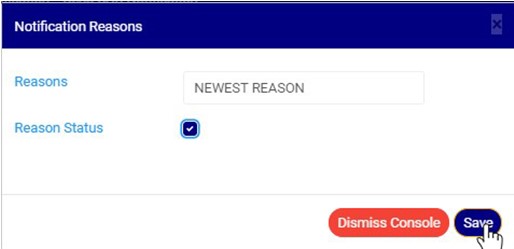
STEP 4: Click on ‘SAVE’ button to save the edit or click ‘DISMISS CONSOLE’ to close the console. See Fig 23.2f for an example 

Fig 23.2f 

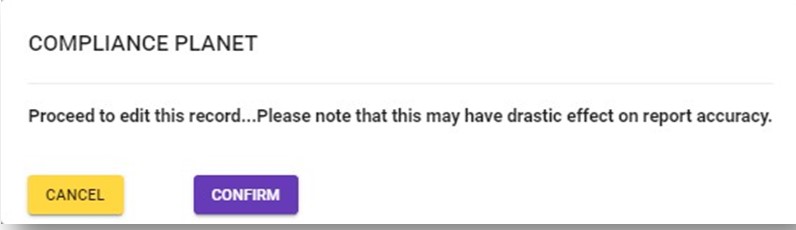
➔ This displays a confirmation console as in fig 23.2g below 

Fig 23.2g 

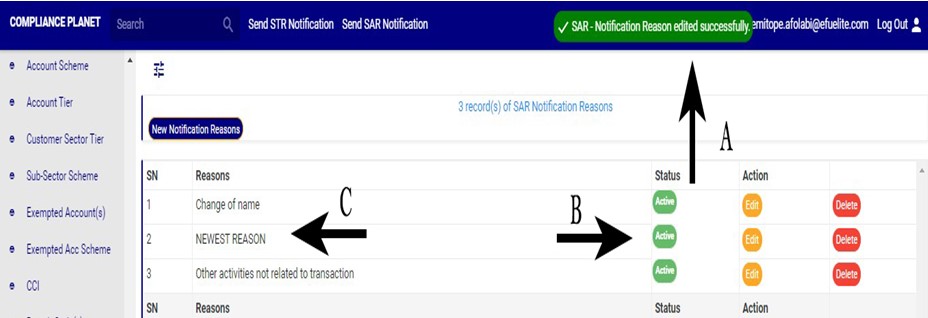
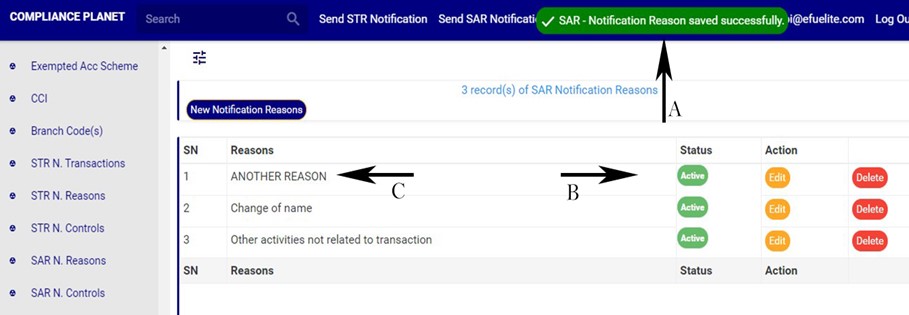
➔ A notification as in fig. 23.2h(A) will be displayed at the top of the page when the operation is successful. Also, See fig. 23.2h for an example of the updated description and status 

Fig 23.2h 

How to delete an SAR notification reason 

A deleted SAR notification reason will no longer be part of the available options when sending a SAR notification on the software(See section 6.2.2 for sending an SAR notification). 

Here is how to do this. 

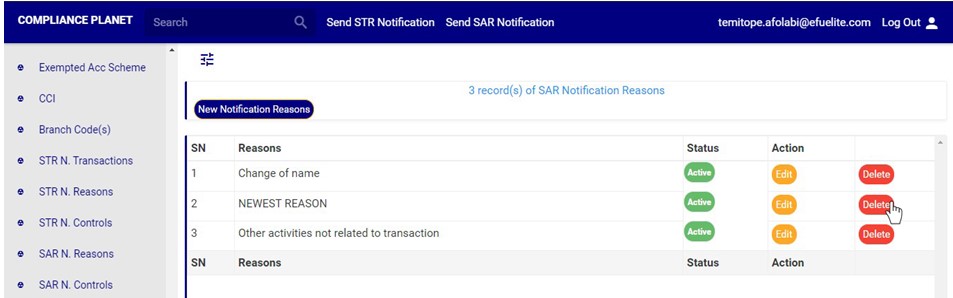
STEP 1: Click on the ‘DELETE’ button of the SAR notification reason as in fig23.3a. 

(fig23.3a) 

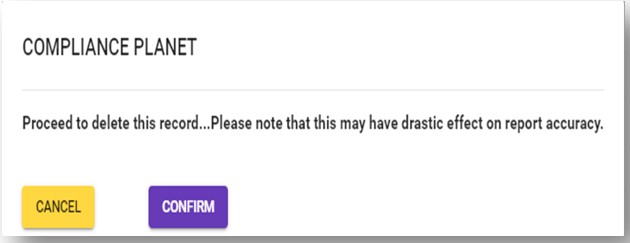
➔ This displays a confirmation console to confirm your request to delete the SAR reason. 

STEP 2: Click on ‘CONFIRM’ as in fig23.3b to proceed or ‘CANCEL’ to discontinue. 

(fig23.3b) 

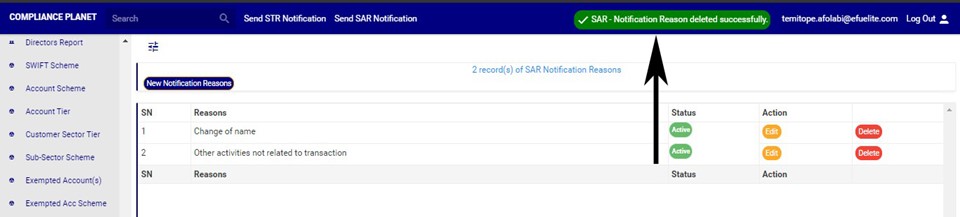
➔ A notification will be displayed at the top of the page when the delete operation is complete as in Fig 24.3c below 

(fig23.3c) 

How to add new STR notification reason 

This refers to creating a new SAR notification reason. This notification reason will form part of the available options when sending a new SAR notification on the compliance planet (See section 6.0 for sending an SAR notification). 

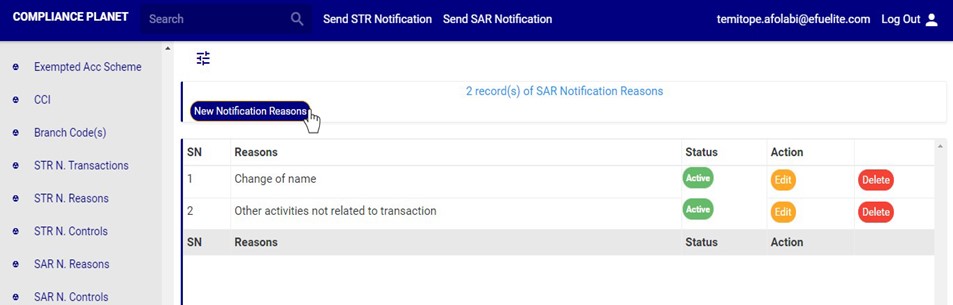
STEP 1: Click on ‘NEW NOTIFICATION REASON’ as shown in fig. 23.4a below 

(fig. 23.4a) 

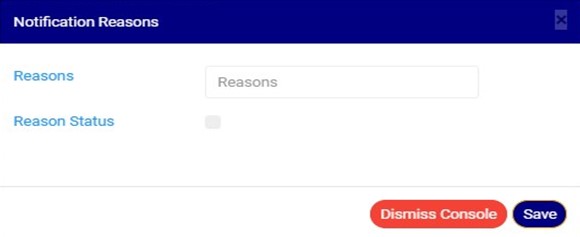
➔ A console as in fig. 23.4b will be displayed. 

(fig. 23.4b) 

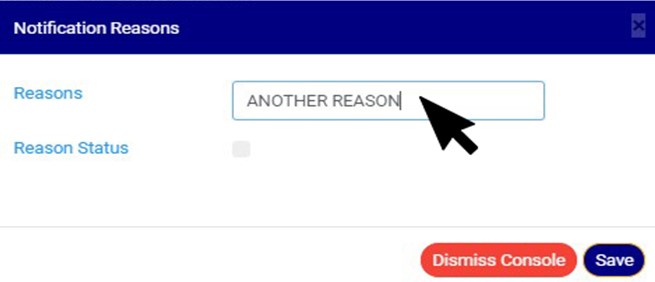
STEP 2: Fill the reasons textbox as in fig. 23.4c below 

(fig. 23.4c) 

STEP 3: Click on the ‘reason status’ checkbox to make that notification reason active or inactive. This is illustrated in Fig 23.4d and Fig 23.4e below 

(Fig 23.4d) (Fig 23.4e) 

➔ Fig 23.4d shows that the notification reason is set ACTIVE while Fig 23.4e shows that the notification reason is set INACTIVE. 

➔ An active notification reason will form part of the available options when sending SAR notification on the software, while an inactive notification reason will no longer be part of the available options when sending a new SAR notification on the compliance planet. 

STEP 3: Click on ‘SAVE’ to save the edit or click ‘DISMISS CONSOLE’ to close the console. See Fig 23.4f for an example 

Fig 23.4f 

➔ This displays a confirmation console as in fig23.4g below 

Fig 23.4.g 

➔ A notification as in fig. 23.4h (A) will be displayed at the top of the page when the operation is successful. Also, See fig. 23.4h for an example of the updated description and status 

Fig 23.4h

For further enquiries : 
Tel +234(0) 816 555 9818
Email solutions@efuelite.com 
Web http://solutions.efuelite.com

How To Audit Suspicious Transaction or Activity Report (STR/SAR) In Compliance Planet Anti Money Laundering/Core Banking Finance Software

NOTE: Only person(s) profiled as an auditor can carry out this operation

STEP 1: From the left hand side menu, click on “NFIU STR/SAR Audit”. See this feature in fig. 6.5at below.

(Fig. 6.5at)

➔ Clicking on NFIU STR SAR AUDIT will display an “STR SAR AUDIT CONSOLE” as in fig. 6.5au below.

(fig. 6.5au)

STEP 2: Click on AUDIT START DATE and AUDIT END DATE to specify the beginning and the end of the period (respectively) for which you want to generate report. A calendar drops below the date box.

(Fig 6.5av)

● Take a look at the arrows labelled a to d in fig.6.5av above to study the calendar.

a. Click on the given year to change it to your year of choice.

b. Click on the given month to change it to your month of choice.

c. Then, click on the date of the month.

d. You can also click on the angle brackets on the calendar ‘’ to go backward or forward.

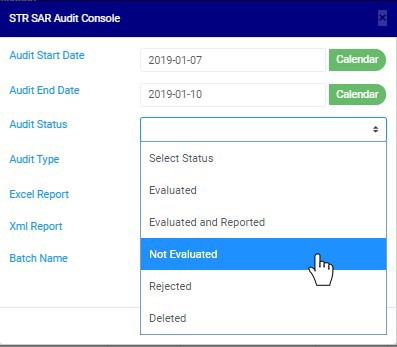
STEP 3: Click on AUDIT STATUS to select the status of the notification(s) you want to audit i.e. Evaluated notifications, Evaluated and reported notifications, Not Evaluated notifications, Rejected notifications or deleted notifications. See an example in Fig 6.5aw below.

(Fig 6.5aw)

STEP 4: Click on AUDIT TYPE to select the type of notification audit report you want to download i.e. STR Notifications or SAR notifications. See an example in Fig 6.5ax below


(Fig 6.5 ax)

STEP 5: Tick the Excel Report checkbox to export your report to Excel file format or XML REPORT to export reports to XML. Note, you can tick one or both of the check boxes. This is illustrated in fig 6.5 ax and 6.5 ay below.

(Fig 6.5ax)

(Fig 6.5ay)

STEP 6: Fill in the name of your report in the BATCH NAME box. The report name should be any title of your choice for easy identification later on. See Fig 6.5az for an example.

(Fig 6.5az)

STEP 7: Click on the DOWNLOAD AUDIT REPORT button to generate report. If you want to cancel schedule, click on the CANCEL button. These buttons are at the bottom-right corner of the console. (See Fig 6.5az above). A console will be displayed like in fig. 6.5ba below if you choose to process report.

➔ Click on Confirm to continue.

➔ If you want to make changes to the settings of your report, like changing the date or selecting/deselecting an Audit type, etc., click on Cancel. The software takes you back.

(Fig. 6.5ba)

➔ The signal console shows on going processes. An example of a signal console is fig 6.5bb

➔ You can terminate unfinished processes by clicking CANCEL OPS.

➔ To minimize signal console, click on DISMISS CONSOLE.

(fig 6.5bb)

How to View Audit Trail for a single STR/SAR Notification

  • You can view the audit trail for a particular transaction on either the revision, supervision or reporting desk by double clicking the reported Account name or Account number as in fig 6.5bc below.

6.5bc Continue reading “How To Audit Suspicious Transaction or Activity Report (STR/SAR) In Compliance Planet Anti Money Laundering/Core Banking Finance Software”

How to report Suspicious Transaction / Activity notification (STR/SAR) to the NFIU In Compliance Planet Anti Money Laundering/Core Banking Finance Software

When a report is given final approval, the report will move to the ‘REPORT OFFICER APPROVED REPORT(S)’ list and ‘APPROVED REPORT(S) PENDING DOWNLOAD’ list. Here, the report can be downloaded and details of the report can also be viewed. Reports can also be downloaded under the ‘APPROVED REPORT(S) DOWNLOADED’ list. A report can be downloaded many times as desired. The STR/SAR generated will be in XML file type.

NOTE: Only Person(s) profiled as Report Evaluation Officer on Report Desk and assigned right(s)  to download STR/SAR reports can carry out this operation

See steps below to download an STR/SAR.

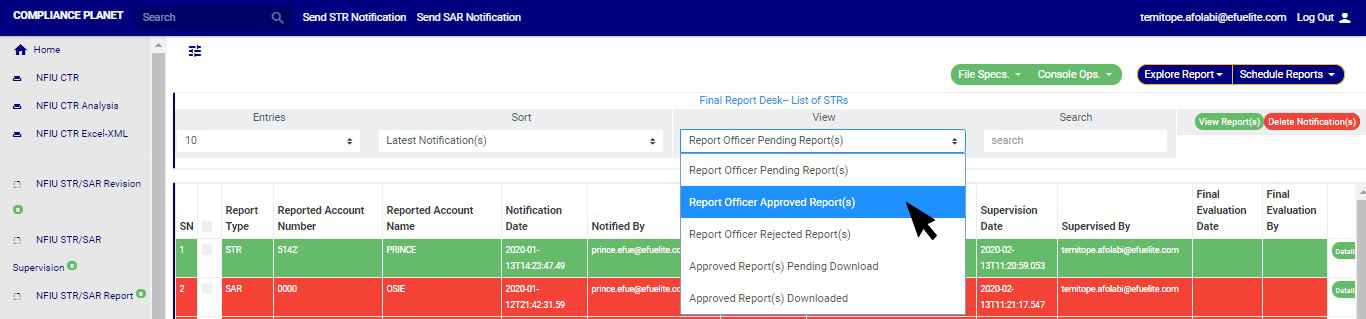
STEP 1: Go to the VIEW box still on the reporting desk page and select ‘REPORT OFFICER APPROVED REPORT(S)’ or ‘APPROVED REPORT(S) PENDING DOWNLOAD’. All approved reports will appear in the ‘REPORT OFFICER APPROVED REPORT(S) list irrespective of their download status. Reports that have been downloaded previously will appear in the ‘APPROVED REPORT(S) DOWNLOADED’ list, while those yet to be downloaded will appear in the ‘APPROVED REPORT(S) PENDING DOWNLOAD’ list. See an example in fig. 6.5al below.

(fig. 6.5al)

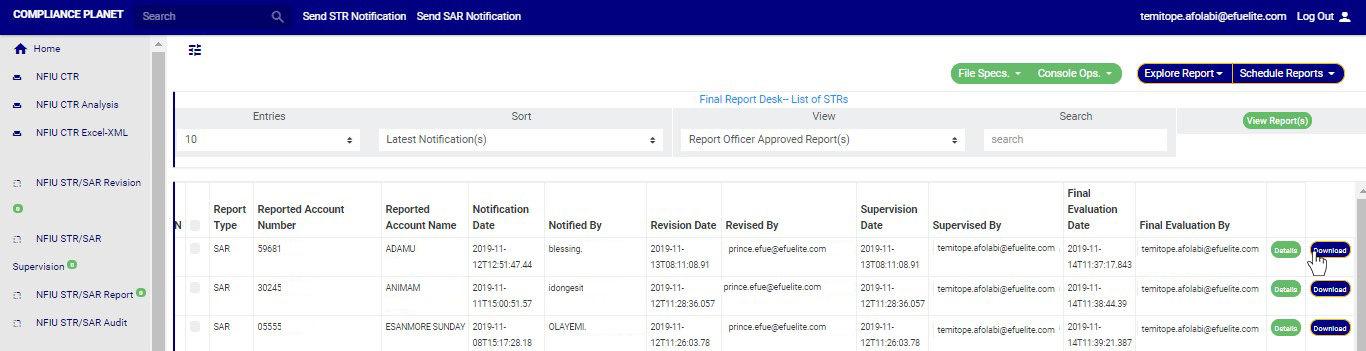
STEP 2: Click on ‘VIEW REPORTS’ to see the reports as in fig. 6.5am below. On this page, the reporting officer will review the report for approval.

(fig. 6.5am)

➔ To see details of an STR/SAR report, click on ‘DETAILS’. It is the green button at the end of each report row.

STEP 3: To download an STR/SAR, click on ‘DOWNLOAD’. This button is next to the ‘DETAILS’ button. See the cursor on the DOWNLOAD button in an example to download a report in fig. 6.5an below.

(fig. 6.5an)

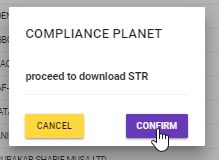
➔ By clicking on the ‘DOWNLOAD’ button, a confirmation console as in fig. 6.5ao will be displayed. Click on ‘CONFIRM’ to proceed with the download or ‘CANCEL’ if you do not want to download the report.

(fig. 6.5ao)

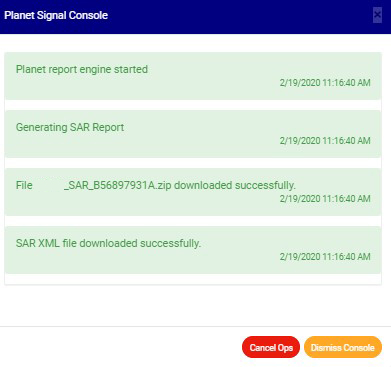
➔ The signal console shows on going processes as in fig. 6.5ap .

(fig. 6.5ap)

➔ After successful download, the report will move from the ‘APPROVED REPORT(S) PENDING DOWNLOAD’ list to the ‘APPROVED REPORT(S) DOWNLOADED’ list, but still remain in REPORTING OFFICER APPROVED REPORT(S) list.

➔ You can check the download history of a report by selecting ‘APPROVED REPORT(S) DOWNLOADED’ in the VIEW box still on the reporting desk page. Then, click on VIEW REPORTS and you will see a page as in fig. 6.5aq below.

(fig. 6.5aq)

➔ As seen in fig. 6.5ar below, the reports have three buttons at the end of their rows. These are the ‘DETAILS’ button, the ‘DOWNLOAD’ button and the ‘DOWNLOAD HISTORY’ button.

➔ The Final step is submission of the downloaded STR/SAR XM to the NFIU GoAML portal

➔ Click on ‘DOWNLOAD HISTORY’ to see information about the date(s) the report was downloaded and who carried out the download. See the cursor on the ‘DOWNLOAD HISTORY’ button in fig. 6.5ar below.

(fig. 6.5ar)

➔ By clicking on the ‘DOWNLOAD HISTORY’ button, a console as in fig. 6.5ac will be displayed on your screen. To close the console after viewing it, click on ‘DISMISS CONSOLE’ as in the example below.

(fig. 6.5as)

For further enquiries :
Tel +234(0) 816 555 9818
Email solutions@efuelite.com

Web http://solutions.efuelite.com

How to evaluate Suspicious Transaction/Activity Notification (STR/SAR) On report desk In Compliance Planet Anti Money Laundering/Core Banking Finance Software

This is the final stage of  every STR/SAR notifications. Once approved by the reporting officer, the Notification can be downloaded. Below are steps on how to finalize approval to report STRs/SARs. Also, in this section, you will learn how to download an STR/SAR file.

Notifications that have been approved by revising officer(s) and/or supervising officer(s) move to the ‘REPORTING OFFICER PENDING NOTIFICATION(S)’ list to be given the final approval. The treatment of a suspicious transaction notification is different from that of a suspicious action notification. Therefore, the review and final approval on the reporting desk is categorized into two (2) on this desk; EVALUATING AND APPROVING STRs and EVALUATING AND APPROVING SARs

NOTE: You have to be profiled as a report evaluation officer on report desk with rights to EDIT to be able to carry out this operation.

 In this section, you will learn how to review and give final approval for each report type, but first, here is how to locate a pending report irrespective of its report type (STR or SAR).

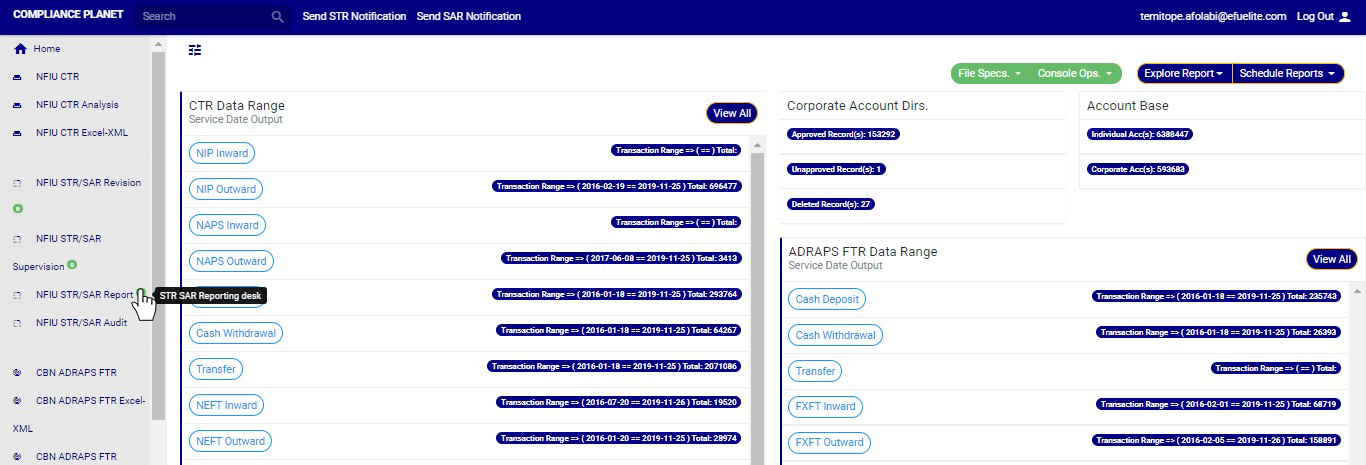
STEP 1: From the left hand side menu, click on “NFIU STR/SAR Report”. See this feature in fig. 6.5a below.

(fig. 6.5a)

➔ Clicking on NFIU STR/SAR Report will display a page as in fig. 6.5b below.

(fig. 6.5b)

➔ The notification(s) highlighted “RED” indicates that it  has not been viewed by anyone on the Reporting desk.

➔ The notification(s)  highlighted “GREEN” indicates that it  has been viewed by you alone.

➔ The notification(s)  highlighted “WHITE” indicates that it  has been viewed by you and at least one other Reporting officer(s)

➔ The notification(s) highlighted “BLUE” indicates that it  has been viewed by other Reporting officer(s) excluding you

You can increase the number of notifications you want to see per page by clicking on the ENTRIES box. Pick any number of entries per page of your choice. See fig. 6.5c below for an example.

(fig. 6.5c)

STEP 2: You can sort the notifications by clicking on any of the column header, either by alphabetical order or from the latest to the earliest notifications or vice-versa. This step is optional. See fig. 6.5d for an example.

(Fig. 6.5d)

STEP 3: Click on the VIEW box to see notifications classified according to the stage of processing they have gotten to. See fig. 6.5e for the classes of notifications available to a reporting officer’s view. Select any of them.

(fig. 6.5e)

As seen in fig. 6.5e above, the classes are;

1. Reporting Officer Pending Notification(s); these are STR/SAR notifications that have been reviewed and approved by a revision officer and/or supervising officer but they have not been treated by the reporting officer. This is the default view of the reporting officer

2. Reporting Officer Approved Notification(s); these are STR/SAR notifications that have been treated and approved by reporting officer. Once a notification is approved by reporting officer, it joins the Approved Notification(s) Pending Download list.

3. Reporting Officer Rejected Notification(s); these are STR/SAR notifications that are not satisfactory to the reporting officer. When a notification is rejected by the reporting officer, the supervision officer will get a mail notification to revisit the notification and send again if need be.

4. Approved Notification(s) Pending Download; these are STR/SAR notifications that have been treated and approved by all officers and await download.

5. Approved Notification(s) Downloaded; these are STR/SAR notifications that have been downloaded.

STEP 4: After selecting the class of Notification(s) from the VIEW box, click on ‘VIEW REPORT(S)’ to see the notification(s). This button is at the top-right corner of the page just as it was in the pages for the other desks. See fig. 6.5f for an example.
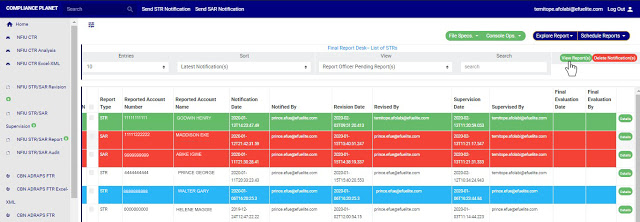
(fig. 6.5f)

➔ Also, you can search for a particular notification by typing the customer name or account number concerned in the search box.  See fig. 6.5g below for an example of a search.

6.5g

(fig. 6.5g)

  • Also, at the bottom-right corner of the page, the software gives information about the number of pages, with the page numbers written out. All the page numbers represent buttons to go to each page. By clicking on any page number, the software takes you to that page. There is the ‘NEXT’ button to take you to the next page when you click on it and there is the ‘PREVIOUS’ button to take you to the page before the current page. See these features in fig. 6.5g above.
  • From fig. 6.5b, 6.5c, 6.5d, 6.5e, 6.5f and 6.5g above, it can be seen that the NFIU STR report page reveals information about the notifier, the date of notification, the reported account number, the reported account name and the report type. The report type column specifies if the Notification is a suspicious transaction or a suspicious action. As stated earlier, the treatment of Notifications differs according to their report type. Now, that you already know how to locate Notifications for final review and approval on the reporting desk, here is how to treat each report type.

A. EVALUATING AND APPROVING A SUSPICIOUS TRANSACTION (STR)

This section provides a guide on how to review and approve a suspicious transaction. The STR notification awaiting final approval are in the ‘REPORTING OFFICER PENDING NOTIFICATION(S)’ list.

NOTE: You have to be profiled as a report evaluation officer on report desk with rights to EDIT to be able to carry out this operation.

STEP 1: Select ‘REPORTING OFFICER PENDING REPORT(S)’ from the VIEW box as shown in fig. 6.5h below.

(fig. 6.5h)

STEP 2: Click on VIEW REPORTS. This will display Notifications awaiting final approval.  See the cursor clicking on this button and the Notifications in fig. 6.5i below.
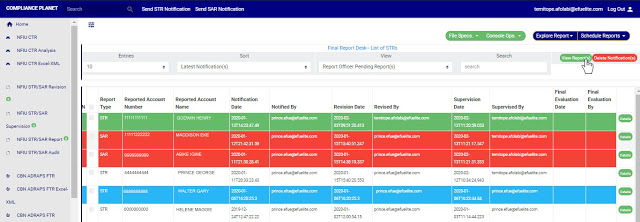
(fig. 6.5i)

STEP 3: Select the STR to be treated by clicking on the ’DETAILS’ button at the end of the notification row. See the cursor clicking on the button in fig. 6.5j below.
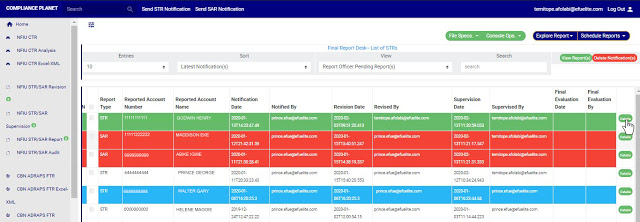
(fig. 6.5j)

➔ By clicking on ‘DETAILS’, a console titled, ‘STR/SAR Pending Final Approval’, will be displayed. See fig. 6.5k below for an example of the STR final approval console.

(Fig. 6.5k)

➔ This console reveals information about the revising officer and the supervising officer with their comments and actions. The final approval console for STRs has two features the console for SARs does not have. These are;

1. Scanning and adding details of transactions related to a suspicious transaction in the report to be generated.

2. Previewing the tagged related STR transactions.

STEP 4: Enter reason to decline(If any) based on your observation. This step is mandatory if you want to reject the notification. Check out fig. 6.5l below for an example.

(Fig. 6.5l)

STEP 5: Click on ‘SCAN AND INCLUDE STR RELATED TRANSACTION’ to add STR related transaction(s) to the report to be generated. This is the dark-blue button at the bottom area of the console. Adding details of related STR transactions will make your notification comprehensive and well detailed.. Clicking on this button will bring up another console on which you are to input the details of the related transaction. See fig. 6.5m below for an example of a scan console.
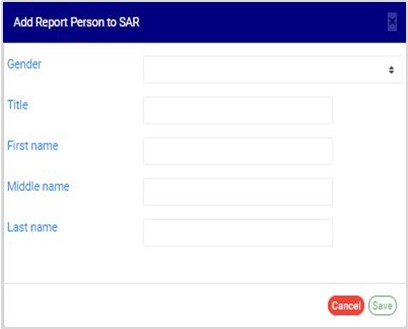
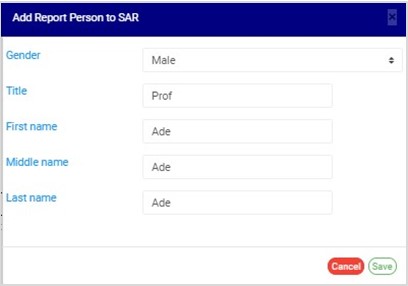
(fig. 6.5m)

➔ Follow the instructions below to make use of a SCAN CONSOLE;

I. Enter the Account Number involved in the related transaction. This account number must exist in the account base.

II. Enter the transaction ID.

III. Click on the ‘Tran Type’ box to select the CTR/FTR Transaction type from a drop-down list as in fig. 6.5n below and set the transaction date from ‘Tran Date’ as seen in fig. 6.5o also.
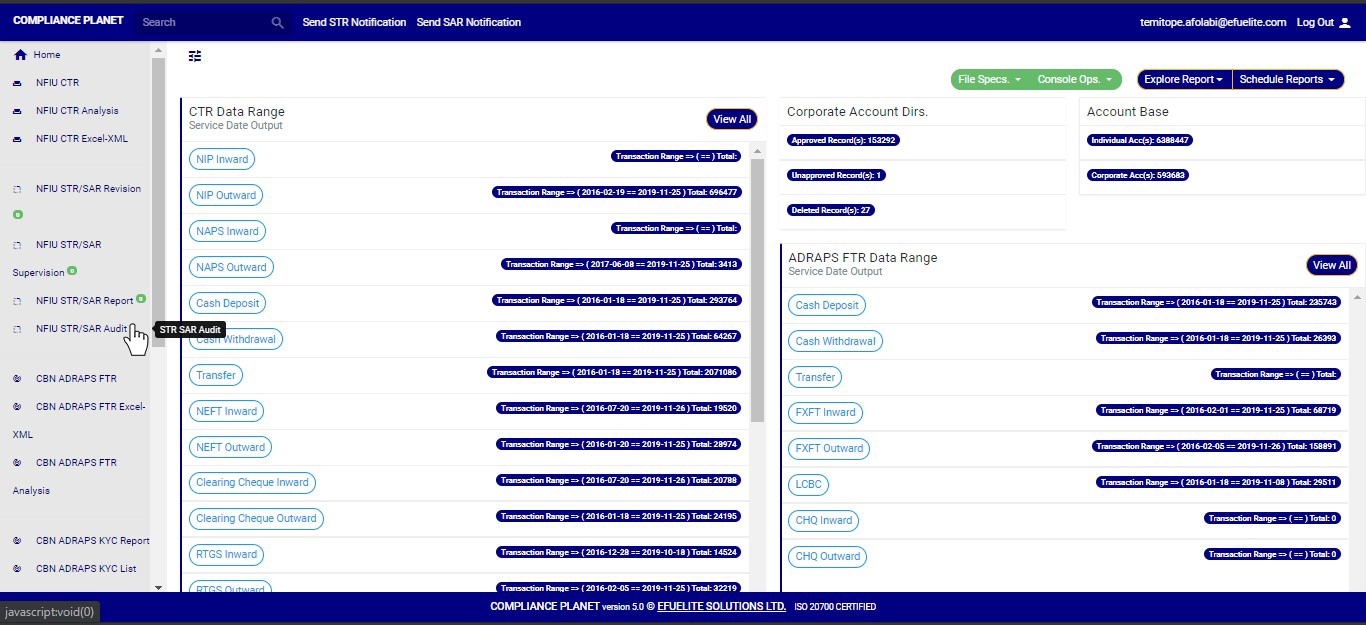
(fig. 6.5n)

(fig. 6.5o)

➔ Here is how to make use of a calendar. Take a look at the arrows labelled a to d in fig. 6.5p to study the calendar;

a. Click on the given year to change it to your year of choice.

b. Click on the given month to change it to your month of choice.

c. Click on the date of the month.

d. You can also click on the angle brackets on the calendar [ ‘’ ] to go backward or forward.

(Fig 6.5p)

IV. Enter the amount involved in the related transaction.

V. Input the ‘narration’ of the related transaction.

VI. Click on ‘START SCAN’ for planet to scan and include the transaction in the notification. See the cursor pointing to this button in fig. 6.5q below.

➔ To clear all the details already entered in, click on ‘CLEAR SCREEN’. The planet will wipe off the details immediately.

➔ To close the scan console, click on ‘CANCEL’.

See fig. 6.5q below for an example of a console with already filled in details, ready for scanning.

(fig. 6.5q)

  • The software immediately starts a scan when you click on ‘Start Scan’. During the scan a notification will be displayed at the top of the page. See fig. 6.5r for an example.

(fig. 6.5r)

STEP 6: Click on ‘Preview STR Related Transaction(s)’ to see the related STR transactions you scanned earlier. This button is next to the ‘SCAN AND INCLUDE STR RELATED TRANSACTION’ button. See this feature in fig. 6.5l above. By clicking on the preview button, a table will be displayed right under the scan and preview button, listing the scanned STR related transaction(s) as in fig, 6.5s below.

(Fig. 6.5s)

➔ As seen in fig. 6.5s above, the table comes with features to delete the transaction from the STR, see the details of the transaction and details of the account involved.

1. To delete a scanned transaction from the report, click on ‘DISCARD’. See an example in fig. 6.5t below.

(fig. 6.5t)

2. To see the details of a transaction, click on ‘TRAN DETAILS’. This button is between the ‘discard button’ and the ‘Acc details’ button as seen in fig. 6.5u below.

(fig. 6.5u)

➔ By clicking on ‘TRAN DETAILS’, a console as in fig. 6.5v below will appear on screen, giving details about the scanned transaction.

(fig. 6.5v)

➔ You can also edit some of the transaction details. The details that can be changed are; source account number, source account name, source account bank code, destination account number, destination account name and destination bank code. To edit these details, click on ‘EDIT’. This button is on the title pane of the console. See the cursor clicking on the ‘EDIT’ button in fig. 6.5v above.

➔ Clicking on ‘EDIT’, a console with the aforementioned details will appear on screen as in fig. 6.5w below. Make the changes you want and click on ‘SAVE CHANGES’. See the cursor clicking on the button to save the changes made in fig. 6.5w.

(fig. 6.5w)

3. Click on ‘ACC DETAILS’ to see the details of the accounts involved in the scanned related transaction. See an example in fig. 6.5x below.

(fig. 6.5x)

➔ Clicking on the ‘ACC DETAILS’ button, a console will be displayed as in fig. 6.5y below. As seen below, this console gives details about both the source account and the destination account. These details cannot be edited. After viewing, click on the ‘DISMISS CONSOLE’ button at the bottom-right corner of the console.

(fig. 6.5y)

➔ You can scan and include as many transactions as you want to your suspicious transaction report.

STEP 7: Click on ‘ACCEPT’ to approve the STR or ‘REJECT’ if notification is unsatisfactory. A confirmation console will be displayed to confirm your selected option. See fig. 6.5z and 6.5aa to see examples of a confirmation console when you choose to ‘accept’ or ‘reject’ respectively. To proceed, click on CONFIRM and to cancel the action, click on CANCEL. Check that you are sure of your options before confirming your request to reject or accept the report because this step is irreversible.

(fig. 6.5z)
 (fig. 6.5aa)


B. EVALUATING AND APPROVING A SUSPICIOUS ACTION (SAR)

This section provides a guide on how to treat a suspicious action and give a final approval. The SAR notifications awaiting final approval are also in the ‘REPORTING OFFICER PENDING NOTIFICATION(S)’ list.

NOTE: You have to be profiled as a report evaluation officer on report desk with rights to EDIT to be able to carry out this operation.

STEP 1: Select ‘REPORTING OFFICER PENDING NOTIFICATION(S)’ from the VIEW box as shown in fig. 6.5ab below.

(fig. 6.5ab)

STEP 2: Click on VIEW REPORTS and notification(s) awaiting final approval will be displayed. See this  in fig. 6.5ac below.

(fig. 6.5ac)

STEP 3: Select the SAR to be treated by clicking on the ’DETAILS’ button at the end of the SAR notification row. See the cursor clicking on the button in fig. 6.5ad below.

(fig. 6.5ad)

➔ By clicking on ‘DETAILS’, a console titled, ‘STR/SAR Pending Final Approval’, will be displayed. See fig. 6.5ae below for an example of the SAR final approval console.

(fig. 6.5ae)

➔ From the example in fig. 6.5ae shown above, the final approval console for SARs shows information about action taken and the reason(s) for the notification, but is different from the console for a STR. This console has a feature for adding report person(s) to an SAR.

STEP 4: Enter any extra notes in the “reason to decline “box based on your observation. This step is mandatory if you want to reject the notification. Check out fig. 6.5af below for an example.

(fig. 6.5af)

STEP 5: Click on ‘ADD REPORT PERSON(S) TO SAR’ to add details of report person. Report person refers to the person that sent the SAR report. Clicking on this button will display a confirmation console. Fig. 6.5ag is an example of the console to input details of report person..

(fig. 6.5ag)

➔ Follow the instructions below to make use of the console seen in fig. 6.5ag.

I. Select the gender of report person by clicking on the ‘Gender’ box.

II. Enter the title of report person

III. Enter the first name of report person

IV. Enter the middle name of report person

V. Enter the last name of report person

VI. Click on ‘SAVE’. To close the console, click on CANCEL.

See fig. 6.5ah for an example of a console with details ready to save

(fig. 6.5ah)

➔ The software  will add the new information you have added right under the ‘ADD REPORT PERSONS TO SAR’ button just as in fig. 6.5ai below. Click on ‘ADD REPORT PERSONS TO SAR’ to add more persons.

(fig. 6.5ai)

➔ As shown in fig. 6.5ai above, there are two buttons at the end of the row for each report person. These are; ‘EDIT’ button and ‘DELETE’ button. To change the details for a report person, click on ‘EDIT’ and the console just as in fig. 6.5ah above will be displayed. Make the changes and click on save. To remove a report person from a SAR, click on ‘DELETE’.

STEP 6: Click on ‘ACCEPT’ to give final approval or ‘REJECT’ to disapprove the notification. A confirmation console will be displayed to confirm your selected action. See fig. 6.5aj and 6.5ak to see examples of a confirmation console when you choose to ‘accept’ or ‘reject’ respectively. To proceed, click on ‘CONFIRM’ and to cancel the action, click on ‘CANCEL’. Check that you are sure of your options before confirming your request to accept or reject the report because this step is irreversible.

(fig. 6.5aj)

(fig. 6.5ak)

For further enquiries :
Tel +234(0) 816 555 9818
Email solutions@efuelite.com