How to Supervise Rejected Suspicious Transaction / Activity Report (STR/SAR) on Supervision Desk In Compliance Planet Anti Money Laundering/Core Banking Finance Software

NOTE: You have to be profiled as a supervisor with rights to edit.

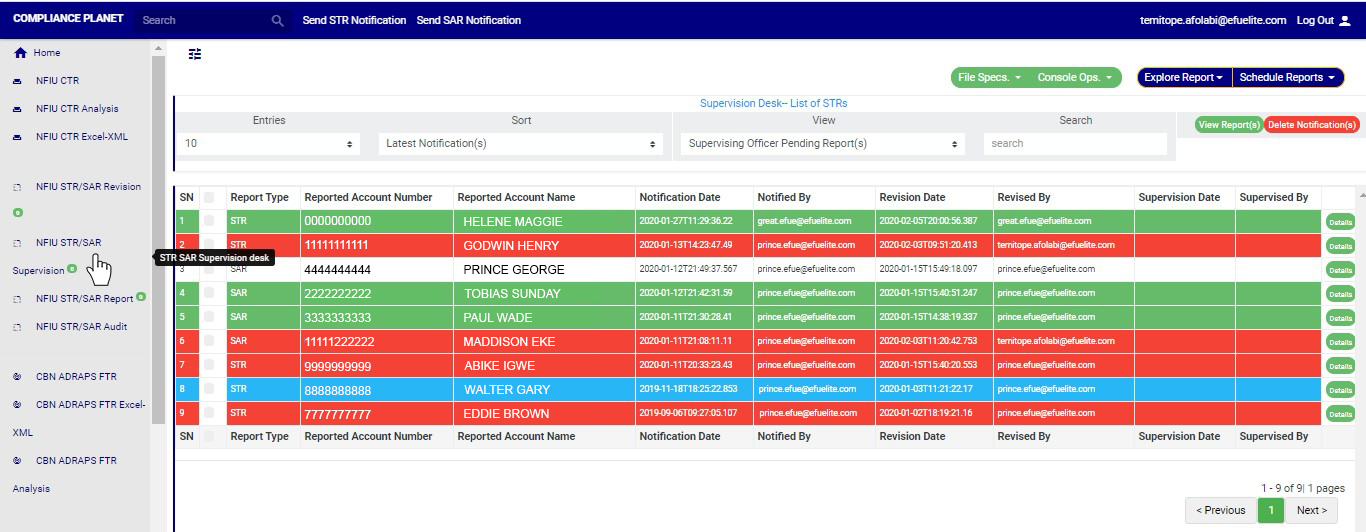
  • From the left hand side menu, click on “NFIU STR/SAR Supervision”. See this feature in fig below.

➔ Clicking on “NFIU STR/SAR Supervision” will display a page as in fig below.

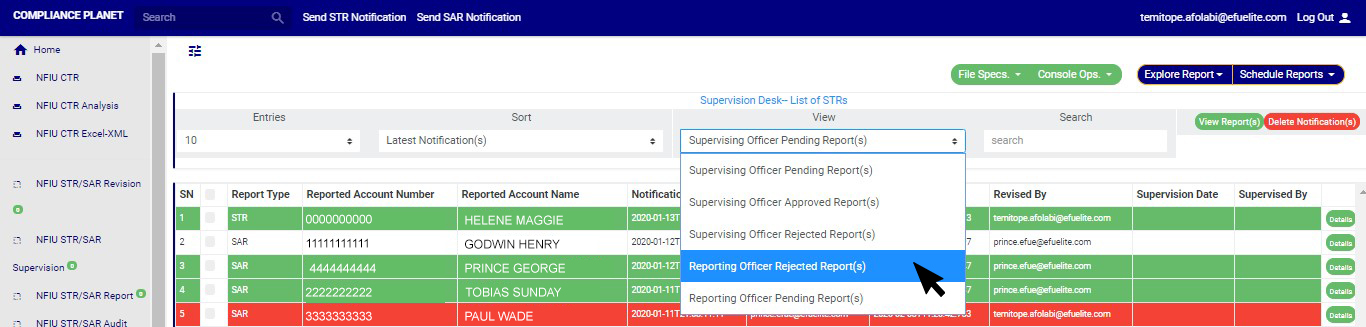
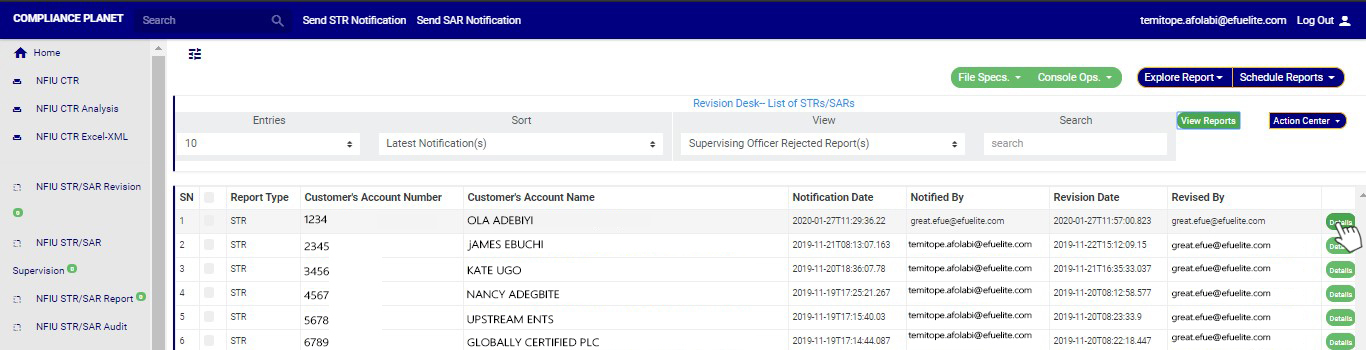
STEP 1: On NFIU STR SAR supervision  page, Go to the ‘VIEW’ box and select ‘Reporting Officer Rejected Report(s)’. See fig. 6.4l below for an example.

(fig. 6.4p)

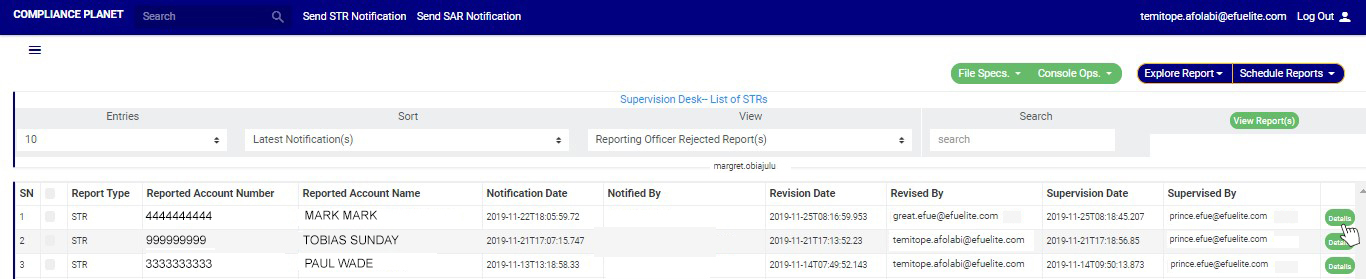
➔ Click on ‘VIEW REPORTS’ to see the notifications. On this page, the supervising officer will be able to re-process notification for approval again.

STEP 2: To see details of the STR notification, click on ‘DETAILS’. Every notification still undergoing processing has this button at the end of its row.

(fig. 6.4q)

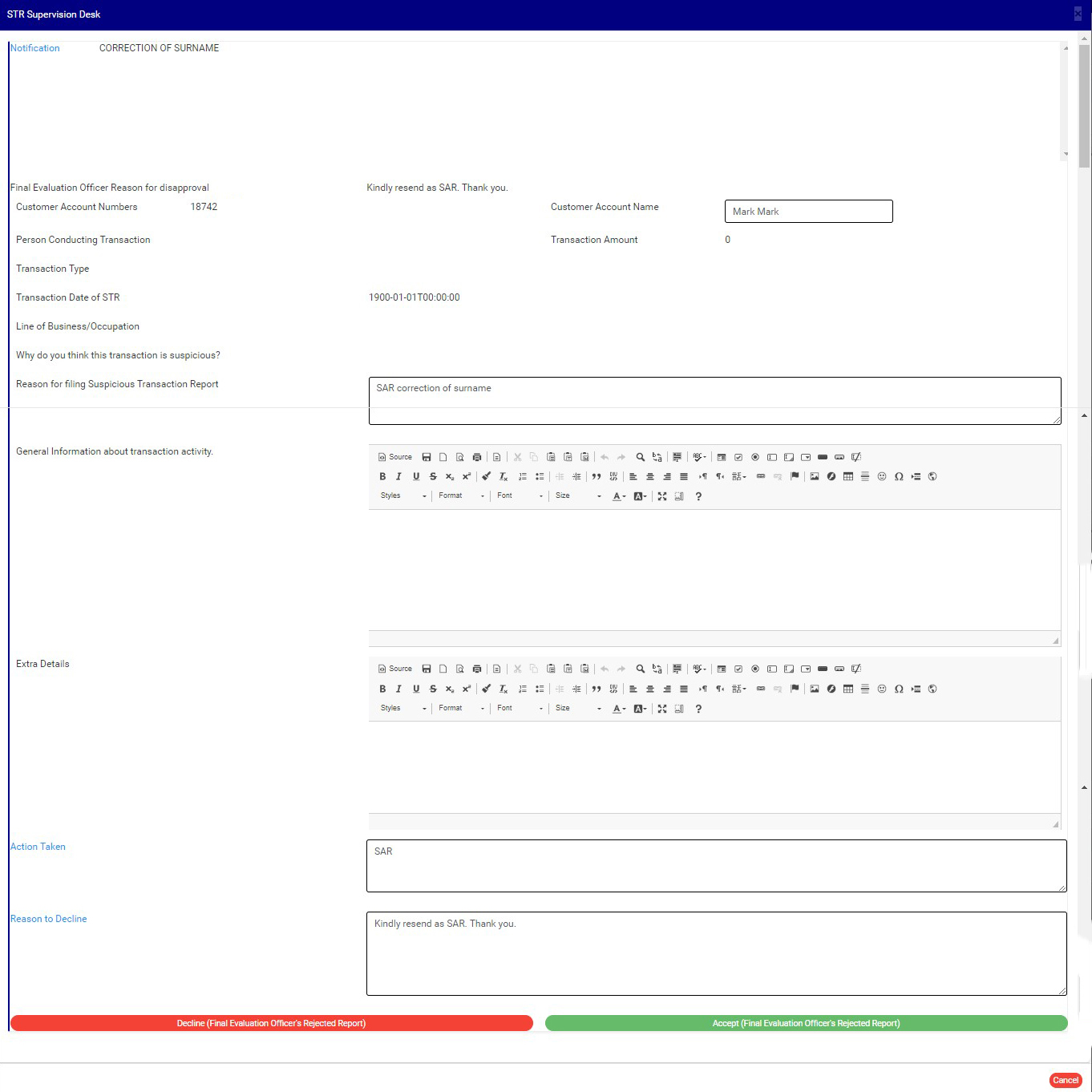
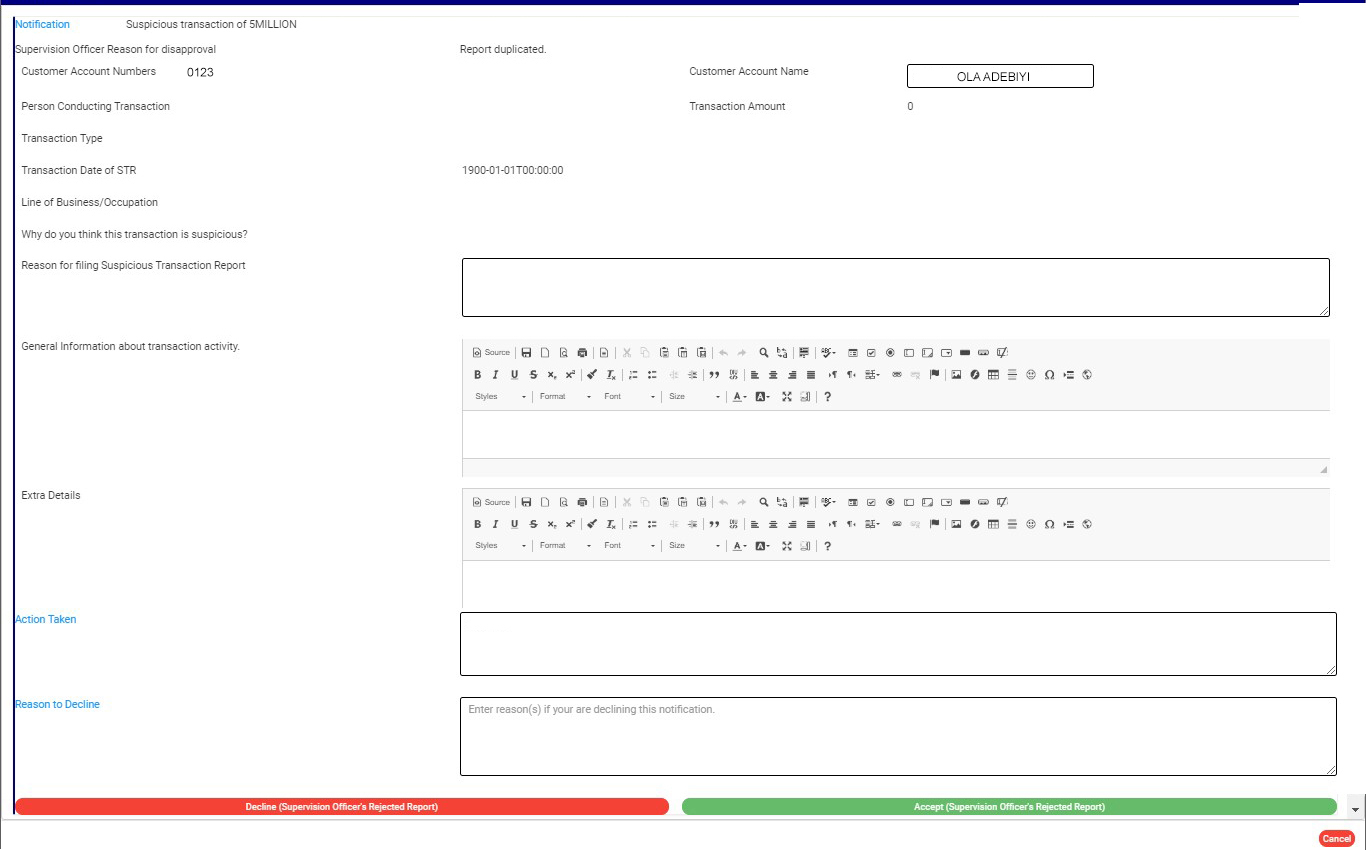
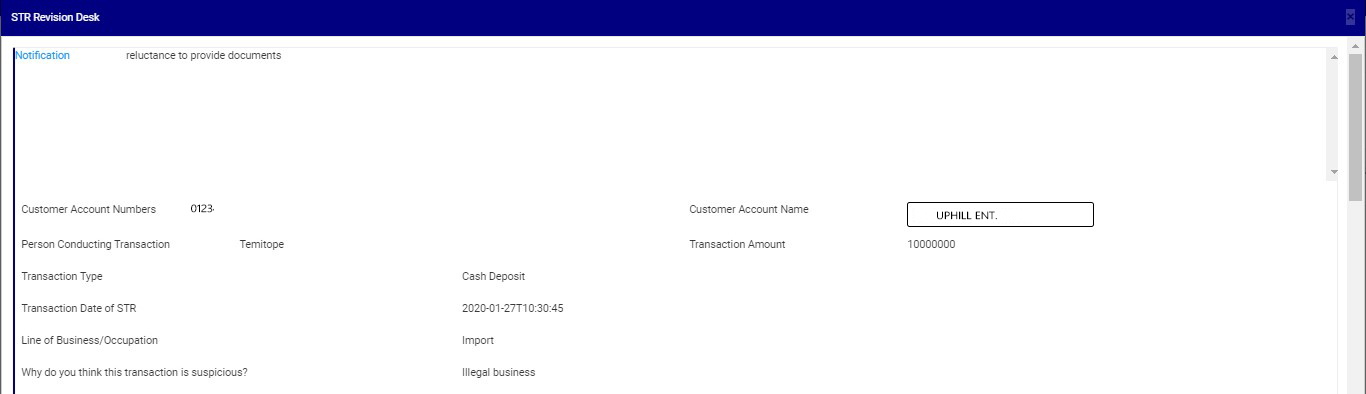
STEP 3: Clicking on the DETAILS button will display a console which allows you to revisit the notification. See fig. 6.3q below for an example.

(fig. 6.4r)

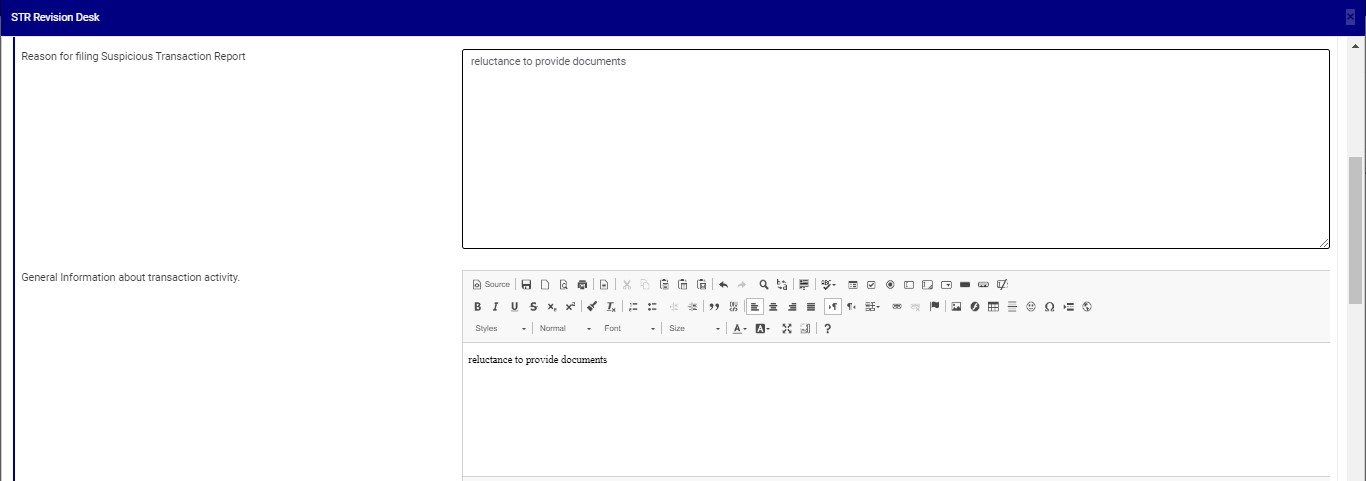
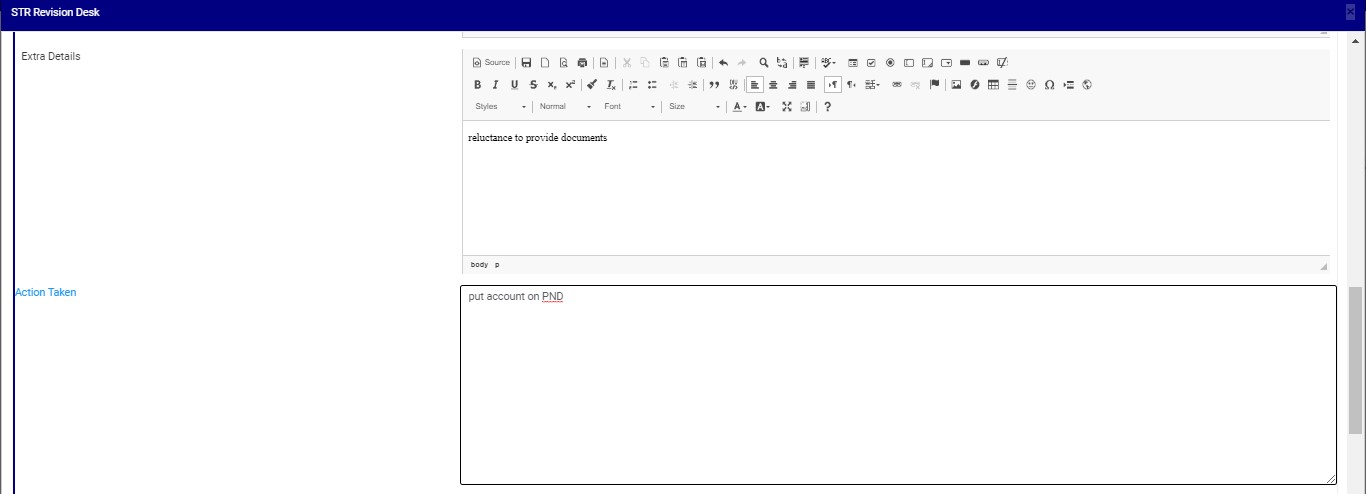
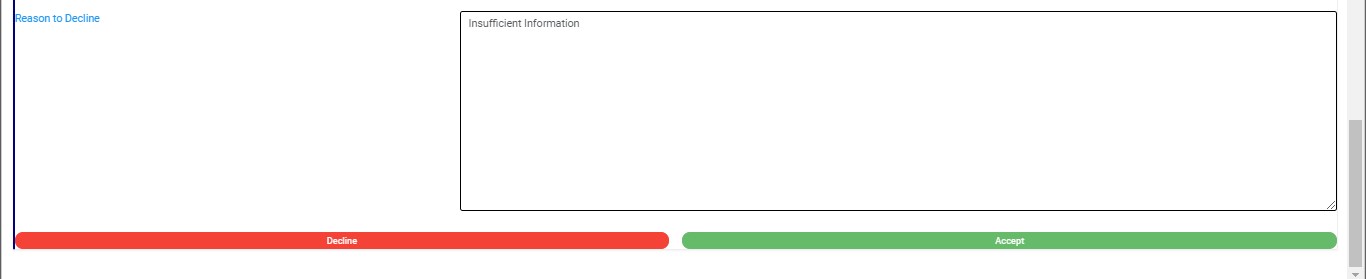
STEP 4: Edit the details you want to change. You can edit all information except the notification itself. This means you can change the Reason for filing notification , General information about transaction activity, Extra details, Action taken and reason to decline.

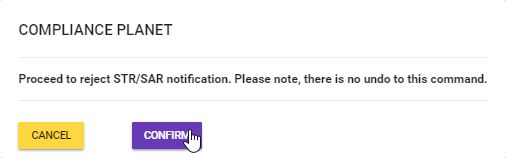
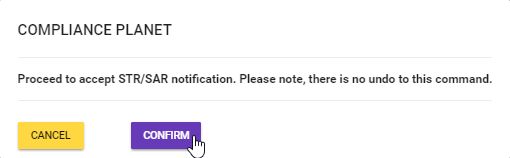
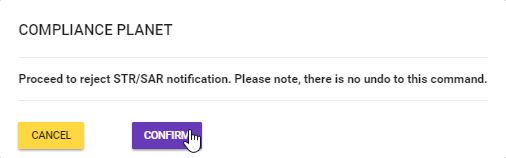
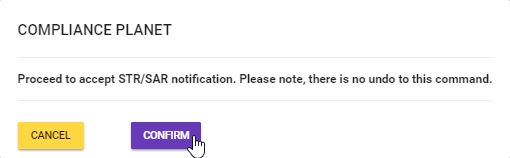
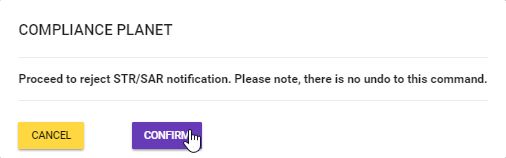
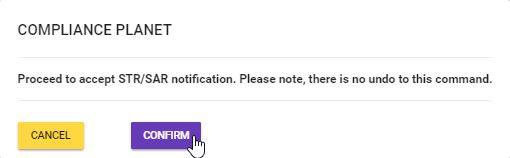
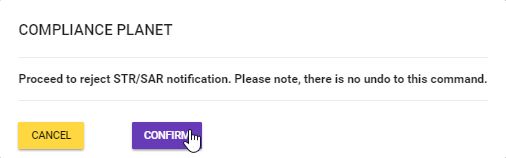
STEP 5: Click on REJECT or ACCEPT. The software will display a confirmation console to confirm your selected action. Check that you are sure of your options before rejecting or accepting the notification as this step cannot be reversed once confirmed. See fig. 6.4s and 6.4t to see example of the confirmation console when you decide to ‘reject’ and when you choose to ‘accept’ respectively. To proceed, click on CONFIRM and to cancel the review, click on CANCEL.

(Fig. 6.4s)
 (fig. 6.4t)


For further enquiries :

Tel +234(0) 816 555 9818

Email solutions@efuelite.com

Web http://solutions.efuelite.com

How to Delete Suspicious Transaction /Activity Notification (STR/SAR) on Supervision Desk In Compliance Planet Anti Money Laundering/Core Banking Finance Software

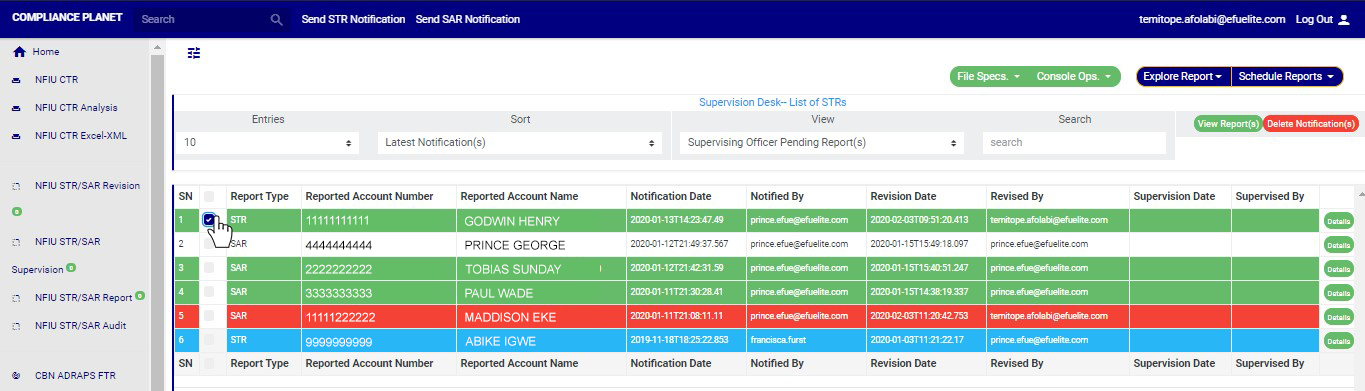
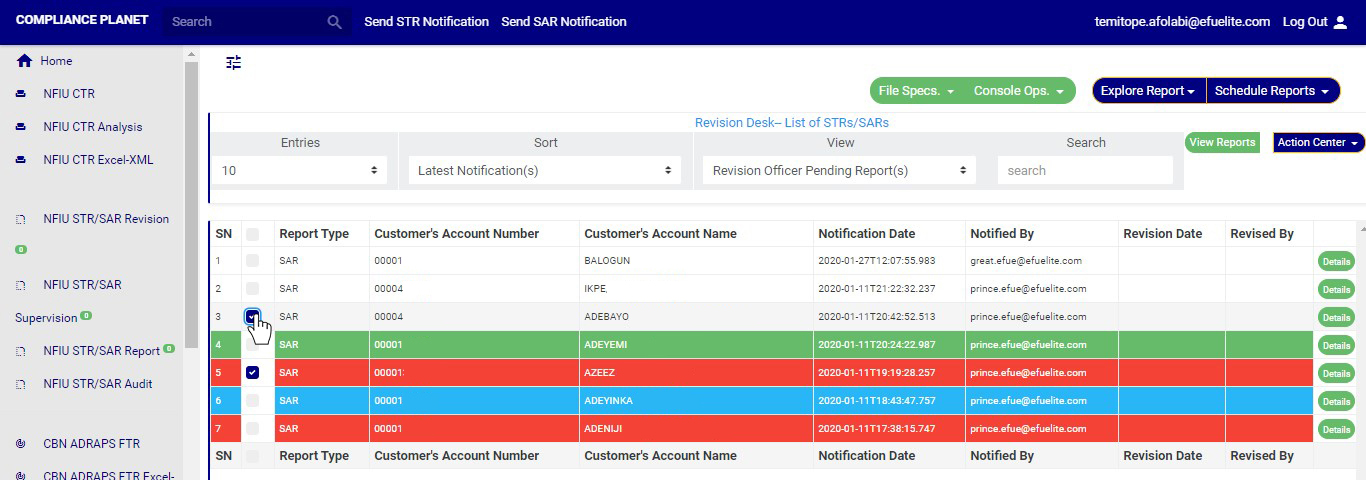
STEP 1: On NFIU STR SAR supervision  page, Click on the check boxes to select the notifications you want to delete. See an example in Fig 6.4u below

(fig. 6.4u)

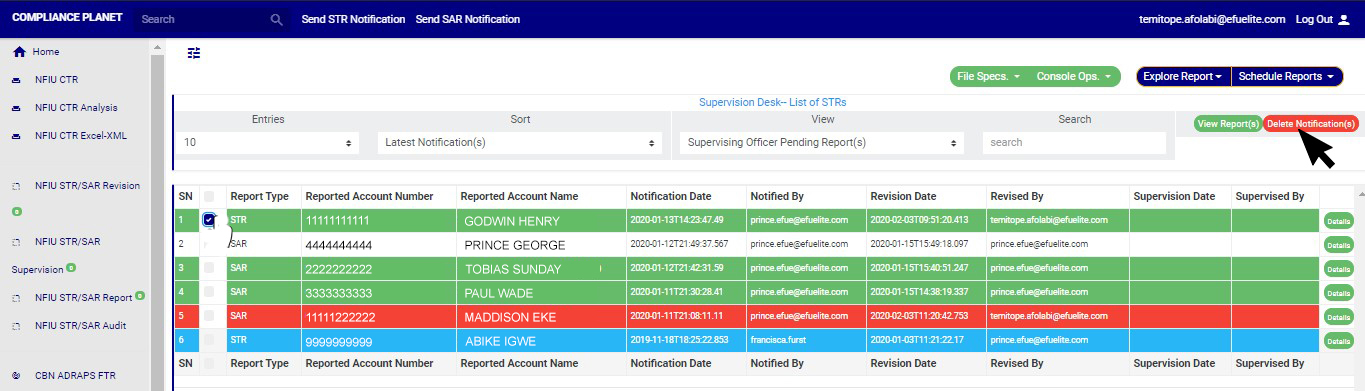
STEP 2: Click on the “Delete Notification(s)” button as shown in in Fig 6.4v below.(fig. 6.4v)

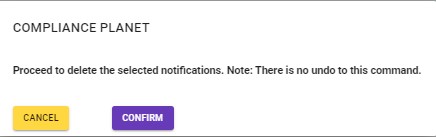
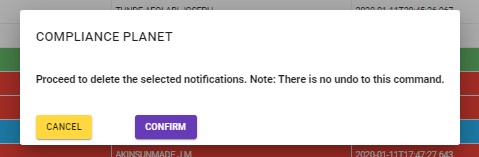
STEP 3: Clicking on “Delete Notification(s)” will display a console to confirm your selected action. See an example in Fig 6.4w below. To proceed, click on CONFIRM and to dismiss the operation, click on CANCEL.

(fig. 6.4w)

NOTE: You have to be profiled as a ‘supervisor’ and a ‘Team Lead 2’ on supervision Desk, to carry out this operation.

For further enquiries :
Tel +234(0) 816 555 9818
Email solutions@efuelite.com

Web http://solutions.efuelite.com

How to Supervise Suspicious Transaction / Activity Notification (STR/SAR) In Compliance Planet Anti Money Laundering/Core Banking Finance Software

The next stage of processing after revising an STR/SAR notification is the SUPERVISION STAGE. Here are steps to supervising a suspicious transaction notification.

NOTE: Only person(s) profiled as ‘supervision desk officer’ with right to edit can carry out these operations.

STEP 1: From the left hand side menu, click on “NFIU STR/SAR Supervision”. See this feature in fig. 6.4a below.
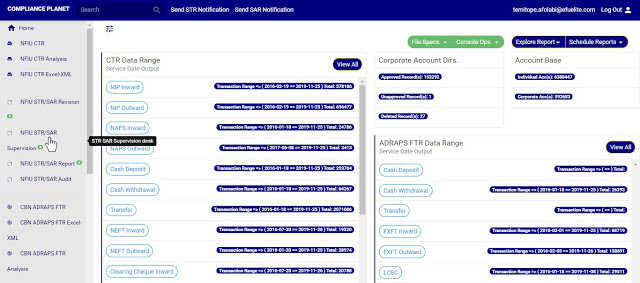
(fig. 6.4a)

➔ Clicking on “NFIU STR/SAR Supervision” will display a page as in fig. 6.4b below.
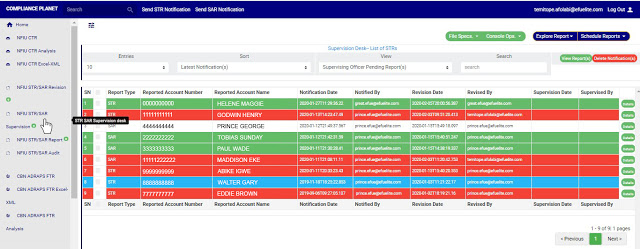
(fig. 6.4b)

➔ The notification(s) highlighted “RED” indicates that it has not been viewed by anyone on the Supervising desk.

➔ The notification(s) highlighted “GREEN” indicates that it has been viewed by you alone.

➔ The notification(s) highlighted “WHITE” indicates that it has been viewed by you and at least one other Supervising officer(s)

➔ The notification(s) highlighted “BLUE” indicates that it has been viewed by other Supervising officer(s) excluding you

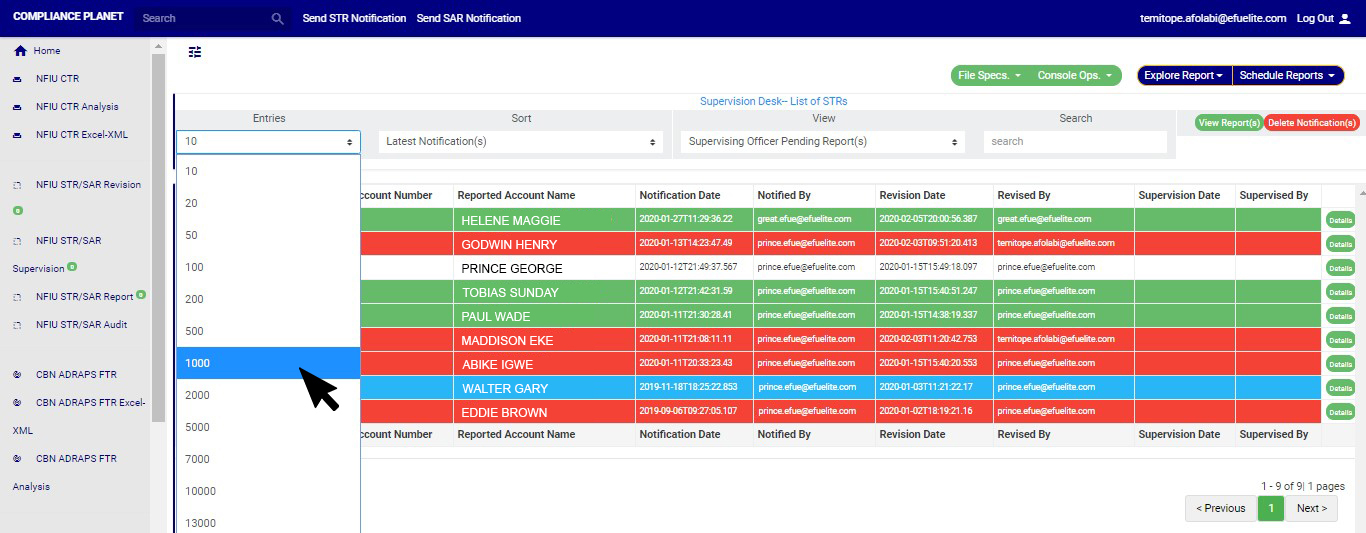
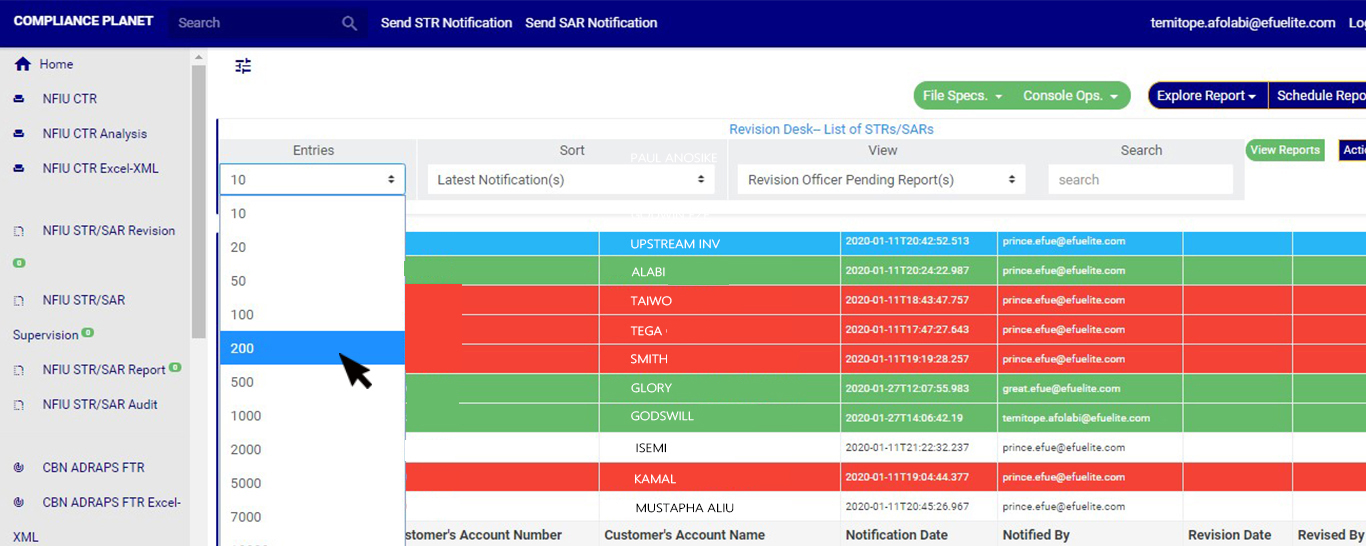
You can increase the number of notifications you want to see per page by clicking on the ENTRIES box. Pick any number of entries per page of your choice. See fig. 6.4c below for an example.
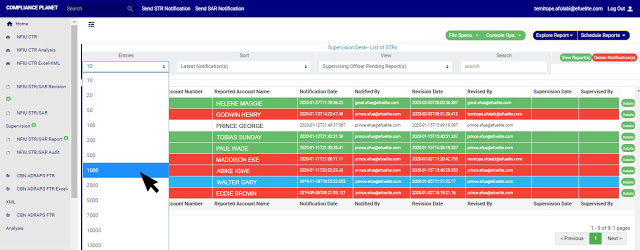
(fig. 6.4c)

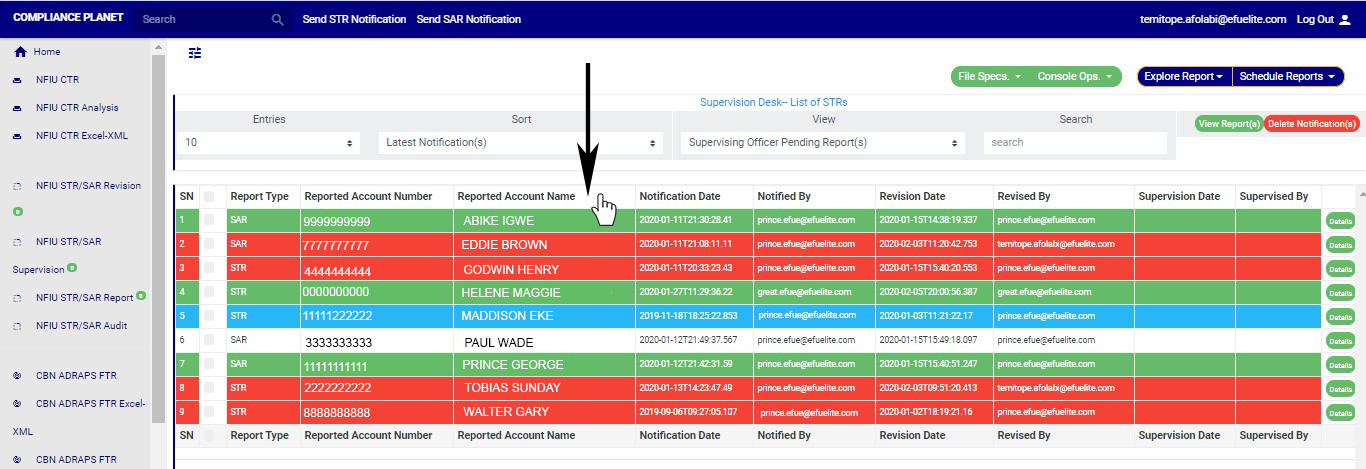
➔ You can sort the notifications by clicking on any of the column header, either by alphabetical order or from the latest to the earliest notifications or vice-versa as shown in fig. 6.4d below.

(fig. 6.4d)

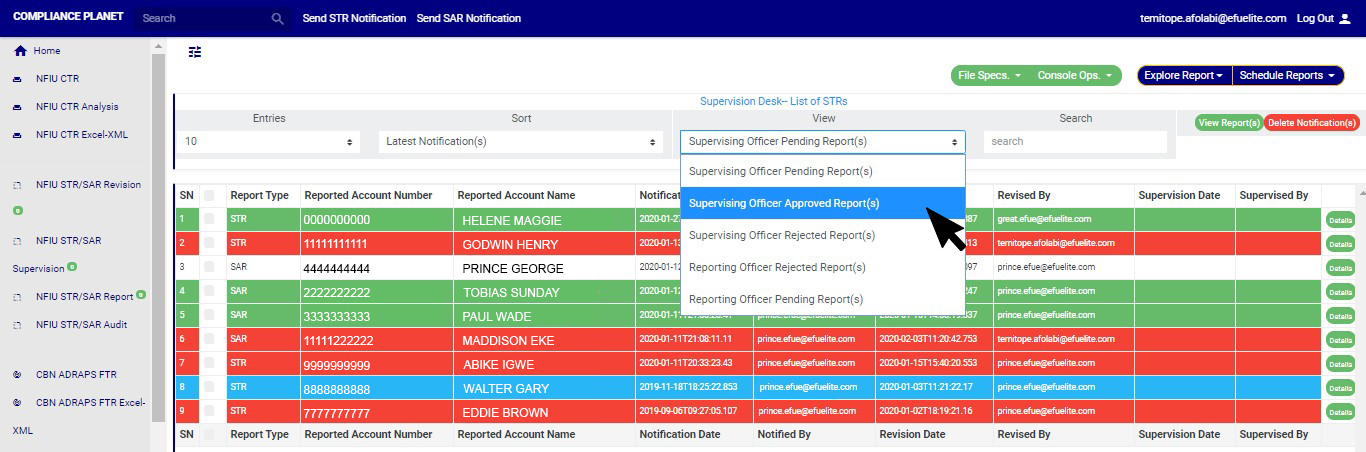
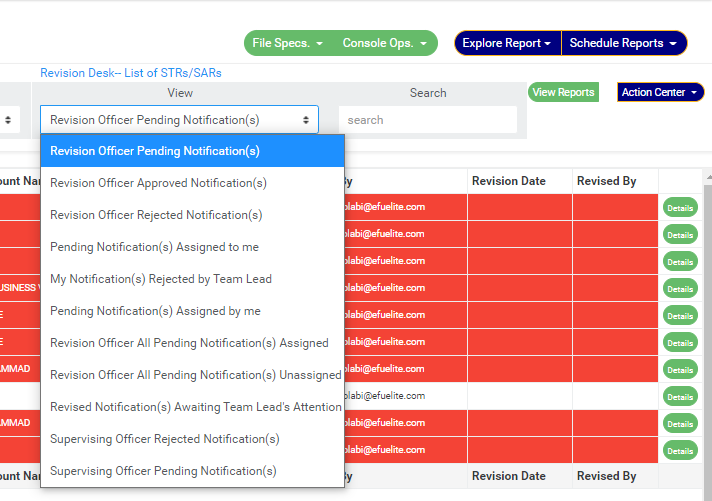
➔ Click on the VIEW box to see notifications classified according to the stage of processing they have gotten to. See fig. 6.4e for the classes of notifications available to a supervision officer’s view.

(fig. 6.4e)

➔ As seen in fig. 6.4e above, the classes are;

1. Supervision Officer Pending Notification(s); these are STR/SAR notifications that have been reviewed and approved by a revision officer but they have not been treated by the supervision officer.

2. Supervision Officer Approved Notification(s); these are STR/SAR notifications that have been treated, approved and forwarded to the reporting officer for further processing. Once a notification is approved by supervision officer, it joins the reporting officer pending notification(s) list for further approval.

3. Supervision Officer Rejected Notification(s); these are STR/SAR notifications that are not satisfactory to the supervision officer. When a notification is rejected by the supervision officer, the revision officer will get a mail notification to revisit the notification and send again if need be. The notification this time around will include reason(s) for rejection.

4. Reporting Officer Rejected Notification(s); these are notification(s) that have been treated and approved by the revision officer and/or the supervision officer but they are unsatisfactory for further approval by the reporting officer.

5. Reporting Officer Pending Notification(s); these are STR/SAR notification that have been approved by revision and/or supervision officer and await the reporting officer’s treatment.

➔ After selecting the class of notification(s) from the VIEW box, click on ‘VIEW REPORT(S)’ to see the notification(s). This button is at the top-right corner of the page. See fig. 6.4f for an example.

(fig. 6.4f)

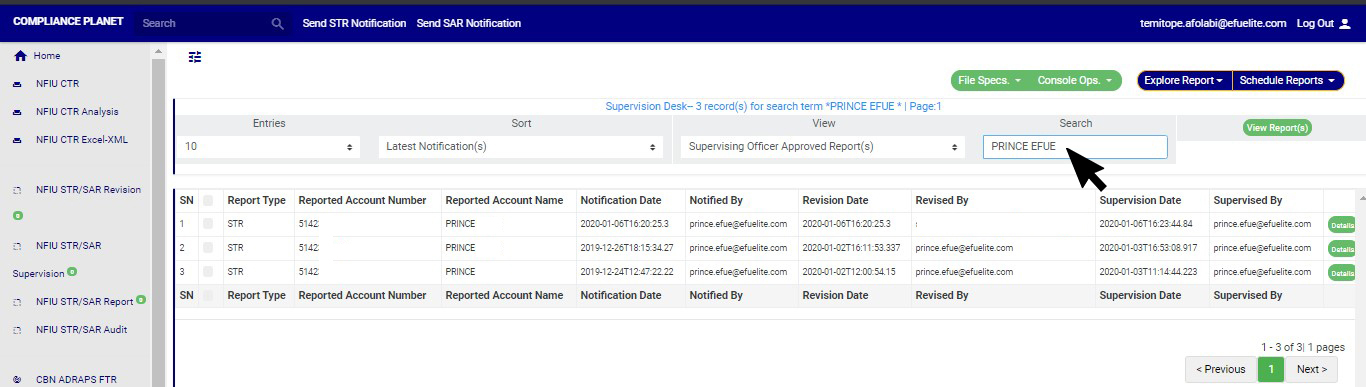
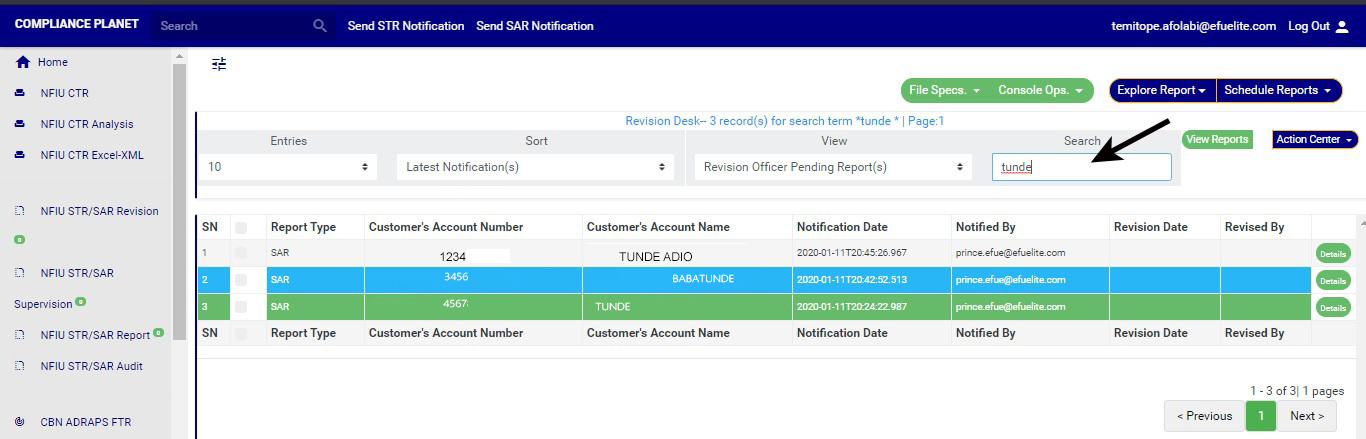
➔ Also, you can search for a particular notification by typing the customer’s name or account number concerned in the search box. The software will make the search immediately. See fig. 6.4g below for an example of a search.

(fig. 6.4g)

➔ At the bottom-right corner of the page, the software gives information about the number of pages, with the page numbers written out. All the page numbers represent buttons to go to each page. By clicking on any page number, the software takes you to that particular page. There is the NEXT button to take you to the next page when you click on it and there is the ‘PREVIOUS’ button to take you to the page before the one you are viewing at that moment. See these features in fig. 6.4g above.

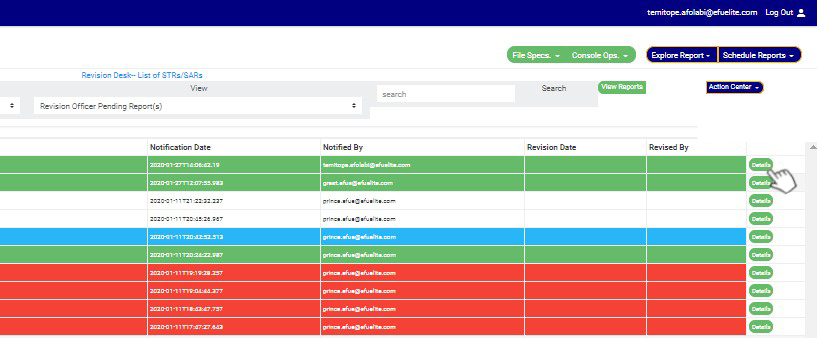
STEP 2: Select notification to be treated from the ‘SUPERVISION OFFICER PENDING NOTIFICATION(S) list by clicking on the details button at the end of the notification row. Check out fig. 6.4h below to see the green button at the end of each notification pending any approval.

(fig. 6.4h)

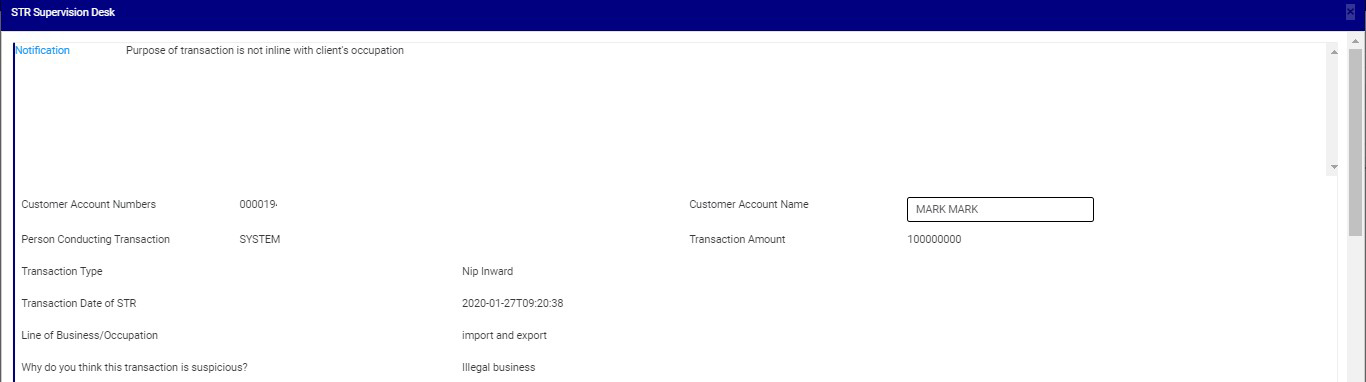
➔ By clicking on ‘DETAILS’, a console will be displayed as in fig. 6.4i below.

(fig. 6.4i)

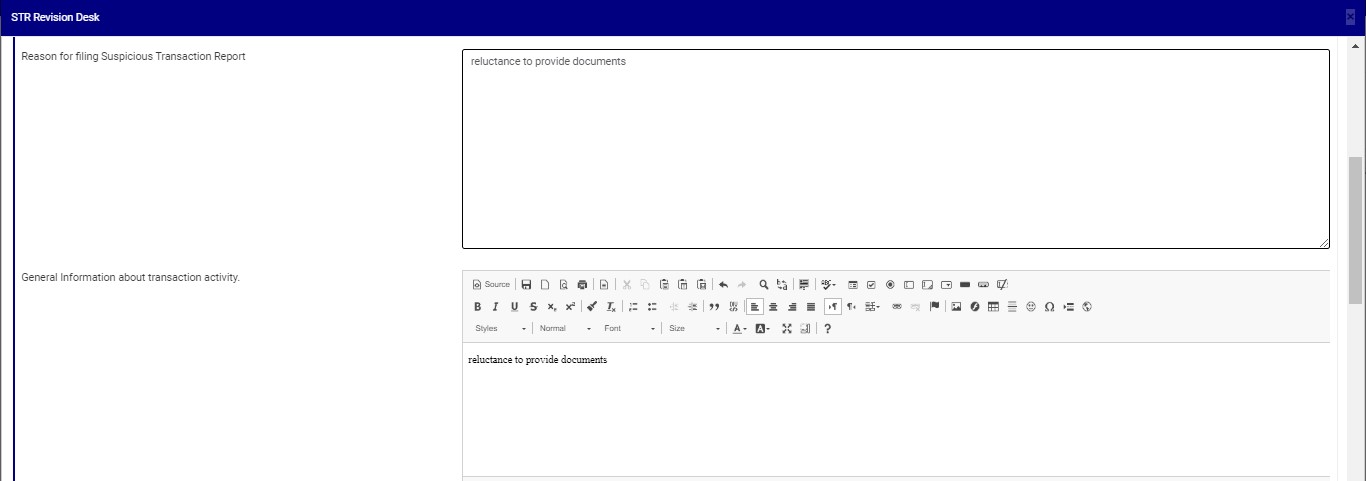
STEP 3: Click on the ‘Reason for Filing Suspicious Transaction Notification’ box to edit the revision officer’s reason(s) for approving the notification. This step is optional. See an example in fig. 6.4j below.
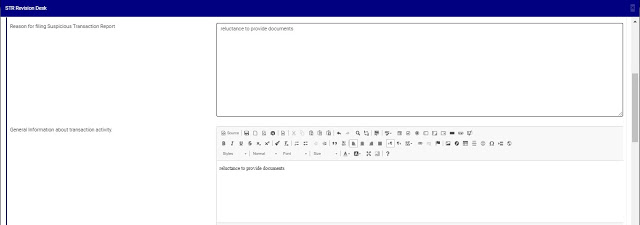
(fig. 6.4j)

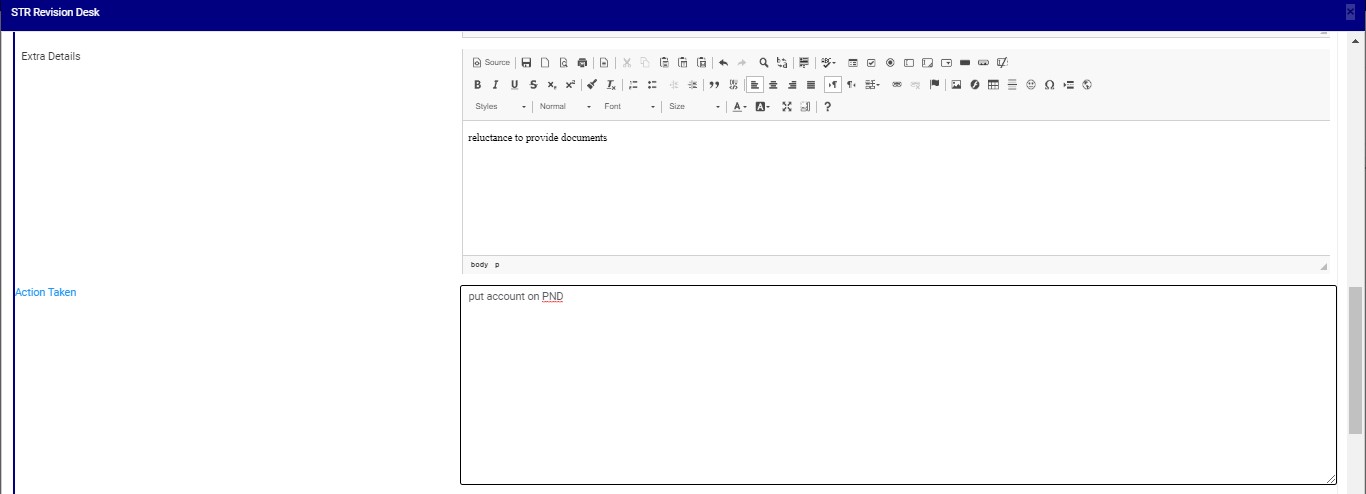
STEP 4: Click on “Extra Details” box to edit the revision officer’s comment and click on the “Action Taken” box to edit action(s) taken concerning the suspicion filed. See an example in fig. 6.4k below.

(fig. 6.4k)

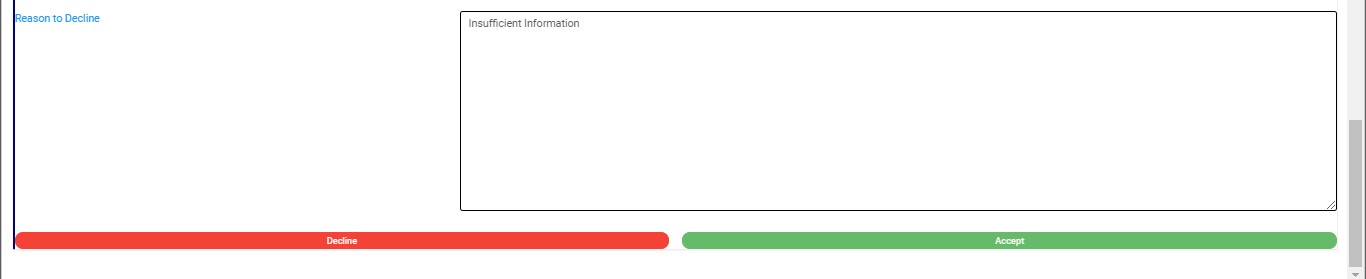
STEP 5: Click on ‘Reason to Decline’ box (if you want to reject the notification) to enter in comments. This step is mandatory if you want to reject the notification. See fig. 6.4l for an example.

(fig. 6.4l)

STEP 6: Click on REJECT or ACCEPT. The software will display a confirmation console to confirm your selected action. Check that you are sure of your options before rejecting or accepting the notification as this step cannot be reversed once you confirm. See fig. 6.4m and 6.4n to see an example. To proceed, click on CONFIRM and to cancel the action, click on CANCEL.

(fig. 6.4m)
 (fig. 6.4n)

➔ A notification will be displayed at the top of the page whenever you confirm your option.

(fig. 6.4o)
For further enquiries :
Tel +234(0) 816 555 9818
Email solutions@efuelite.com

Web http://solutions.efuelite.com

How to Delete Suspicious Transaction /Activity Notification (STR/SAR) on Revision Desk In Compliance Planet Anti Money Laundering/Core Banking Finance Software

NOTE: This operation can only be carried out by persons profiled as Team Lead 2 and Revision Officer

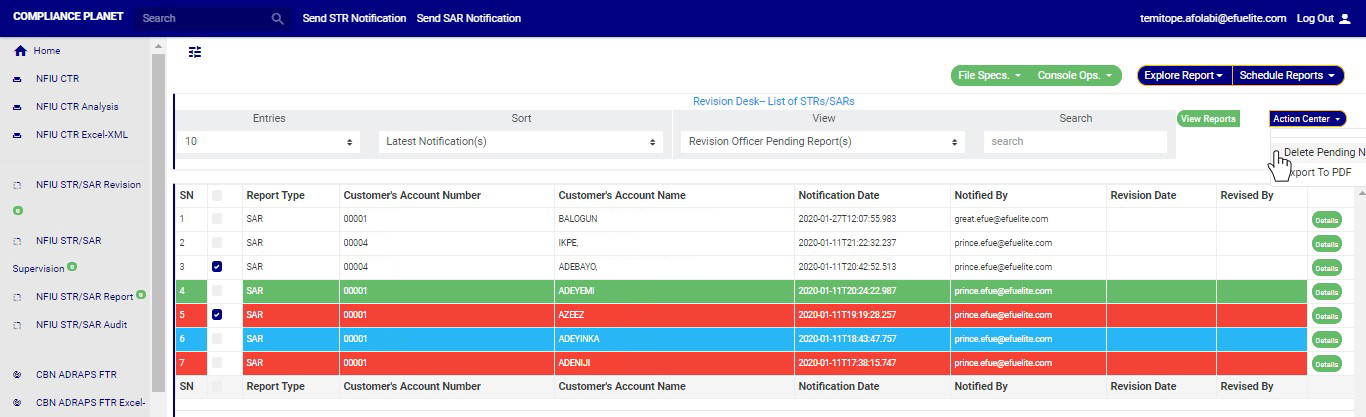
STEP 1: Click on the check boxes to select the notifications. See an example in Fig 6.3aj below

 (fig. 6.3aj)

➔ You can also select all Notifications on the page by clicking on the checkbox at the top. See an example in fig 6.3ak below

(fig. 6.3ak)

STEP 2: Click on the “Delete Notification(s)” button as shown in in Fig 6.3al below

(fig. 6.3al)

STEP 3: Clicking on “Delete Notification(s)” will display a confirmation console to confirm your selected action. See an example in Fig 6.3am below. To proceed, click on CONFIRM and to dismiss the operation, click on CANCEL.

(fig. 6.3am)

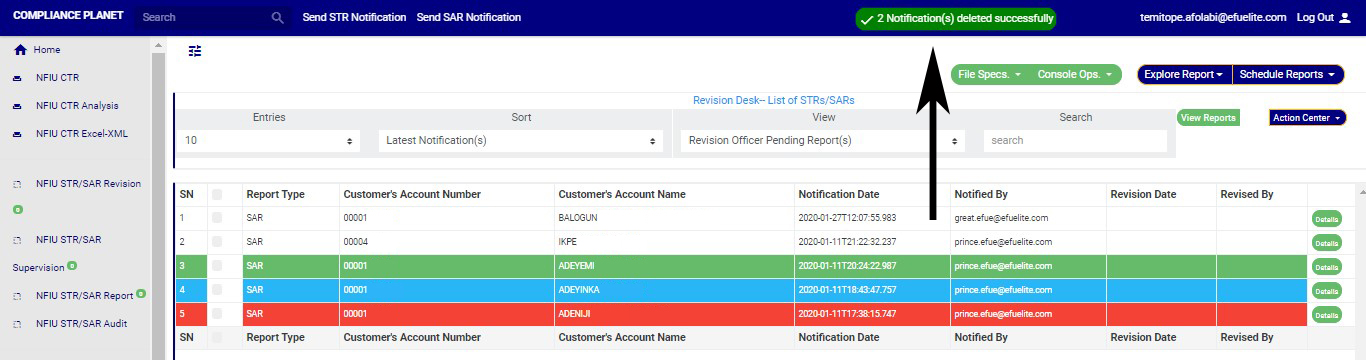
➔ Click on ‘CONFIRM’ as in fig. 6.3am above delete the Notifications or cancel to discontinue action. When you click confirm,a temporary notification will be displayed at the top of the page as in fig. 6.3an below.

(fig. 6.3an)

For further enquiries :
Tel +234(0) 816 555 9818
Email solutions@efuelite.com

How to Assign Suspicious Transaction /Activity Report (STR/SAR) on Revision Desk In Compliance Planet Anti Money Laundering/Core Banking Finance Software

NOTE: Only person(s) Profiled as Team Lead 1 or Team lead 2 can carry out these operations.

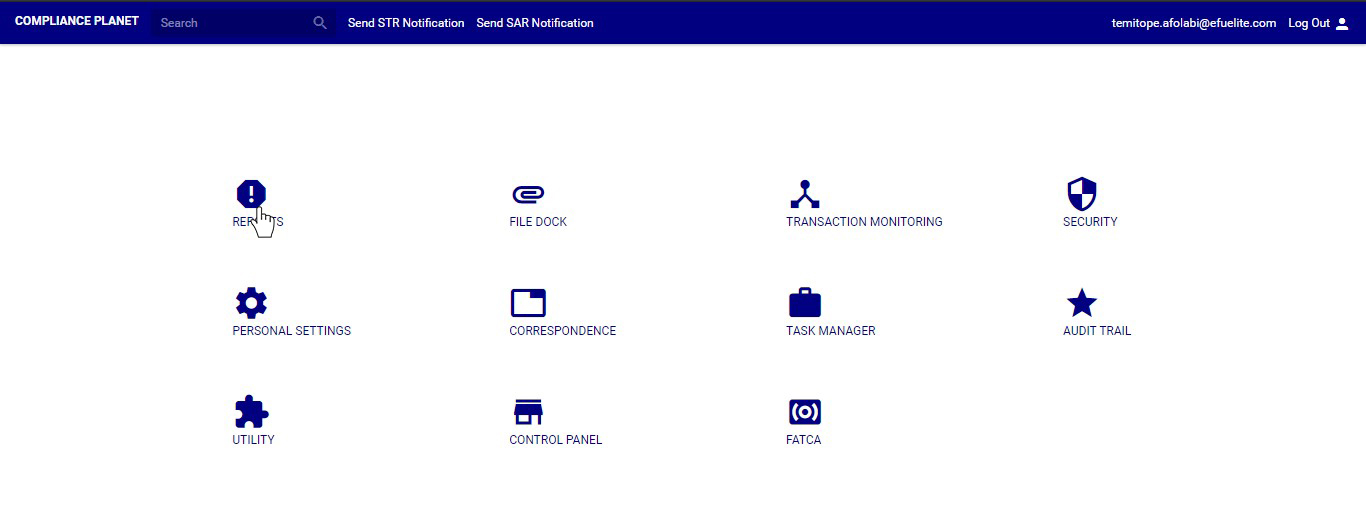
➔ From the main dashboard and click on reports as in fig below

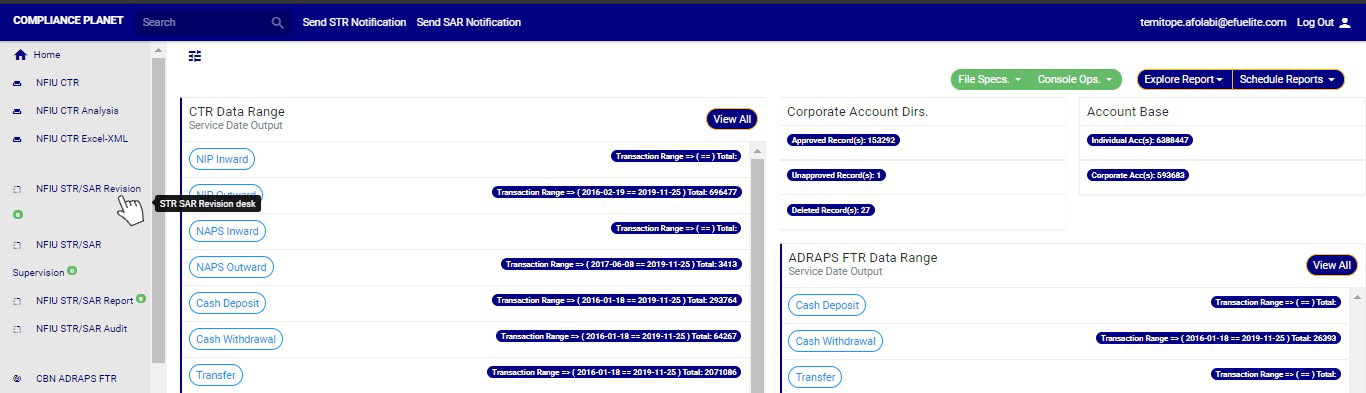
➔ From the left hand side menu click on “NFIU STR/SAR Revision”. See this feature in fig  below.

➔ Clicking on “NFIU STR/SAR Revision” will display a page as in fig. below.

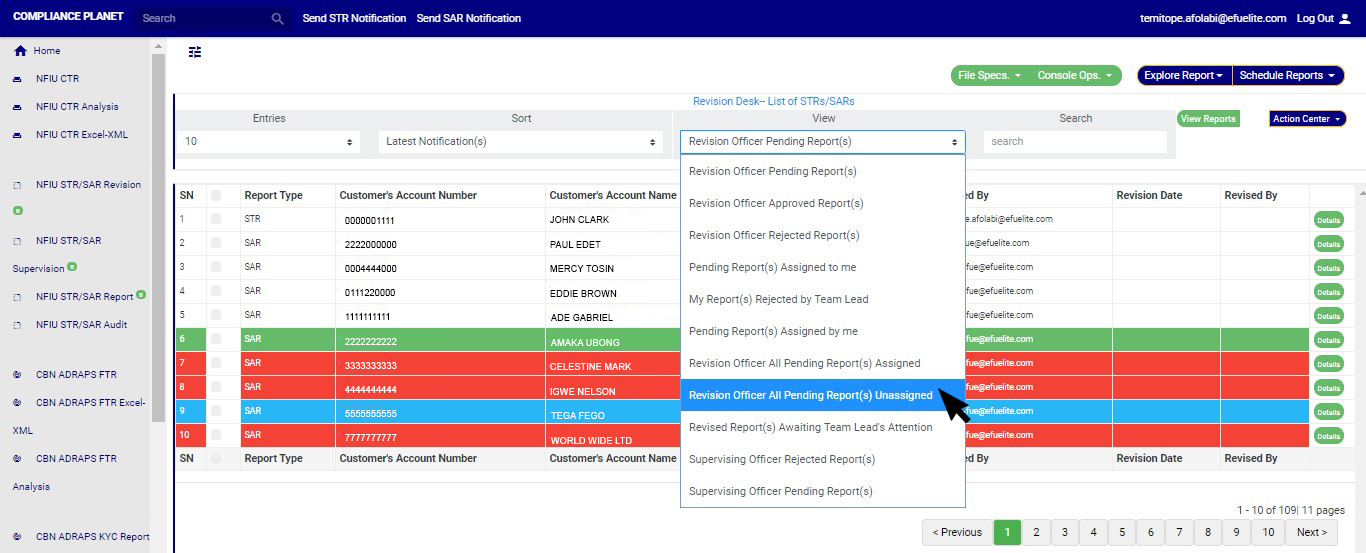
STEP 1:select ‘Revision Officer All Pending Notifications Unassigned’ on the VIEW box still on the revision page, then click on the “view report” button.

(fig. 6.3t)

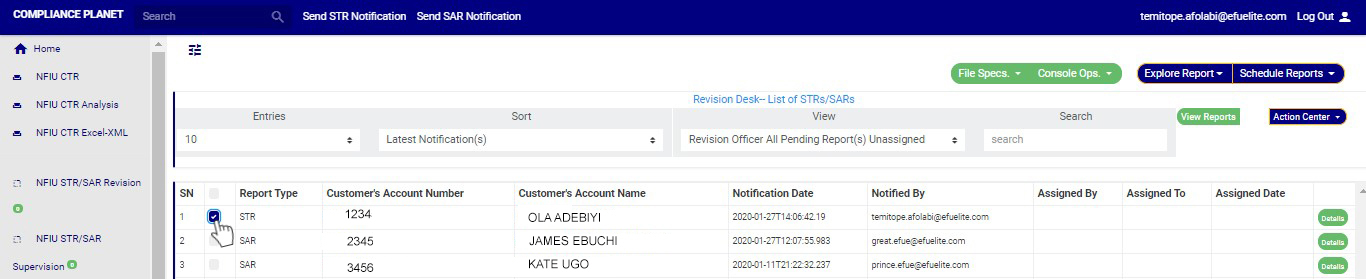
STEP 2: Click on the checkbox beside the report type to select the Notifications you want to assign. See an example in Fig 6.3u below

(fig. 6.3u)

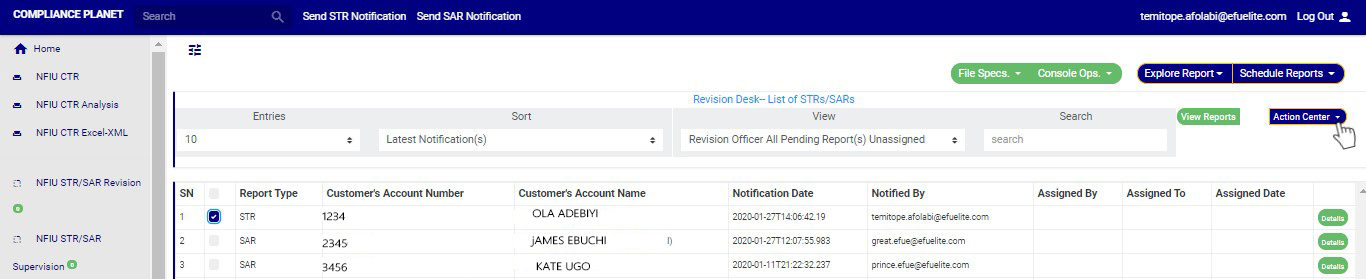
STEP 3: Click on the action center button as shown in in Fig 6.3v below

(fig. 6.3v)

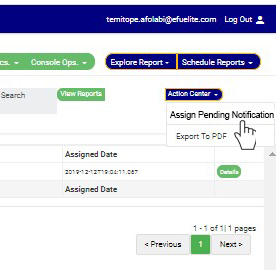
STEP 4: Click on “Assign Pending Notification” from the action center dropdown. See an example in Fig 6.3w below

(fig. 6.3w)

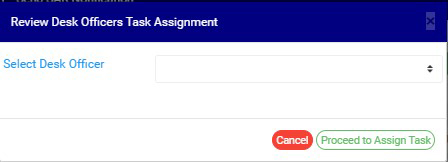
STEP 5: Clicking Assign Notification will display a “Review Desk Officers Task Assignment” console as shown below in fig 6.3 x below

(fig. 6.3x)

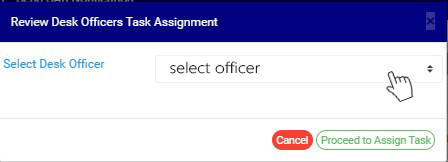
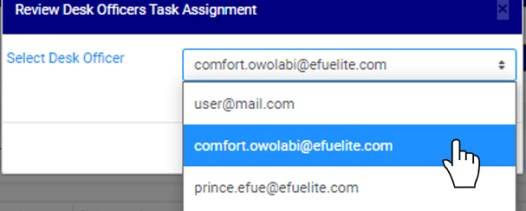
STEP 6: Select the officer you want to assign the notification. This is shown in fig 6.3y below

(fig. 6.3y)

44

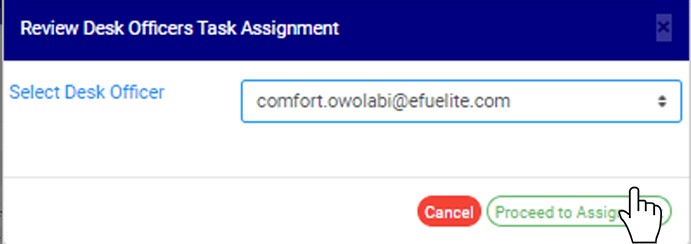
STEP 7: Click on “Proceed to Assign Task” to proceed or “cancel” to close the console and dismiss the operation.

44
(fig. 6.3z)

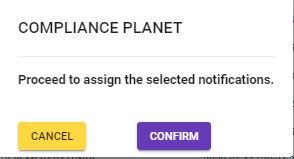
STEP 8: Clicking on “proceed to assign task” will display a console to confirm your selected action. See an example in Fig 6.3aa below. To proceed, click on CONFIRM and to dismiss the operation, click on CANCEL.

(fig. 6.3aa)


For further enquiries :
Tel +234(0) 816 555 9818
Email solutions@efuelite.com

How to Re-assign Suspicious Transaction /Activity Notification (STR/SAR) on Revision Desk In Compliance Planet Anti Money Laundering/Core Banking Finance Software

NOTE: This action can only be done by person(s) profiled as Team Lead 2

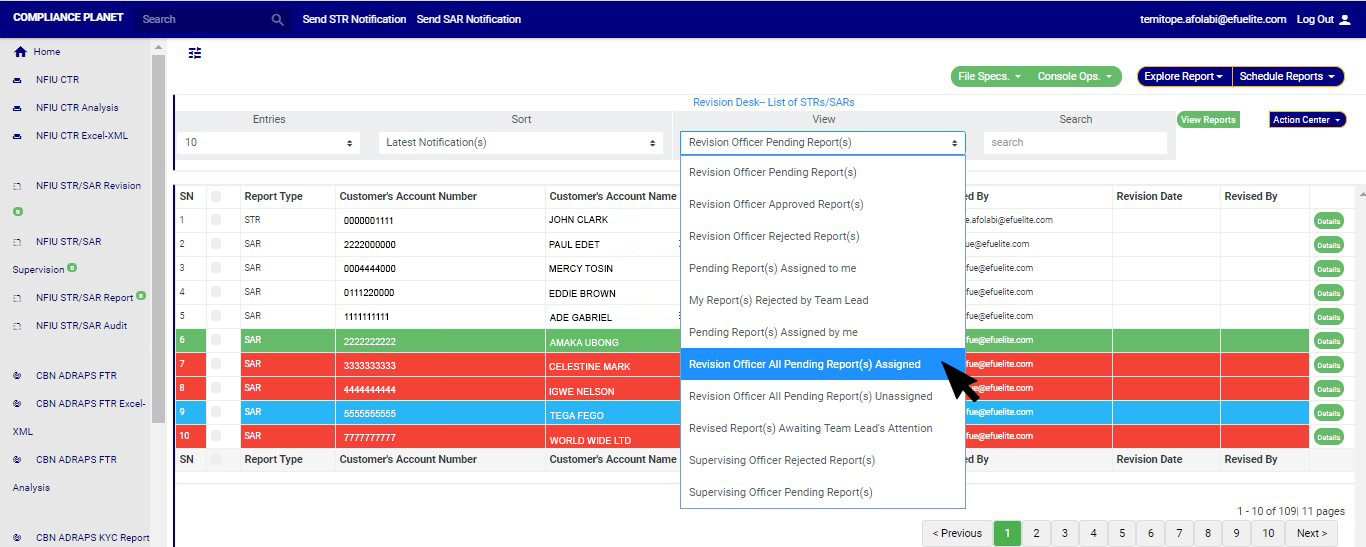
STEP 1: To re-assign notification(s) to any member on the revision desk team, go to the VIEW box still on the revision desk page; select ‘Revision Officer All Pending Notifications assigned’, then click on the “view report” button. See fig 6.3ab for an example.

(fig. 6.3ab)

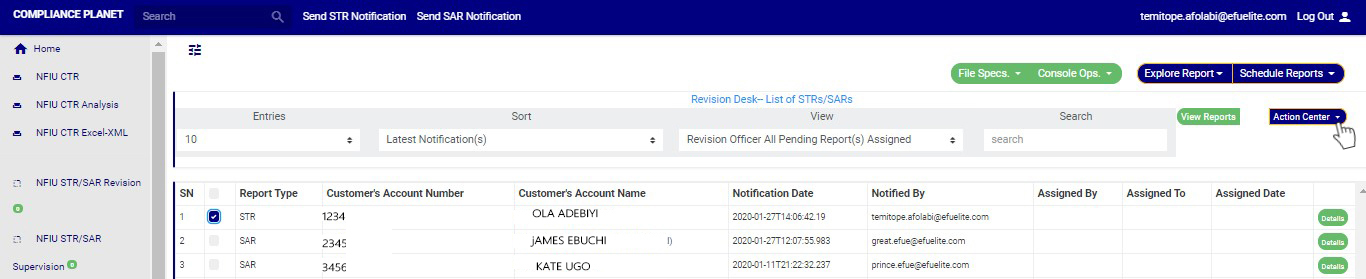
STEP 2: Click on the check boxes to select the notifications. See an example in Fig 6.3ac below

(fig. 6.3ac)

STEP 3: Click on the action center button as shown in in Fig 6.3ad below.

(fig. 6.3ad)

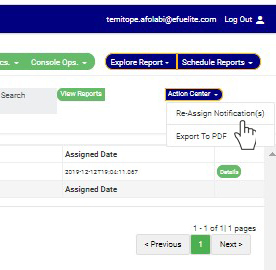
STEP 4: Click on “Re-Assign Notification” from the action center dropdown. See an example in Fig 6.3ae below

(fig. 6.3ae)

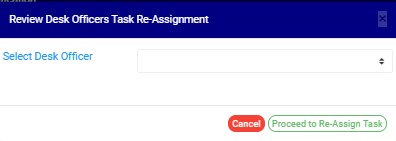
STEP 5: Clicking Re-Assign Notification will display a “Review Desk Officers Task Re-Assignment” console as shown below in fig 6.3af below

(fig. 6.3af)

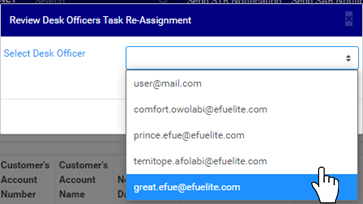
STEP 6: Select the officer you want to assign the notification and click on proceed to assign task. This is shown in fig 6.3ag below

(fig. 6.3ag)

6.3

STEP 7: Click on “Proceed to Re-assign Task” to procced or ‘cancel” to close the console and dismiss the operation. See an example in Fig 6.3ah below

6.3ah

(fig. 6.3ah)

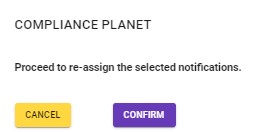
STEP 8: Clicking on “proceed to re-assign task” will display a console to confirm your selected action. See an example in Fig 6.3ai below. To proceed, click on CONFIRM and to dismiss the operation, click on CANCEL.

(fig. 6.3ai)
For further enquiries :
Tel +234(0) 816 555 9818
Email solutions@efuelite.com

Web http://solutions.efuelite.com

How to Revise Rejected Suspicious Transaction / Activity Notification (STR/SAR) In Compliance Planet Anti Money Laundering/Core Banking Finance Software

When an STR/SAR notification is rejected by the supervising officer, the notification can be revisited for re-processing by the revision officer. Below are steps on how to revise notifications that have been rejected by the supervising officer.

NOTE: You have to be profiled as a revision officer with rights to EDIT  to be able to carry out this operation.

➔ From the main dashboard and click on reports as in fig below

➔ From the left hand side menu click on “NFIU STR/SAR Revision”. See this feature in fig  below.

➔ Clicking on “NFIU STR/SAR Revision” will display a page as in fig. below.

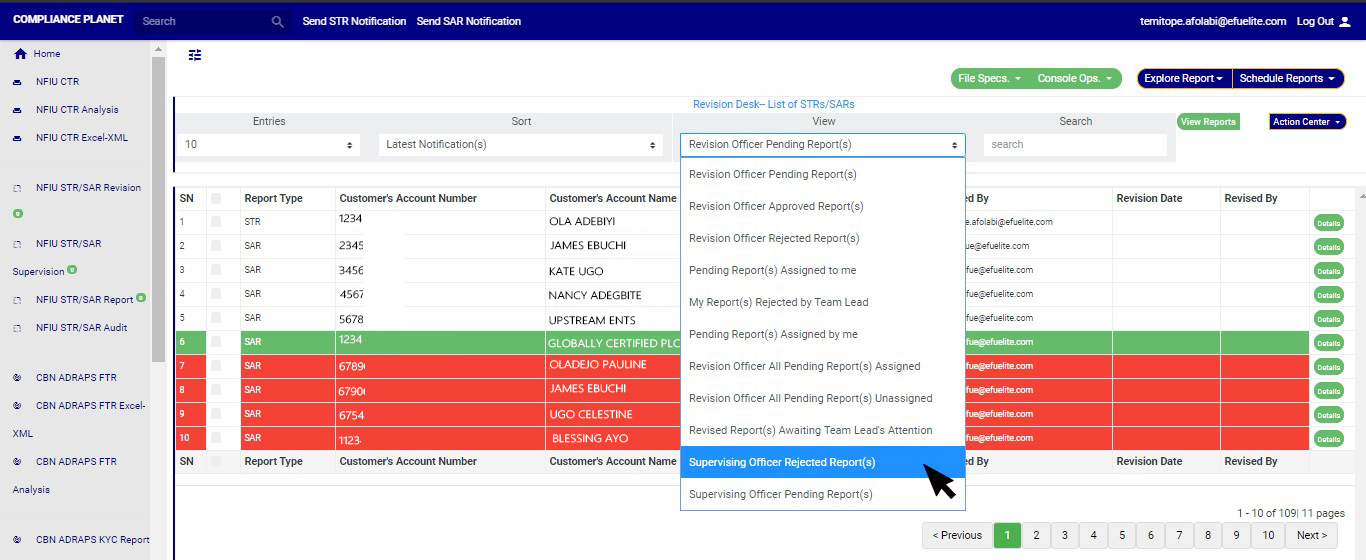
STEP 1: Go to the VIEW box still on the revision desk page, select ‘Supervising Officer Rejected Notification(s)’.

(fig. 6.3o)

STEP 2: Click on ‘VIEW REPORTS’ to see the Notifications as in fig. 6.3p below. On this page, the revision officer will be able to re-process Notification for approval again.

(fig. 6.3p)

➔ To see details of the STR notification, click on ‘DETAILS’. Every notification still undergoing processing has this button at the end of its row.

STEP 3: Clicking on the DETAILS button (as shown in fig 6.3p above) will display a console which allows you to revisit the Notification. See fig. 6.3q below for an example.

(fig. 6.3q)

STEP 4: Edit the details you want to change.  This means you can change the Reason for filing Notification, General information about transaction activity, Extra details, Action taken and reason to decline.

STEP 5: Click on REJECT or ACCEPT. This displays a console to confirm your selected action. Check that you are sure of your options before rejecting or accepting the notification as this step cannot be reversed once confirmed. See fig. 6.3r and 6.3s to see an example of confirmation console when you decide to ‘reject’ and when you choose to ‘accept’ respectively. To proceed, click on CONFIRM and to cancel the review, click on CANCEL.

(fig. 6.3r)

(fig. 6.3s)

For further enquiries :
Tel +234(0) 816 555 9818
Email solutions@efuelite.com

How to Revise Suspicious Transaction/Activity Notification (STR/SAR) In Compliance Planet Anti Money Laundering/Core Banking Finance Software

The STR/SAR notification goes straight to the REVISION DESK team lead(s) when successfully sent. It is the duty of the revision team lead(s) to assign notifications to revision officer(s) to review the notifications sent to the compliance team. Below are steps on how to review notifications sent to the compliance desk. Note that notifications attended to by team members will go to the team lead who can either accept or reject the team member’s decision (to accept or reject the notification). If a team member’s decision is rejected, the notification goes back to the team member to work on before it returns to the team lead. However, upon team lead’s approval the notification goes to the next desk i.e. supervision desk or revision desk (depending on the institution setting) NOTE; Only Person(s) profiled as ‘Revision Desk Officer’ can carry out these operations Below are steps on how to review notifications sent to the compliance desk. ➔ From the main dashboard and click on reports as in fig below STEP 1: From the left-hand side menu click on “NFIU STR/SAR Revision”. See this feature in fig. 6.3a below.(fig. 6.3a) ➔ Clicking on “NFIU STR/SAR Revision” will display a page as in fig. 6.3b below. (fig. 6.3b) ➔ The notification(s) highlighted “RED” indicates that it has not been viewed by anyone on the reporting desk. ➔ The notification(s) highlighted “GREEN” indicates that it has been viewed by you alone. ➔ The notification(s) highlighted “WHITE” indicates that it has been viewed by you and at least one other reporting officer(s) ➔ The notification(s) highlighted “BLUE” indicates that it has been viewed by other reporting officer(s) excluding you You can increase the number of notifications you want to see per page by clicking on the ENTRIES box. Pick any number of entries per page of your choice. See fig. 6.3c below for an example.(fig. 6.3c) ➔ You can sort the notifications by clicking on any of the column header, either by alphabetical order or from the latest to the earliest notifications or vice-versa as shown in Fig 6.3d above
(fig. 6.3d) ➔ Click on the VIEW box to see notifications classified according to the stage of processing they have gotten to. See fig. 6.3e for the classes of notifications available to a revision officer’s view. Select any of them.
1
(fig. 6.3e) As seen in fig. 6.3e above, the classes are;
  1. Revision Officer Pending Notification(s); these are notifications that have not been reviewed, i.e. they have not been attended to by a  revision officer. This is the default view of the revision desk.
  2. Revision Officer Approved Notification(s); these are notifications that have been reviewed by a revision officer and approved by the revision desk team lead. These notifications will be forwarded to the supervising officer for further processing. Once a Notification is reviewed and approved, it joins the supervising officer pending Notification(s) list for further approval.
  3. Revision Officer Rejected Notification(s); these are notifications that have been reviewed but rejected by team lead.
  4. Pending Notifications Assigned to me; these are notifications that are assigned to you (a revision officer) by the revision desk team lead and are yet to be reviewed or treated by you.
  5. My Notification(s) rejected by team lead; these are notifications that have been reviewed by you but not satisfactory to the revision desk team lead.
  6. Pending Notification(s) assigned by me; these are notifications that you (i.e. if you are profiled as either team lead 1 or 2) assigned to other revision officers in your team and are yet to be treated or attended to. In this case you are the team lead.
  7. Revision Officer All Pending Notification(s) Assigned; these are the notifications that have been assigned to a revision officer (or team member) by the team lead but are yet to be attended to.
  8. Revision Officer All Pending Notification(s) Unassigned; these are the Notifications are yet to be assigned to any revision officer (or team member) by the revision desk team lead.
  9. Revised Notification awaiting team lead’s attention; these are notifications that have been attended to by a revision desk team member but is yet to be reviewed or treated by the team lead.
  10. Supervising Officer Rejected Notification(s); these are notifications that have been reviewed by revision officer and sent to supervising officer for further processing but were rejected by the supervising officer.
  11. Supervising Officer Pending Notification(s); these are notifications that have been approved by revision team lead and await the supervising officer’s treatment.
➔ After selecting the class of Notification(s) from the VIEW box, Click on the view reports button to view the notification(s) from any of the selected class. This button is at the top-right corner of the page. See this in Fig6.3f below
(fig. 6.3f) ➔ Also, you can search for a particular notification by typing in the customer’s name or account number concerned in the search box. The planet will make the search immediately. See fig. 6.3g for an example of a search.
(fig. 6.3g) STEP 2: Select notification to be reviewed from the ‘REVISION OFFICER PENDING NOTIFICATION(S) list by clicking on the details button at the end of the notification row. NOTE: If you are not profiled as a Team Lead 1 or Team Lead 2 on Revision desk; all notifications revised by you will be forwarded to a Team Lead 1 or Team Lead 2 on revision desk for higher level approval. If the Team Lead 1 or Team Lead 2 approves, then it proceeds to the next higher desk. If the Team Lead 1 or Team Lead 2 rejects, then it is returned to you for your re-evaluation.
(fig. 6.3h) STEP 3: By clicking on ‘DETAILS’, a console will be displayed as in fig. 6.3i.
(fig. 6.3i) STEP 4: Click on the ‘Reason for Filing Suspicious Transaction Notification’ box to state your reason(s) for approving the notification. This step is compulsory if you want to accept the notification. See an example in fig. 6.3j below.
(fig. 6.3j) STEP 5: Click on “Extra Details” box to enter in other comment. STEP 6: Click on “Action Taken” box to enter in action(s) taken concerning the suspicion filed. See an example in fig. 6.3k below (Note that this field is mandatory if you want to accept the notification).
(Fig. 6.3k) STEP 7: Click on ‘Reason to Decline’ box (if you want to reject the notification) to enter in comments. This step is mandatory if you want to reject the notification. See fig. 6.3l for an example.
(fig. 6.3l) STEP 8: Click on REJECT or ACCEPT. A confirmation console will be displayed to confirm your selected action. Check that you are sure of your options before rejecting or accepting the notification as this step cannot be reversed once confirmed. See fig. 6.3m and 6.3n to see a confirmation console when you decide to ‘reject’ and when you choose to ‘accept’ respectively. To proceed, click on CONFIRM and to cancel the review, click on CANCEL. (fig. 6.3m)
(fig. 6.3n) ➔ Irrespective of the decision you make to accept or reject the notification, the software will display a notification  at the top of the page.
For further enquiries :
Tel +234(0) 816 555 9818
Email solutions@efuelite.com
Web http://solutions.efuelite.com

How to Send SAR Notification to your institution’s compliance Team In Compliance Planet Anti Money Laundering/Core Banking Finance Software

The ‘notification’ section of the STR/SAR on the planet handles the instant notification of the compliance team of a bank, upon the identification of a suspicious transaction or activity. Follow the following steps to send a STR Notification

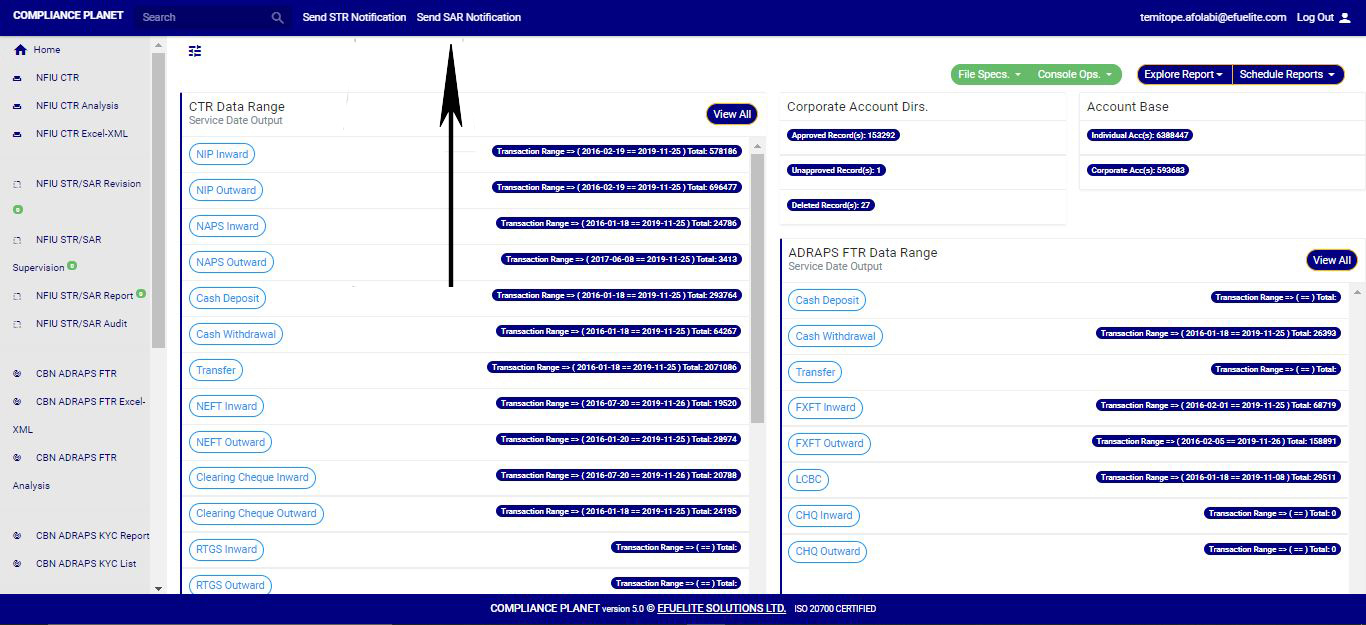
STEP 1: Click ‘Send SAR notifications’ as in fig. 6.2.2a below.(Fig 6.2.2a)

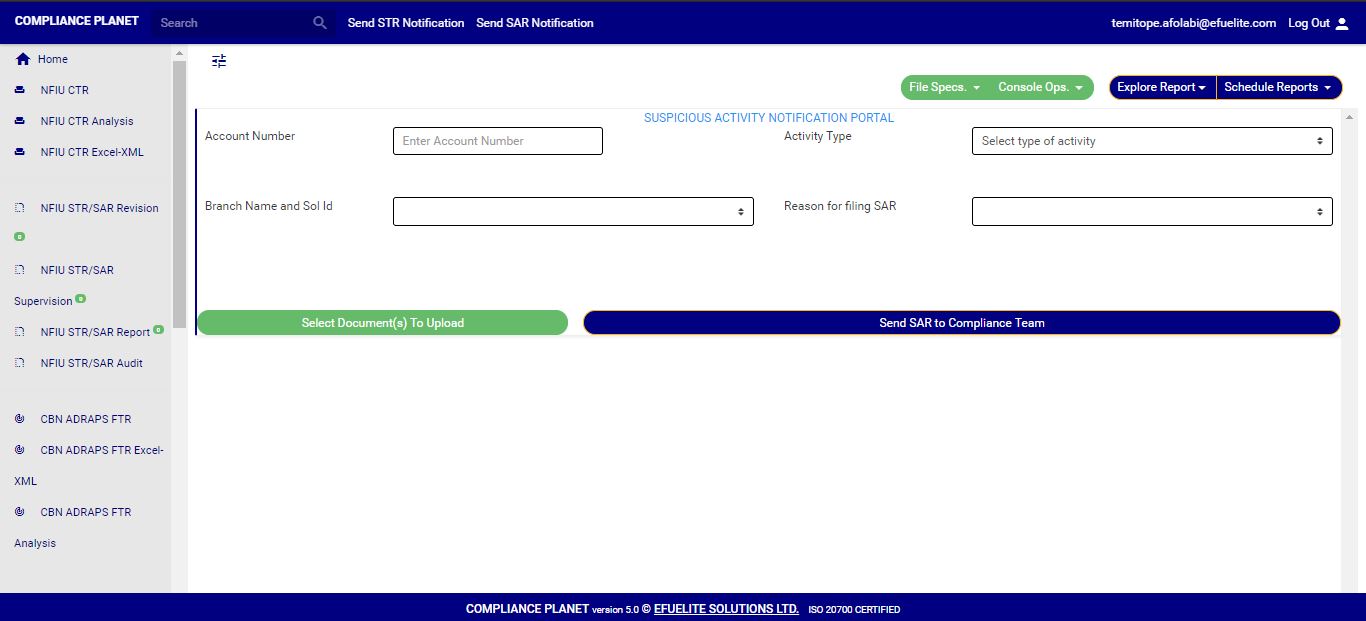
➔ Clicking on ‘SEND SAR NOTIFICATIONS’ will display a console as in fig. 6.2.2b below

(Fig 6.2.2b)

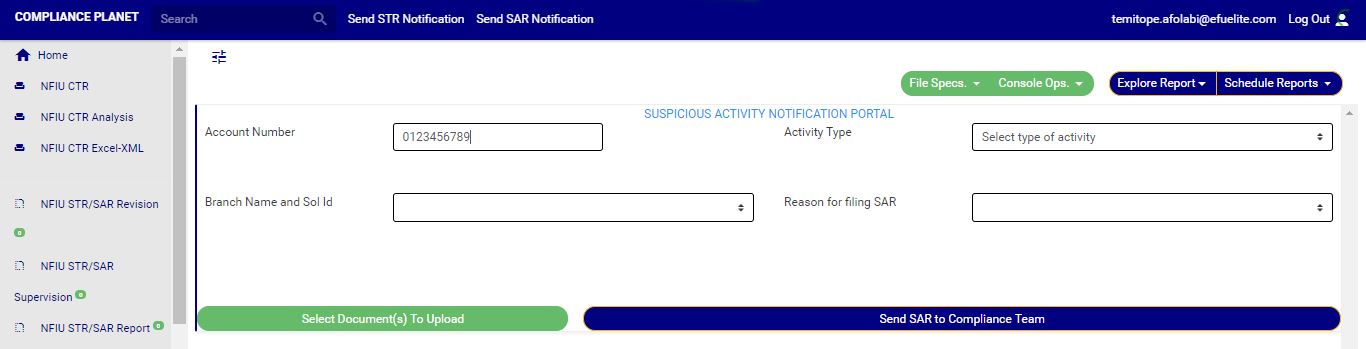
STEP 2: Type in the Account number involved in the activity. See an instance in fig. 6.2.1c. Kindly note th­at the account number must be valid.(Fig 6.2.2c)

STEP 3: Fill in all other information about the activity in the editor provided on the console. See an example in fig. 6.2.2d

(Fig6.2.2d)

STEP 4: Click on “Select Document(s) to Upload” button to add supporting documents to the SAR notification as shown in Fig.6.2.2e below(Fig 6.2.2e)

➔ Click on ‘SEND SAR TO COMPLIANCE TEAM’ to send the information to compliance desk. This button is at the bottom-right corner of the console. Check out this button in fig. 6.2.2e above.

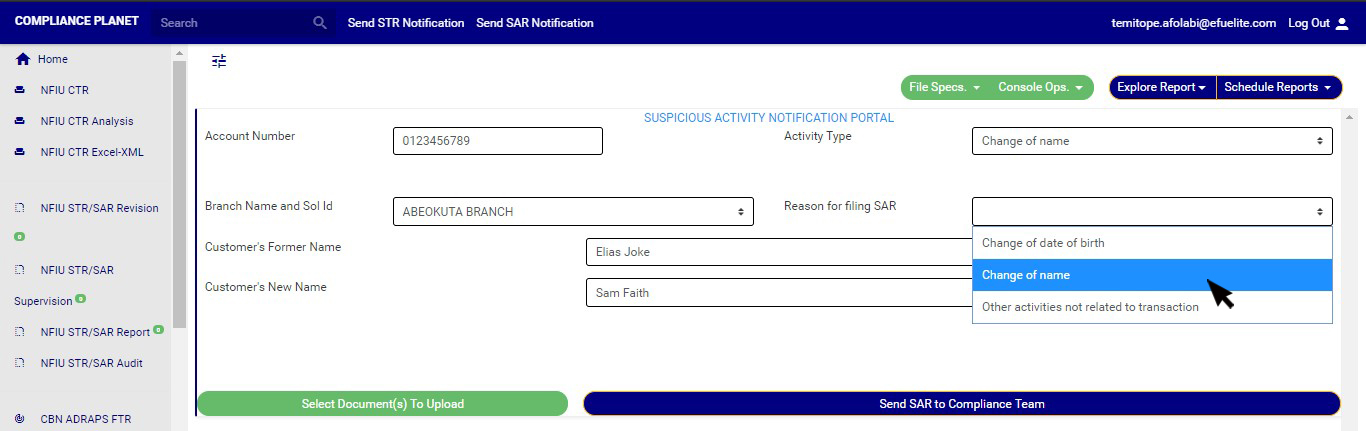
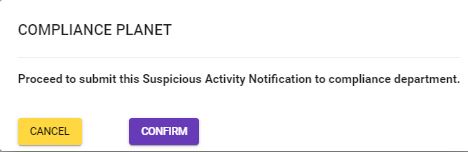
➔ A confirmation console will be displayed when you click on ‘SEND SAR TO COMPLIANCE TEAM’. Click on CONFIRM to proceed or click on Cancel to go back to the notification console.

(fig. 6.2.2f)

For further enquiries : 
Tel +234(0) 816 555 9818
Email solutions@efuelite.com 
Web http://solutions.efuelite.com